
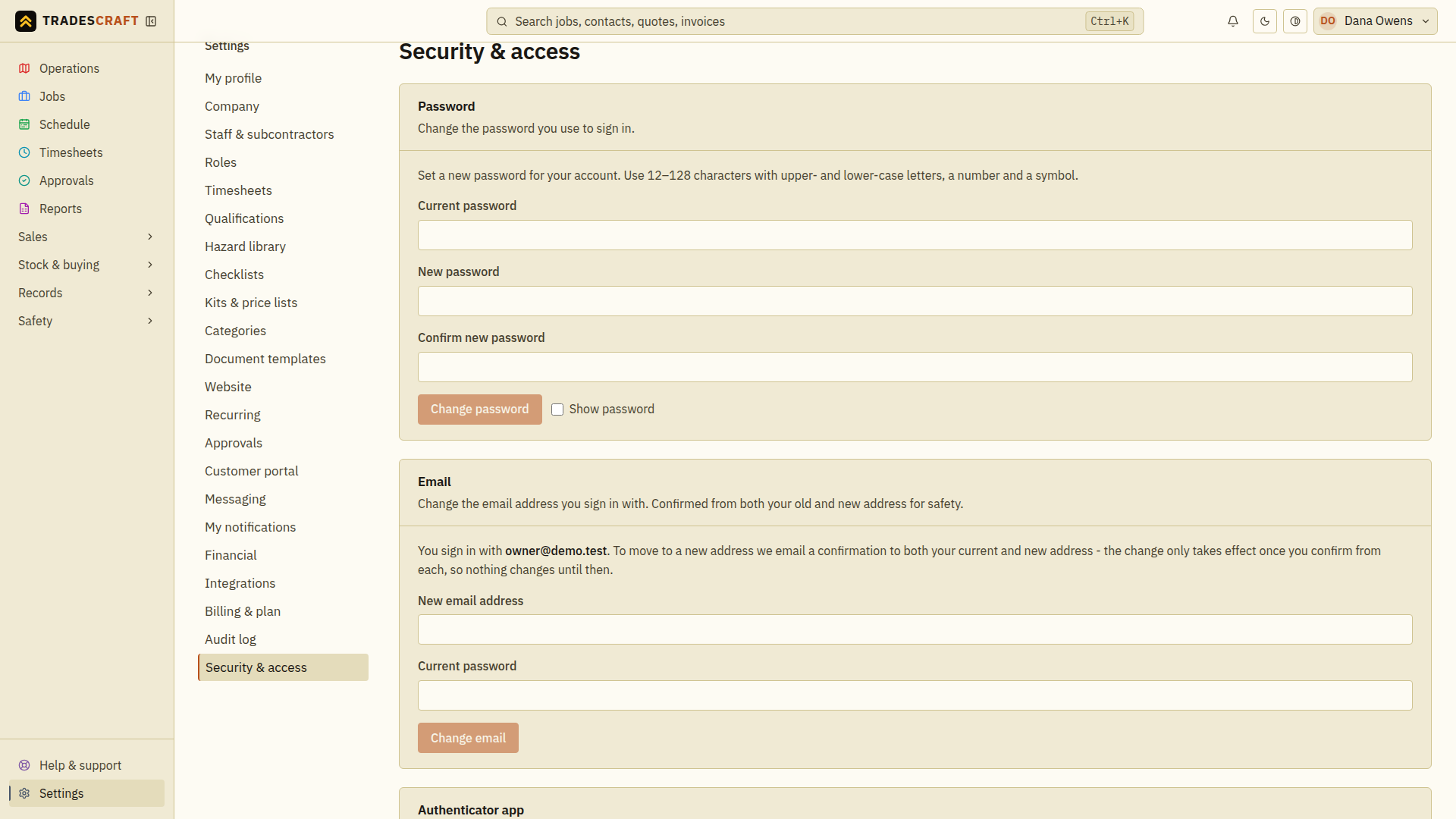
You can change your password any time from Settings → Security & access, in the Password section at the top.
Step by step
- Open Settings → Security & access.
- In Password, enter your current password (this proves it's you).
- Enter a new password of 12–128 characters, including upper- and lower-case letters, a number and a symbol. All four are required.
- Confirm the new password by typing it again.
- Tap Change password.
Use the Show password button beside a password field to check what you typed. Wait for the success message before using the new password on another device.
Good to know
- Changing your password signs out your other devices. The one you're on stays signed in; everywhere else you'll need to sign in again with the new password. That's deliberate - it's how you lock out anyone who shouldn't be there.
- Forgot your current password? You can't change it here without it - instead sign out and use Forgot password? on the sign-in screen to reset it by email. See Signing in.
- Want to make your account harder to break into? Add two-factor sign-in as well.