
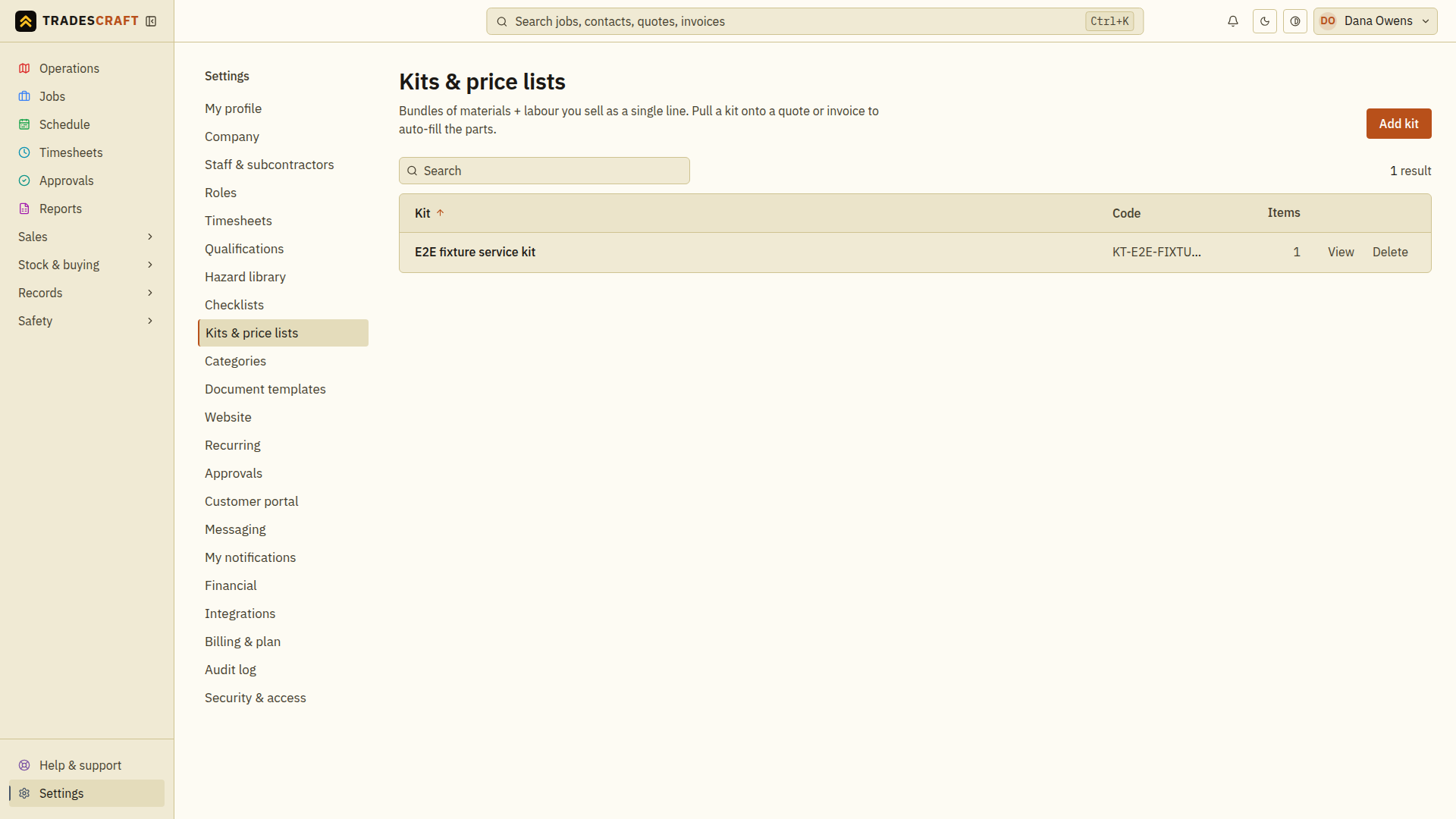
A kit is a saved bundle of inventory items - the materials and the labour - that you use together for a common job, like a hot-water swap or a tap replacement. Add the kit to a quote or invoice and every line comes in at once. Open it from Settings → Kits & price lists.
Building a kit
Tap Add kit (or Build first kit if it's your first). You'll fill in:
- Name (required) - what the kit is, e.g. "Hot-water swap, gas".
- Code (required) - a short code you'll recognise, e.g.
KT-HW-GAS. It's auto-capitalised. - Description - optional notes (rich text).
Then under Materials, add a row per item: pick the inventory item, set the quantity, and (if you want) add a few extra detail lines that carry onto the quote/invoice. Add item for each part. Tap Create kit to save.
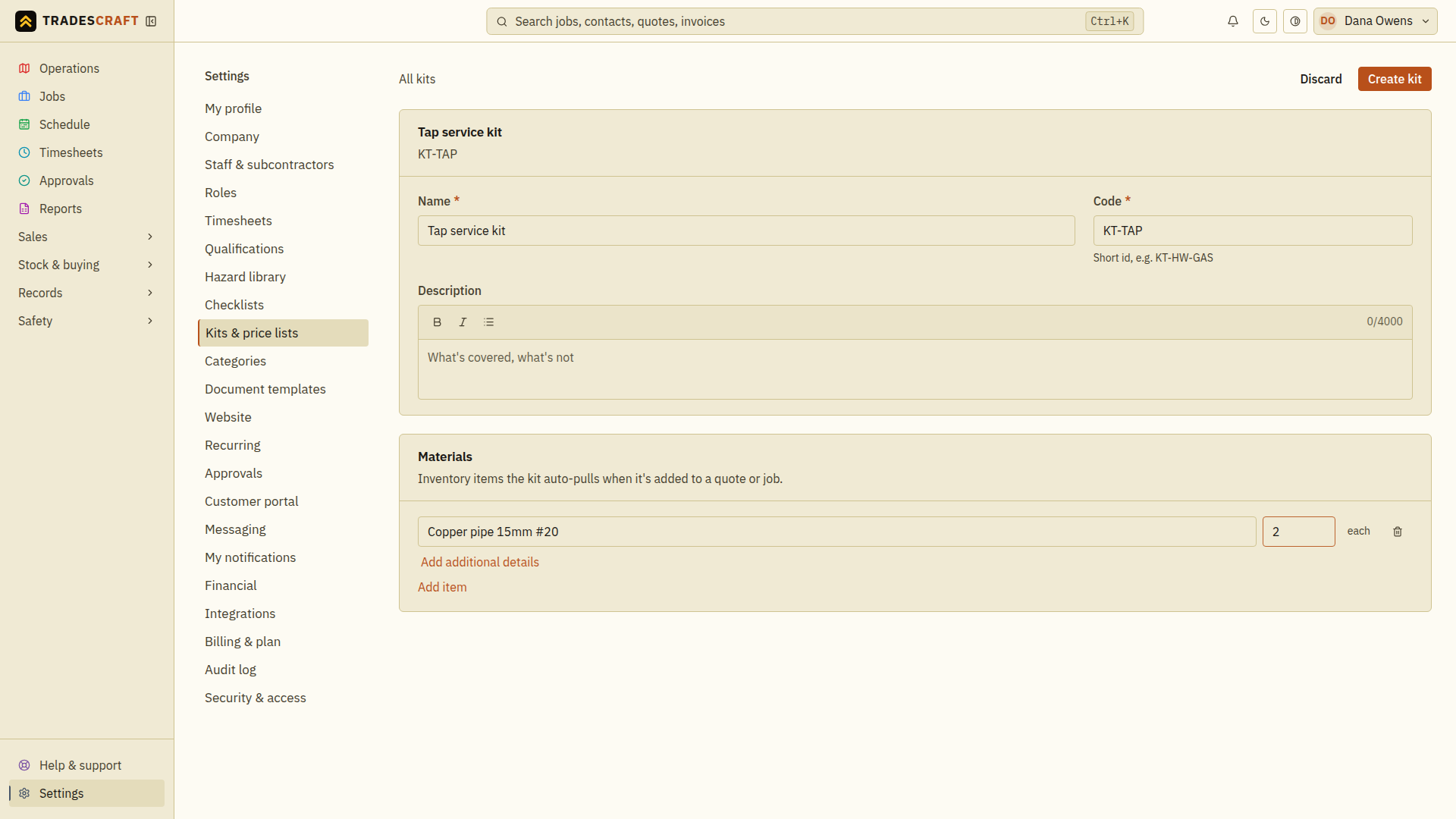
Enter a quantity greater than zero for each item you include. If you add an extra detail row, fill it in or remove the empty row before saving.
Change or delete a kit
- Open the kit from the list and choose Edit.
- Change its details, materials or quantities, then choose Save changes.
- Reopen the kit and check the saved contents before using it again.
To remove a kit from the list, choose Delete in its editor and read the confirmation before deleting it. Check any quotes and invoices separately: they keep the lines already copied into them, including their saved prices.
Using a kit on a quote or invoice
On a quote or invoice, tap Apply kit, pick the kit, then tick the items you want (it even shows you what's in stock and where - van, warehouse). Apply to record drops the lines in at each item's current price, which the quote then locks in.
You can also work the other way: on a finished quote, Save as kit turns its stocked parts into a new kit for next time.
Good to know
- If a part is later archived in your inventory, it stays in the kit but is flagged - it won't be quoted from going forward, so swap it for the replacement.
- Kits are great for the jobs you do most: they turn adding ten parts into a single tap, and keep your pricing consistent.
Check the applied lines before saving
After Create kit, reopen it and check the item codes and quantities. On the quote or invoice, review the lines added by Apply to record: quantity, current selling price, tax treatment and any additional details. Then save the quote or invoice itself. Applying a kit to an unsaved form is not a completed document.
If an expected part is missing or archived, correct the kit or choose its replacement before quoting. Do not apply the kit a second time just to add one missing part; that can duplicate the lines already on the document.