
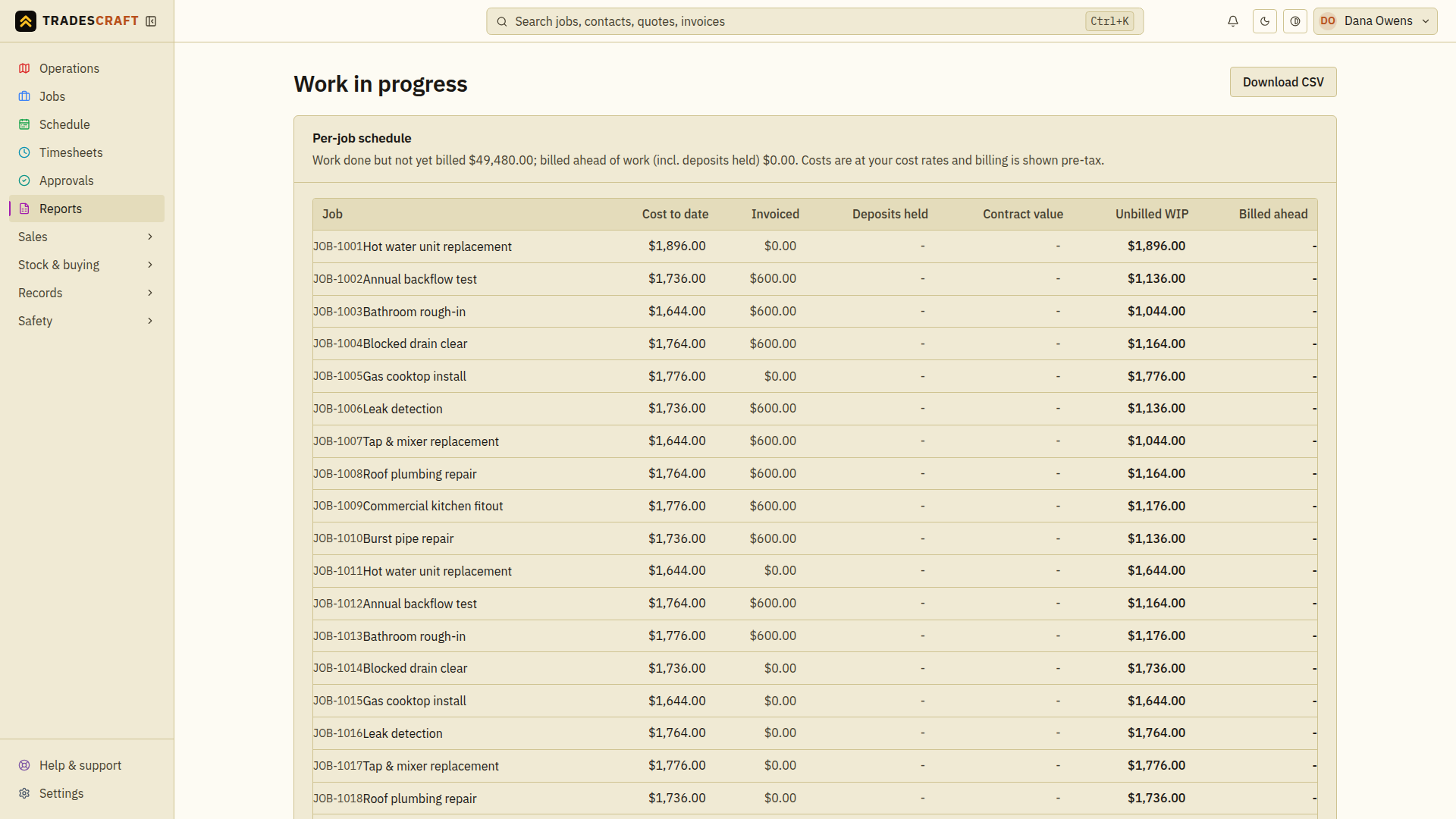
Work in progress is the money tied up in jobs that are underway - time and materials logged but not yet invoiced. It's the gap between "we've done the work" and "we've sent the bill". Open it from Reports → Work in progress.
What's on it
- Each live job with its logged costs (hours + materials) and what's been billed, so you can see what's ready to invoice.
- The total WIP across the business - useful for cash-flow planning and for spotting jobs that have run on without being billed.
Tips
- Cost to date uses your cost rates; billing is shown before tax. Unbilled work in progress helps you spot jobs to review. Do not copy that figure straight onto an invoice; check the price agreed with the customer first.
- Open a job from the list, check its agreed price, completed work, deposits and previous invoices, then raise the appropriate invoice or progress claim.
- Use Download CSV to save a spreadsheet file you can share with your accountant.
- If your trial or subscription has ended, this report and its CSV download stay available. You can view and download the figures, but you will need to subscribe before changing jobs or raising invoices.
Review work that may be ready to bill
- Open Reports → Work in progress and review the jobs with unbilled work.
- Open a job to compare its cost to date with the agreed scope, completed work, deposits and earlier invoices. Resolve missing time or materials first.
- When billing is appropriate, use the job's invoice or progress-claim action and check the draft lines and selling price before sending it.
- Return to the report after saving and check the job's billing figures. Use Download CSV if you need to retain the report for this review.
A positive WIP figure alone does not confirm that the customer has agreed to that charge or that the work is ready to invoice.