
Your company details flow onto every quote, invoice and your public website, and your head office sets where "home" is on the Operations map. Open it from Settings → Company. Editing company details needs settings access (admin); changing the logo is admin-only.
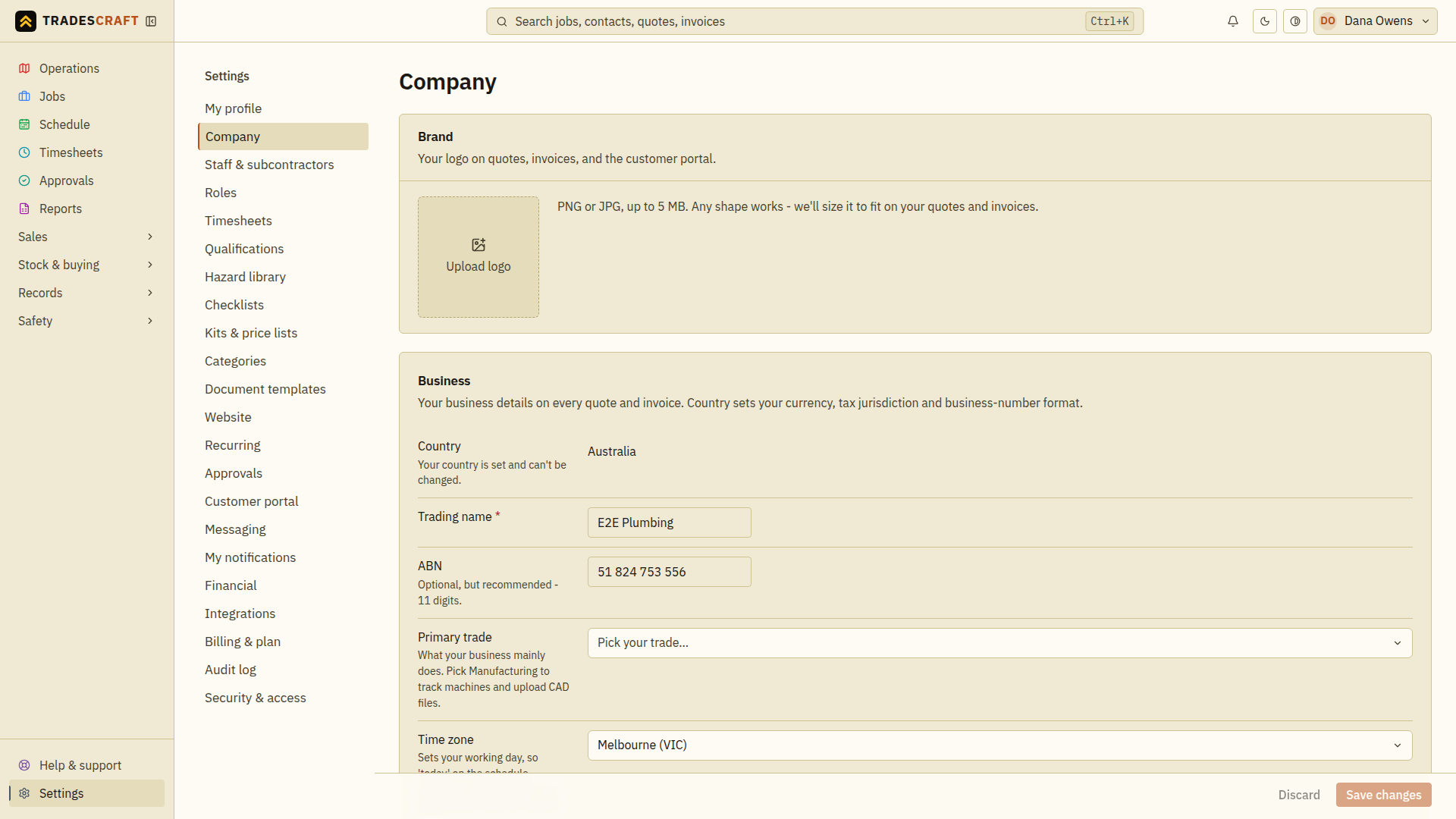
Brand (your logo)
Upload your logo - drag a file onto the swatch or click to pick one. PNG or JPG, up to 5 MB, any shape. Once set you can Replace or Remove it. The logo appears on your invoices, quotes and website, so it's worth adding early - it's what makes your documents look professional. (Only an admin can change the logo.)
Business
- Country - Australia, New Zealand or the United States. This drives your currency, tax handling and whether you use an ABN, NZBN or EIN. A US business must also choose its State from the dropdown immediately below Country. Country is set once: Tradescraft asks you to confirm and then locks it, because changing a business's country later would break past money records.
- Trading name (required) - the name shown on everything you send.
- ABN (11 digits, AU), NZBN (13 digits, NZ), or EIN (9 digits, US) - optional, validated, and printed on your documents.
- Primary trade - your main trade. Picking a manufacturing trade unlocks the Machines menu and CAD uploads.
- Time zone - drives "today", your recurring jobs and the times in appointment messages. Leave it blank to use your country's default.
Contact
Your business email, phone and website - the contact details that appear on documents and (if you turn it on) your public site.
Address - your head office
This sets the address printed on your invoices and the "home base" dot on the Operations map (dispatch measures travel from here).
- Look up an address with the search box, or tap Pick on map to drop the pin exactly. Either way it fills in the street, suburb, state/region, postcode and the precise location.
- You can also fill the fields by hand: location name (e.g. "Head office"), location phone, street, suburb, city/town, state (AU) or region (NZ), state (US), postcode/ZIP code, and the latitude/longitude pin.
Add your head office early so the map is useful from day one.
Save
Tap Save changes - it's greyed out until you change something, and Discard puts the page back as you found it. Tradescraft saves your brand, contact, time zone and head office together (geocoding the address if you didn't drop a pin), and - only the first time - locks in your country.
Before changing anything, Tradescraft verifies the business's current country. If that check is temporarily unavailable, the save stops before updating the time zone, brand or head office. This prevents a partial save or accidentally locking the wrong country; retry when the service is available.
Check the saved business identity
After the save succeeds, reopen Settings and compare the company card with the details you entered. Check the country, business number, contact details and head-office address. Open Operations to check that HQ is in the intended location, and preview a document before sending it with the new branding.
If a business-number or address field is rejected, correct the indicated field and save again. Uploading a logo and saving company fields have separate results; wait for the upload to finish and check the logo as well.