
Start a new item
From Stock & buying → Inventory, tap New item.
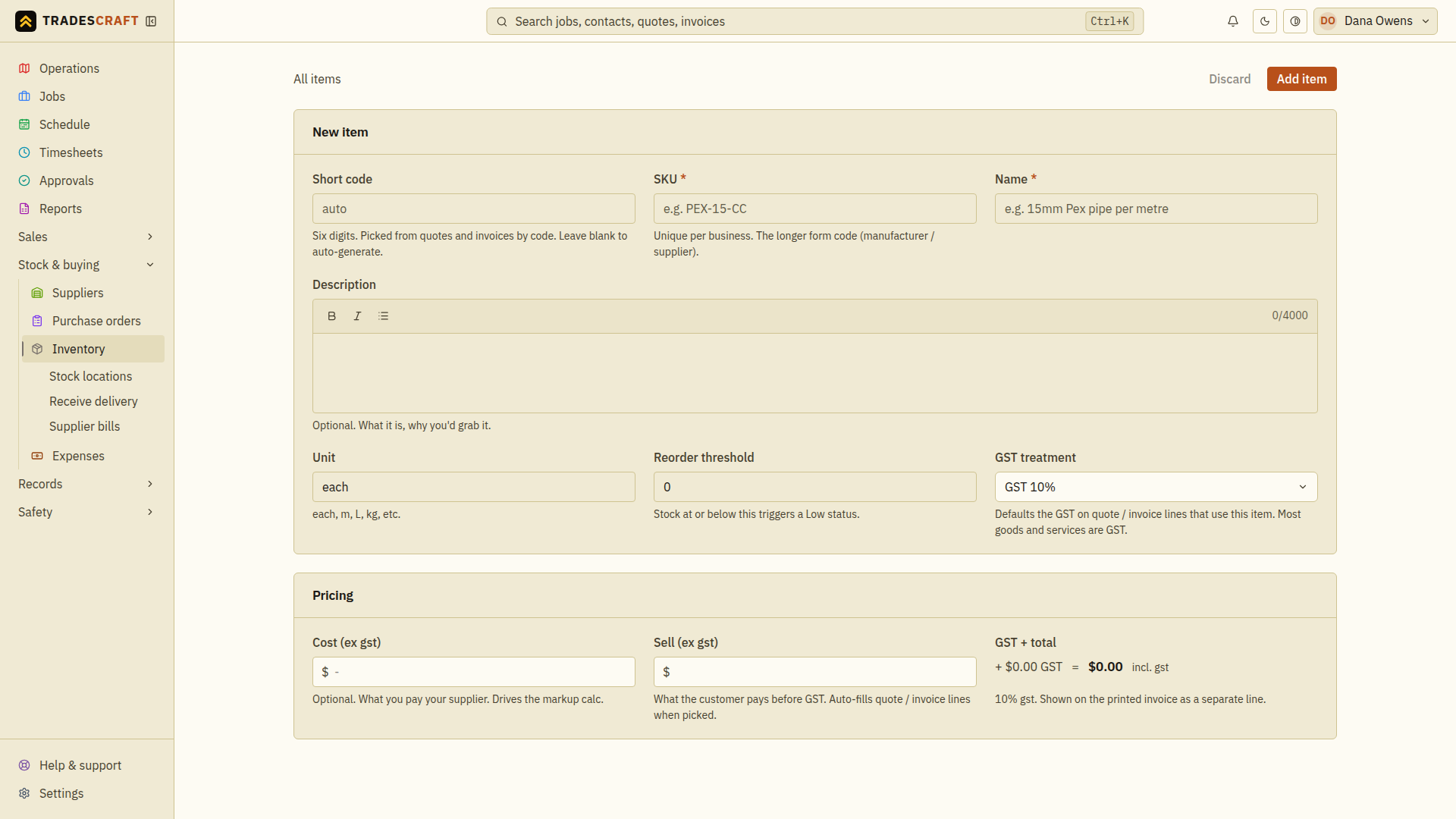
Fill in the details
The item:
- SKU (required) - the long code you and your supplier use (e.g.
PEX-15-CC). - Short code - an optional six-digit code you can pick the item by on quotes and invoices. Leave it blank and Tradescraft generates one.
- Name and description - what it is.
- Unit - how you count it (each, m, L, kg…).
- Reorder threshold - stock at or below this is flagged Low.
- Tax treatment - AU/NZ choose the GST default. US accounts choose whether the item defaults to Taxable, Exempt or Not subject to sales tax when it is used on a quote or invoice.
Pricing: enter your cost and either type a markup % (or tap a preset) or type the sell price directly. Tradescraft shows the country-appropriate tax, tax-inclusive total and your margin live as you type. In the US, cost and sell are shown pre-tax and taxable items use your saved combined sales-tax rate.
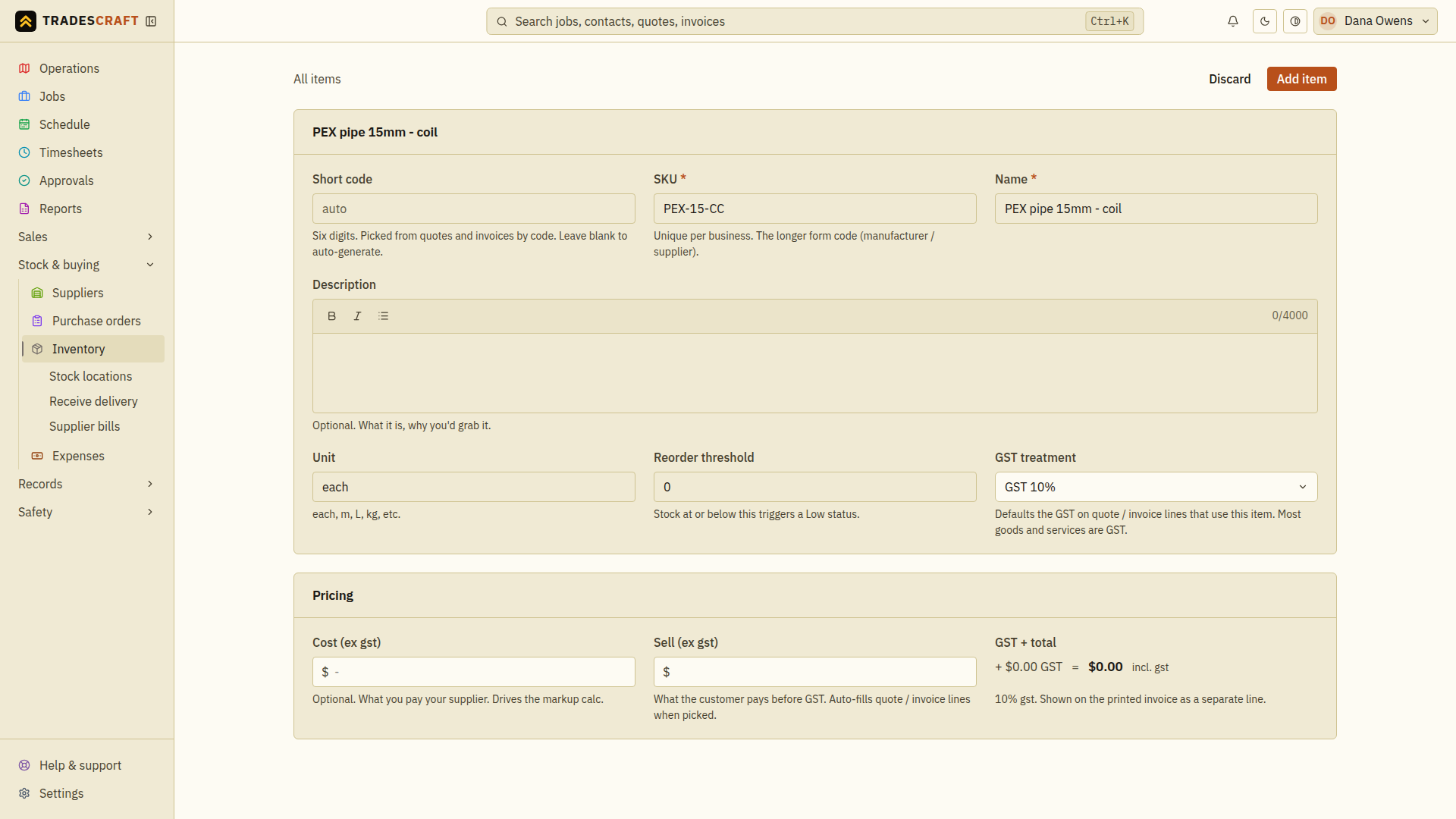
Tap Add item to save it.
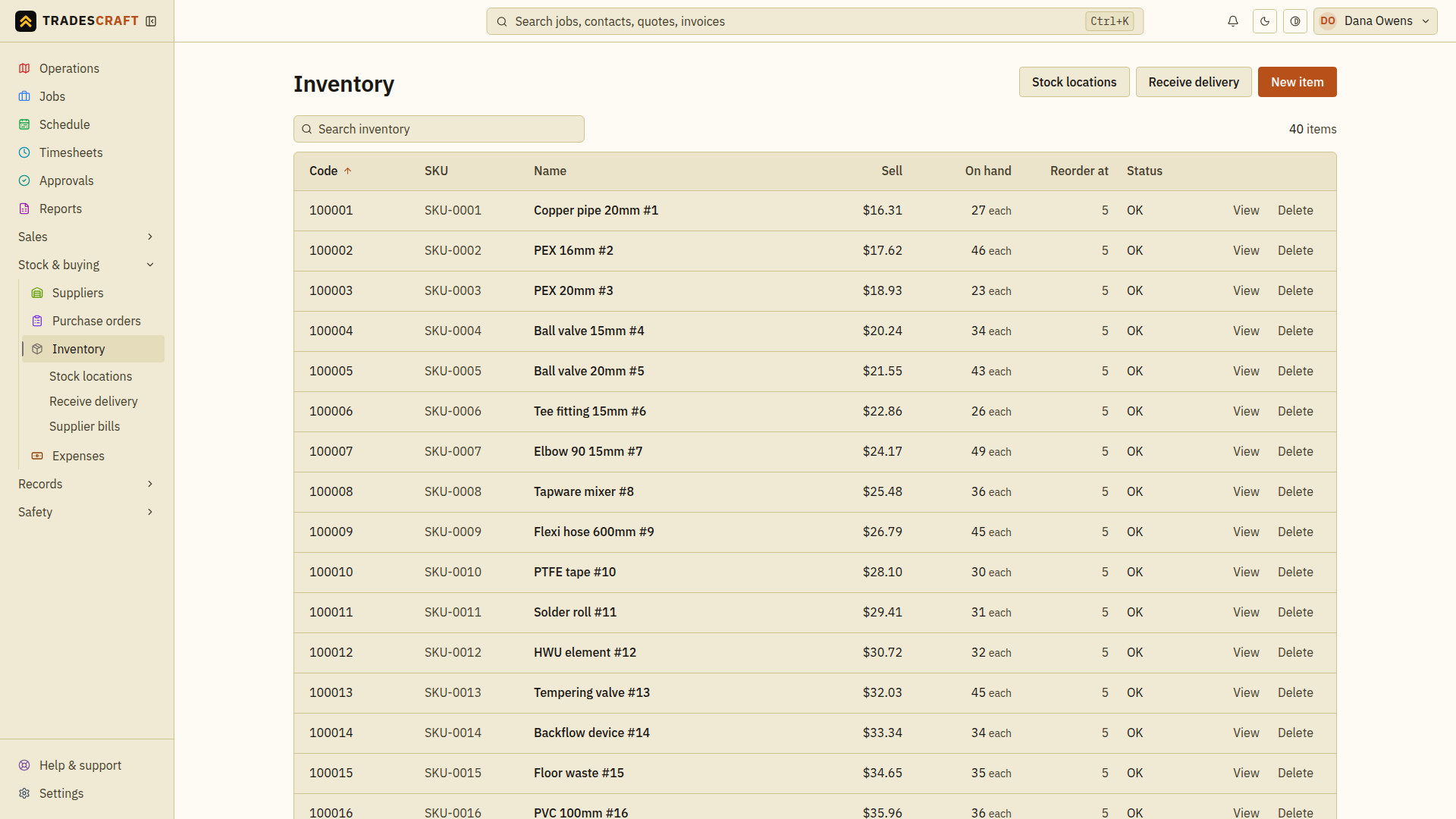
It's in your list
The item joins your inventory list, ready to receive stock against and to pull onto quotes, jobs and invoices by its code.
Check what you saved
After Add item, search the inventory list by the SKU you entered and open the item. Check its unit, tax treatment, cost and sell price before using it on a quote. Adding an item creates its catalogue record; receive its physical stock separately. If the SKU is already used, open the existing item or choose the correct unique SKU instead of creating a duplicate.