
Open the invite form
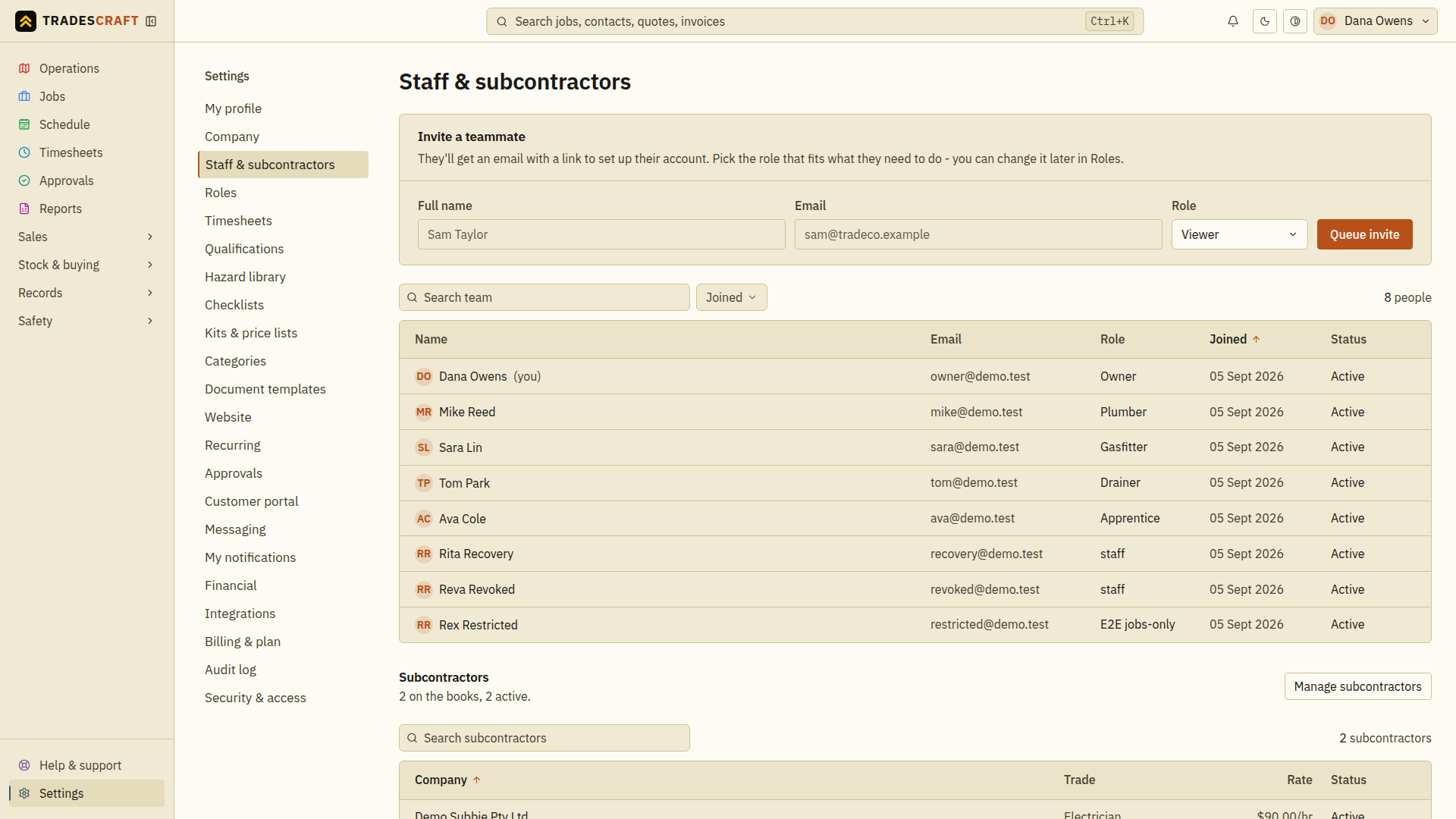
From Settings → Staff & subcontractors, find the Invite a teammate panel at the top of the page.
Enter their details and role
- Full name and email - the email is how they sign in.
- Role - this sets their permissions. Pick the one that fits what they do (an Apprentice sees less than the boss). You can change their access later from their staff record; manage custom roles under Settings → Roles, and only an Owner can grant the Owner role.
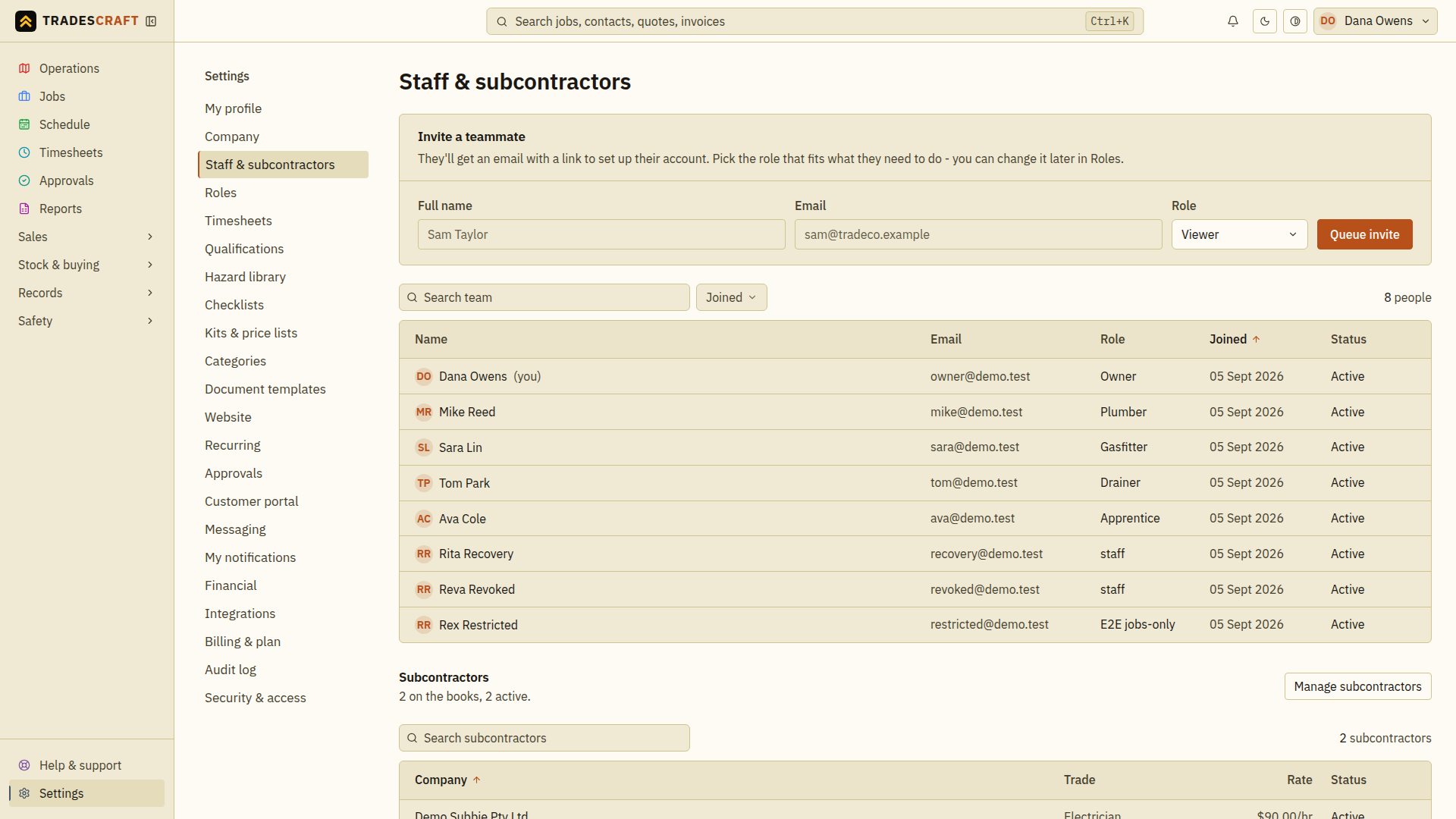
Tap Send invite and read the result before sending another invitation. The teammate must receive and follow their invitation to finish joining; a row in your team list alone does not prove the email reached their inbox.
They join your team
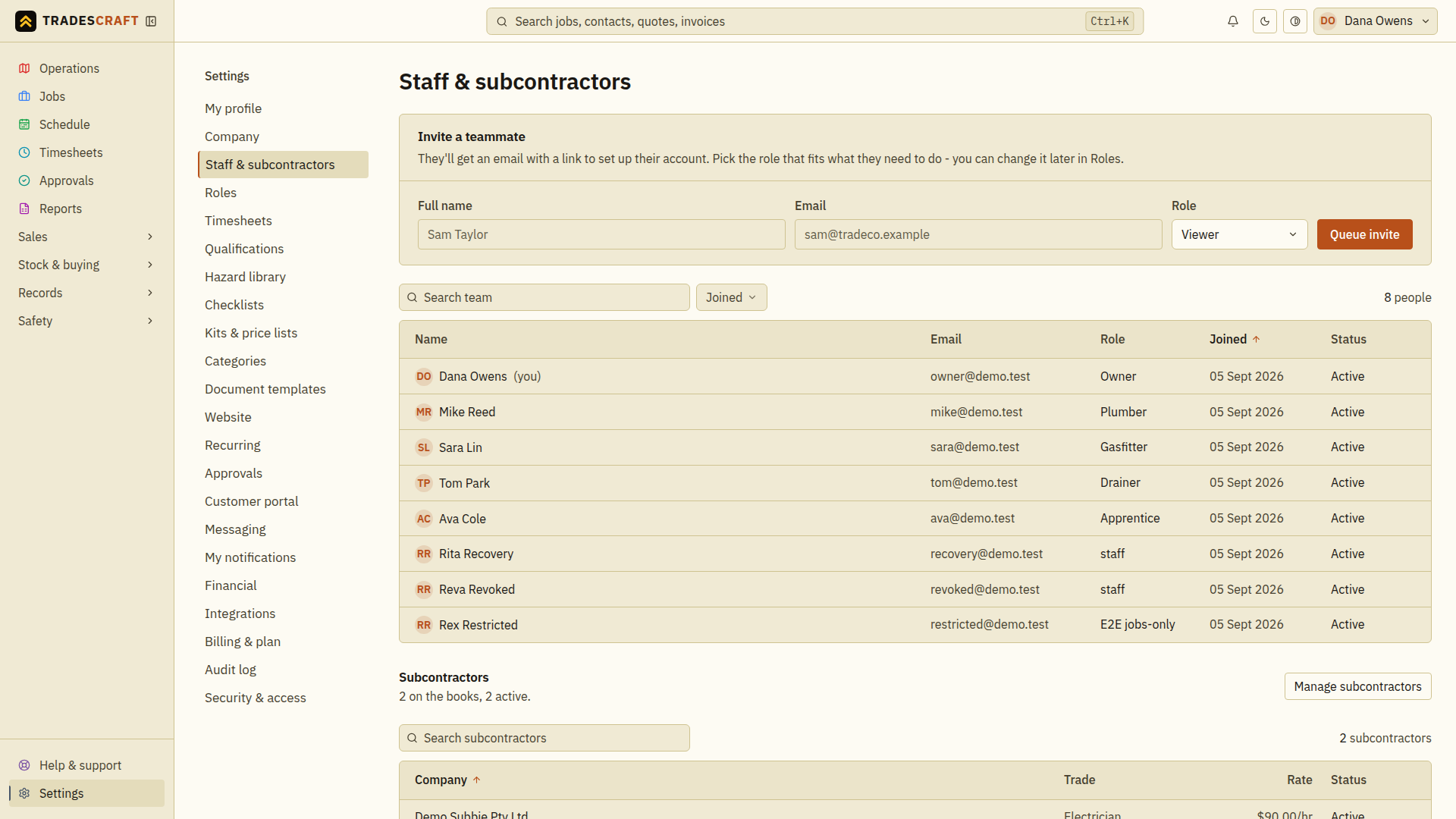
The new teammate appears in your team list. Once they're in, you can assign them to jobs and book them on the schedule - each person carries the role that decides what they can see and do.
Tips
- In AU/NZ, set qualifications (licences, tickets) on a worker so the dispatch check can show missing or expired requirements. It blocks only when the business has turned on the Compliance setting. This AU/NZ qualifications workflow is absent for US accounts.
If the invitation has not arrived
Check the email on the teammate's record and ask them to check spam. If the page reports a delivery failure, follow that message before retrying. If they already have a login, they should use the invited address and follow the connection or onboarding instructions shown to them. Check their final role with them once they can sign in.