
Messaging is the SMS (text) add-on. Its availability is shown on the Text messaging card. Open it from Settings → Messaging. (Emails to customers are handled separately, under Financial settings.)
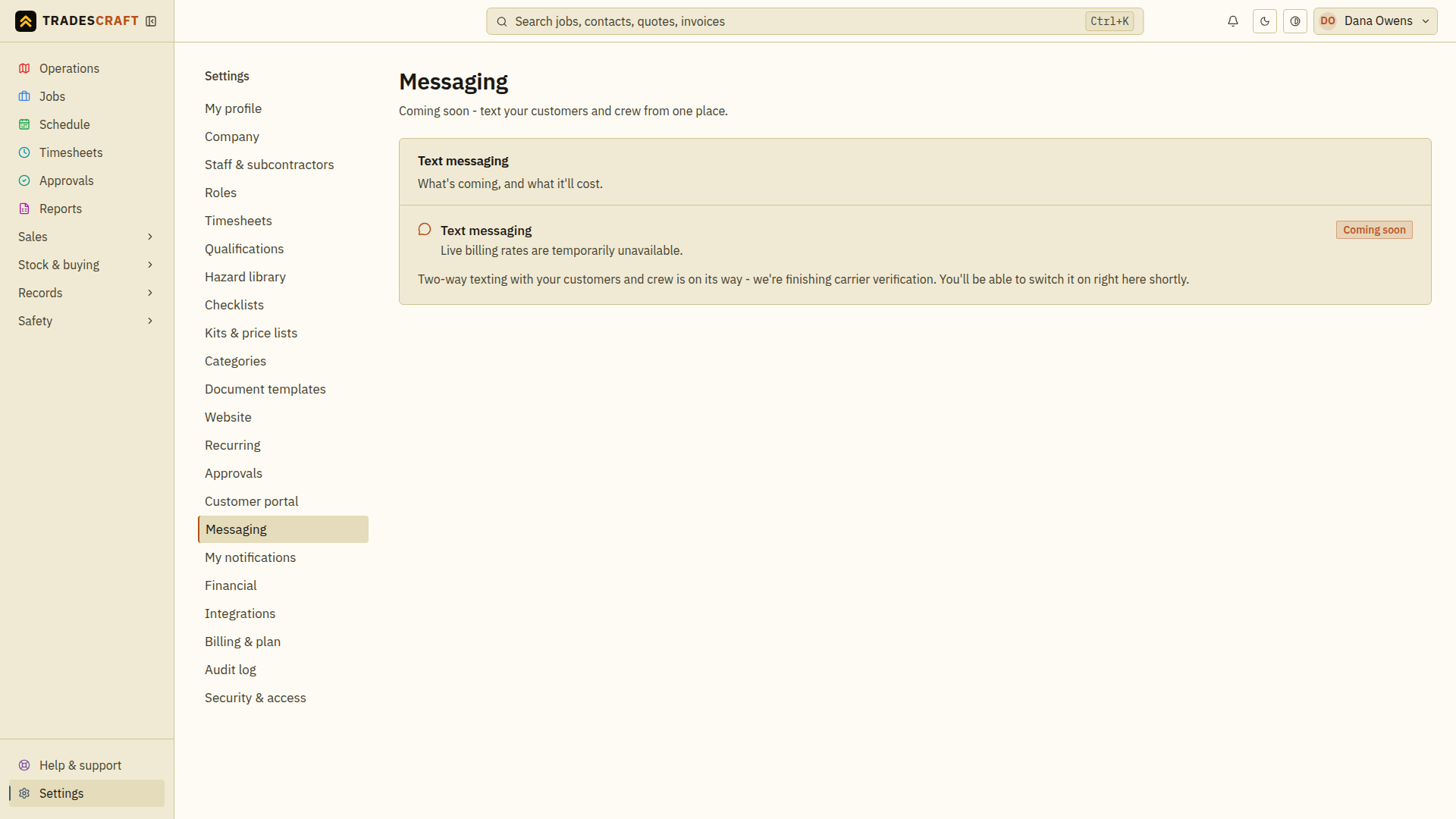
Check availability
Open Settings → Messaging and read the status before looking for a setup button. If it says Coming soon, you cannot subscribe or send texts from this screen yet. There is no setup step you can complete to unlock it. Continue using your usual phone/email contact methods; customer email settings are separate.
If the card says Unavailable, refresh after the billing check recovers. Do not treat an unavailable status as confirmation that an add-on is off. Follow the remaining steps only when the live messaging controls are offered.
Turn on the available add-on
The Text messaging card shows the price - a small monthly fee plus a per-text rate for texts sent and received - and whether it's On or Off. The business owner chooses Turn on messaging, reviews the recurring charge and usage rates on Stripe's secure page, then confirms; once it's on you'll see your usage for the period (texts sent, texts received, and the cost so far) and your renewal date.
If Stripe returns successfully but Tradescraft cannot confirm the change immediately, a Subscription confirmation is delayed notice asks you to refresh and check again while confirmation is pending. Do not start a second subscription.
If the card shows Needs attention, its Stripe pricing no longer matches the configured messaging add-on. Texting is switched off to prevent incorrect billing; follow Review billing plan before turning it back on.
If the live add-on status, rates or usage cannot be verified temporarily, the card shows Unavailable instead of guessing that messaging is off or that usage is zero. Subscription actions and sending stay paused until the billing check succeeds.
To stop it, Turn off messaging - it stays on until the end of the period you've paid for, and Keep messaging on undoes that if you change your mind. The paid add-on controls are owner-only. After cancelling, check the end date on the card before assuming texting has stopped.
Save sending limits
Once messaging is on, set limits to control how many texts can be sent:
- Daily send limit - the most texts that can go out in a day (across reminders and chat).
- Reminder cooldown (minutes) - how long to wait before sending another reminder to the same customer when a job is rescheduled.
Tap Save limits, wait for the result and reopen the page to check the saved limits. These settings are admin-only. A lower limit controls future sending; it does not undo texts already sent.
If the saved limits are unavailable, refresh and wait for them to load before changing them.
Check the message result
Follow this only when live messaging is available and the add-on is on.
- Open Messages in the chat dock. Use Search conversations to find an existing thread, or choose New message.
- For a new message, use Search people or type a number. Choose the matching person or the offered number, and check the recipient's name and full mobile number before typing.
- Enter the Message body and choose Send. On a keyboard, Enter sends; Shift+Enter starts a new line.
- Read the delivery state underneath the message. Queued or failed does not prove delivery. Follow any sending-limit or opt-out message shown.
- Check the same conversation for replies. The unread count helps you find new messages; notification settings control your separate alerts.
Use Close conversation to close its window. Archive in the conversation list puts a finished thread away; it does not unsend its messages.
Texting the right way
Only text people who expect to hear from you (job updates, reminders, confirmations) - not marketing blasts. Tradescraft automatically adds an opt-out ("Reply STOP to opt out") and identifies your business on the first message in a thread. The page shows only the messaging-law guidance for your business country: Australia's Spam Act, New Zealand's Unsolicited Electronic Messages Act, or US TCPA/FCC guidance. STOP is blocked automatically; handle other clear revocation requests promptly and keep your own consent records.
Where you actually send texts
When live messaging is available, this page manages the setup. Send from the chat dock or from a job's notes (the Send text button), and automatic reminders go out on their own once messaging is on.