
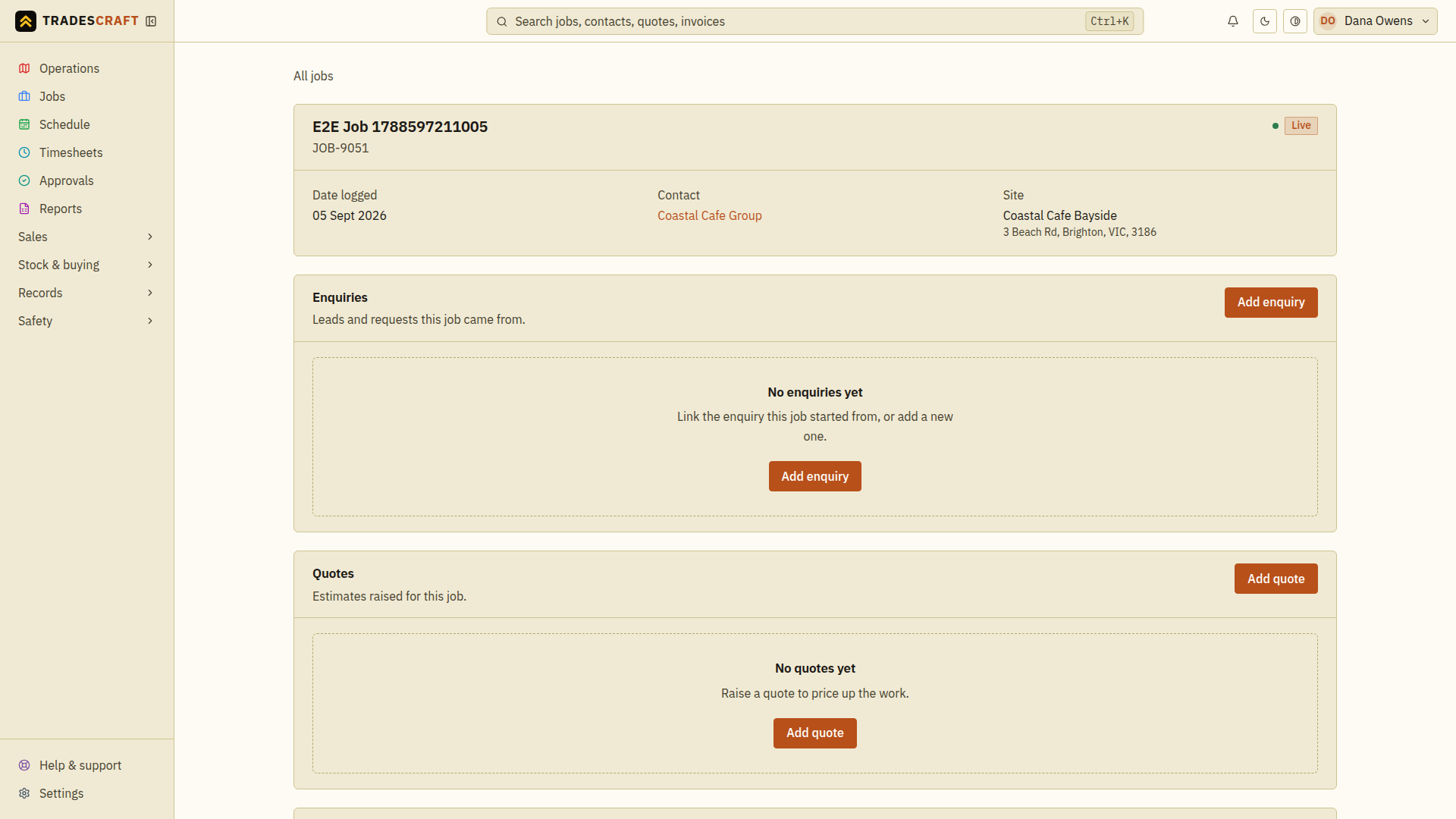
The job sheet is the place to find the documents for one job, from the lead it started as through to the bills, on one screen. To reach it, open a job from the Jobs list, then tap the back link at the top-left of the job's page - instead of going back to the list, it takes you up to this job's home view.
What's on it
- The job's key details up top - customer, site, date logged.
- Enquiries - the lead this job came from (or add one).
- Quotes - the estimates raised for it.
- Job - the work itself; Open job jumps to the full job details (notes, time, materials, crew, and, for AU/NZ accounts, safety paperwork).
- Invoices - the bills sent for it.
- A Close out money summary - what has been billed and paid, and the amount still owed.
Open or add a document
- Check the job reference, customer and site at the top so you are working on the right job.
- Choose an existing enquiry, quote or invoice row to open its full details. Choose Open job for time, materials, notes, crew and checklists.
- To create another document for this job, choose Add enquiry, Add quote or Add invoice in the relevant section.
- Check the customer and job already selected in the form. Fill in the remaining details using the enquiry, quote or invoice guide, then save it.
- Return to the job sheet and check the new document appears under the correct heading. Opening an Add form alone does not create a saved document.
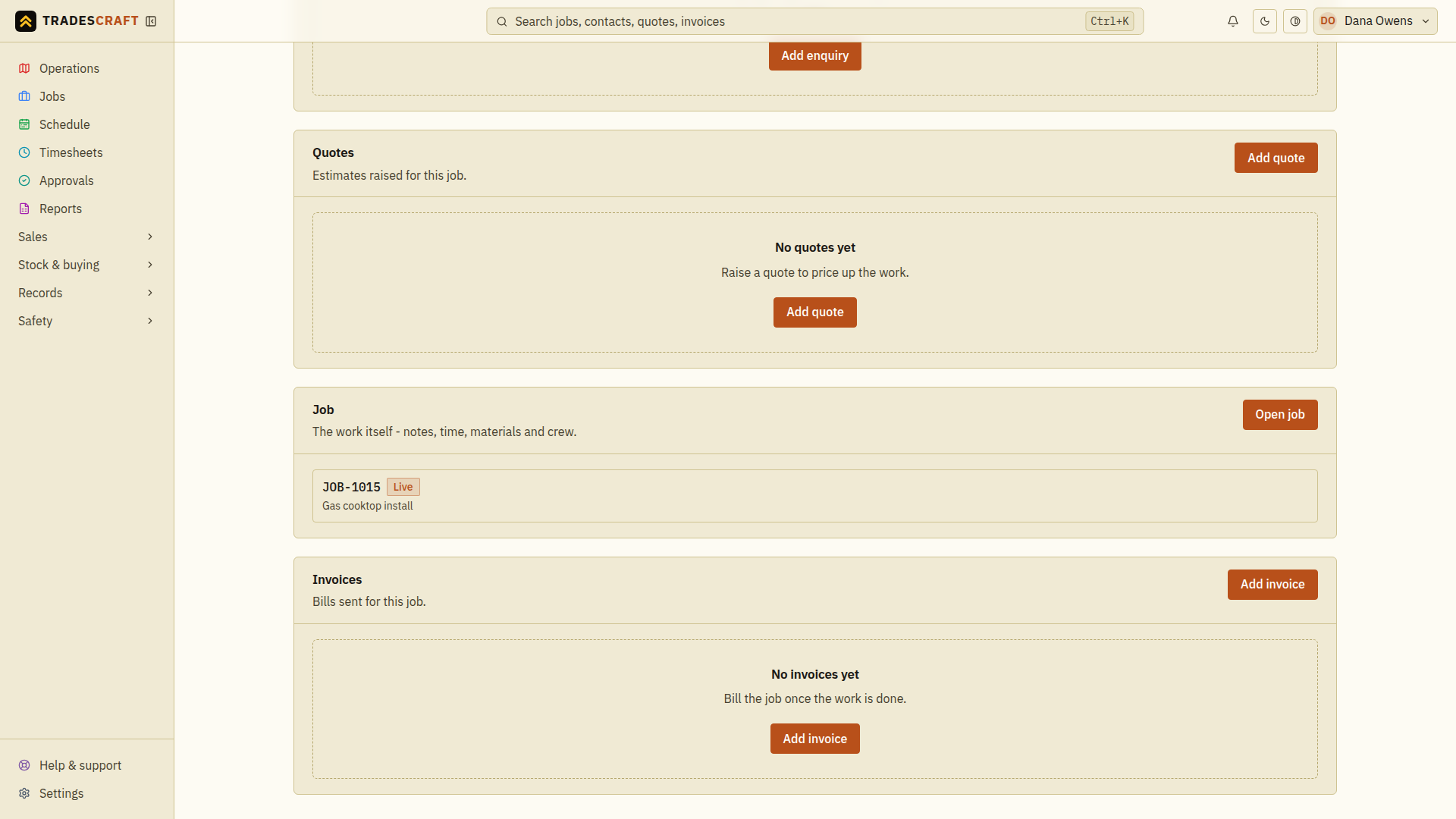
A job can have several quotes or invoices. Check the existing documents before adding another so you do not quote or bill the same work twice.
Read the Close out totals
Scroll below the invoices to Close out. It appears once the job has an invoiced amount, credit or deposit to show.
- Billed — the invoiced amount for the job.
- Received — payments recorded against those invoices.
- Outstanding — the amount still owed.
- Credited — credit notes applied, when there are credits.
- Deposits taken — deposits recorded, when there are deposits.
- GST on job or Sales tax on job — the tax amount for the job.
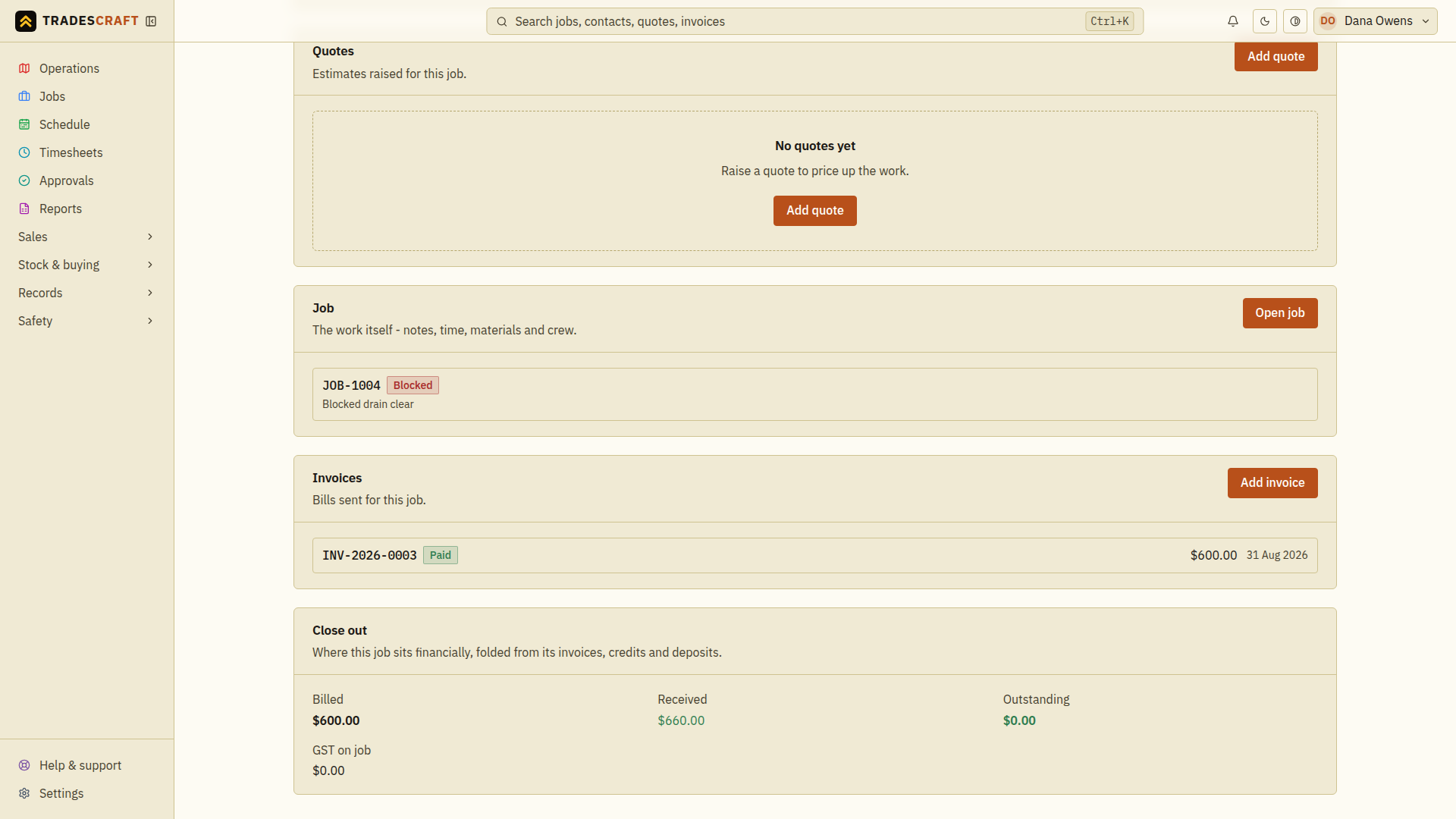
Open the relevant invoice to check a balance, record a payment or follow up an unpaid amount. Close out is a summary; reading it does not mark the job complete. Use the job details to update the work status. To find work that has not been billed, use Work in progress.