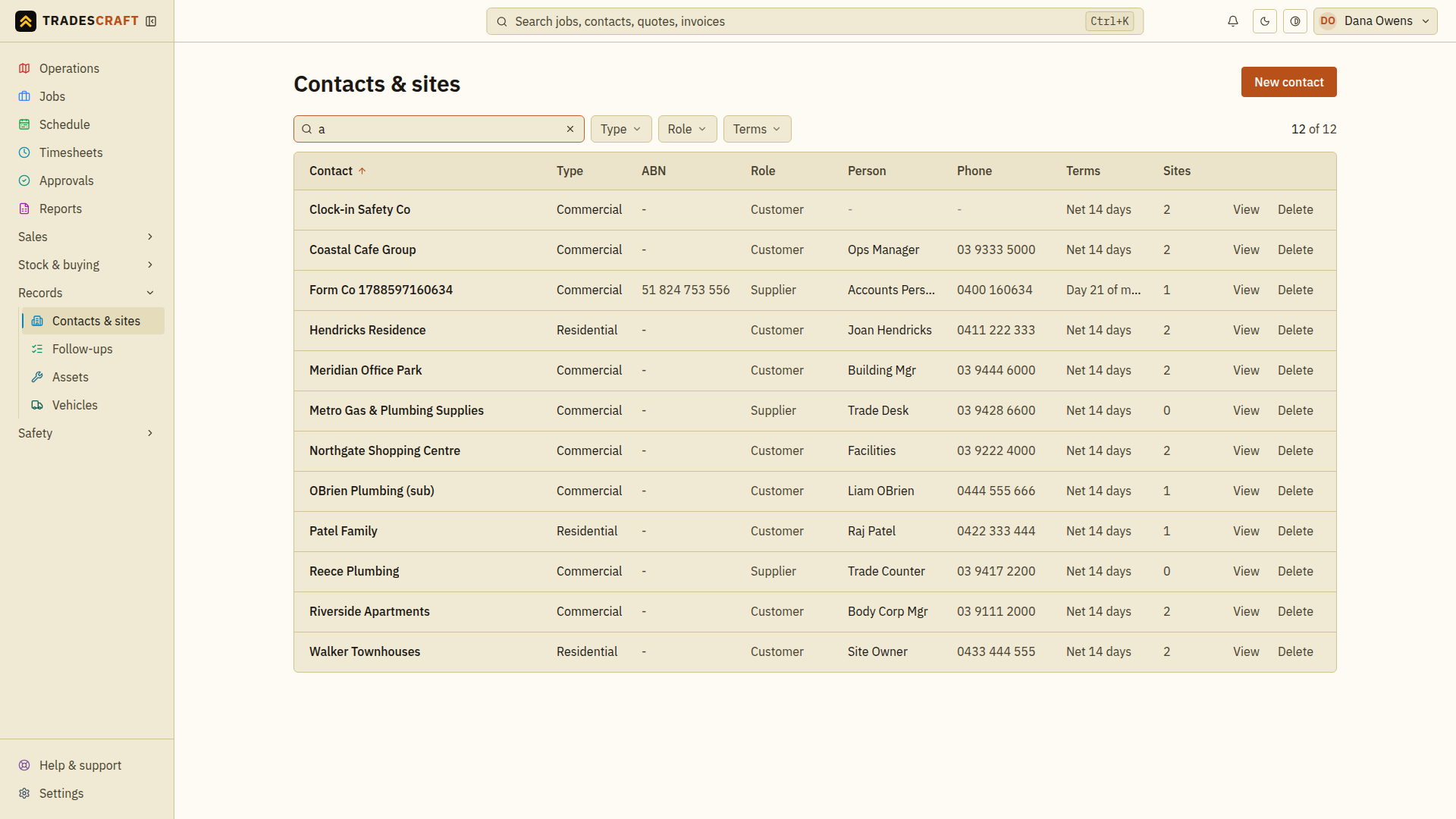
Contacts are the people and businesses you deal with - customers you invoice and suppliers you buy from. Each contact can have one or more sites (the actual addresses where you do the work). Open it from Records → Contacts & sites in the menu.
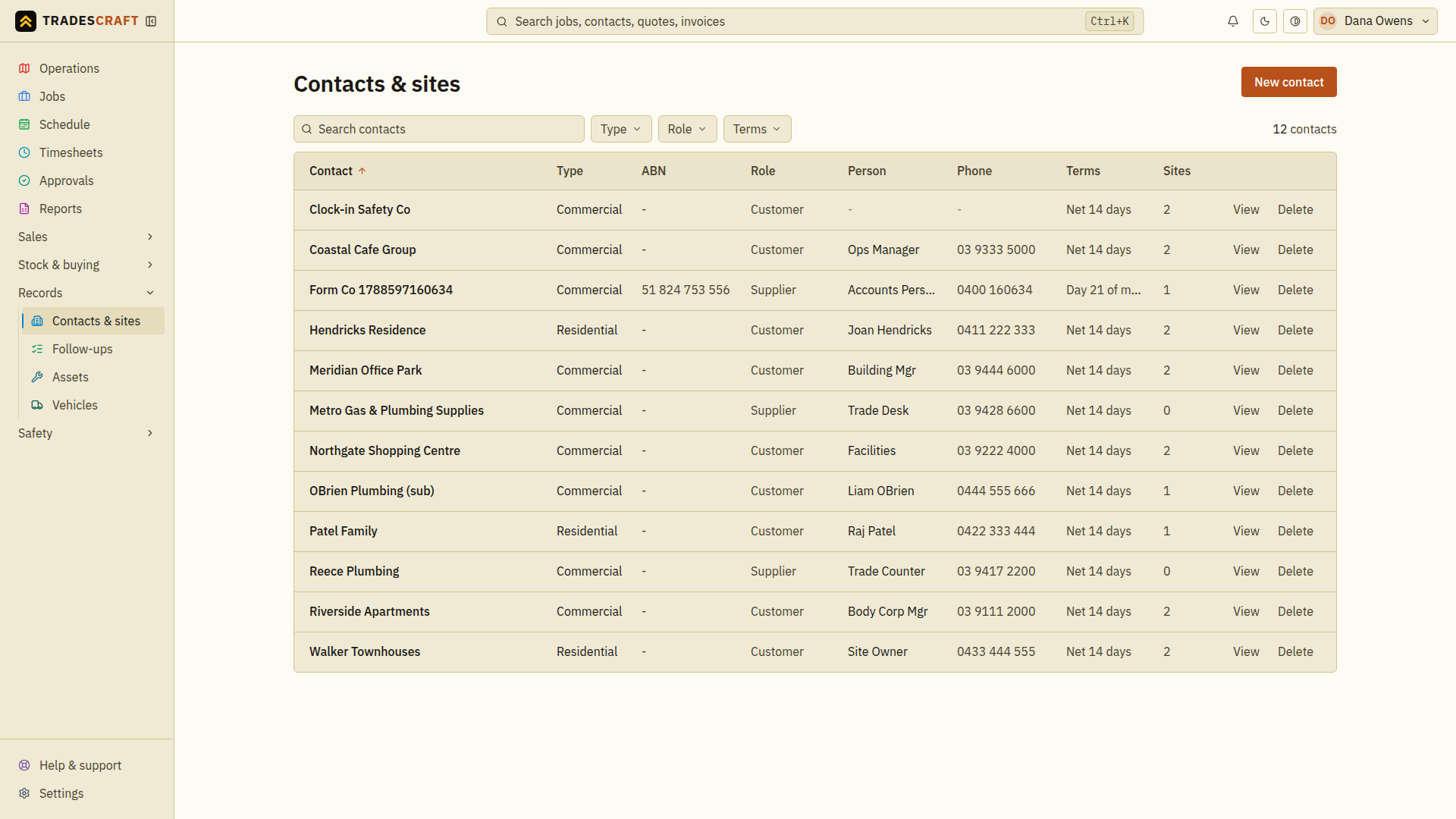
What's on the list
Each row is one contact. The columns tell you at a glance:
- Contact - the business or person's name.
- Type - Commercial (a business) or Residential (a household).
- Business number - ABN, NZBN or EIN, according to your account country.
- Role - whether they're a Customer, a Supplier, or both.
- Person - the main person you deal with there.
- Phone - their best contact number.
- Terms - how long they get to pay your invoices (e.g. Net 14 days).
- Sites - how many job addresses are on file for them.
Getting around
- Click any row to open that contact's full details.
- Sort by clicking a column heading (e.g. sort by name).
- New contact (top-right) starts a new customer or supplier.
- Use the search bar up top to jump straight to a contact by name.
Find what you need
- Type a customer or supplier name into the list's Search contacts box. Use Type or Role to narrow the results when those filters are offered.
- Check the primary person and phone before opening the matching contact.
- Scroll to Sites on the contact to open a work address, or choose Add site if that address is not yet recorded.
Clear both the search and filters if a contact is missing. A contact with no sites needs an address added before you can create a job for it. Search first before choosing New contact to avoid duplicating a customer.