
Everything in Tradescraft hangs off a contact: a job needs a site, and a site belongs to a contact. So adding the customer is the first step before you can book work in for them.
Before you start
- Have the customer's name and best phone number handy. Everything else (address, business number, billing email) is optional and can be added later.
Steps
1. Start a new contact
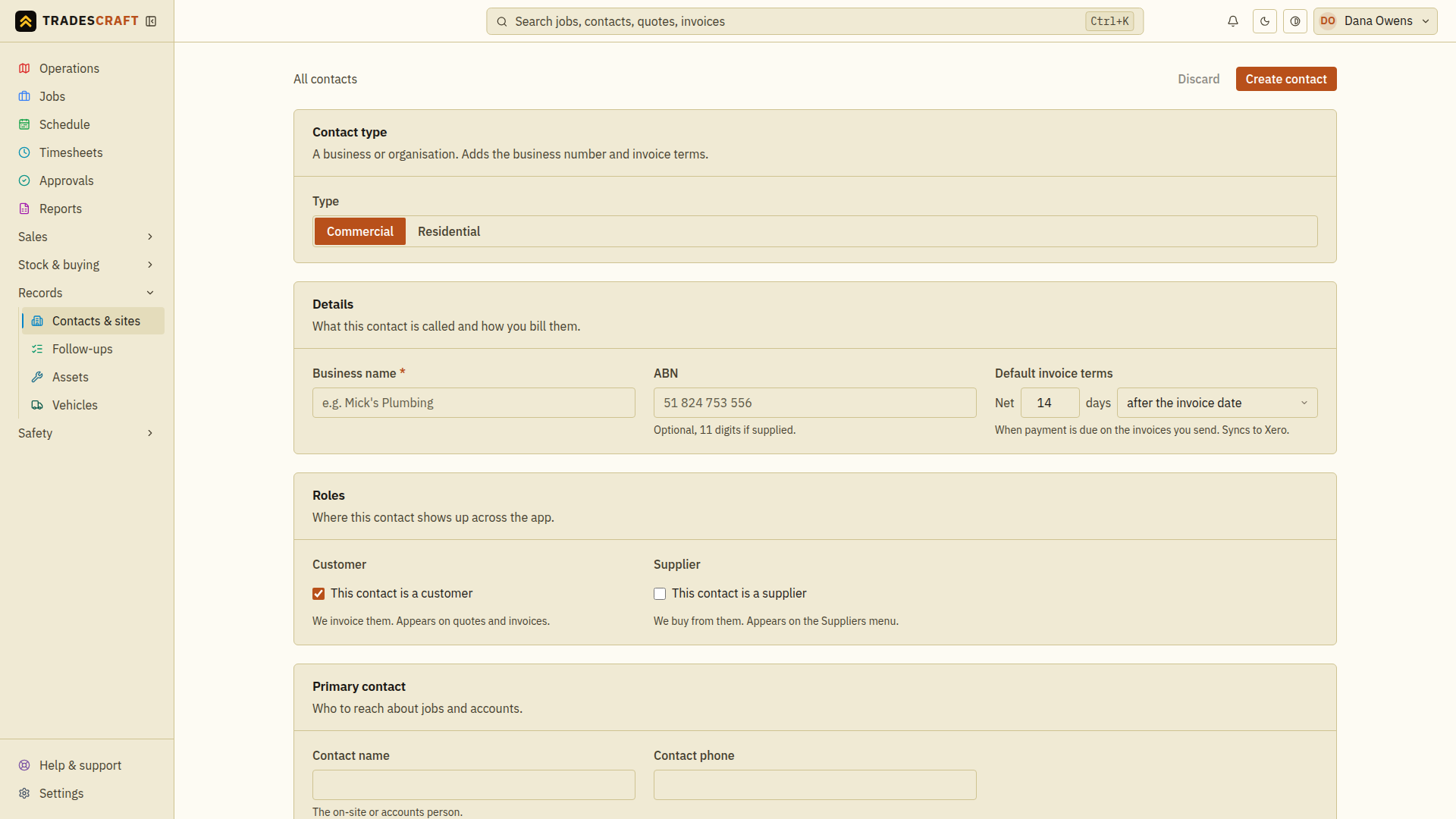
From Records → Contacts & sites, tap New contact. You'll get a blank form, broken into clear sections.
2. Pick the type
Choose Commercial (a business - adds its local business-number field and invoice terms) or Residential (a household).
3. Fill in the details
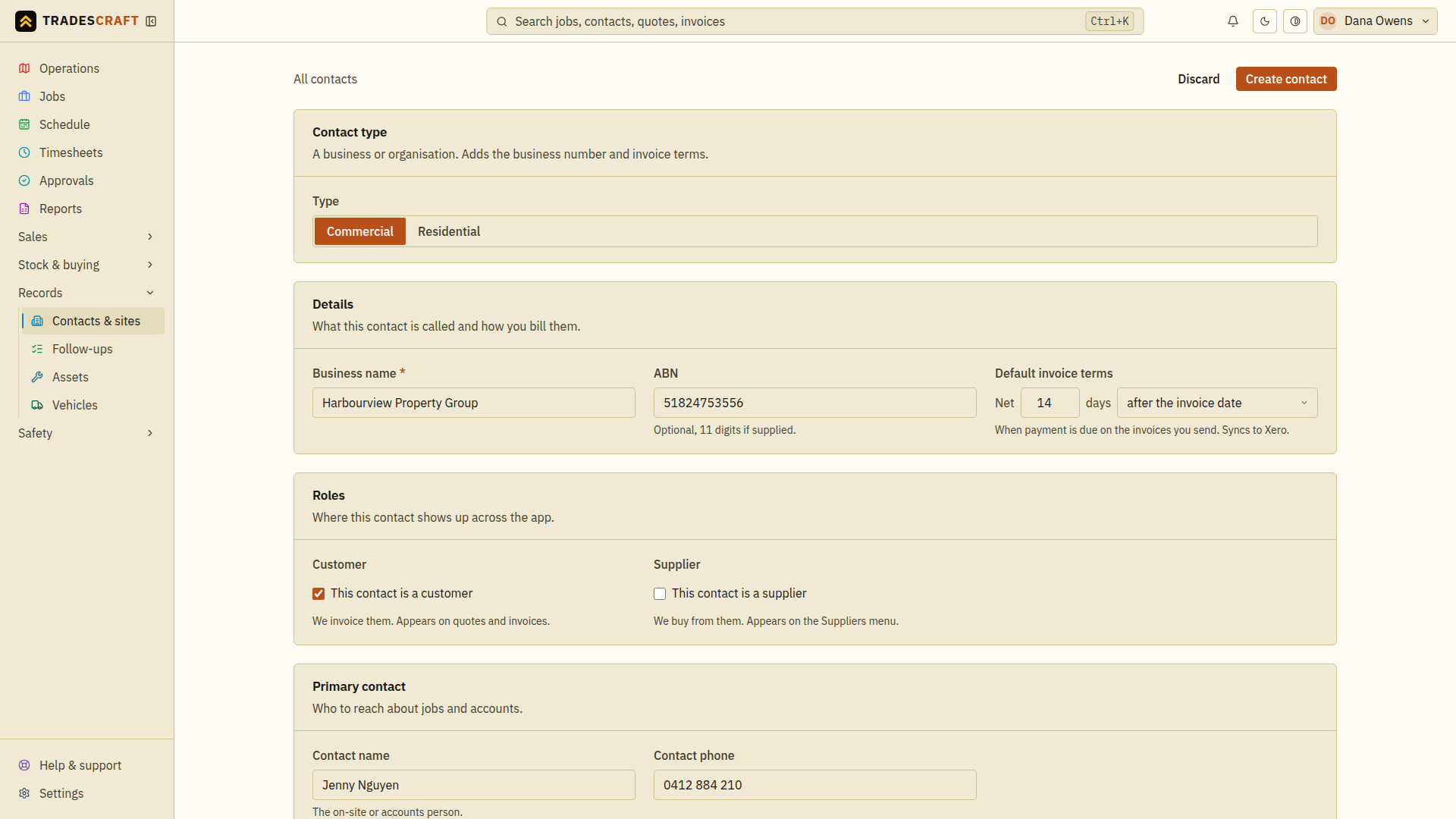
- Business name (required) - what they're called.
- Business number - optional: ABN in Australia, NZBN in New Zealand or EIN in the United States.
- Default invoice terms - how long they get to pay (e.g. Net 14 days). This flows onto their invoices. AU/NZ accounts can also sync it to Xero.
4. Set the roles
- Customer - tick if you invoice them (on by default). They'll show up on quotes and invoices.
- Supplier - tick if you buy from them. They'll appear under Stock & buying → Suppliers.
A contact can be both.
5. Add the contact person and address
Put in the main person to ring (Contact name and phone), and the business address. Start typing in Look up to pick a real address, or type the country-appropriate street, locality/city, state/region and postcode/ZIP code yourself.
You can also set a separate postal address and billing email, and leave a private note for your team (gate codes, who to ask for, payment habits) - that note is never shown to the customer.
6. Save
Tap Create contact. You land on their details page, ready for you to add a site.
Tips
- Don't sweat the optional fields - name and phone are enough to start. Come back and fill the rest when you have it.