
Start a new enquiry
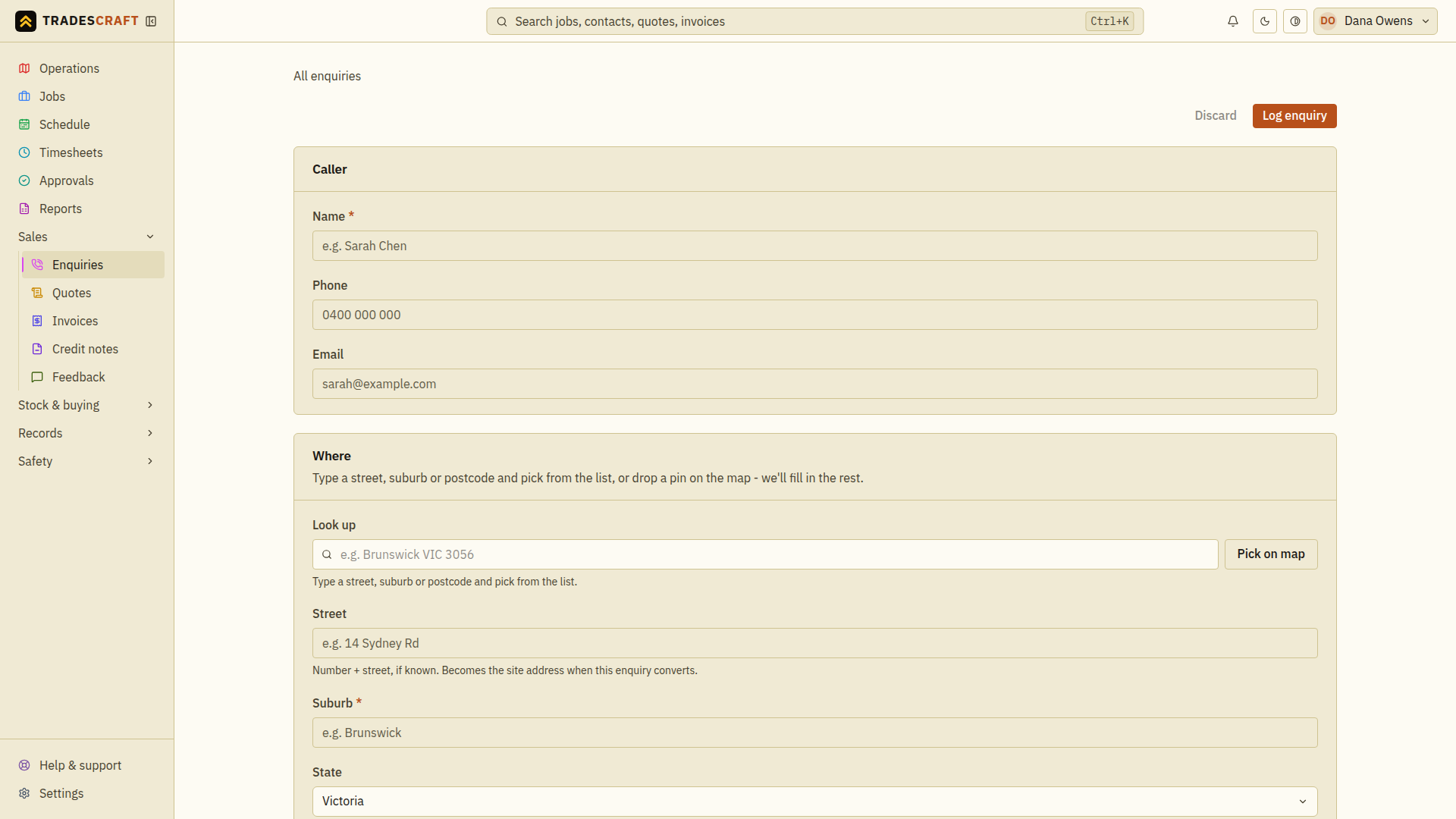
From Sales → Enquiries, tap Log enquiry (top-right). The form has three short sections: Caller, Where, and What they want.
Capture the lead
Fill in what you've got - you don't need all of it:
- Caller - their name (required), plus a phone and email if you have them. These become tap-to-call and tap-to-email later.
- Where - start typing a street, locality/city or postcode/ZIP code in Look up and pick from the list (or Pick on map) and Tradescraft fills the rest. Only the locality/city is required - it's what pins the enquiry on the operations map. The street becomes the site address if the lead converts.
- What they want - the details (required - even one line), how they found you under Source, and the pipeline Status (New / Contacted / Quoted).
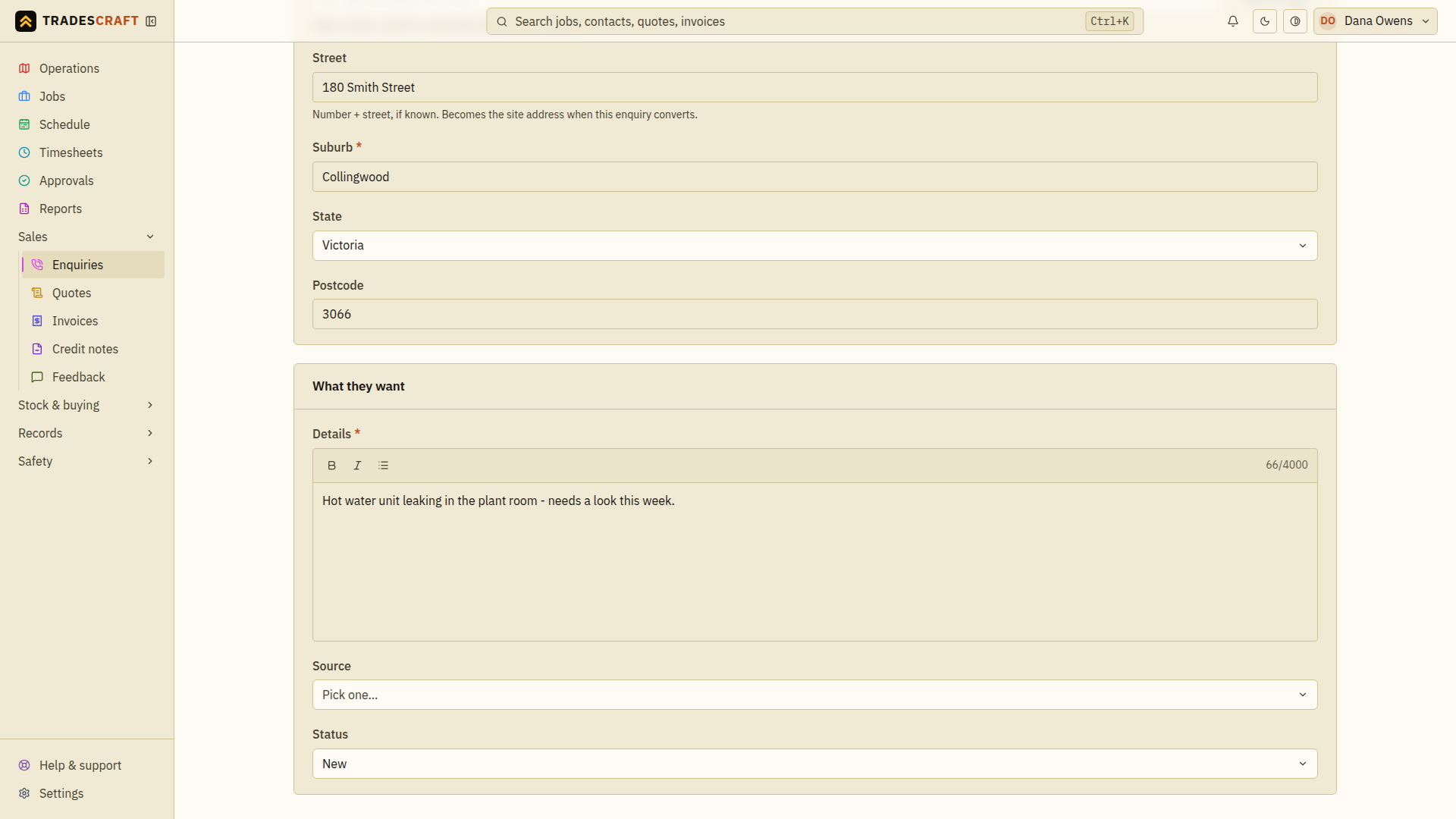
Tap Log enquiry to save it.
Act on it
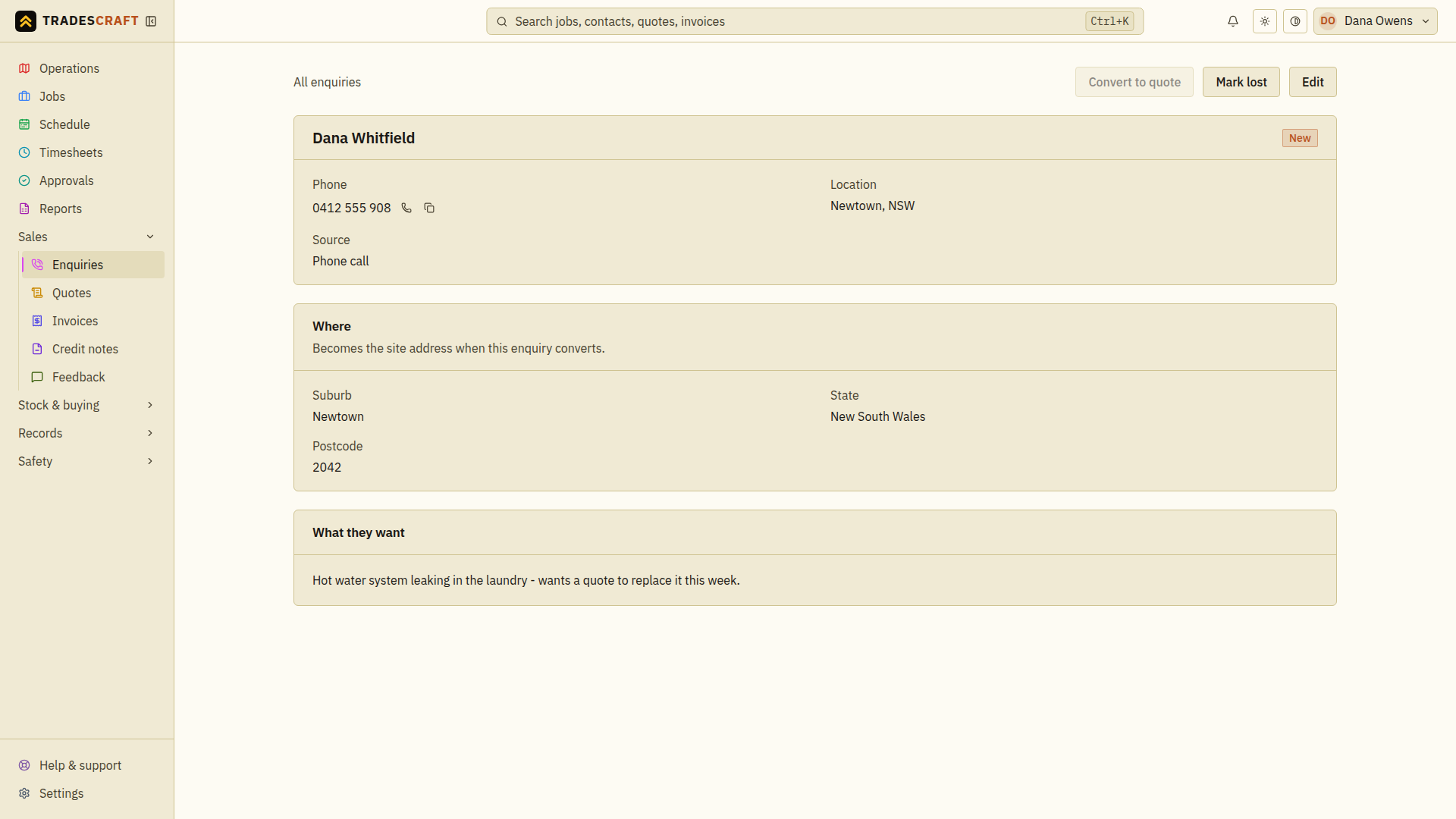
The saved enquiry gives you the next moves along the top:
- Convert to quote - turn the lead into a quote with the caller and address already filled in.
- View customer - Tradescraft auto-creates a contact (and a site) from the enquiry, so the lead is already in your customer list.
- Mark lost - close out a lead that didn't go ahead (it asks for a reason, so your pipeline stays honest).
Tips
- Enquiries from your Tradescraft website and directory listing arrive here on their own - this form is for the ones you take by phone or in person.
- Once an enquiry's quote becomes a job or invoice, its status flips to Converted automatically - you don't set that by hand.
Check the saved lead
After Log enquiry, check the caller, contact details, location and status on the detail page. If the form stays open, correct the highlighted fields before trying again.
If Convert to quote is disabled because the customer was removed, choose Edit enquiry, review the caller/address and save to restore the link. If a quote is already linked, open that quote instead of creating another. On a new quote form, review the customer and site, add priced lines and Create quote; opening the form alone does not save a quote.