
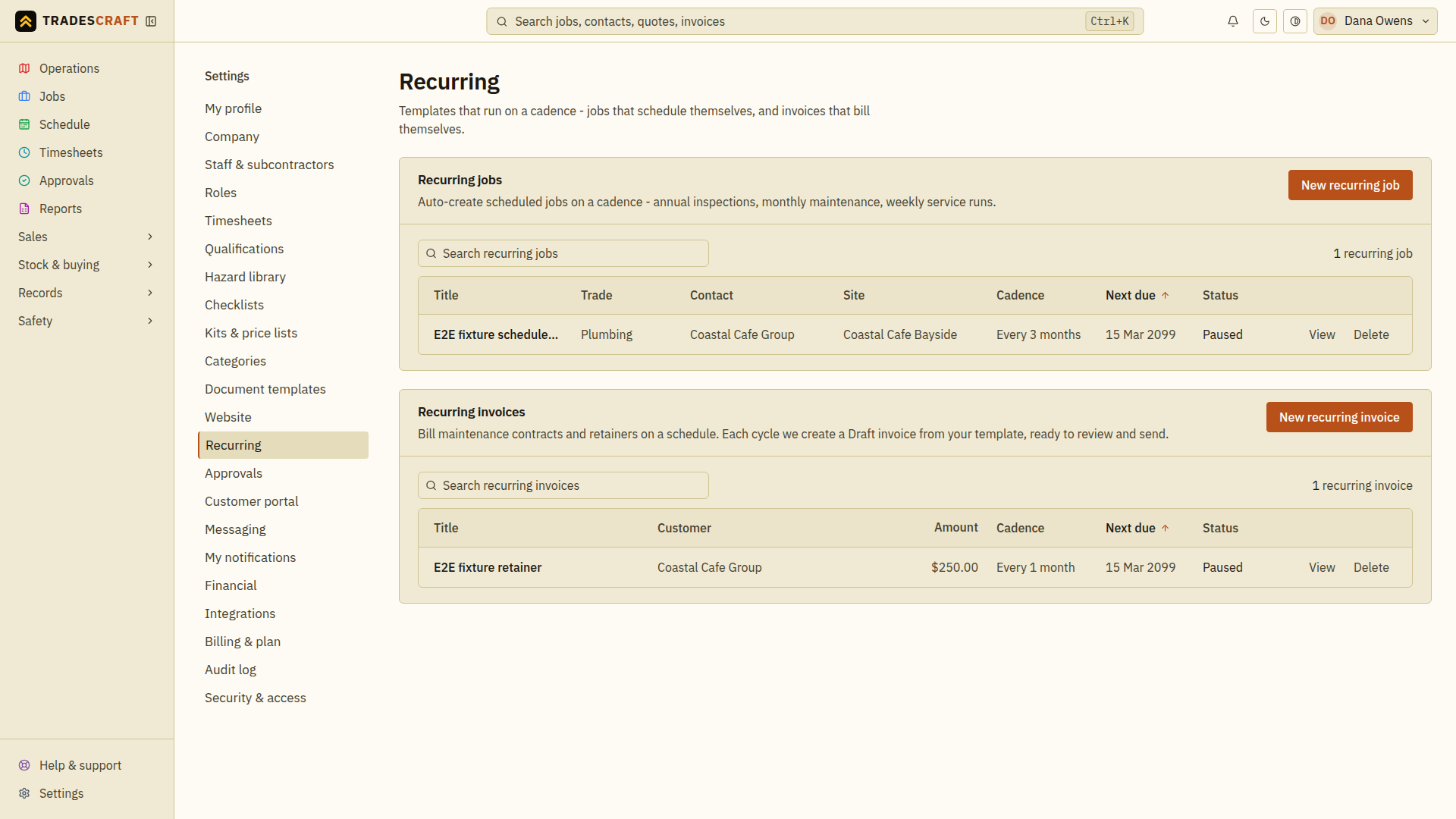
A recurring job is a saved service template, such as a quarterly grease-trap service. Open Settings → Recurring. The rule creates jobs; you still need to check the dates and assign the people who will do them.
Before you start
Add the customer and its site. Check the business time zone under Settings → Company, because the start time is local to the business. An active trial or subscription is needed for automatic generation.
Describe the repeating service
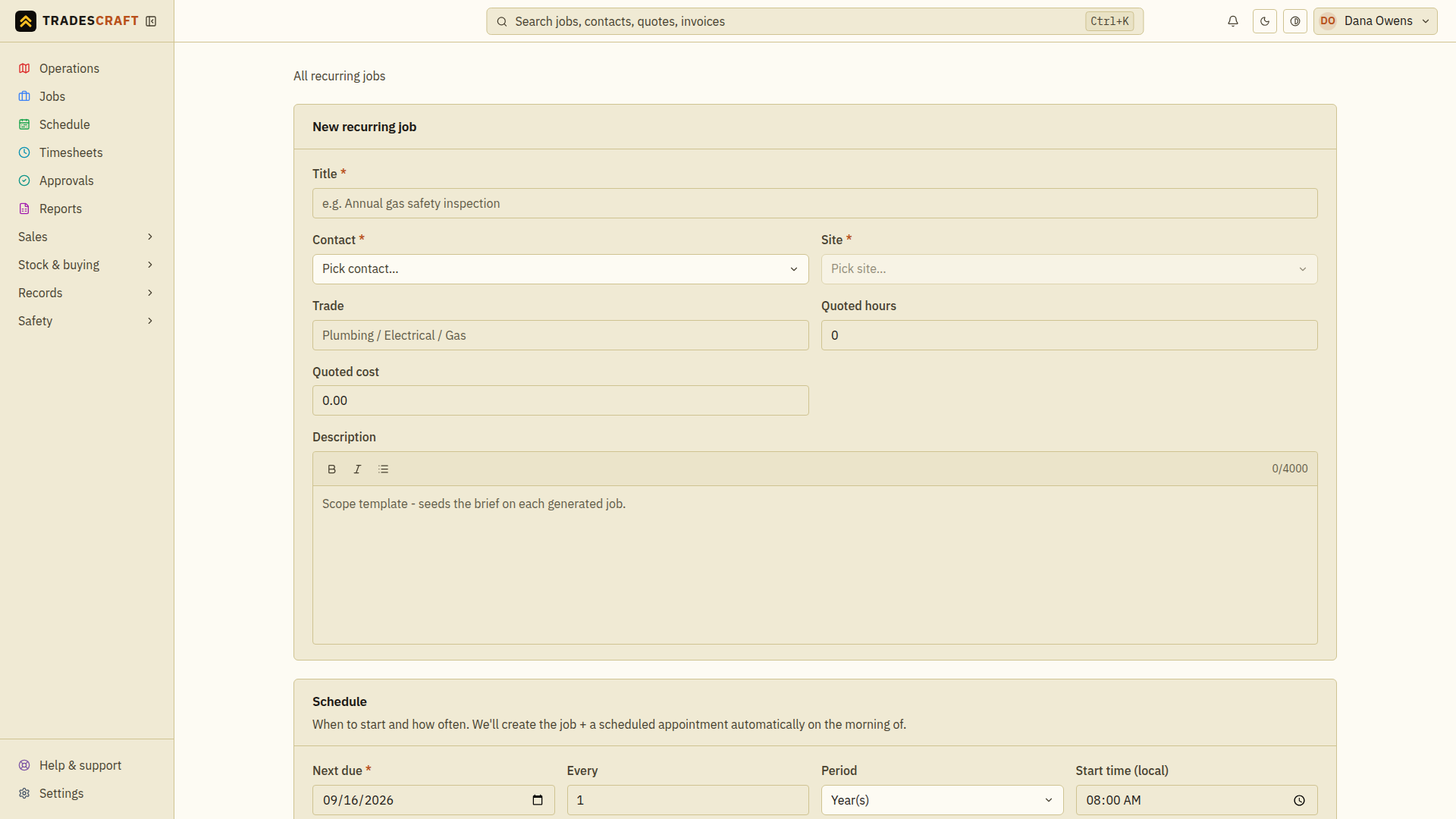
Choose New recurring job. Enter a Title, pick the Contact, then the Site that belongs to that contact. Set the Trade, Quoted hours, Quoted cost and Description for each visit. Include the standard scope and access instructions the crew will need each time.
Set the cycle and appointment window
Set Next due to the first service date. Enter Every and choose the Period: for a quarterly service, enter 3 and choose months. Set Start time (local) and Window duration (minutes) to the intended visit window. Keep Active - generate jobs checked when the rule should run.
Save and check the first occurrence
Choose Create recurring job. Open the saved rule and check the customer, site, next due date and cycle. If the form reports an error, correct the required field and submit that form again.
When an occurrence becomes due, check Jobs and Schedule for the created work. Review its brief and appointment, then assign the worker through Dispatch a job. Do not assume a generated job already has a crew assigned.
Change or pause the rule
Open the recurring job and choose Edit. Change the service details or cycle, then Save changes. To pause it, clear Active - generate jobs and save. Reopen the rule to confirm the saved setting. Jobs and appointments already created stay in place; review those separately if a customer cancels the service.
If an occurrence is missing, check Active, Next due, the business time zone and any billing banner before manually creating a duplicate job.