
Open Sales → Quotes and select the quote number or row. Check the customer, site and total before using any of the actions below.
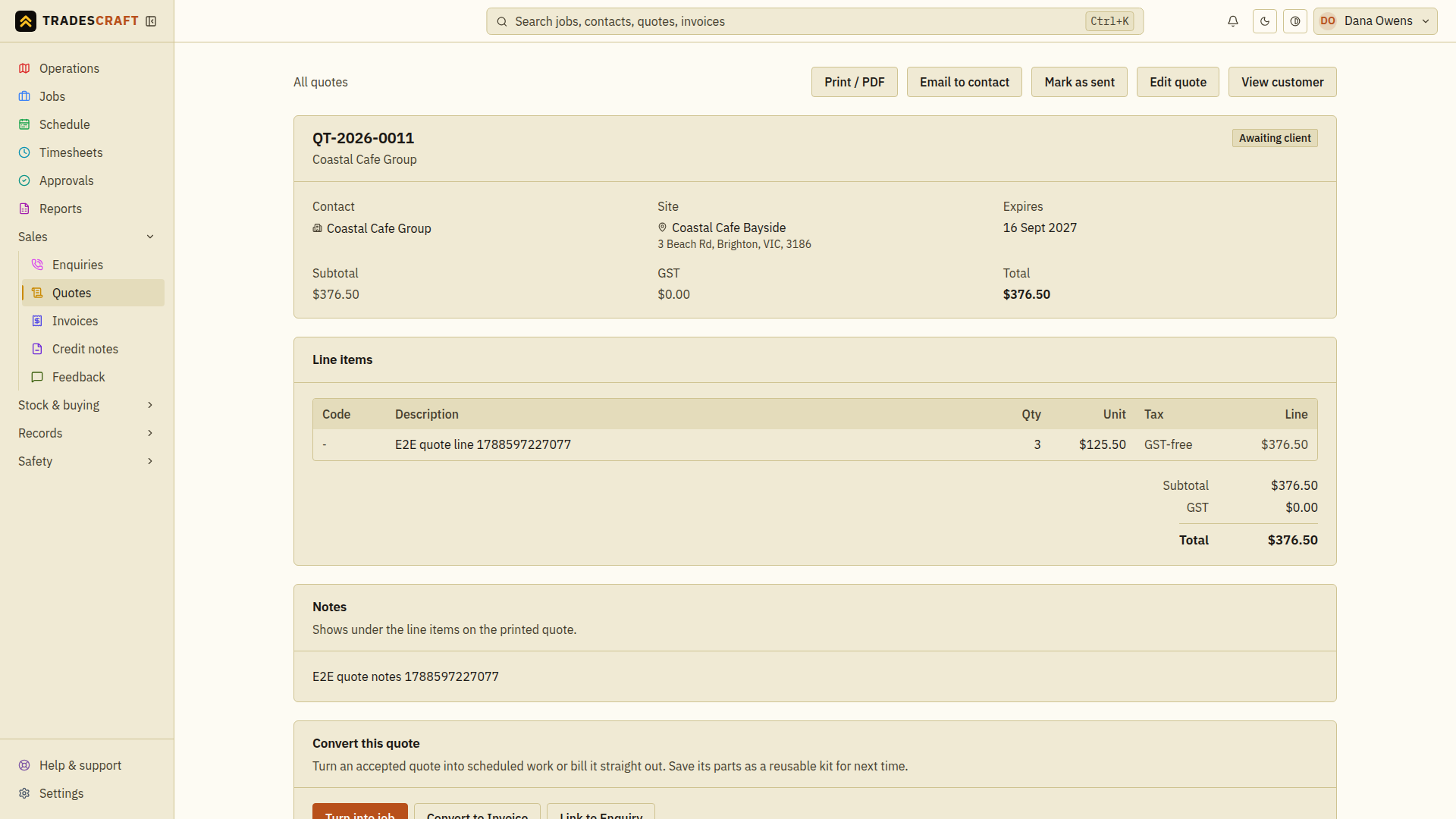
What you'll find
- The customer and site, the line items with their country-appropriate tax treatment, and the Subtotal / tax / Total. US quotes show USD, Sales tax wording and the exact rate saved on that quote.
- The quote's status (draft → sent → accepted/declined).
- Notes that print under the lines.
- Header actions to Edit and Print/PDF.
Acting on the quote
- Review the lines, expiry and notes. Use Edit quote to correct them before sharing the quote.
- Choose Email to contact, check the recipient choices in the email dialog and send the copy. Resolve a missing email address on the customer's contact record if no suitable recipient is available.
- Wait for the send confirmation. Use Mark as sent to update the quote's status when it has been sent; emailing a copy does not change it on its own.
- Return to the quote and check its status before leaving. If an approval is requested, follow Approvals and check the eventual result before assuming the action has completed.
For US documents, a Verify destination sales tax before sending notice disables email, PDF/print, mark-as-sent and conversion, and keeps the quote out of the customer portal. Choose Edit quote, verify the exact combined destination rate for the customer and taxable work, then save. These actions unlock together only after the reviewed rate is stored.
The Convert this quote section is where a quote becomes real work:
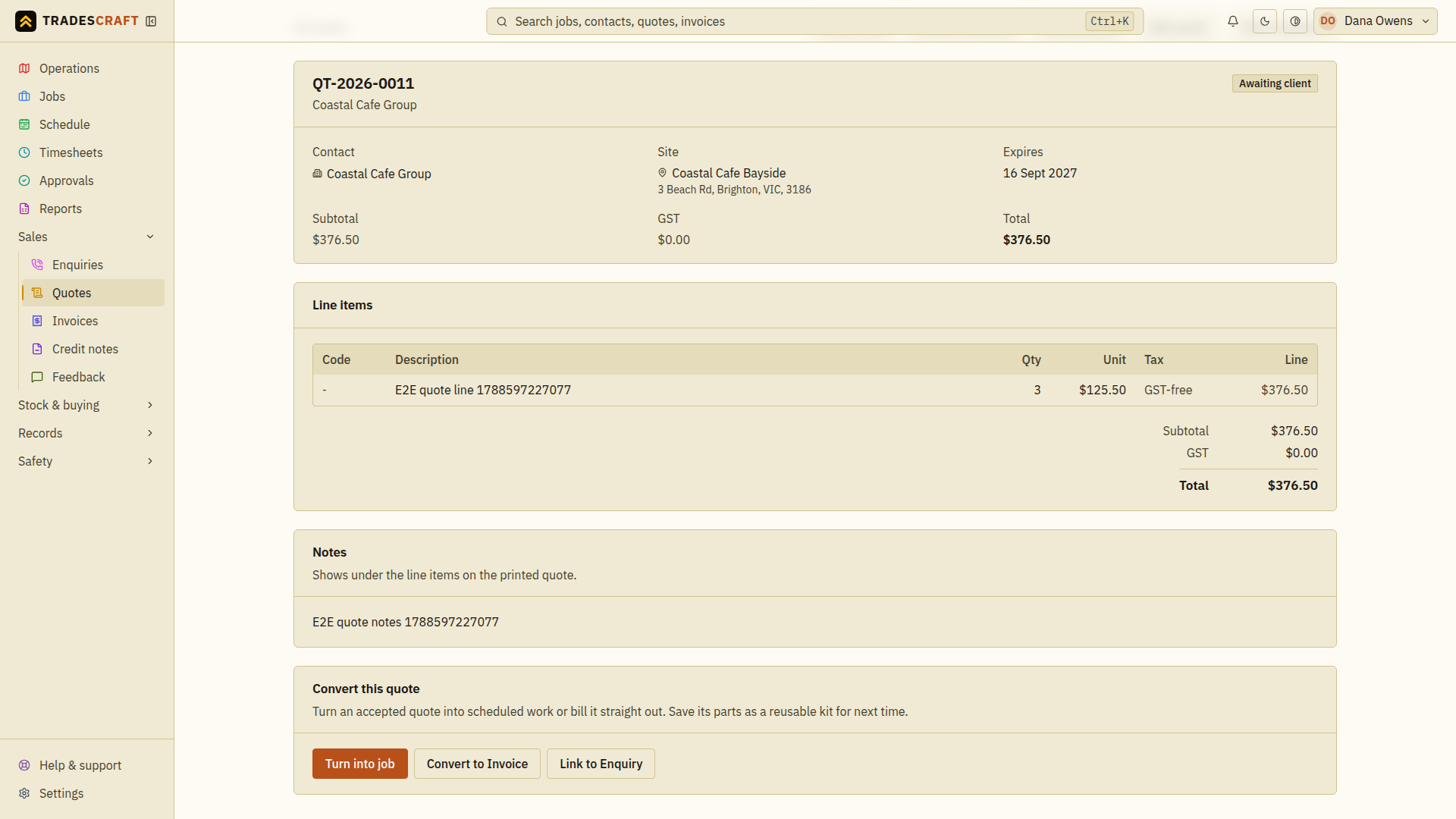
- Turn into job - create a job from it; the pricing carries across and the job records that it came from this quote, so you can always see where the work came from.
- Convert to Invoice - bill it directly (the line items flow into a new invoice).
- Link to Enquiry - tie the quote back to the lead it came from, so your pipeline and win-rate reporting stay accurate.
The win-the-work flow
- Build the quote and send it.
- If the customer approves in their portal, the quote becomes Accepted and a job is created. Open the linked job and check its site and scope before booking the crew.
- If the customer agreed outside the portal, open the quote and choose Turn into job for scheduled work or Convert to Invoice for direct billing. Review the resulting record before scheduling or sending it. If an approval is required, wait for its outcome and check for the linked record before repeating the action.
Tips
- Re-pricing after a change? Editing keeps a record of the previous version, so you always have the history of what was quoted.