
Find the theme control
Sign in and look at the top bar beside your name. The sun/moon button changes the theme. The example below shows the light theme before switching.
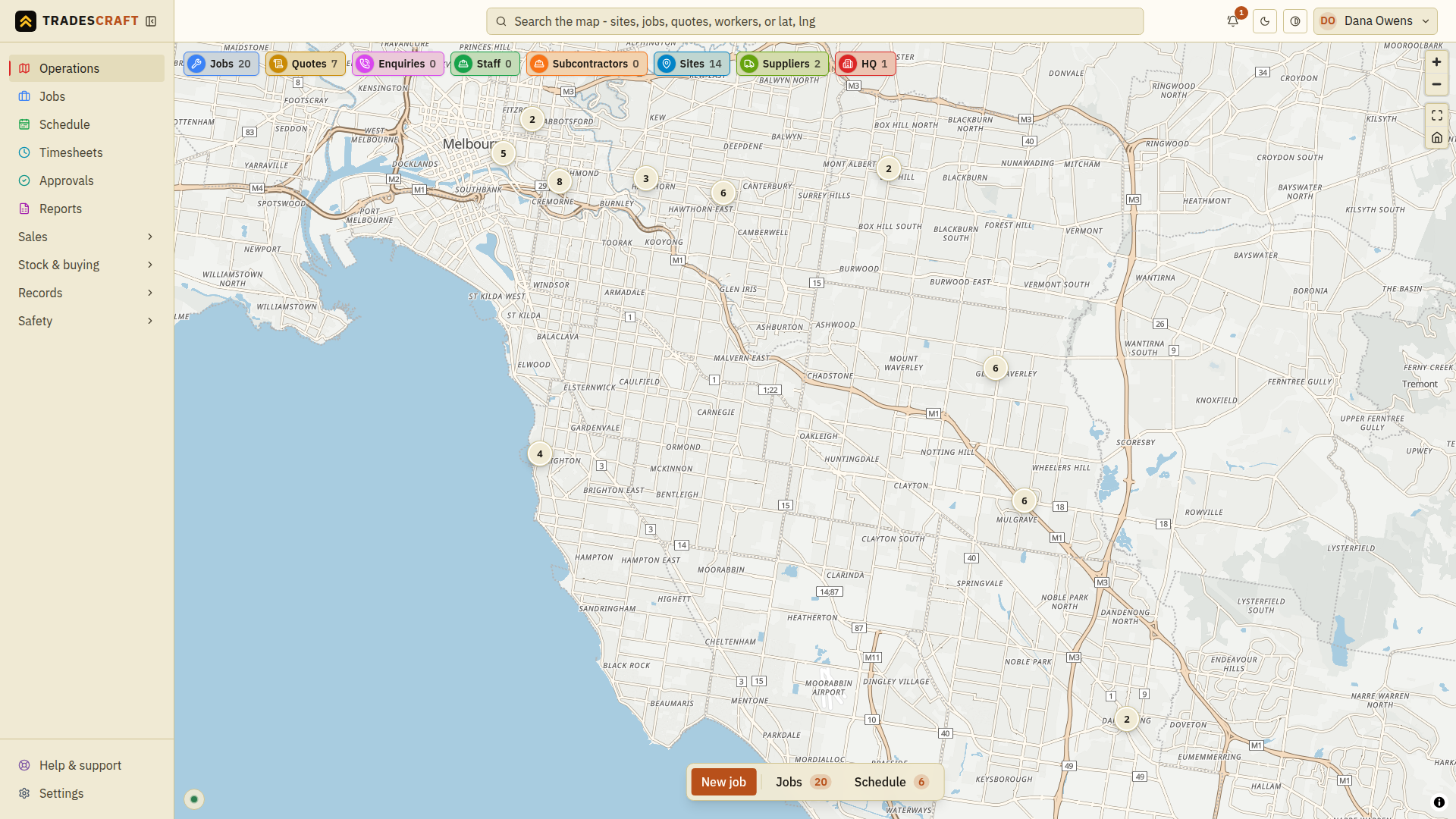
Switch the theme
Tap the sun/moon button once. The page background, text, panels and controls change together. You do not need to save a form or sign out to apply the choice. Tap it again if you prefer the previous theme.
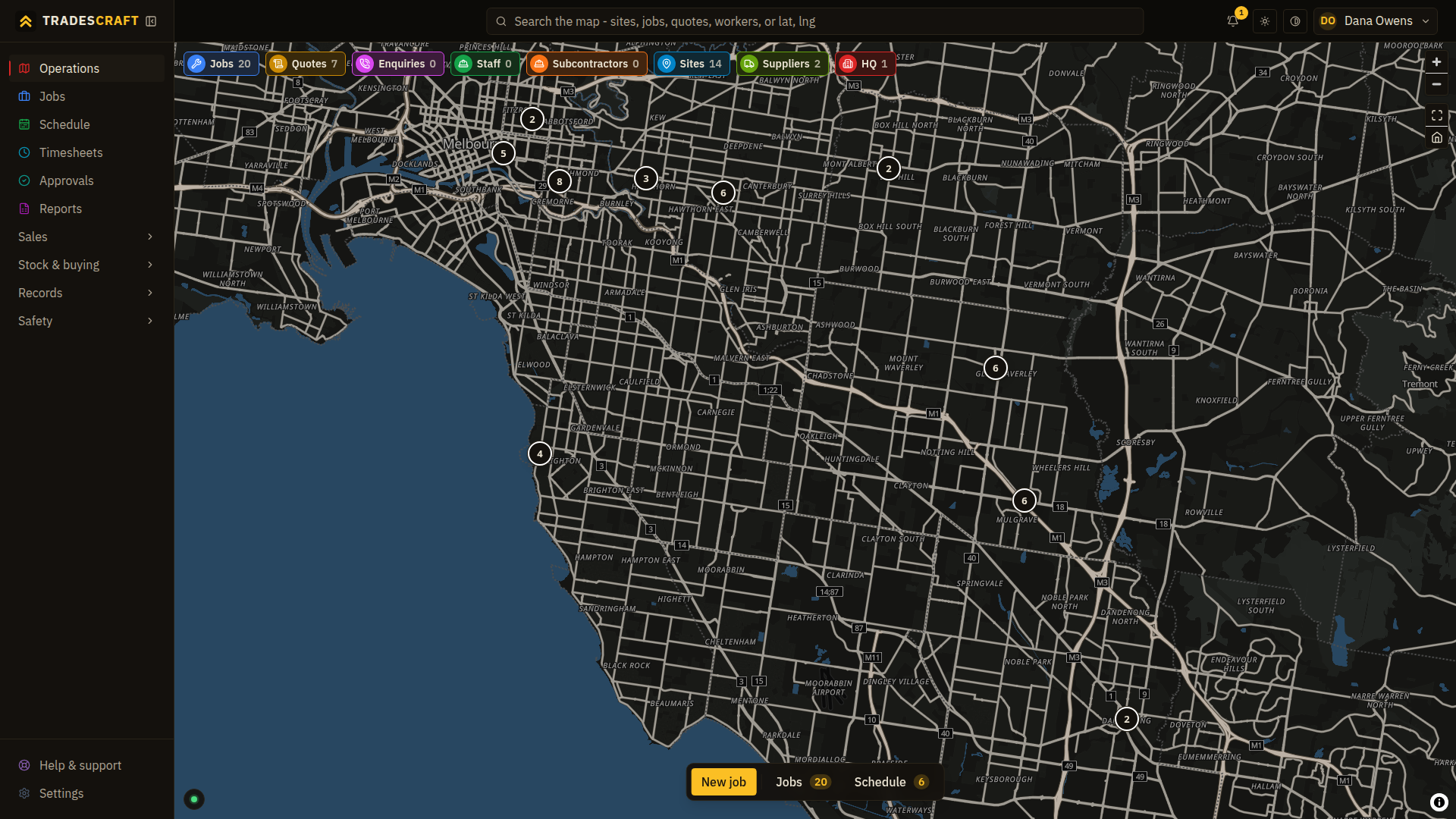
Check another page
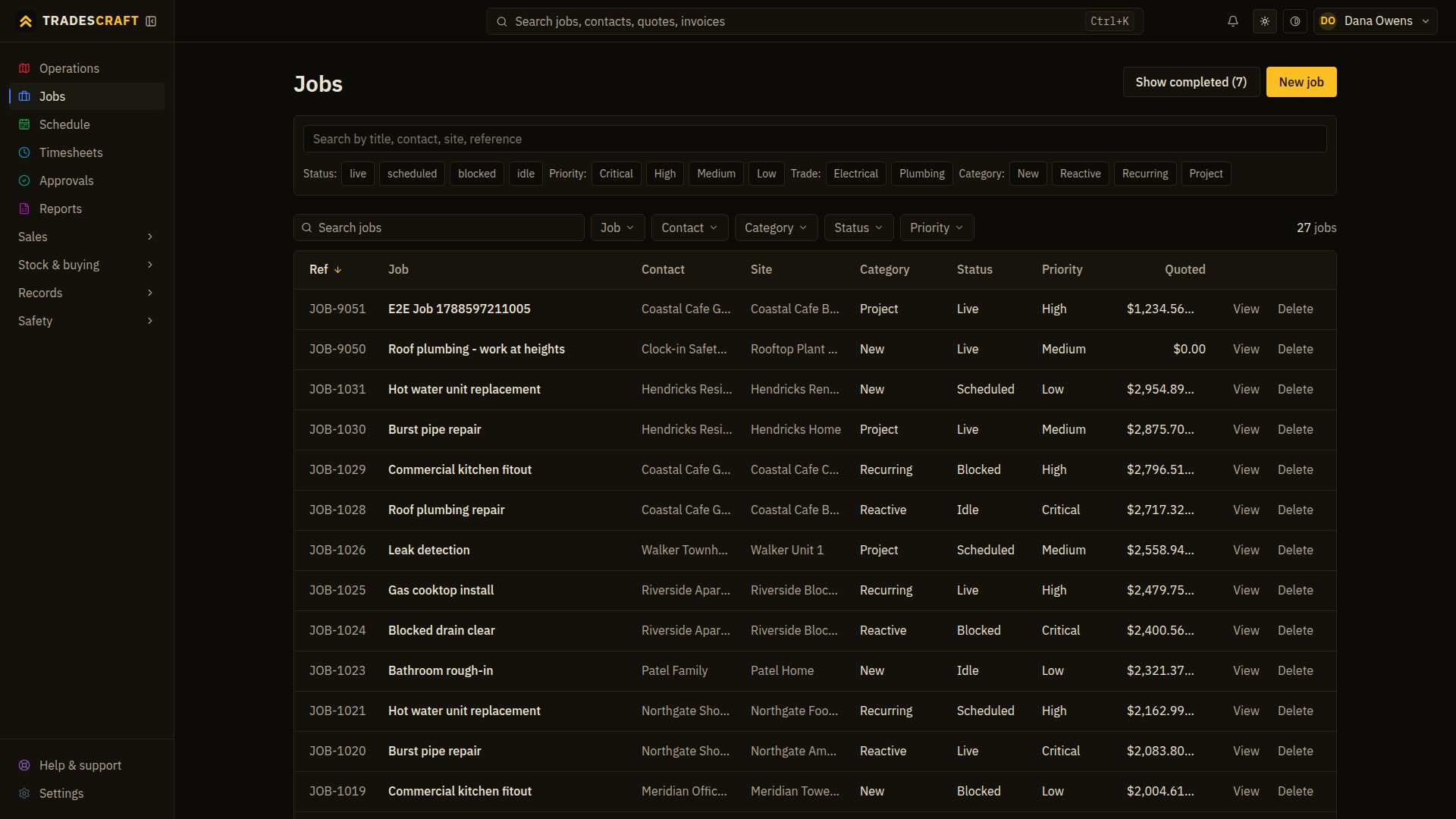
Open Jobs from the menu. The list should use the same theme, so check that you can comfortably read its rows and status badges. Your choice is remembered for later visits, including the sign-in screen.
If the screen is hard to read
Try the other theme or the separate high-contrast control in the top bar. High contrast increases the distinction between the text and background. Before you choose a theme, Tradescraft follows the device's light/dark preference.