
If you've set up two-factor sign-in and then lost the phone (or app) that makes your codes, you can't produce the second step - so you're locked out. There's a self-service way back in that only needs access to your email.
How it works
- At sign-in, on the screen that asks for your code, tap Lost your authenticator?.
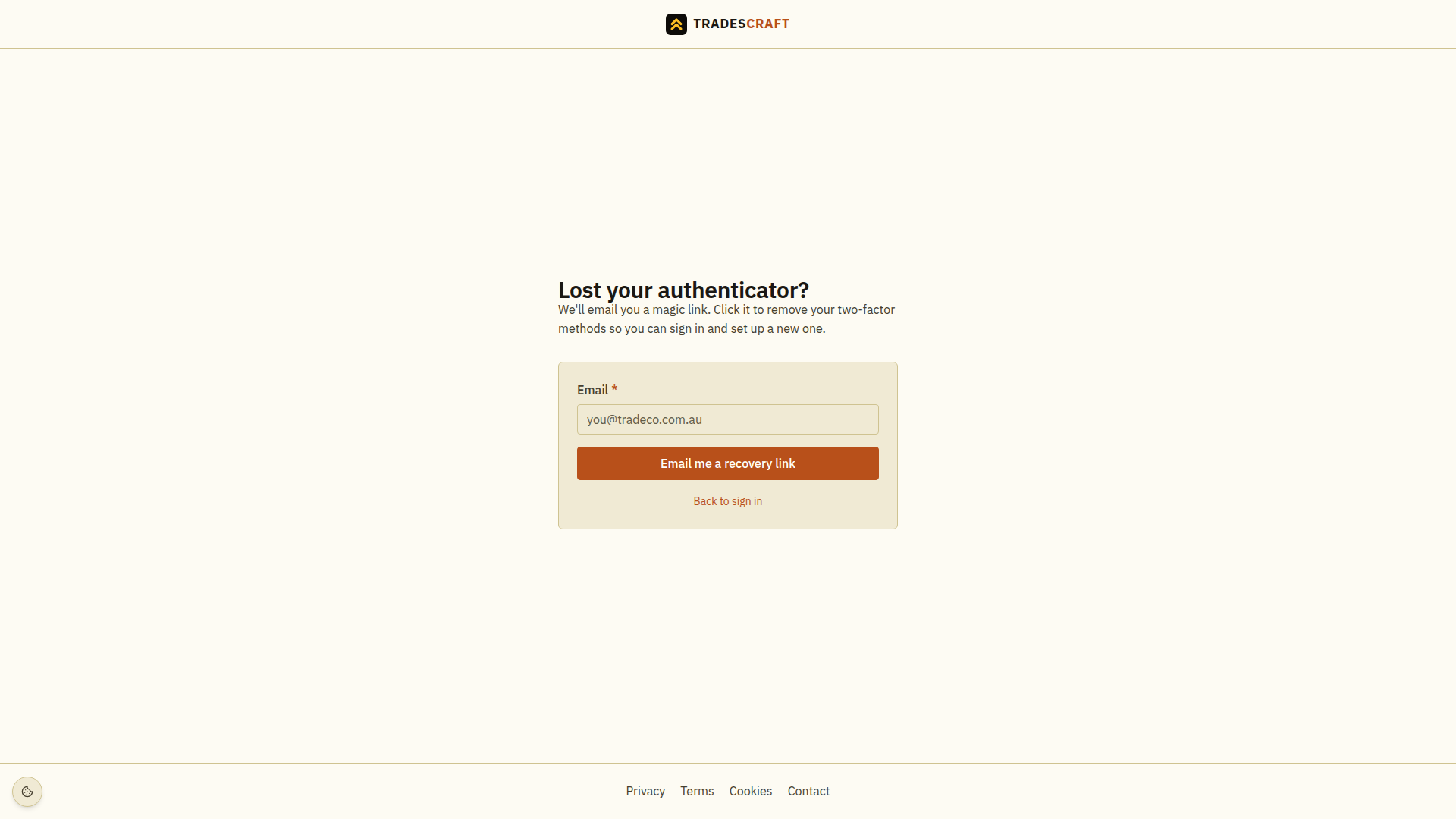
- On Lost your authenticator?, enter your sign-in Email and choose Email me a recovery link. The screenshot above shows this request form.
- Check the inbox for your sign-in address and open the secure recovery link. This link is for two-factor recovery and cannot be reused as an ordinary sign-in or password-reset link.
- The link opens the Lost your authenticator? screen. Tap Reset my two-factor: it removes every two-factor method on your account, signs out your other sessions, and takes you to protected setup.
- Set up and verify a new two-factor method. Your account and job data stay locked until that replacement is verified. See Set up two-factor sign-in.
Good to know
- This works from the email link only - a stolen password on its own can never strip your two-factor, so the protection still holds.
- Keep the recovery browser open until the new method is verified. Other signed-in devices are deliberately signed out during recovery.
- Didn't get the email? Check spam, and make sure you used the address you actually sign in with.
- An admin can help too. If you're on a team, an admin can reset your two-factor for you from your staff record - handy if you can't reach your email either. See Your team.
- The best fix is prevention: keep a second method so a single lost device never locks you out.