
Subcontractors are external workers you assign to jobs but who aren't your staff. Open Settings → Staff & subcontractors, then Manage subcontractors.
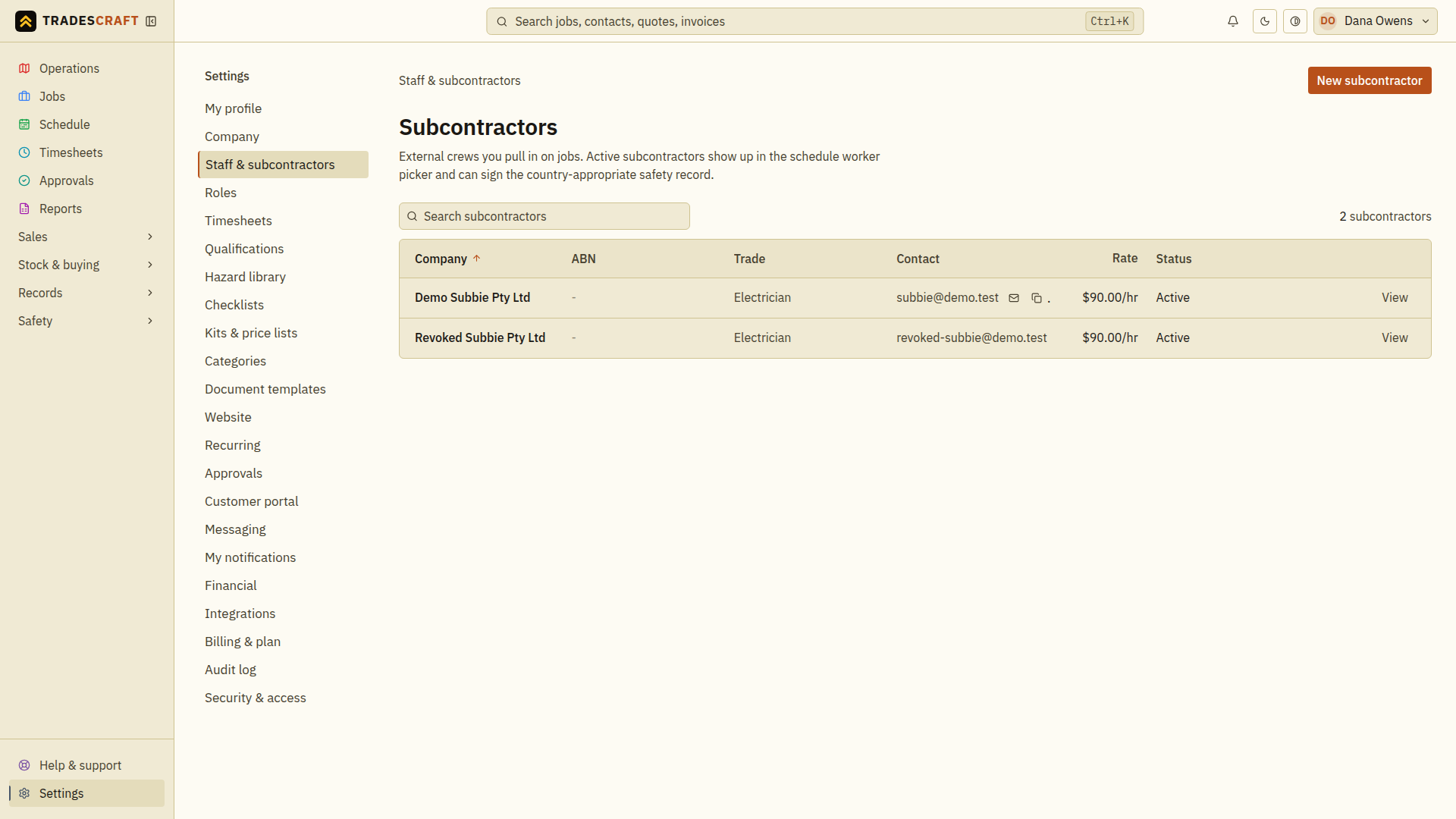
Add a subcontractor
- Choose New subcontractor.
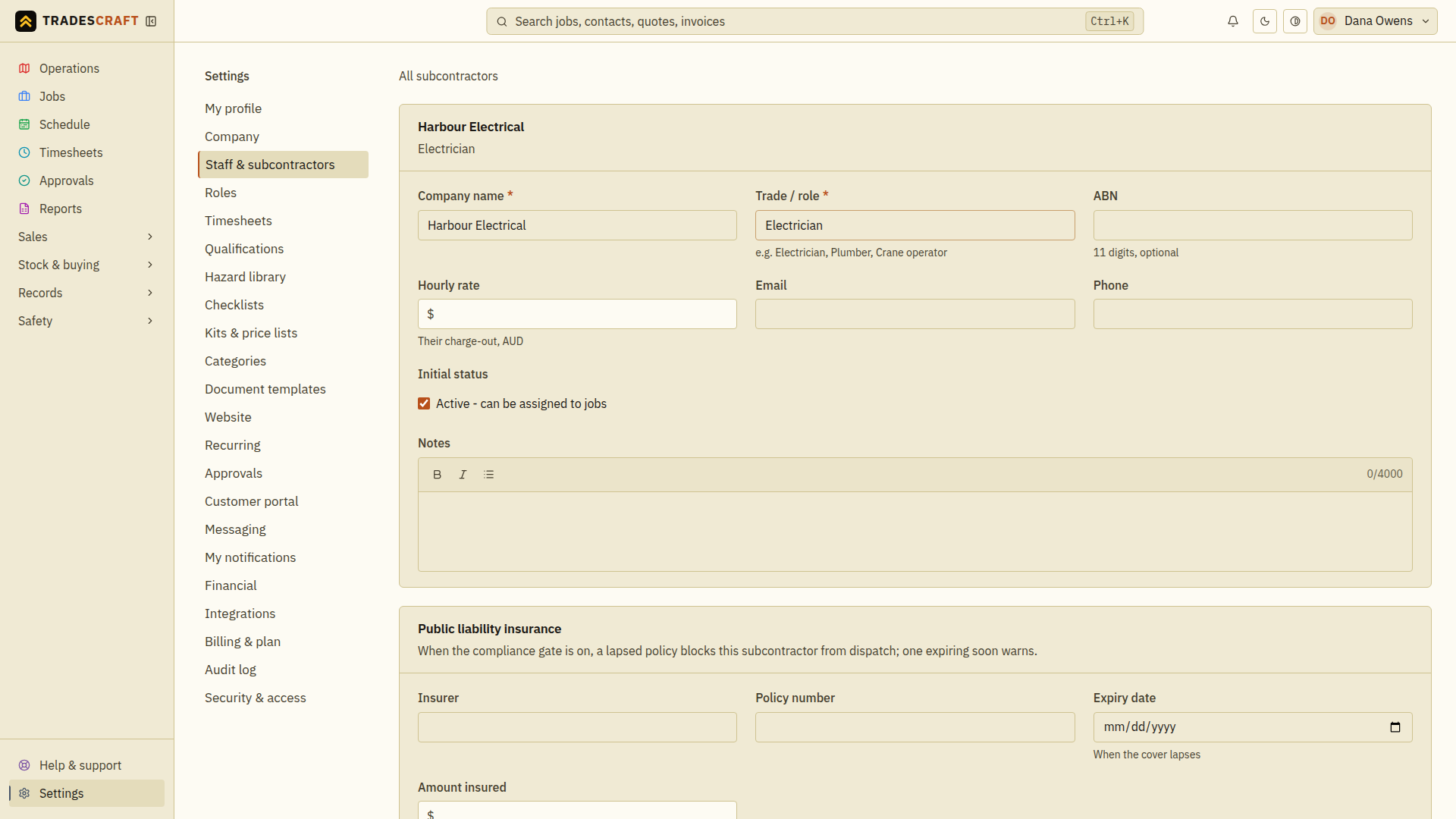
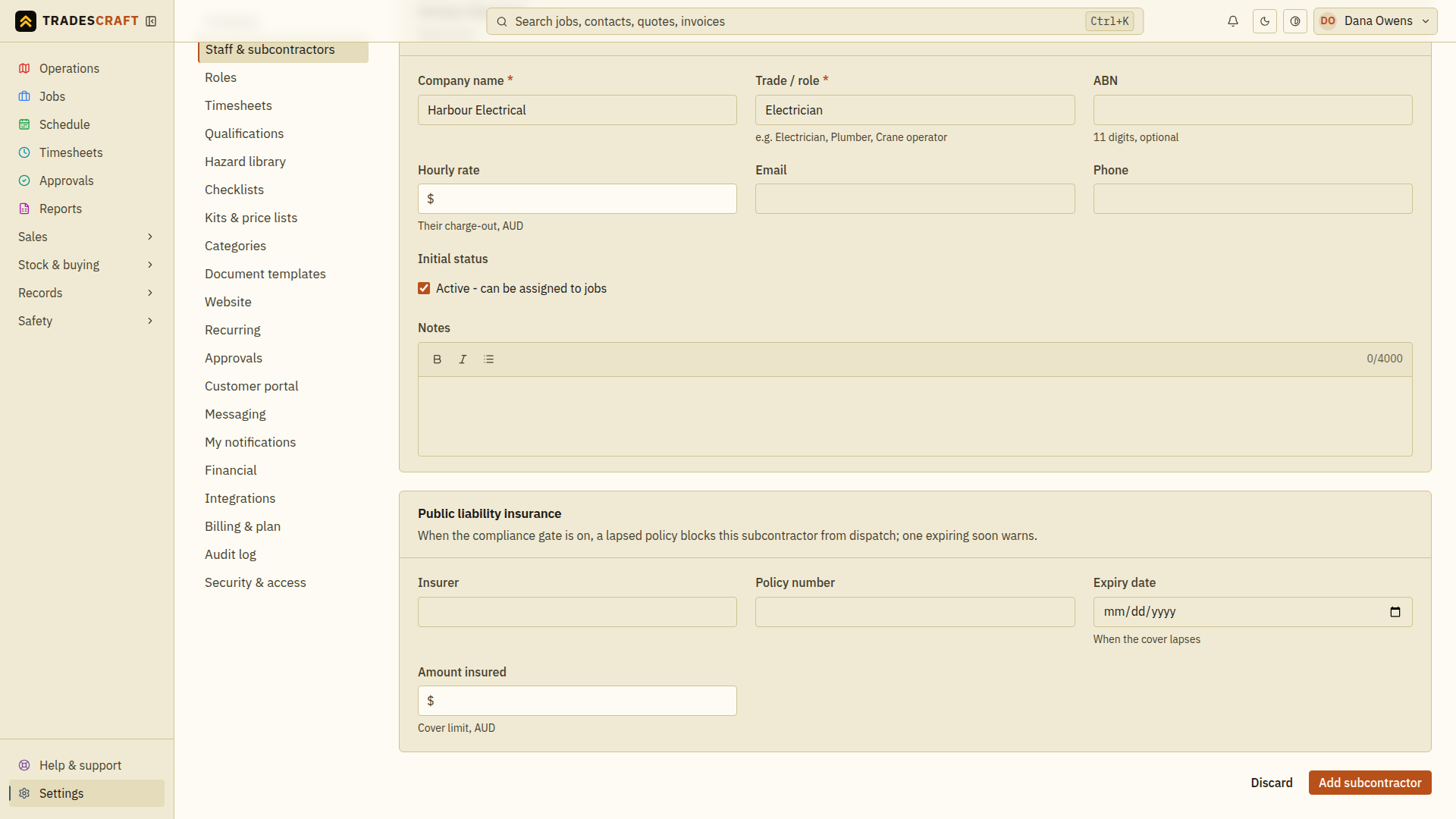
- Enter the required Company name and Trade / role, such as “Harbour Electrical” and “Electrician”.
- Add their email, phone and hourly rate where known. The business number field uses your country's wording: ABN, NZBN or EIN. Use Notes for information your office needs when booking them. Leave Active - can be assigned to jobs ticked only if they should be offered for assignments.
- In the insurance section, copy the Insurer, Policy number, Expiry date and Amount insured from their current insurance document.
- Choose Add subcontractor. Open the saved record and check the contact, rate and insurance details. Adding this record does not send an invitation.
Invite them to their jobs
- Open the saved subcontractor and check the email address. If it is missing or wrong, choose Edit, correct it and Save changes first.
- Find Portal access and choose Invite to portal. You need admin access and the subcontractor must be active.
- Wait for Portal access linked; invite delivery queued. Invited means the invitation has been arranged; it does not prove the email has arrived.
- Ask them to follow the email and set their password. If delivery is still pending and they need another link, use Queue a fresh link.
They will see their assigned jobs and their own details. Follow Dispatch a job to book their work, and share Your assigned jobs with them.
What you can do
- See your subbies and their details - including their public-liability insurance and, in AU/NZ, the qualifications they hold (with expiry), so you can check they're cleared before assigning work. US accounts use General liability insurance wording as optional recordkeeping; it does not claim to block US dispatch.
- Invite a subcontractor - they get a stripped-down, secure login that shows only the jobs you assign to them (and nothing else about your business).
- Assign them to jobs and book them on the schedule, just like staff.
- Use Availability and access on a subcontractor's detail page to deactivate or reactivate them. Deactivation keeps their history but removes them from job assignment and, if they were invited, immediately bans their portal login and revokes active sessions. This sensitive change re-checks your two-step verification and is deliberately separate from editing their company, rate or insurance details.
- If billing is in read-only mode, you can still deactivate a subcontractor because that removes access. Reactivation, invitations and profile edits stay locked until the subscription is active.
Open and maintain a subcontractor
- Open Settings → Staff & subcontractors → Manage subcontractors and select the subcontractor. Check the company name and email.
- Review contact details, rate and any insurance dates before booking work. Use Edit for corrections, then Save changes and check the saved values.
- For an invited subcontractor whose access must stop, use Availability and access, review the deactivation confirmation and complete verification.
- Check the new access status. To book an active subcontractor, open the job and use Assign crew, machine or vehicle for the visit window.
The subcontractor's details are separate from a job assignment. Updating their profile or inviting them does not itself schedule any work.