
Open Sales → Invoices, then the invoice. Check the customer, invoice number and outstanding balance before sending it or recording money received.
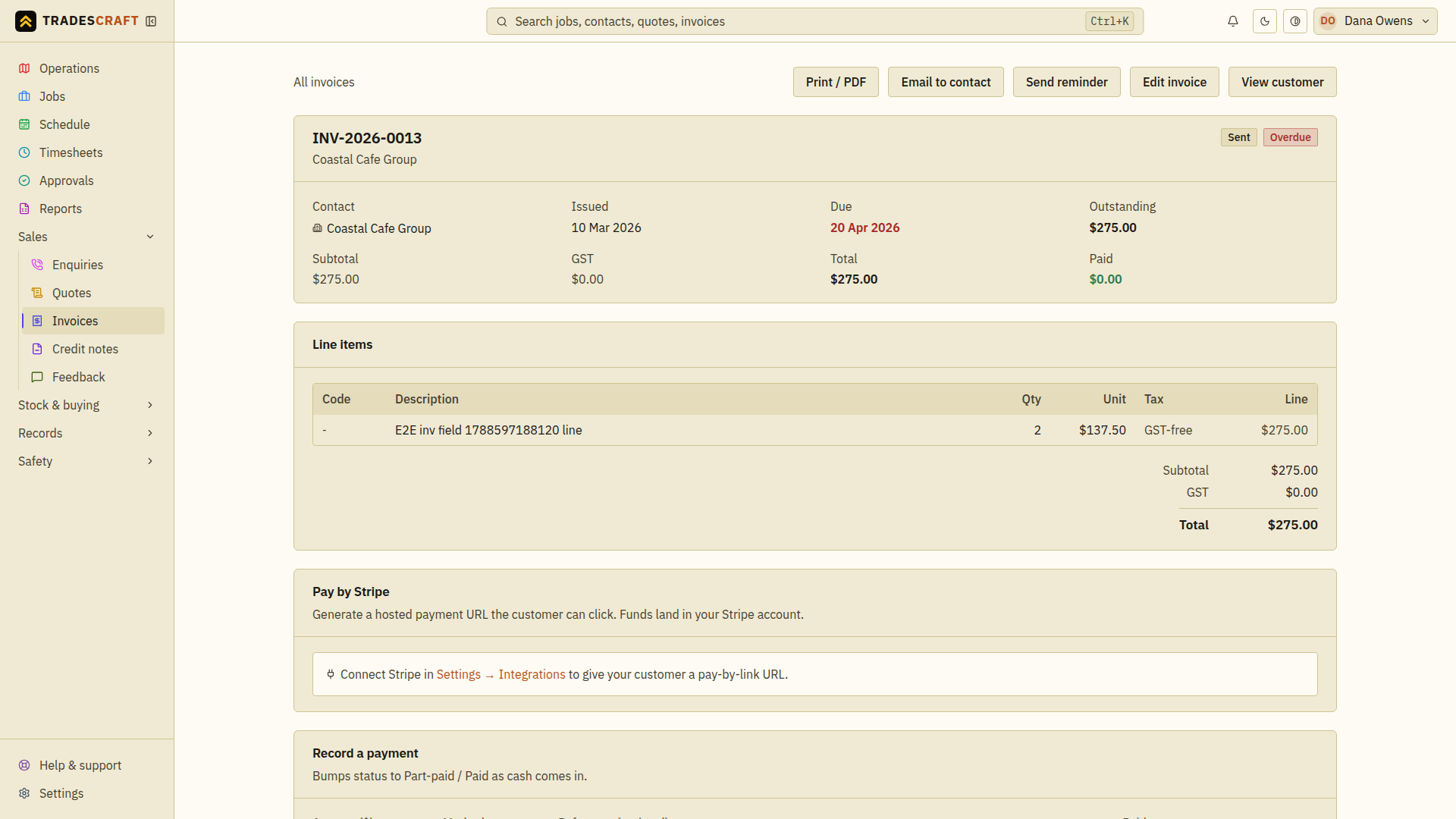
The header and money summary
The header shows the invoice number, an Overdue / Part-paid / Paid badge, and the actions: Print/PDF, Email to contact, Send reminder, Edit invoice, View customer. A still-Draft invoice also shows Mark as sent, which issues it (emailing a copy doesn't change the status on its own). Below it is the money summary - Subtotal, GST or Sales tax, Total, Paid and Outstanding - followed by the line items. US documents show USD and the exact tax rate saved when the document was created.
A US Verify destination sales tax before sending notice means the saved figure is still a reference awaiting transaction-level confirmation. Until you open Edit invoice, verify the exact combined destination rate and save, Tradescraft blocks PDF/print, email, mark-as-sent, reminders, portal visibility and payment link creation. This prevents an unverified statewide figure from becoming a customer-facing amount.
Send the invoice
- Review the customer, lines, tax, due date and notes. Use Edit invoice to correct anything that is wrong, then save and review the resulting total.
- If you want to offer card payment, create and check the pay link as described below before sending the invoice.
- Choose Email to contact, select the intended recipients and send. Wait for the send confirmation; correct a missing recipient on the contact first.
- For a draft you have issued, choose Mark as sent and check the new status. Emailing a copy and marking it sent are separate actions. If an approval is requested, check its result in Approvals.
Pay by Stripe (online card payment)
Under Pay by Stripe, choose Create pay link and wait for the URL to appear. If the card asks you to connect Stripe first, use Settings → Integrations and complete the setup, then return to this invoice. Check the link shows the correct invoice and amount before sharing it or emailing the invoice.
When the customer pays by card, Paid / Outstanding updates automatically. Check that recorded payment before entering any manual payment for the same transaction. Payment processing and the later bank payout are handled by Stripe.
Only one current pay link is kept for an invoice. Creating a replacement first disables the old Stripe URL, and Remove link disables the Stripe URL before it disappears from the invoice. If Stripe is temporarily unavailable, Tradescraft queues a safe retry and leaves the link visible until Stripe confirms it cannot accept payment. Editing the invoice total, settling it, or disconnecting Stripe also retires its old pay link automatically.
Record a payment (cash / EFT)
First confirm the money has arrived and check Payment history so you do not record it twice. Then fill the Record a payment form:
- Amount ($) - how much was paid.
- Method - choose how the customer paid. EFT means a bank transfer; other choices include Stripe, cash and card.
- Reference (optional) - a bank ref or receipt number.
- Paid on - the date.
Then tap Record. The status bumps to Part-paid or Paid and the Outstanding figure drops. Check the amount, method and date in Payment history. Recording an EFT here does not initiate a bank transfer.
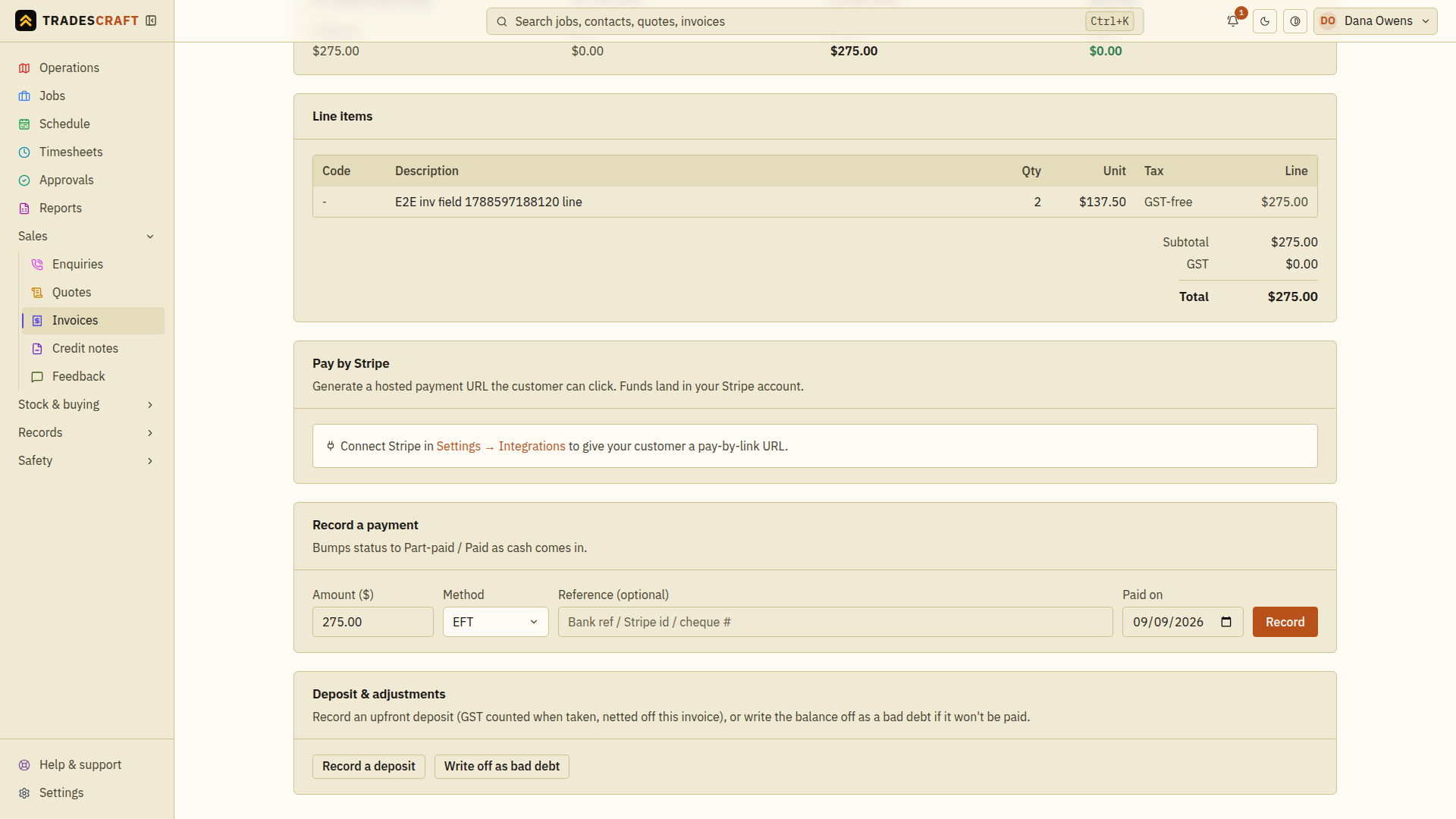
Deposit & adjustments
- Record a deposit - log an upfront deposit; it is netted off this invoice and the document keeps its saved country-specific tax facts. Enter the Amount ($), Received on date and optional reference, then choose Record. Wait for Deposit recorded and check the balance. Do not also enter the same deposit as an ordinary payment.
- Write off as bad debt - if it won't be paid, write the balance off so the total you're owed stays honest. A short reason is required (it's recorded against the write-off for your audit trail), and admins confirm with two-factor before it goes through.
- Recover write-off - if a customer pays a debt you already wrote off, an admin can recover it (fully or partly). That re-opens the invoice for the amount recovered; record their payment against it as normal. Shown on a written-off invoice in its Bad-debt write-off section.
- Reverse a payment - on any payment in the Payment history, an admin can Reverse it: a refund (money you gave back to the customer) or a void (it was recorded in error). The invoice re-opens for that amount so what you're owed stays accurate. Partial reversals are fine.
Good to know
- The Outstanding figure is the true amount you're owed - it always reflects payments, deposits, credit notes and write-offs against the invoice. For AU/NZ accounts, that is also the figure that syncs to Xero.
Recording a refund is not sending money
Reverse → Refund (money returned) records a refund that you have arranged. It does not send money from your bank or create a Stripe refund. Return the money through the original payment provider or bank, then record the matching amount and reason in Tradescraft. Use Void (recorded in error) only to correct a payment entry that should not have been recorded.