
Parts get damaged, walk off site, or go to waste. When some stock is gone but it wasn't used on a job, write it off so your on-hand count matches reality and the loss is recorded for what it is. You do this from the item itself. Open it from Stock & buying → Inventory, then the item.
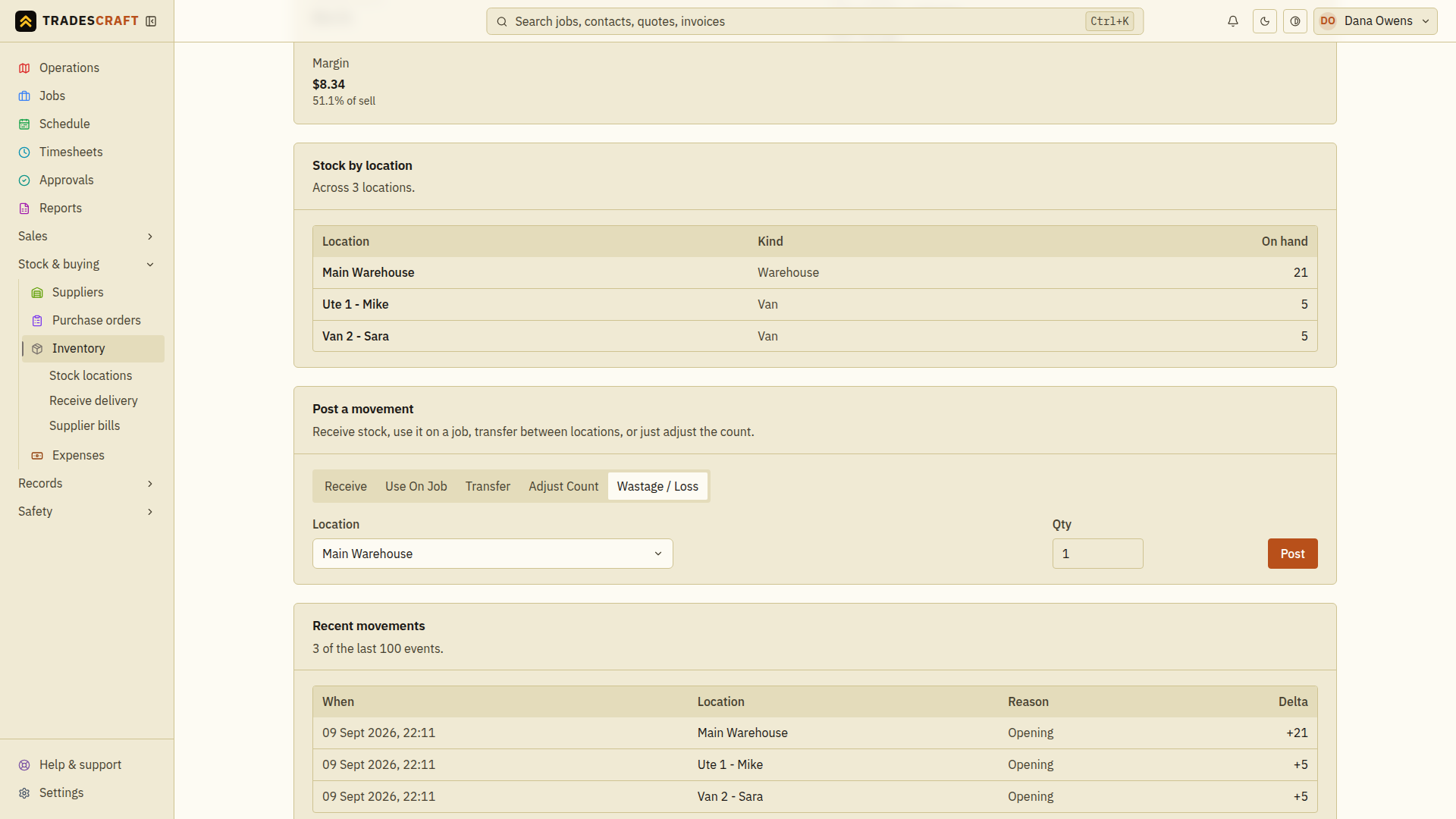
Write it off
- Open the item and find the Post a movement panel.
- Choose the Wastage / loss mode.
- Pick the location it's leaving, and enter the quantity lost.
- Tap Post and wait for Stock moved. The count drops, and the movement is logged as wastage in the item's history.
Which mode do I want?
The same panel handles a few kinds of movement - pick the one that matches what happened, so your history reads true:
- Wastage / loss - damaged, broken, lost or written off (this doc).
- Use on job - records a stock-use movement here. To attach usage to a particular job and its costs, use that job's Materials panel instead; see Log time & materials.
- Adjust count - adds the entered quantity to the current count. To enter the actual total counted on the shelf, use Reconcile counts instead.
- Receive / Transfer - stock coming in, or moving between locations.
Good to know
- Every movement is added to the item's history - it's never an overwrite - so the on-hand figure can always be explained. See Item details.
- Recounting a whole location after a stocktake? Use Stocktake (reconcile) instead - it corrects many items at once against your counted figures, rather than writing off one item.