
From My jobs, tap View details on a job to open it.
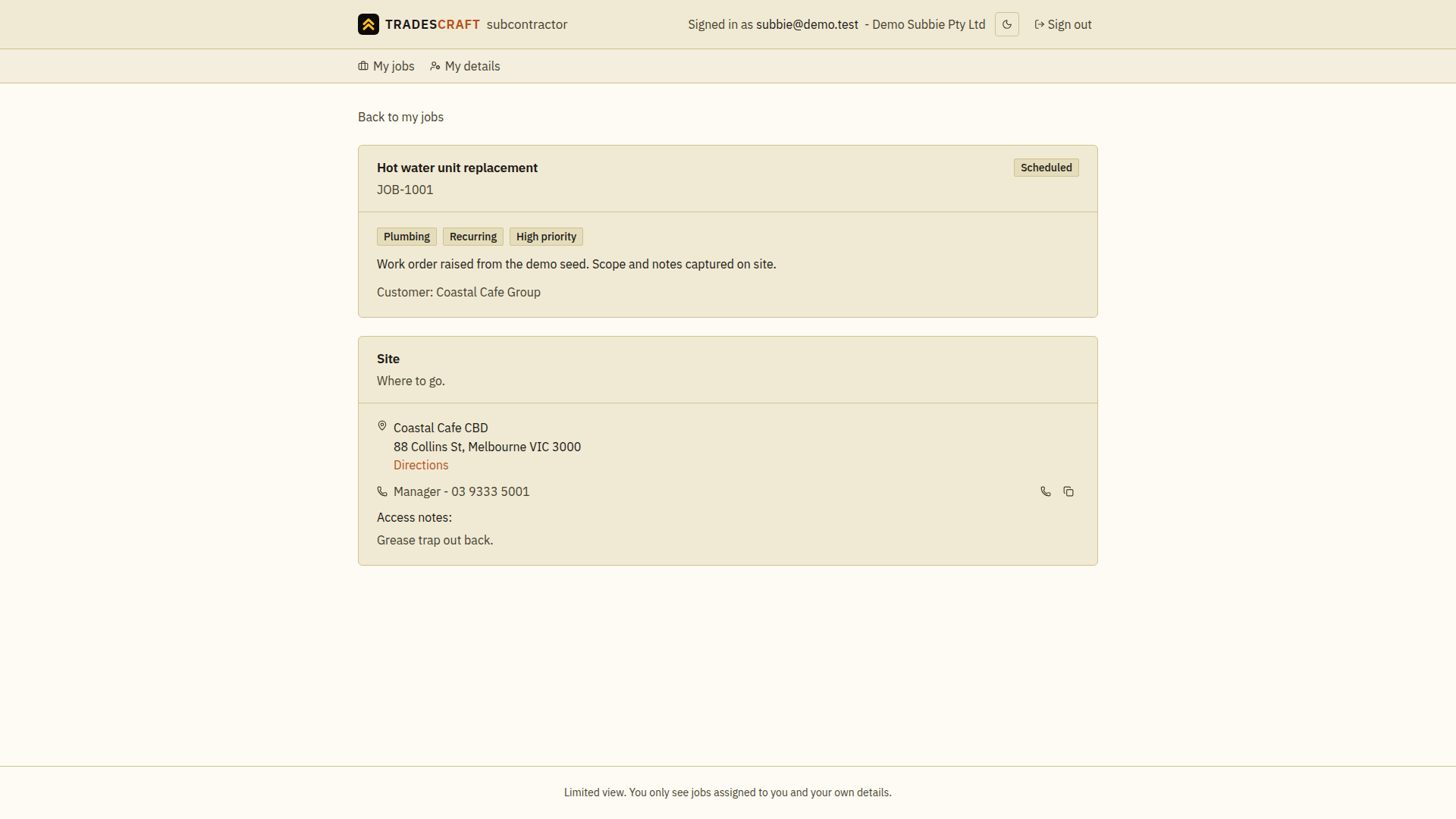
What you'll see
- The job and what needs doing.
- The site address with Directions, plus the on-site contact and access notes. Directions opens your phone's maps app with driving directions already set. If the business hasn't recorded an address for the site, the link isn't shown - ask them before you set off rather than trusting a guess.
- The schedule - when you're booked on.
Good to know
- You only see the jobs assigned to you - never the rest of the business's work.
Prepare for the visit
- Open My jobs → View details for the assigned job. Match the job title and site to the work the business has agreed with you.
- Read the brief, appointment window, site contact and access notes. Contact the business if the scope, time or address needs clarification.
- Choose Directions to open the destination in your maps app. Check the destination before setting off; opening directions does not change the booking.
- Return to My jobs to review your next assignment. Tell the business about progress or a changed plan through your agreed contact method so it can update the job record.
This view provides the assignment details. If a job or address is missing, ask the business to check the assignment and site record; you cannot edit its schedule from this screen.