
Start a new vehicle
From Records → Vehicles, tap New vehicle.
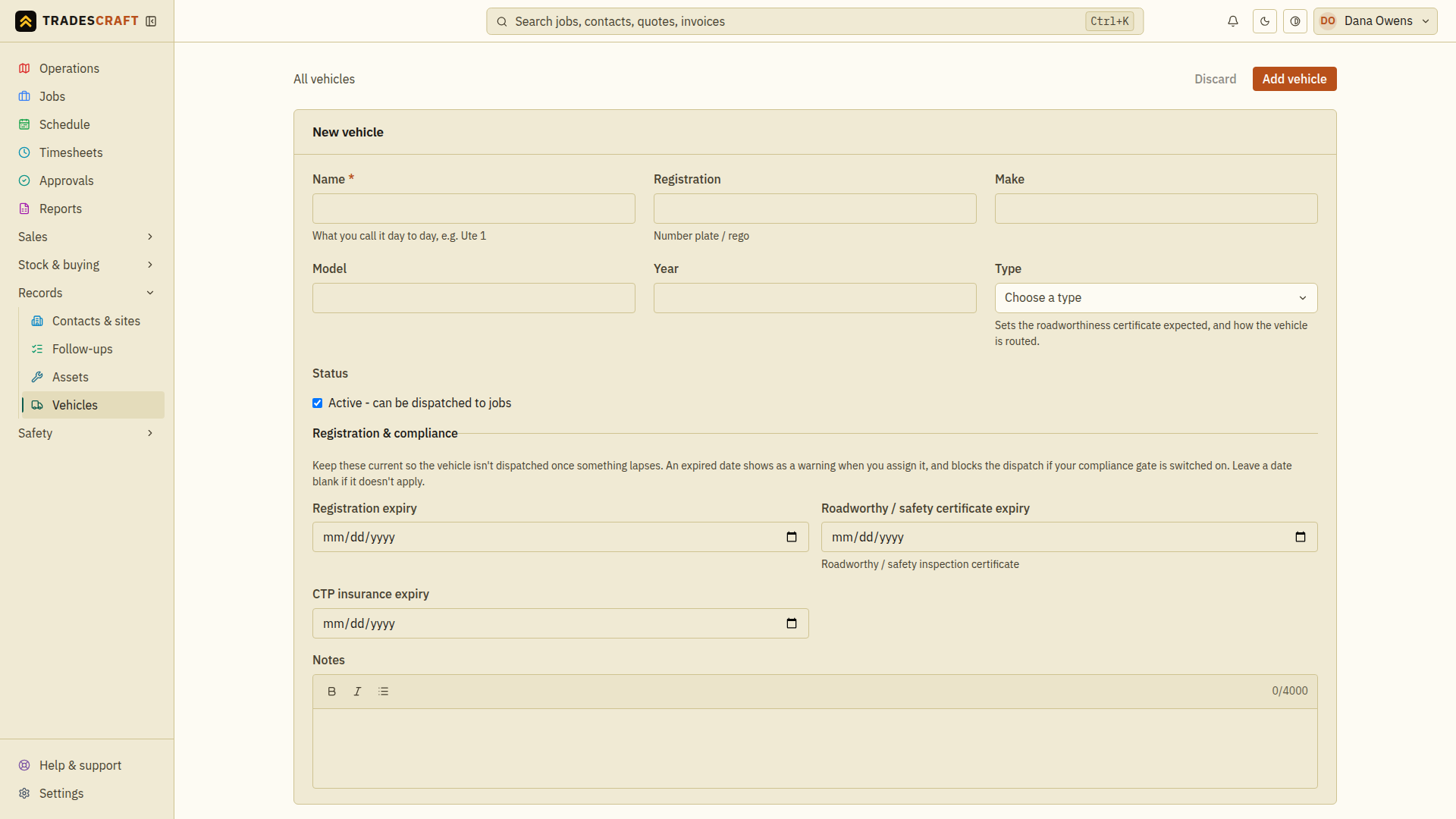
Enter the details
- Name (required) - what you call it day to day, e.g. "Ute 1 - HiAce".
- Registration, make, model and year - the basics.
- Type - pick the closest match: car, ute, van, light truck, heavy truck, trailer, or plant. This does two jobs. In New Zealand it decides whether we ask for a Warrant of Fitness or a Certificate of Fitness. And it tells us how to work out driving routes for the vehicle - a trailer or a truck isn't routed the same way as a car. If you already typed your own wording here, it stays as you wrote it.
- Status - leave it Active so it can be dispatched to jobs.
- Registration & compliance (AU/NZ) - set the rego, roadworthy / safety certificate and insurance expiry dates. An expired date warns at assignment and can block dispatch when the business has turned on the Compliance setting.
- Registration & insurance (US) - keep optional registration, safety inspection and insurance dates as fleet references. They do not claim to determine state compliance and do not block US dispatch.
- Notes - anything else worth recording.
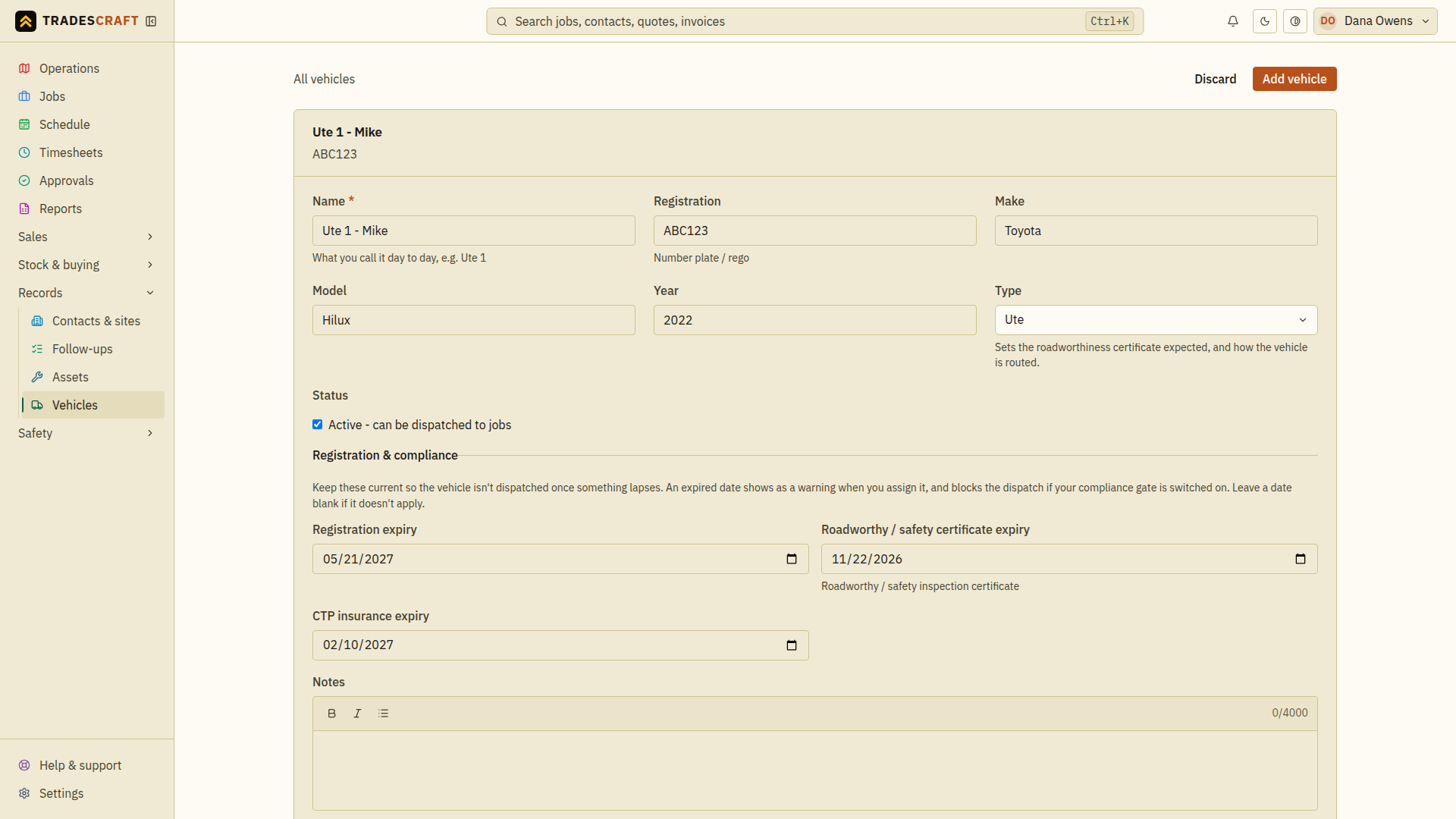
Tap Add vehicle to save it.
It joins your fleet
The vehicle is ready to assign to jobs and book on the schedule, and it shows on the Operations map.
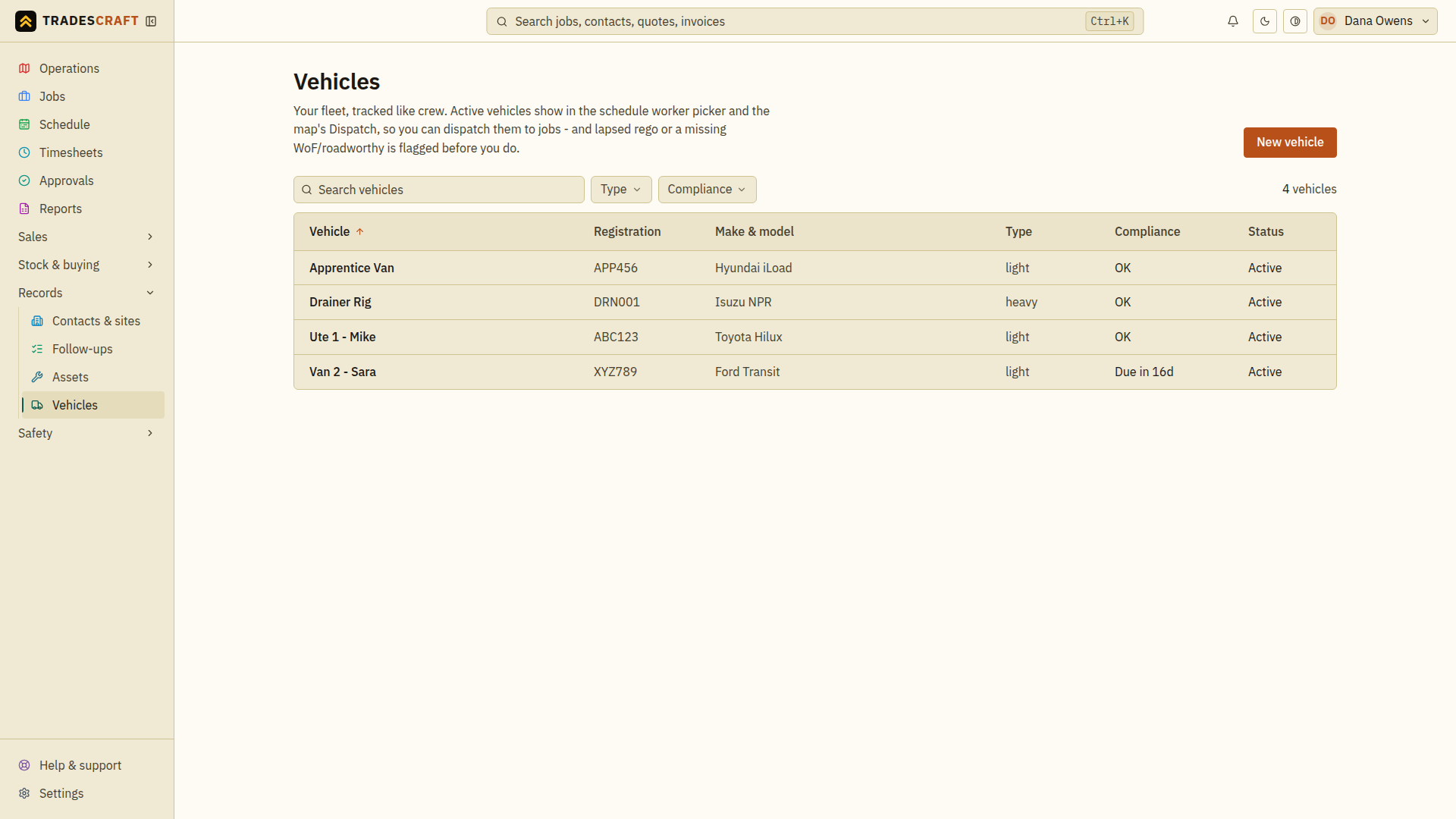
Check what you saved
After Add vehicle, find the vehicle in the fleet and check its registration, active status and expiry dates. An expired or missing document may still need attention before dispatch. If the vehicle is absent, clear list filters and check for a save error before adding it again.