
Schedule is your dispatch board - which worker (or machine or vehicle) is on which job, across the days ahead. Open it from Schedule in the menu.
The board
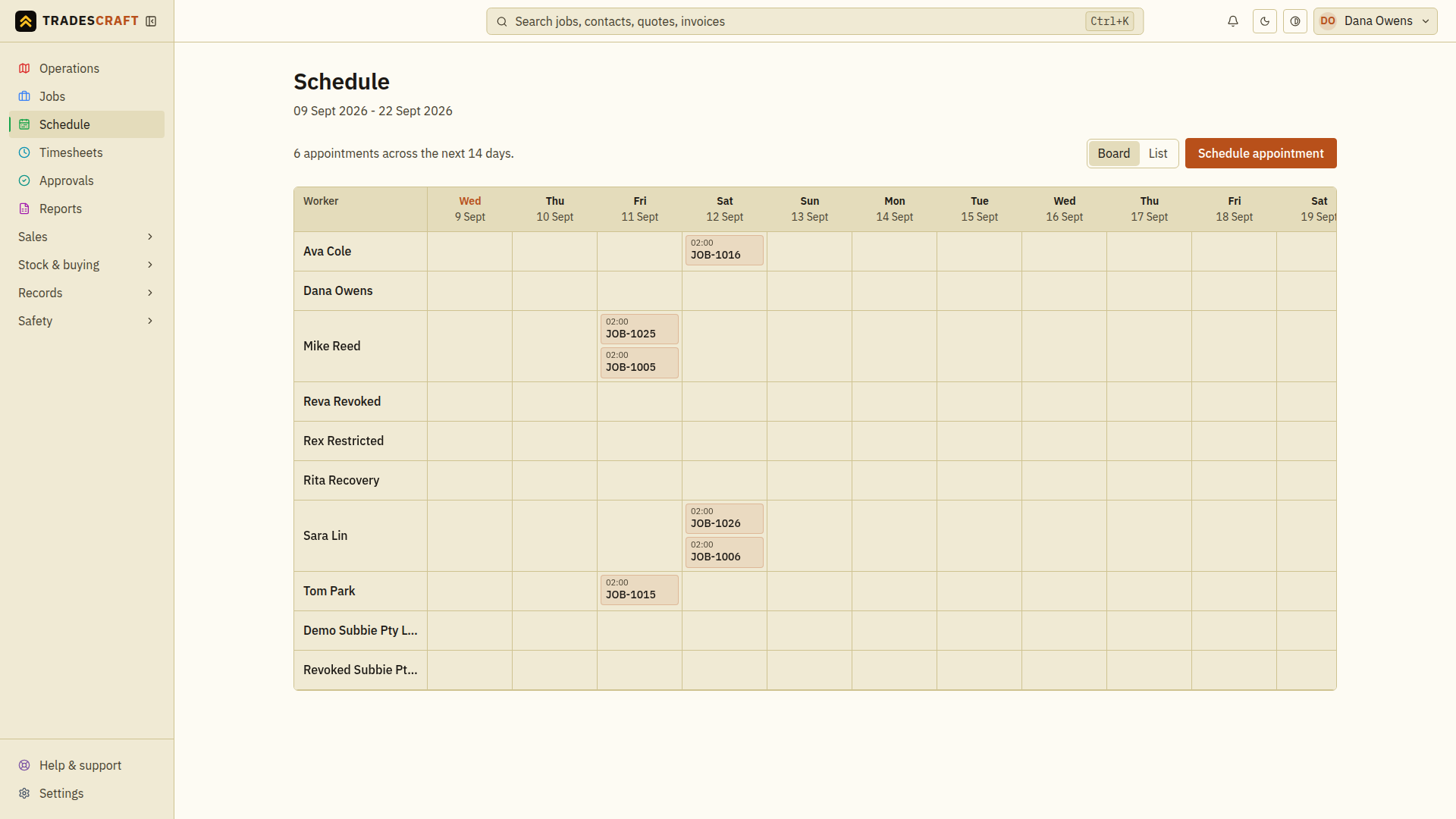
The default Board view lays your team down the left and the next 14 days across the top. Each cell is one worker on one day, so who's booked and who's free jumps out at a glance:
- Staff and subbies always get a row (so spare capacity is obvious); machines and vehicles appear only when they're actually booked, and an Unassigned row collects any work not yet handed to someone.
- Each chip is an appointment - its start time and job number, coloured by status. Today is highlighted, and the board scrolls sideways through the fortnight.
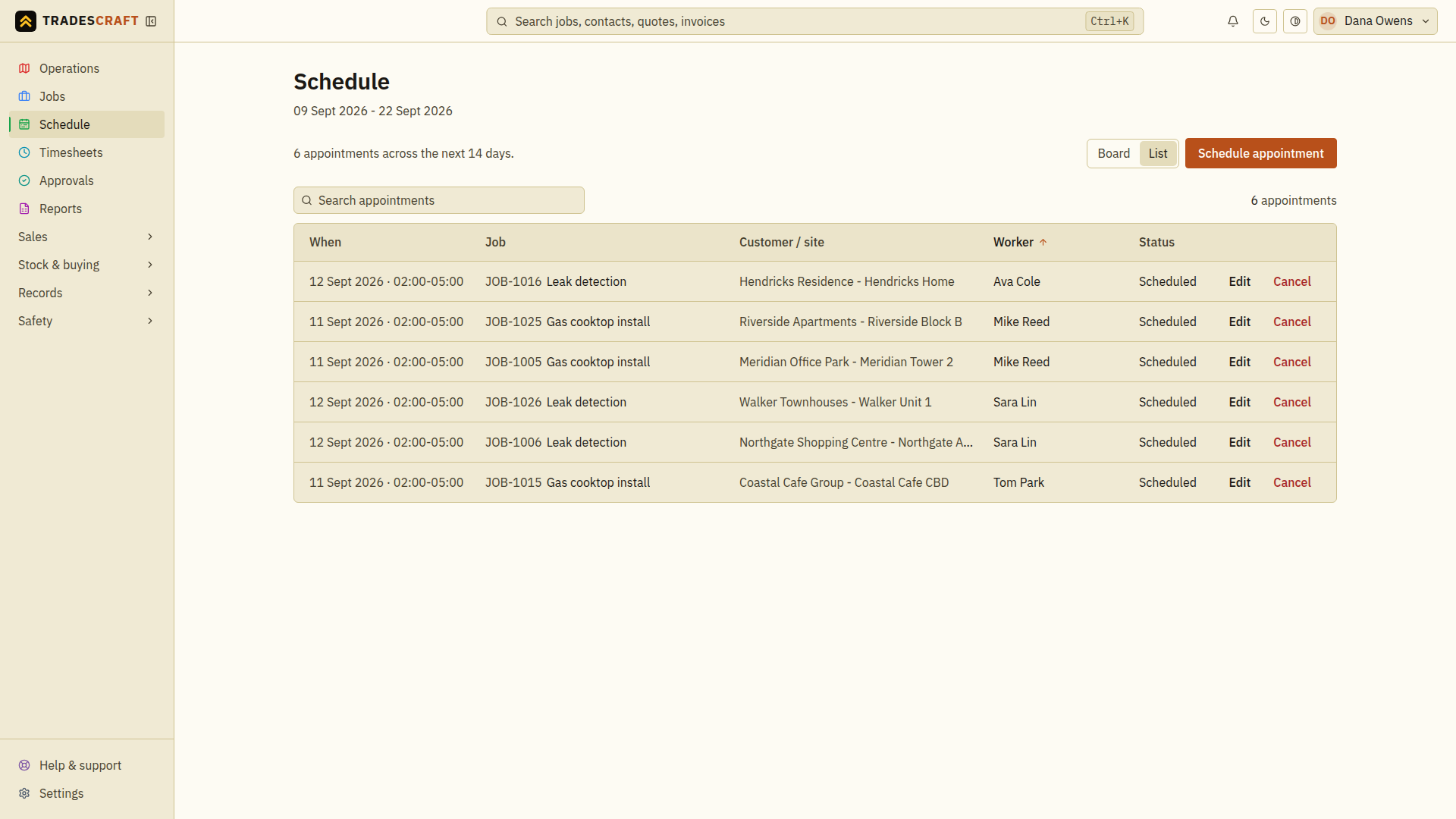
Prefer a flat list? The Board / List toggle (top-right) switches to a searchable, sortable table of every appointment, with a Worker filter to narrow it to one person's run:
Booking work in
An appointment always sits on a job. You can book one three ways:
- On the board, hover a worker/day cell and click + - the worker and day are filled in for you.
- Schedule appointment (top-right) opens a blank booking.
- From the job itself (its Booked resources → Assign crew, machine or vehicle).
Either way you get the same panel: pick the worker (or machine/vehicle), set the start and end window and the status, then Add to schedule.
On AU/NZ accounts the compliance check compares the site's requirements with the selected resource's current records. It warns by default; missing or expired requirements block booking when the business has turned on the Compliance setting. These checks are only available for Australian and New Zealand accounts. See Dispatch a job for resolving a warning or block.
Customer requests
If a customer asks for a time through their portal, it lands here as a Customer requests card at the top of the schedule (it only shows when something's waiting). Each request shows the job, the customer, the time they want, and any note they left:
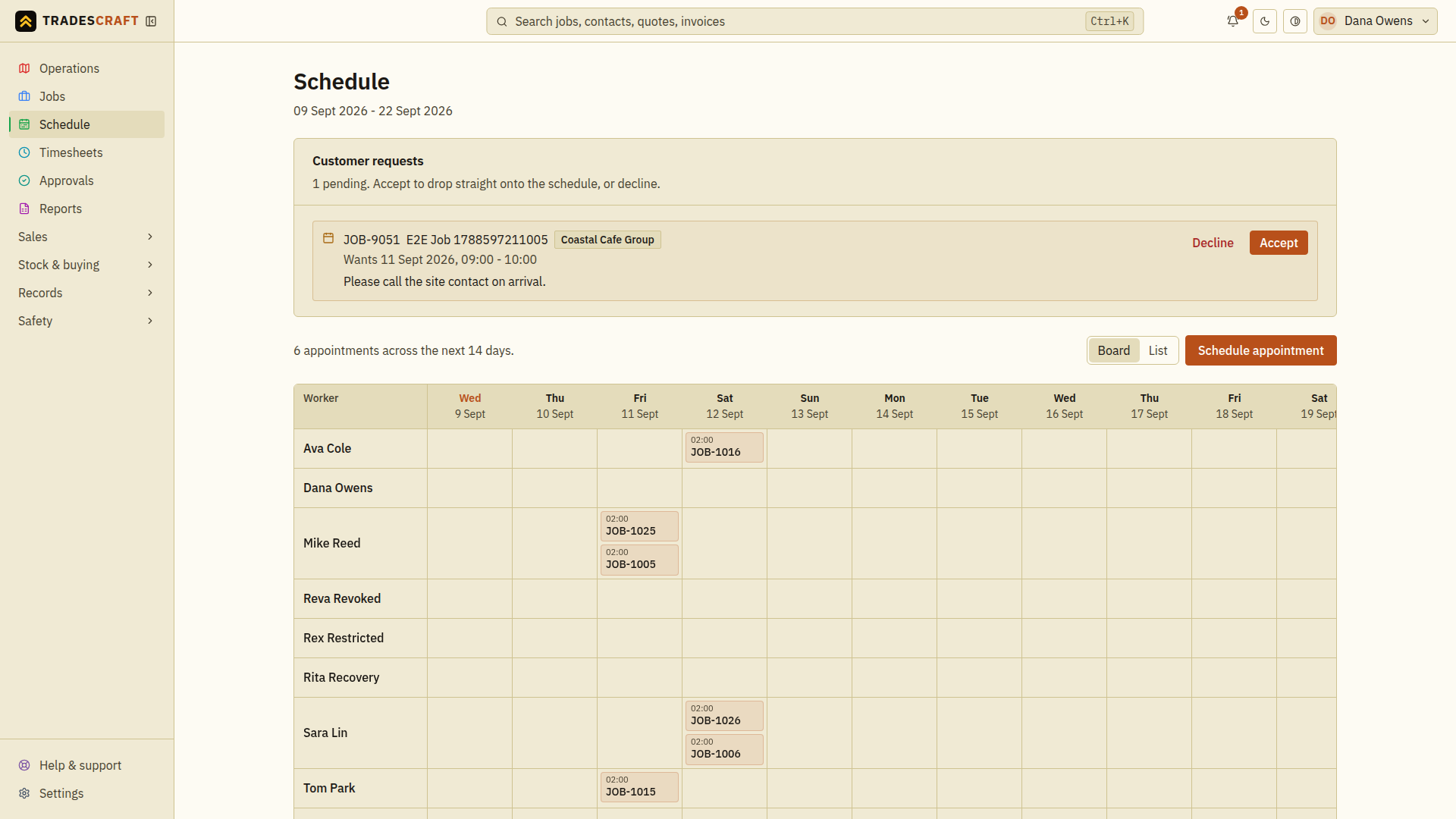
- Accept drops it straight onto the schedule at their preferred time, ready for you to assign a worker.
- Decline (you'll be asked to confirm) turns it down - their preferred time won't be booked and they'll need to request again.
Moving, reassigning and cancelling
- Click any appointment - a chip on the board, or Edit in the list - to reschedule it, hand it to a different worker, or change its status. Appointment emails depend on the business's customer-email settings and successful delivery. Check the saved appointment before assuming it changed.
- Cancel an appointment (in the List view, or by setting its status to Cancelled) and the time and work already logged on the job are never lost. The job holds the work details; an appointment sets when it is booked, so cancelling or rescheduling one never destroys the record.
Where it shows
Booked appointments also appear on the Operations map and on each worker's field view, so everyone knows where they're meant to be.