
Reports is your numbers in one place - cash, sales, spending, tax where supported, and operations. Open it from Reports in the menu.
Choose and check a report
- Choose a report from the menu on the left. On a phone or tablet, swipe the row of report names above the results to find more choices.
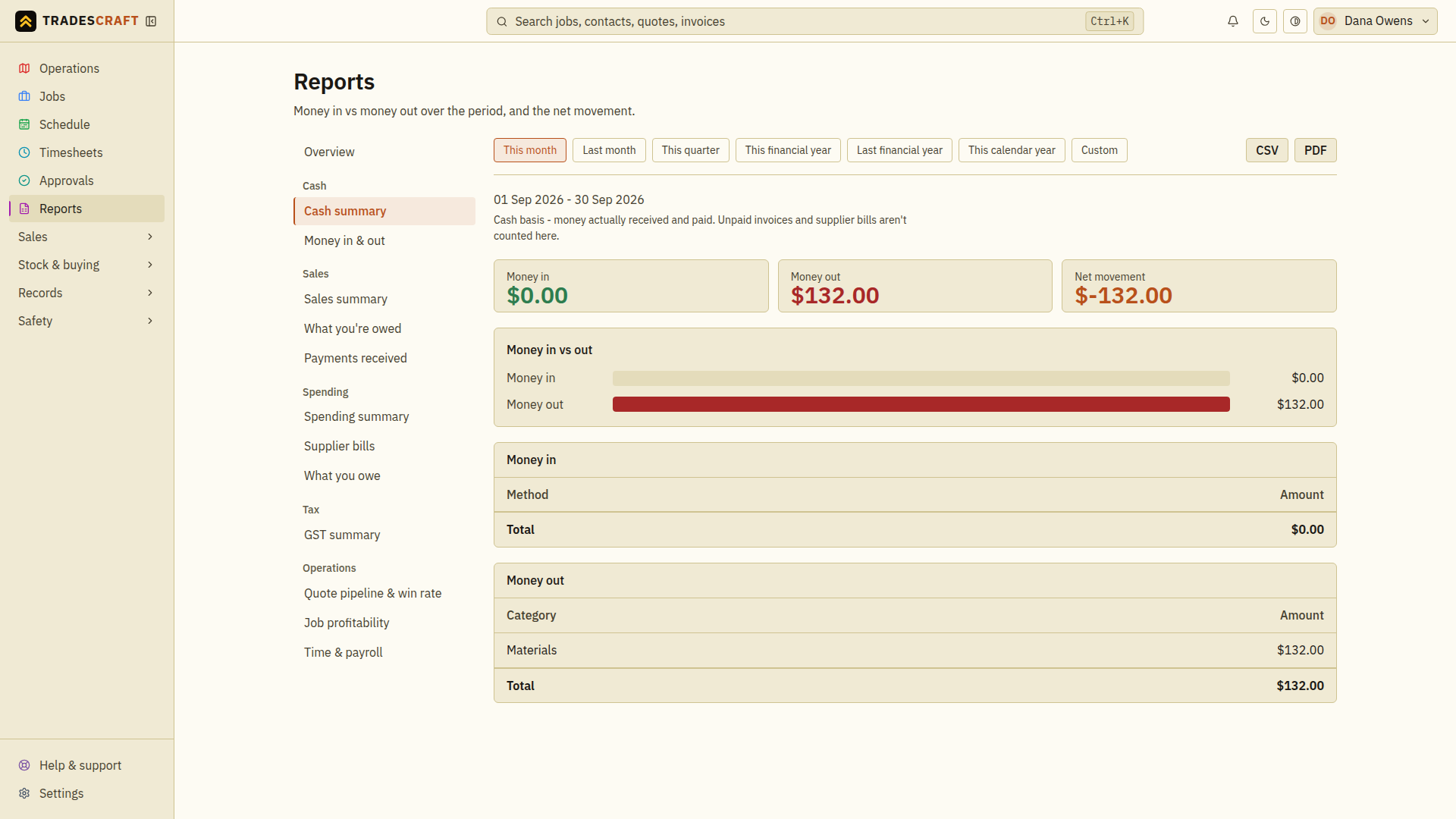
- Choose a period, or Custom and enter From date and To date. Check the dates shown with the results. What you're owed and What you owe show balances at the end date; the other detailed reports cover activity during the selected period.
- Read the report's description and totals. Use the guide below to check whether you are looking at bills raised, payments made or logged work. Open the original record from its normal list if you need to check an amount.
- Choose CSV for a file you can open in a spreadsheet, or PDF for a printable report in a new browser tab. These controls appear after you choose a detailed report; they are not on Overview.
- Open the exported copy and check its title, dates, currency and totals before sharing it. If the PDF does not open, check whether your browser blocked the tab.
If the report is empty, check the dates first. If the page reports that data is unavailable, retry after that error clears; an unavailable total is not a zero balance. A recorded sale and its later payment can fall in different periods.
The overview
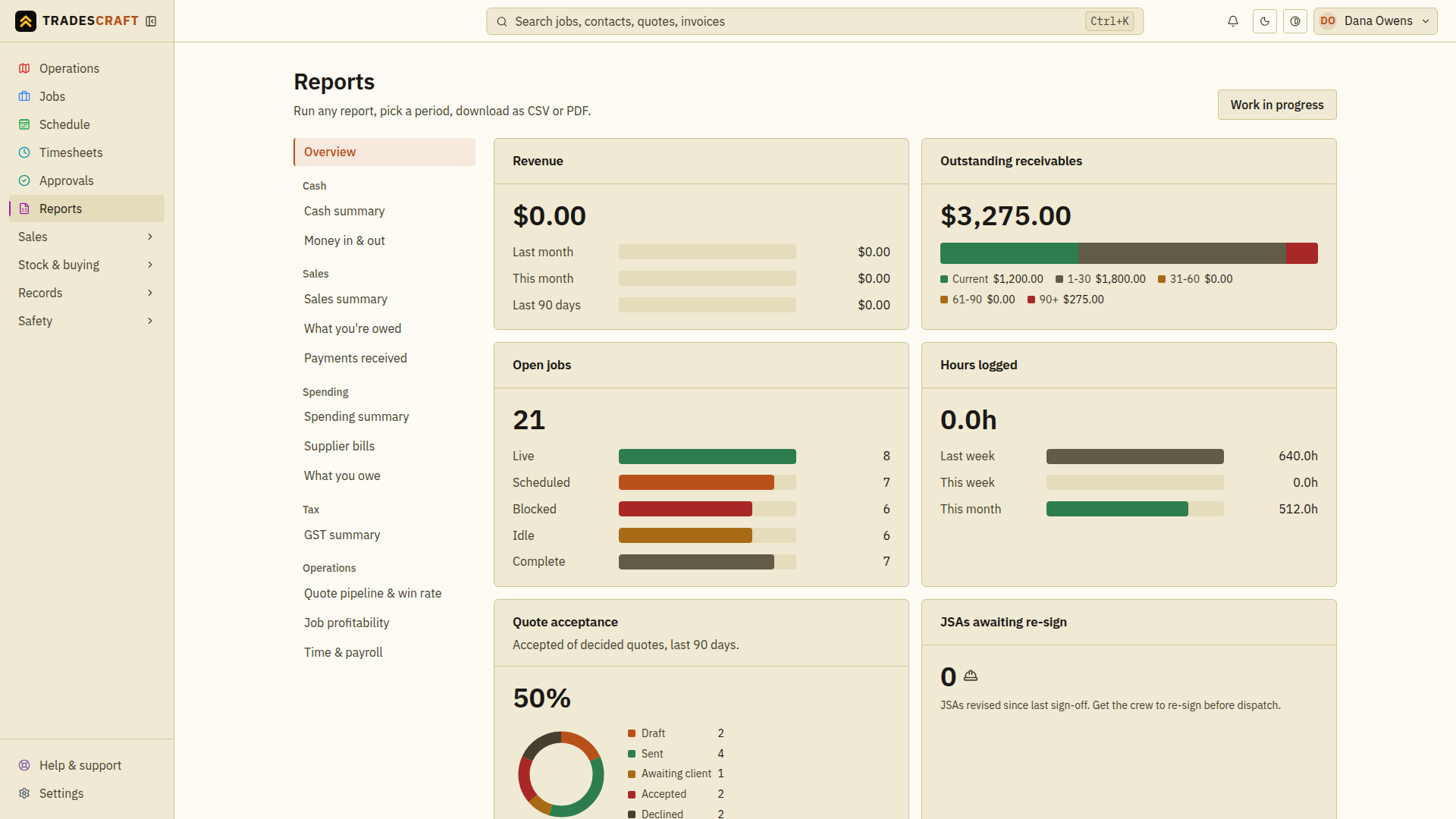
The landing view gives you the headline picture:
- Revenue - this month, last month, last 90 days.
- Outstanding receivables - what you're owed, split by how overdue it is (current, 1-30, 31-60, 61-90, 90+ days).
- Open jobs - a count by status (live, scheduled, blocked, idle, complete).
- Hours logged and quote acceptance (how many quotes customers accepted), plus JSAs awaiting re-sign (safety plans workers need to sign again) where the AU/NZ safety workflow is available.
Which report should I use?
- Overview — a quick view of the business right now.
- Cash summary — compare money received with money paid out and see the difference. Unpaid invoices and supplier bills are not cash movements.
- Money in & out — inspect individual payments and expenses with a running balance. This also uses money actually received or paid.
- Sales summary — see how much you invoiced each client during the period.
- What you're owed — see unpaid customer invoices, grouped by client and how overdue they are. “Current” means the payment is not overdue yet.
- Payments received — check customer payments recorded during the period, including their method and reference.
- Spending summary — compare recorded spending by category, such as fuel or materials.
- Supplier bills — review purchases recorded from supplier deliveries. Recording a bill and paying it are separate events.
- What you owe — see unpaid supplier bills, grouped by supplier and how overdue they are after any recorded payments.
- GST summary — review recorded GST on sales and spending for your accountant. This is available in Australia and New Zealand. It does not submit a BAS or GST return and is hidden for US accounts.
- Quote pipeline & win rate — review quotes raised in the period, their status and the proportion won.
- Job profitability — compare invoiced revenue with materials used, expenses linked to the job and logged labour cost (hours multiplied by rate). Missing time or costs can make the result look better than it is.
- Time & payroll — compare logged hours by worker. For the payroll handoff, use Export for payroll to review approvals and the export your payroll process needs.
For work completed but not yet invoiced, use Work in progress.
Good to know
Reports use the records saved in your business account. US sales reports show amounts in US dollars and label the tax Sales tax. Australian and New Zealand accounts can also send supported records to a connected Xero account.