
If you can still sign in and know your current password, use Change your password instead.
Request the email
- Open the sign-in page and choose Forgot password?.
- Enter the email address you use for Tradescraft.
- Choose Email me a magic link. On this page, that link is for resetting your password. Read the Check your email message.
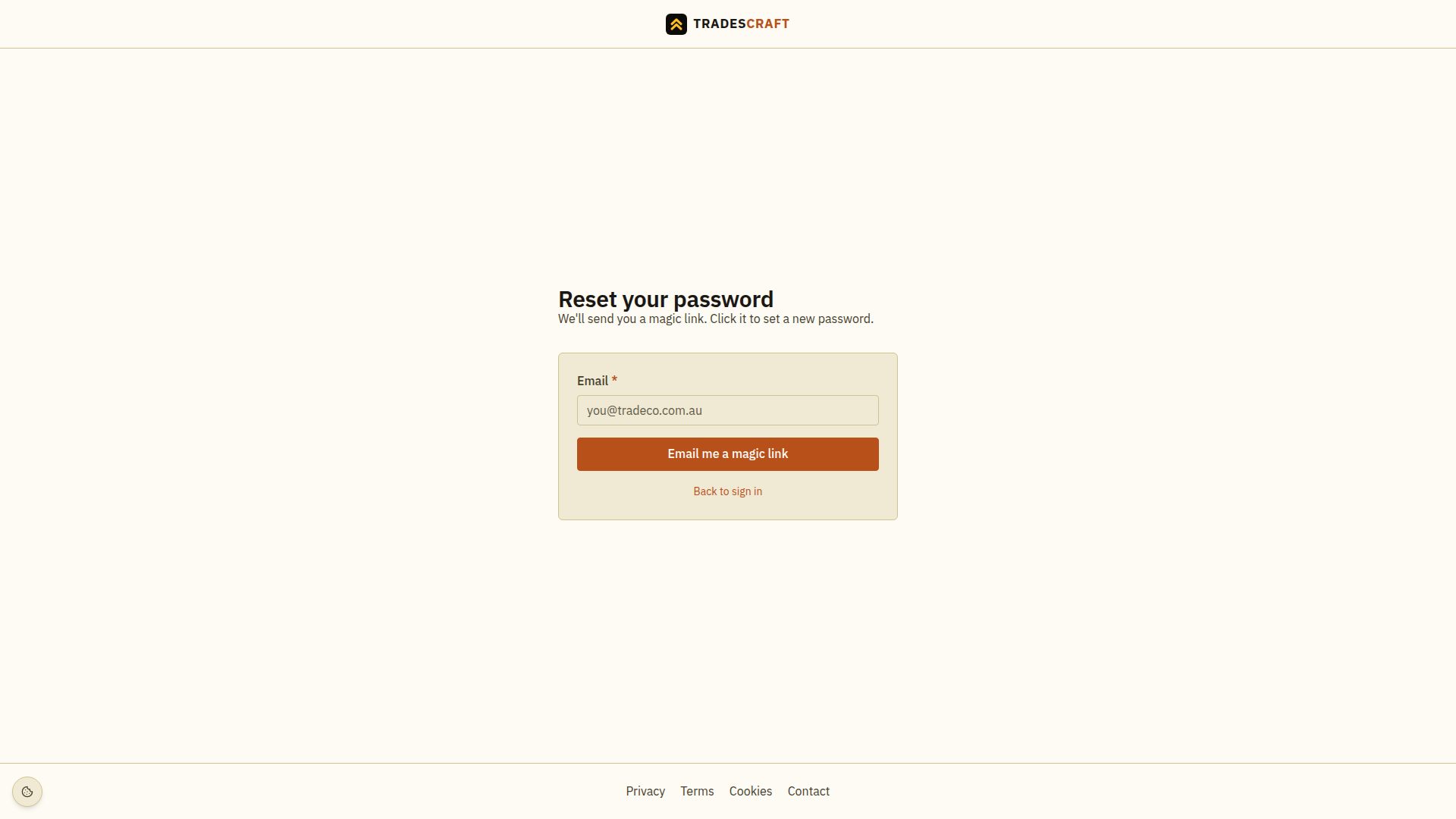
If nothing arrives, check the address and spam folder. Wait for the countdown before using Resend link, where offered. Do not share the email link with anyone else.
Open and confirm the link
Open the newest password-reset email and follow its link. If a confirmation page appears, check that you requested the reset and choose its confirmation button. If Account action confirmed appears, choose Continue to Tradescraft.
A reset link can be used once and expires after a limited time. If you see This link has expired, choose Request a new link and start again.
Set your new password
- Enter New password. Use at least 12 characters, with upper- and lower-case letters, a number and a symbol.
- Enter the same password in Confirm password.
- Choose Set new password. Wait for Password updated and the next page.
If the response is interrupted and Retry exact password appears, use that button to check the same change. Keep the password you just entered until the result is confirmed.
Use the new password for later sign-ins. Resetting it does not remove your two-factor security check. If you also lost access to that check, follow Recover two-factor.