
The website add-on gives you a complete, branded site - a home page, services, contact details, project photos and approved reviews - with no builder or hosting to wrangle. Enquiries and reviews from it flow straight into Tradescraft. Open the Website Studio from Settings → Website. (Setting it up is admin-only.)
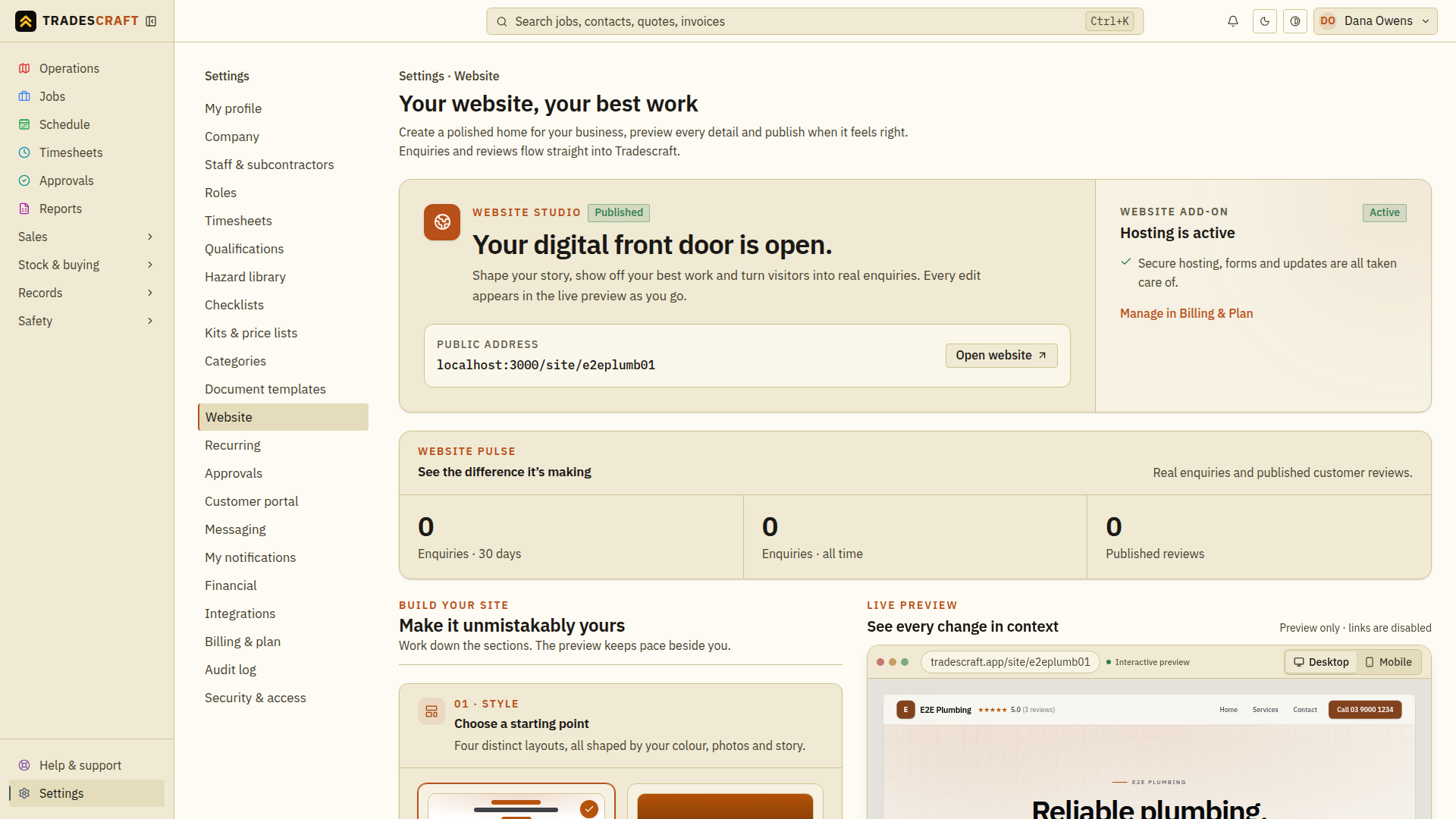
Turn on the add-on
- In the Website add-on card, check the price and currency. This is a recurring charge in addition to the main Tradescraft subscription.
- Choose Add my website. Complete the extra sign-in check if asked, then review and confirm the subscription on Stripe's secure page.
- Return to Tradescraft and check that the add-on is Active. The card shows your public website address and an Open link.
You can manage or cancel the add-on from Billing & plan. If the card shows a problem:
- Subscription confirmation is delayed — refresh and check the existing subscription. Confirmation is still being checked; do not start another one.
- Needs attention — choose Review billing plan. The subscription needs correcting and the public site is offline until this is resolved.
- Unavailable — the price or subscription status could not be checked. Wait and refresh before publishing or changing the subscription. Existing website content stays available.
Get your bearings
The top of the Studio shows whether the site is a Draft or Published, its public address and a quick summary of the content already in place. Use View live site to open the customer-facing version in a new tab.
When the add-on is active, See the difference it's making shows website enquiries and published reviews. If those live counts cannot be loaded, the card says they are unavailable instead of showing false zeroes.
Design your site
- 01 · Style - choose Classic, Bold, Minimal or Split as your starting point.
- 02 · Brand - set your headline, tagline and brand colour. (Your logo comes from Company details.)
- 03 · Portfolio - add up to 30 photos of your best work; the first leads the site. Each upload gets its own progress tile, and the next Add photo tile is available straight away while earlier photos finish uploading.
- 04 · Story - write a short introduction to your business.
- 05 · Services - build each service as a heading with paragraphs, dot points and up to six supporting photos. You can keep editing or reorder services while a photo uploads; the finished photo stays with the service you chose.
- 06 · Contact - set the phone, email and suburb shown to customers.
- 07 · Launch - choose whether to publish and whether to join the directory.
A live preview updates as you go. Switch it between Desktop and Mobile to check both layouts. The preview is interactive: use the gallery thumbnails and arrow controls to click between project photos, just as customers can on the live site. On a wide screen the preview stays pinned beside the editor while you scroll through the sections, so every change remains in view.
Publish
- Finish uploading photos and check the Desktop and Mobile previews.
- In 07 · Launch, tick Publish my website. The website add-on must be active before you can publish.
- Choose Save changes in the bar at the bottom. Wait for Website published.
- Choose View live site and check what customers now see: your headline, contact details, services and photos.
The preview shows your edits before they are saved. Customers see them only once you save. Discard removes unsaved changes, including unfinished uploads. If saving fails, read the error above the save bar and try again after fixing it.
Enquiries sent through your published website appear in Tradescraft.
List in the public tradie directory (optional)
Tick List me in the public tradie directory to also appear at tradies.tradescraft.app. Your name, trade and location always show; everything else is opt-in - tick what you want to share: phone, email, a link to your site, your logo, a short description, your services, and your star rating & review count.
Check the pages your customers use
Open View live site after saving. Check the home page, Services and Contact pages. On a phone, use the menu button to move between them. Check the phone and email links as well as the wording and photos.
On the contact form, customers enter their name, phone or email, locality and what they need done, then choose Send enquiry. They should wait for Thanks - we've got it. If confirmation is interrupted, Retry same enquiry retries that request. Saved requests appear in your Enquiries list; they still need your review and follow-up before becoming booked jobs.
Customers can also give a star rating and written feedback using Share feedback. Wait for Thanks for the feedback. You review it in Customer feedback before publishing it.
In the public directory, visitors can browse locations and trades or search by business, trade or suburb, then open your listing. After changing your directory settings, find your own listing and check that only the contact details and other information you chose to share appear.
Good to know
- It's a paid add-on - the live Stripe price and currency are shown under Billing & plan, where you also manage or cancel it.
- Upload the main photo and service photos through the designer. Pasting a link to a photo on another website will not add it.
- Reviews only show if you approve them, and your star rating is the honest average (see Customer feedback).
Check the saved public result
- Finish the uploads and review the Desktop and Mobile previews.
- In Launch, choose the publishing and directory settings you intend, then tap Save changes in the bottom bar. Wait for Website published when publishing.
- Choose View live site and check the headline, contact details, service descriptions and photos on the public page. The editor preview is not the saved site.
- If you also chose the directory, check the listing and the fields you opted to share. Changing a checkbox without saving does not publish it.
If saving fails, follow the notice above the save bar and retry once the issue is resolved. If the live page has the old copy, check that the save completed and reopen the live page before changing the content again.