
Open any inventory item to see its full picture.
What you'll find
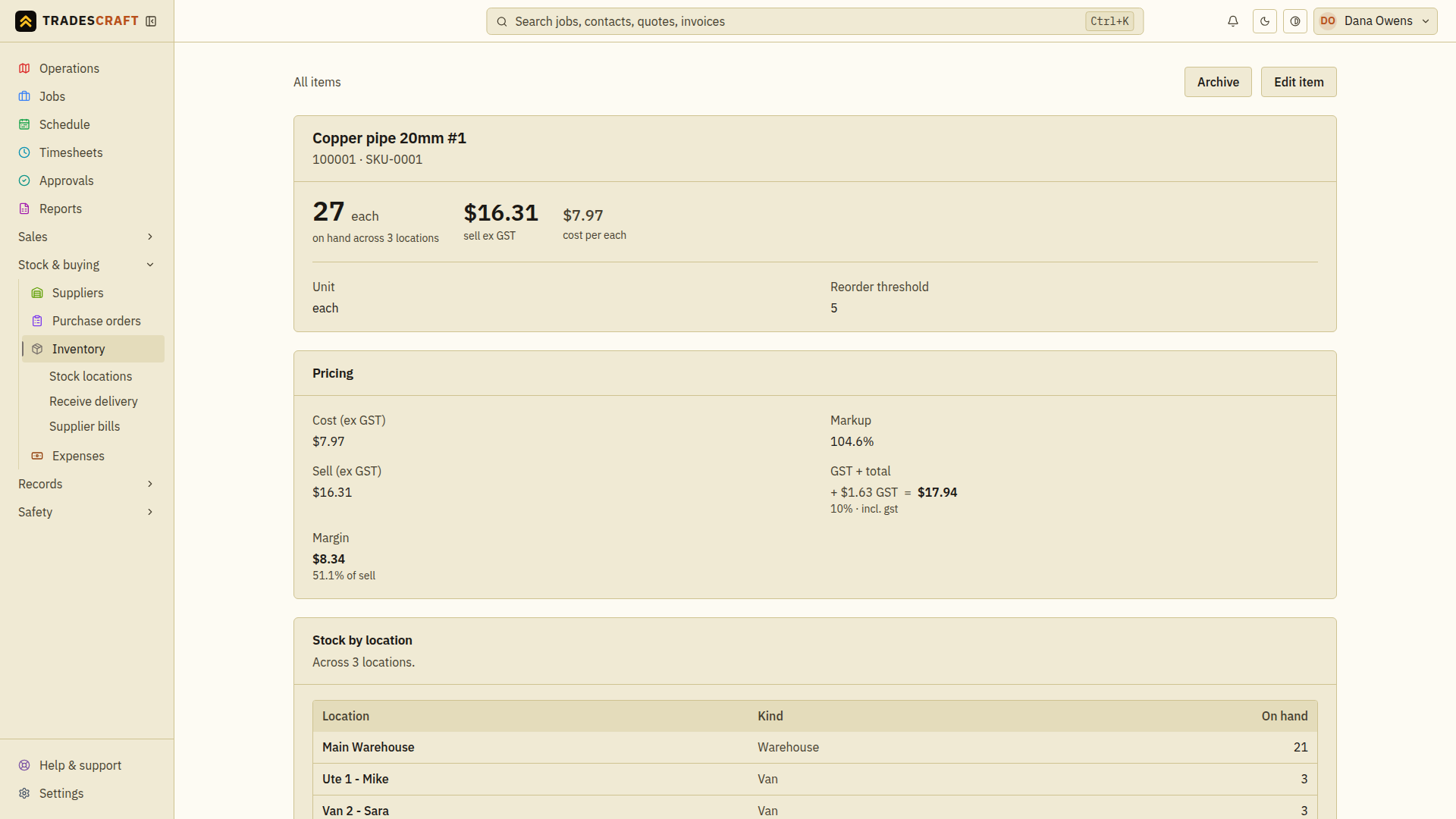
- The item's code, name, unit and prices.
- Stock on hand - how many you currently have, split by location if you store parts in more than one place (van, warehouse, site).
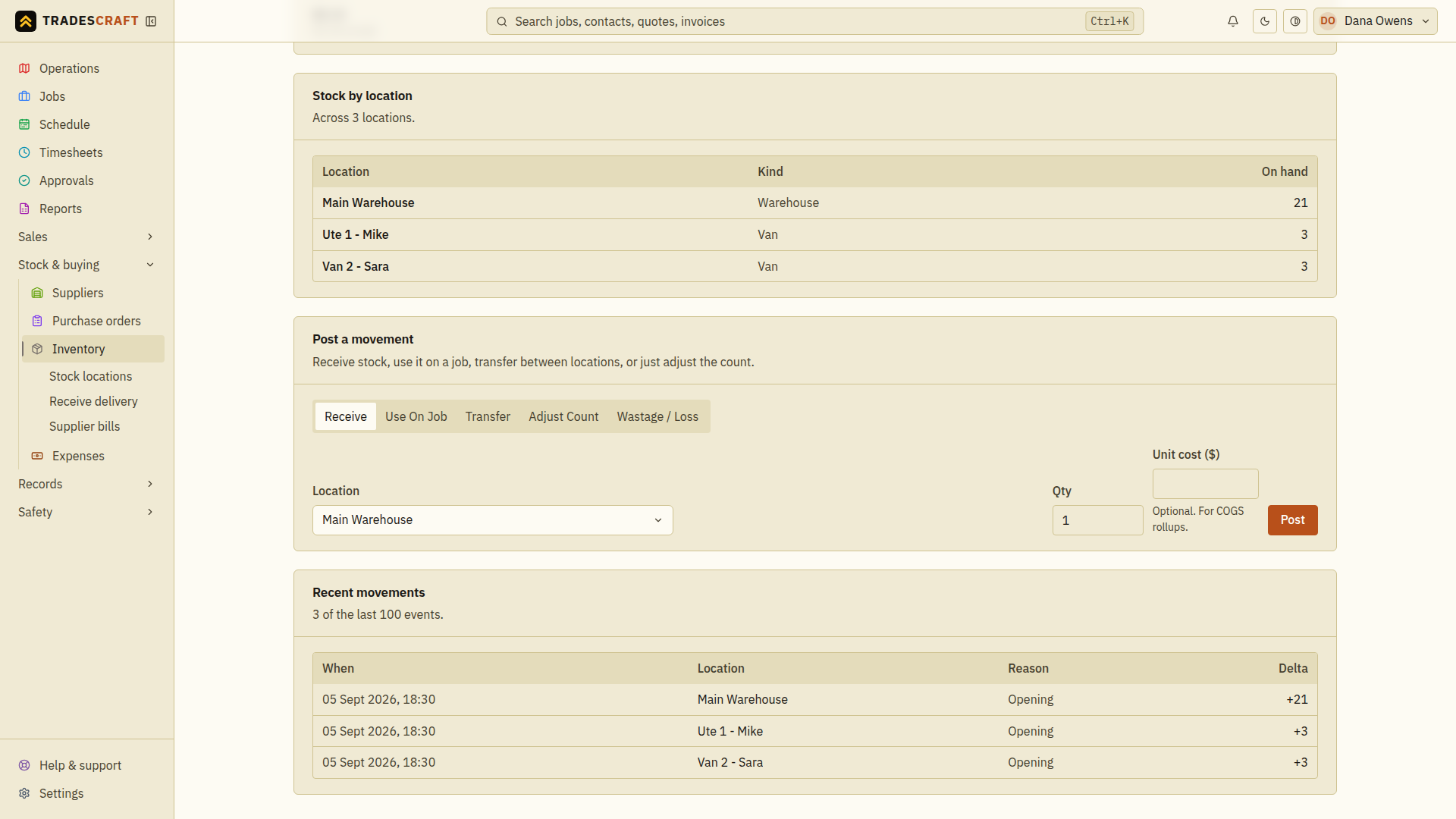
- The movement history - every receipt, job usage, transfer and stocktake that's affected the count, so you can always see why the number is what it is.
- Edit to change the details, and the option to archive an item you no longer carry (archiving keeps the history; it doesn't delete it).
Use movement history to check why a stock count changed. For example, receiving 10 fittings and using 3 on a job leaves 7 in that location, if there were none there to start with.
Review or change an item
- Open Stock & buying → Inventory, search for the item and open its row.
- Compare the location counts with the movement history. A transfer should reduce one location and increase another; a receipt adds stock.
- To change the name, unit or pricing, choose Edit, change the fields and Save changes. Reopen the item to check the saved values.
- To change stock, use the matching guide below to receive goods, write off lost or damaged items, or correct the count after a stocktake. Editing the selling price does not correct a stock count.
If you cannot explain a quantity, use the movement dates and locations to trace it before adding another correction. Archive an item only when you no longer want it available for new work; retain its history for past usage.