
Approvals make selected actions wait for a manager's permission, such as sending a quote, dispatching a job, writing off an invoice, taking a payment, deleting a record. Choose which actions need approval. If an action is switched off here, it goes ahead without this check. If it is switched on, the action stays Awaiting approval until the required people approve it. You set this up under Settings → Approvals (admins only).
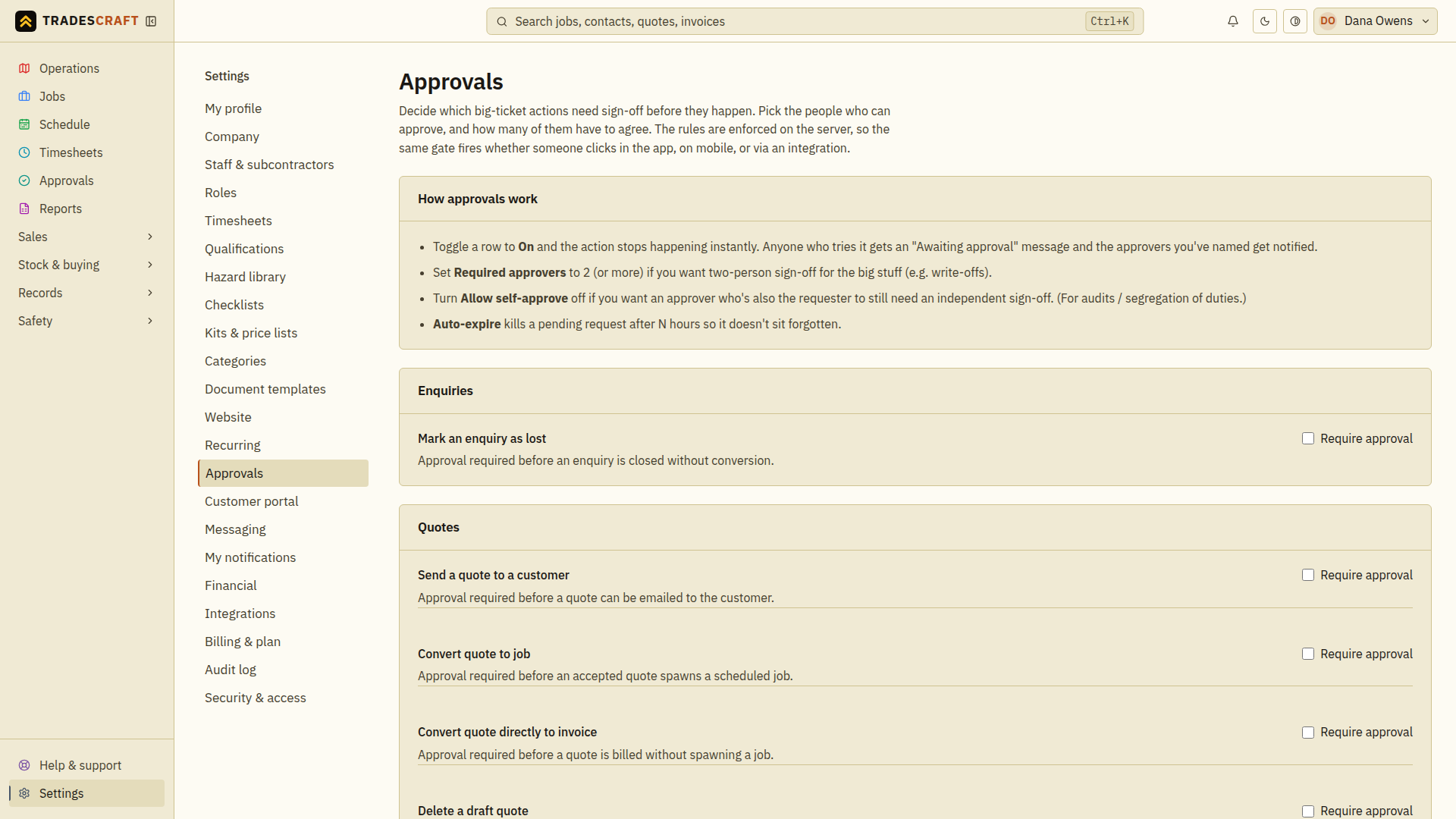
Turn sign-off on for an action
Find the action you want to require approval for. Actions are grouped by area, such as quotes, jobs and invoices. Then:
- Flip its toggle on to select the action for approval. The rule does not take effect until you save it.
- Set Required approvers - how many people must agree (one is enough for a simple check; use two for the big stuff, like write-offs).
- Choose Allow self-approve or leave it off - with it off, the person who raised the action can't approve their own (a true second pair of eyes).
- Optionally set Auto-expire after (hours) so a request that's ignored too long lapses instead of hanging around.
Pick who can approve
Under the action's Approvers, tick the people who are allowed to sign it off. You need at least as many approvers named as the Required approvers count - name enough eligible people to meet that count, including a second person if self-approval is off. Choose Save approvers and wait for Approvers saved. Then choose Save for the action's policy and wait for Approval settings saved. These are separate saves; saving one does not save the other.
Reopen Settings → Approvals and check the toggle, required count and named approvers. If either save fails, correct the message before relying on the rule. Repeat for each action you want to protect.
Good to know
- The same approval rule applies when someone uses the office app, the mobile app or a connected service.
- Approvers handle the queue itself under Approvals in the menu - see Approvals.