
Vehicles is your fleet - vans, utes, trucks. You can assign them to jobs and see them on the map alongside your crew. Open it from Records → Vehicles.
What's on the list
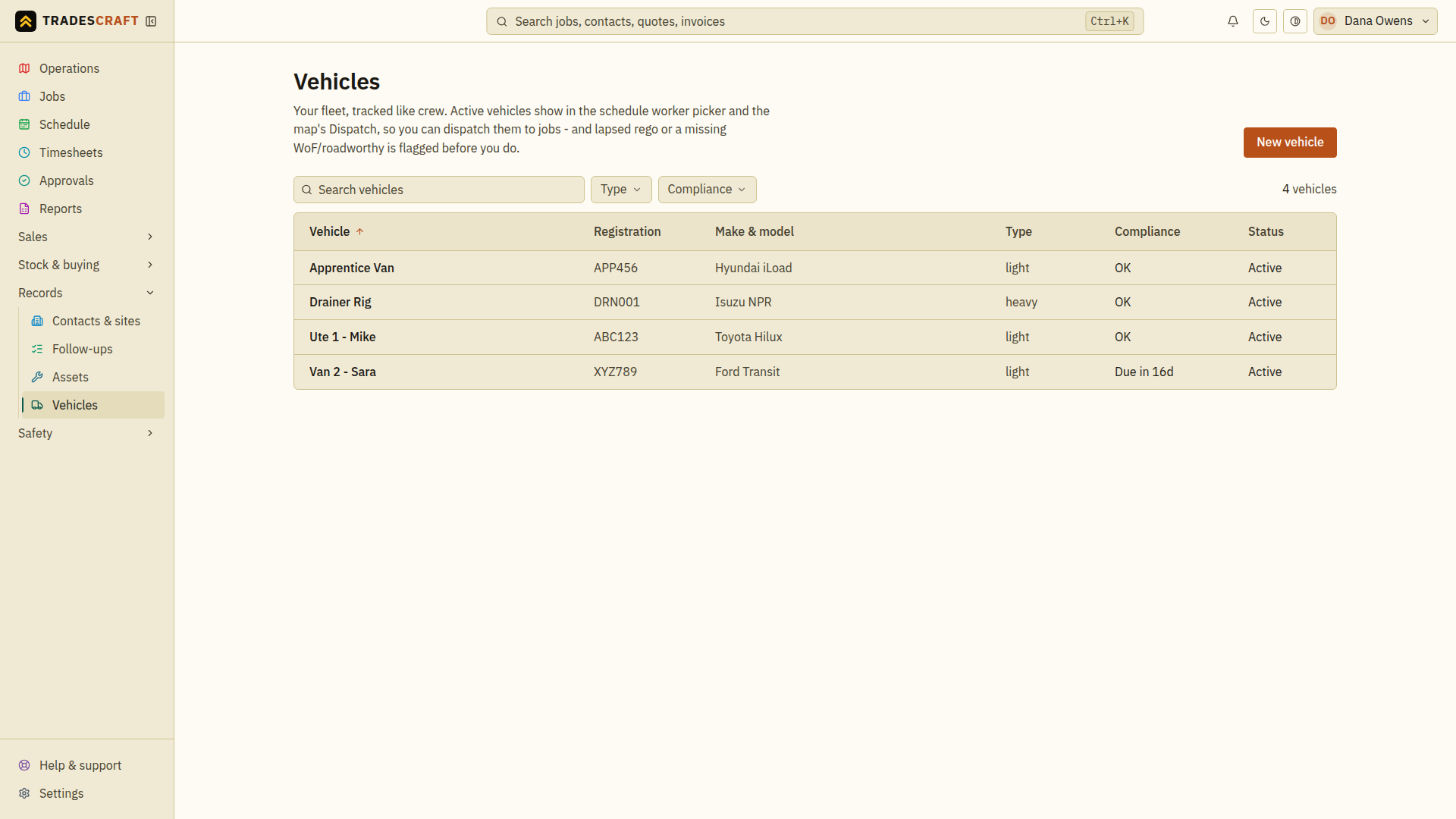
Each row is a vehicle, with its name/rego and status. Click one for its details.
- New vehicle (top-right) adds one.
- Vehicles can be booked onto jobs on the schedule (like a worker).
Find what you need
- Search for the vehicle name or registration, then check its status.
- Open the matching row to review its registration, insurance and other saved dates before assigning it to work.
- Open the job and use Assign crew, machine or vehicle to book the vehicle for a time window. Follow Dispatch a job.
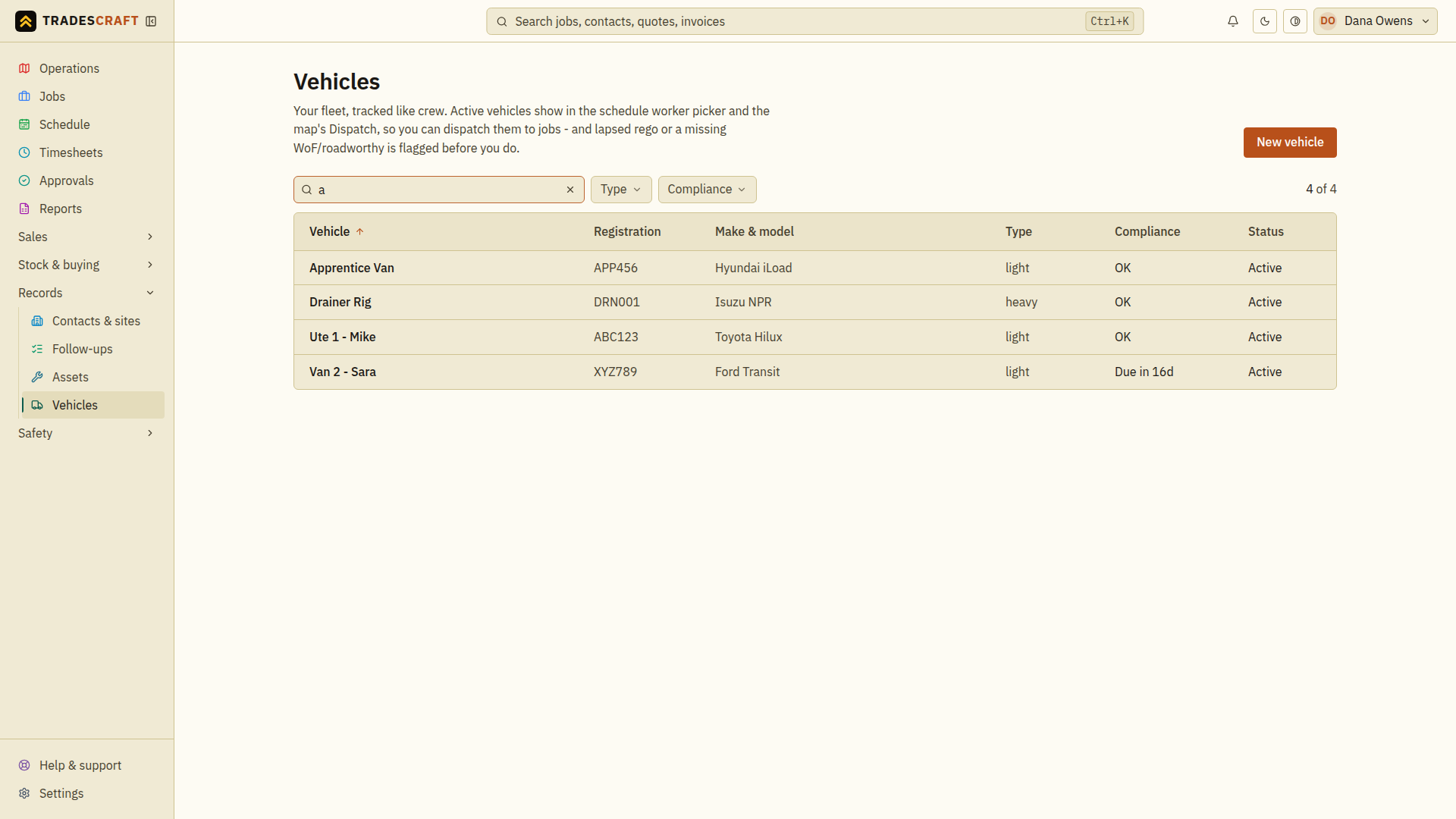
If it is missing from the list, clear the search and status filter. If it is missing from the booking picker, check that its record is active. Creating a vehicle does not itself book it onto a job.
Update a vehicle or take it out of use
Open the vehicle and choose Edit. Correct its details or renewal dates and choose Save changes. Reopen the record to check the saved values.
To stop offering it for new bookings, untick Active - can be dispatched to jobs and save. Check existing bookings on Schedule and arrange a replacement where needed. Tick the box and save when the vehicle can be booked again.