
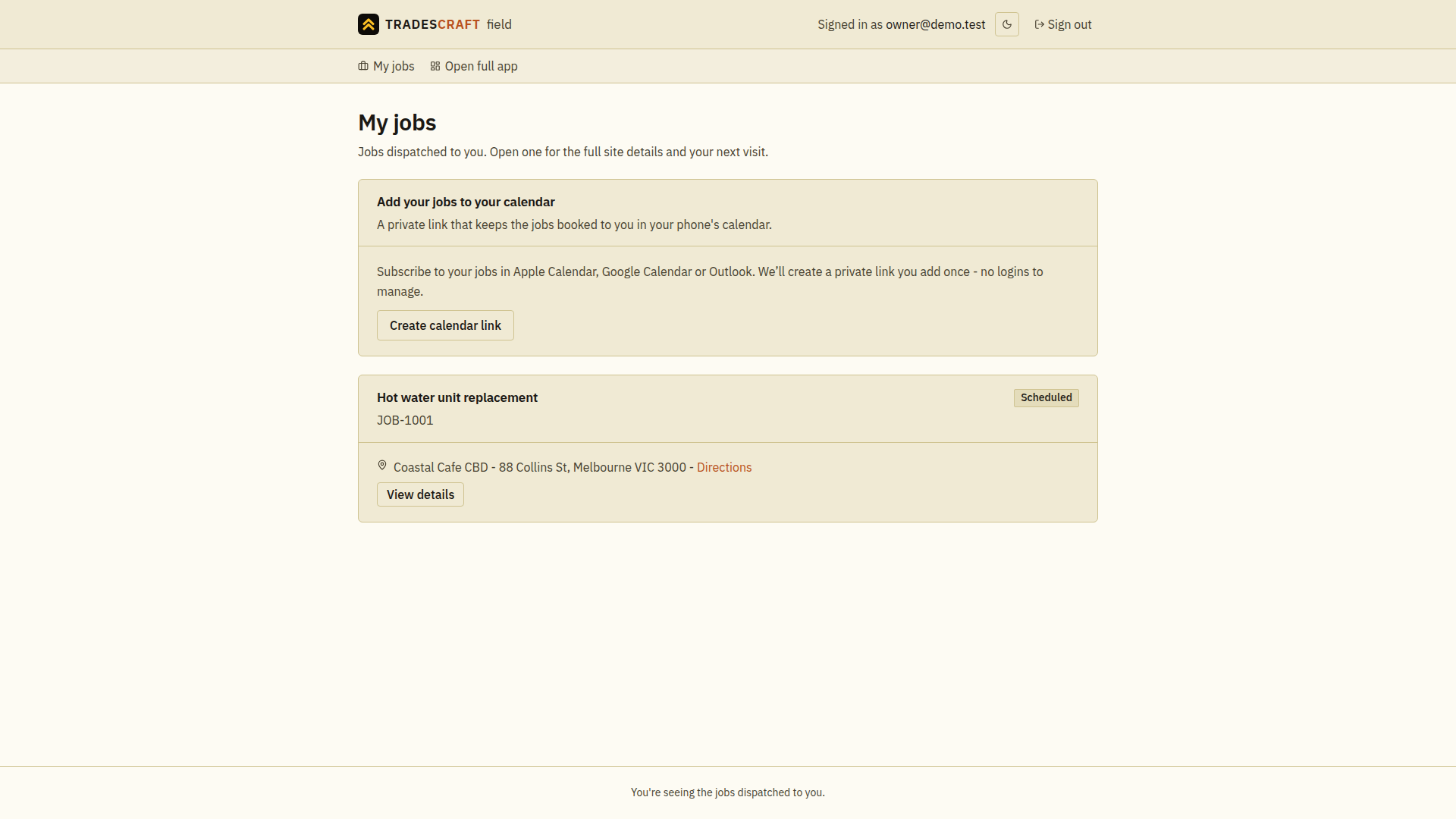
The field view is the screen for workers out on site. Open Tradescraft in your phone's web browser to see the jobs assigned to you and record your work.
Work through an assigned job
- From your account menu choose My jobs, then open the assigned job. Check its reference, site address, appointment and access notes before travelling.
- At the site, choose Clock on. Complete any safety check shown and wait until the control changes to Clock off before treating the timer as started.
- As you work, tick checklist steps you have completed. Add progress notes and photos in the notes section, then choose Add note and check that the note appears.
- Choose Clock off when you stop. Check that the running timer has ended; follow Log time & materials to review the record.
If you are already clocked on elsewhere, open that job and clock off before starting another timer. If your expected job is missing, ask the office to check its assignment to your account. A billing or connection error needs to be resolved before you can rely on an unsaved change.
What you can do
- See your jobs - the ones dispatched to you - where, what, and the details.
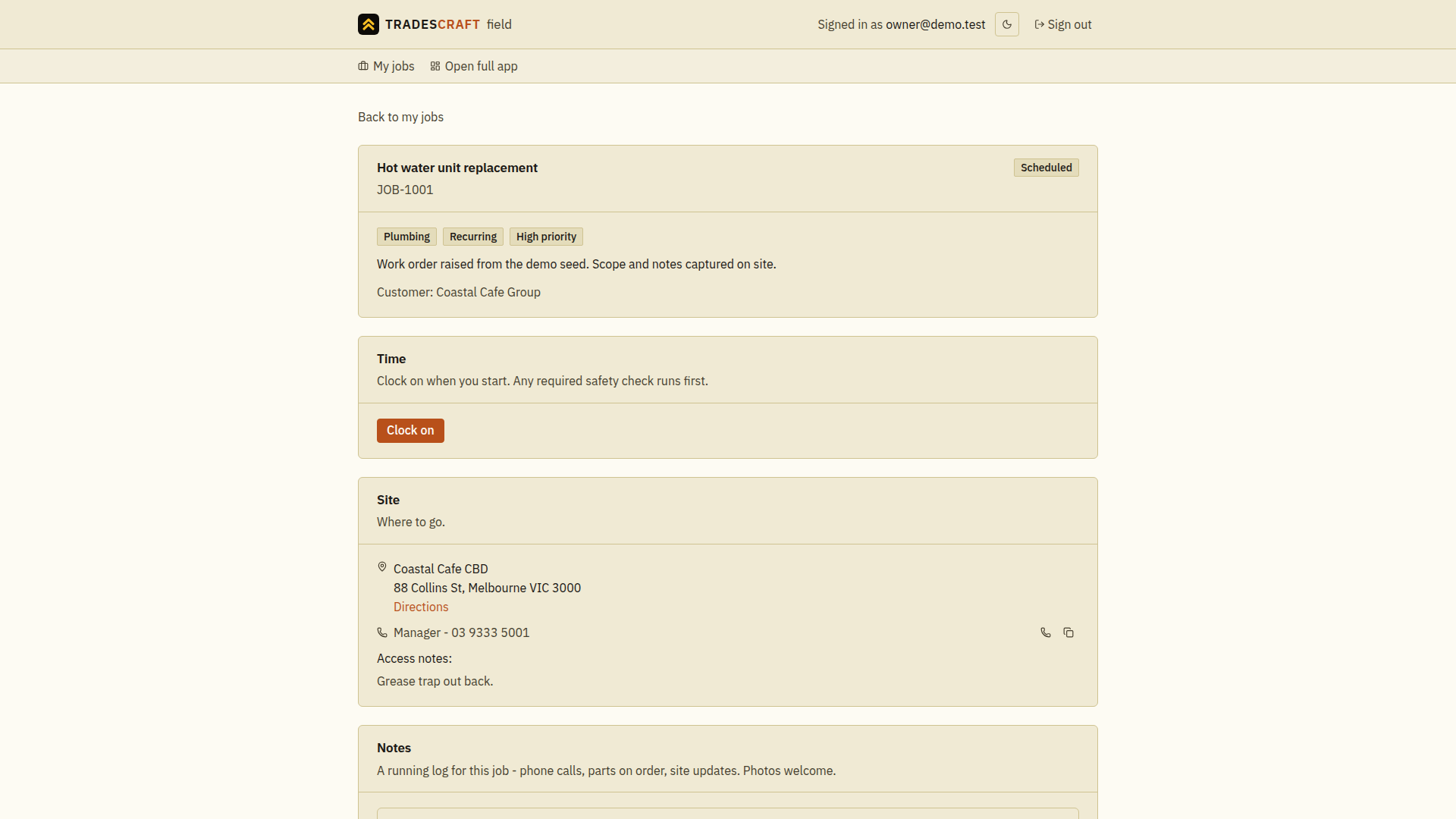
- Open a job to read the brief and site access notes. AU/NZ accounts also show safety paperwork and site requirements such as required tickets.
- Clock on/off to log your time, tick off the job's checklists, and add notes and photos. AU/NZ jobs can also require a JSA/Task Analysis sign-on; These safety-plan checks are available in Australia and New Zealand.
Open a job and you get its brief, the site directions and access notes, the safety check to clock on through, and a running notes log:
Good to know
- Directions opens the site in your phone's maps app with driving directions already set - you don't have to retype the address. If the office hasn't put an address on the site yet, the link isn't shown and the card says so, rather than sending you off to whatever the maps app guesses.
- You only ever see the jobs assigned to you - never the rest of the business's work or other customers.
- If asked, complete two-factor sign-in, the extra security check after your password. If your business sets a setup deadline, finish before that date to keep access. Follow Set up two-factor sign-in.
- If the page says it cannot check your access, wait a moment and try again. Contact the office if it still will not open.
- A read-only mode banner means you can view your jobs but cannot save changes. Ask the account owner to check the subscription. Existing private calendar links still work; creating or resetting a link is paused.
- If a banner says the billing status is unavailable, you can read your jobs. Wait for that error to clear before trying to save changes.
- The native mobile app currently supports step and note pre-start checks. If a JSA requires photo or signature evidence, open the browser field view to clock on.