
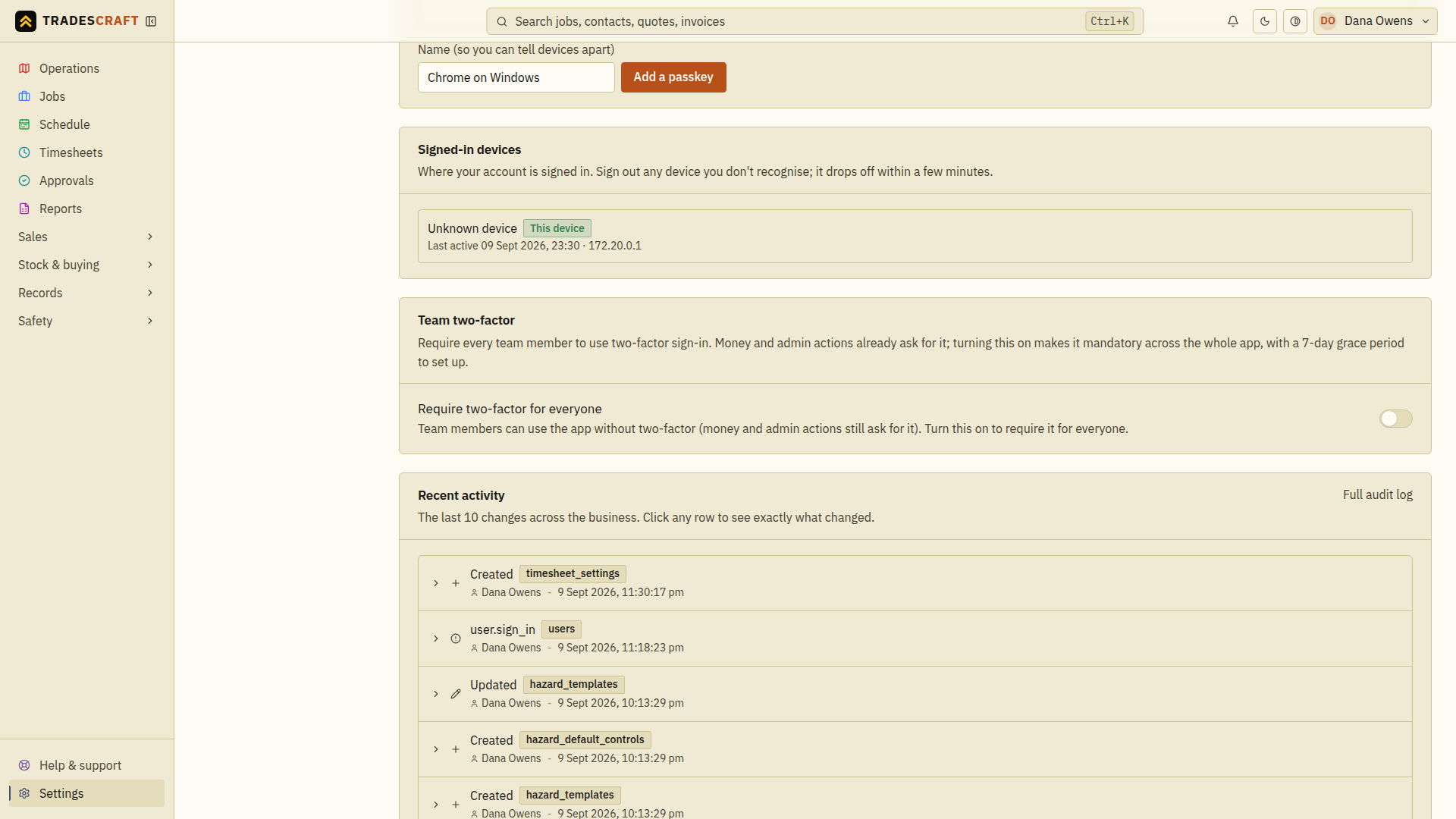
Two-factor sign-in (a code from an authenticator app, or a passkey) makes an account much harder to break into. Money and admin actions already ask for it - but as an admin you can make it mandatory for your whole team, so no one can use the app without it. You'll find the switch on Settings → Security & access, in the Team two-factor card.
Before you start
- You need your own two-factor set up first. Turning this on is a protected action, so the app will ask you to verify - which you can only do once you've added an authenticator app or, where available, a method under Passkey two-factor. Use those cards on the same page, then return to the team switch. The separate one-tap Passkeys option is not enough.
Turn it on
- On Settings → Security & access, find Team two-factor.
- Flip Require two-factor for everyone on. If you're asked to verify your own two-factor first, do that, then flip it again.
That's it - it applies to everyone on the tools and in the office.
What your team sees
- A 7-day grace period. Nobody is locked out straight away. Anyone without two-factor sees a reminder at the top of every page counting down to their deadline. New people who join later get their own fresh 7 days from when they start.
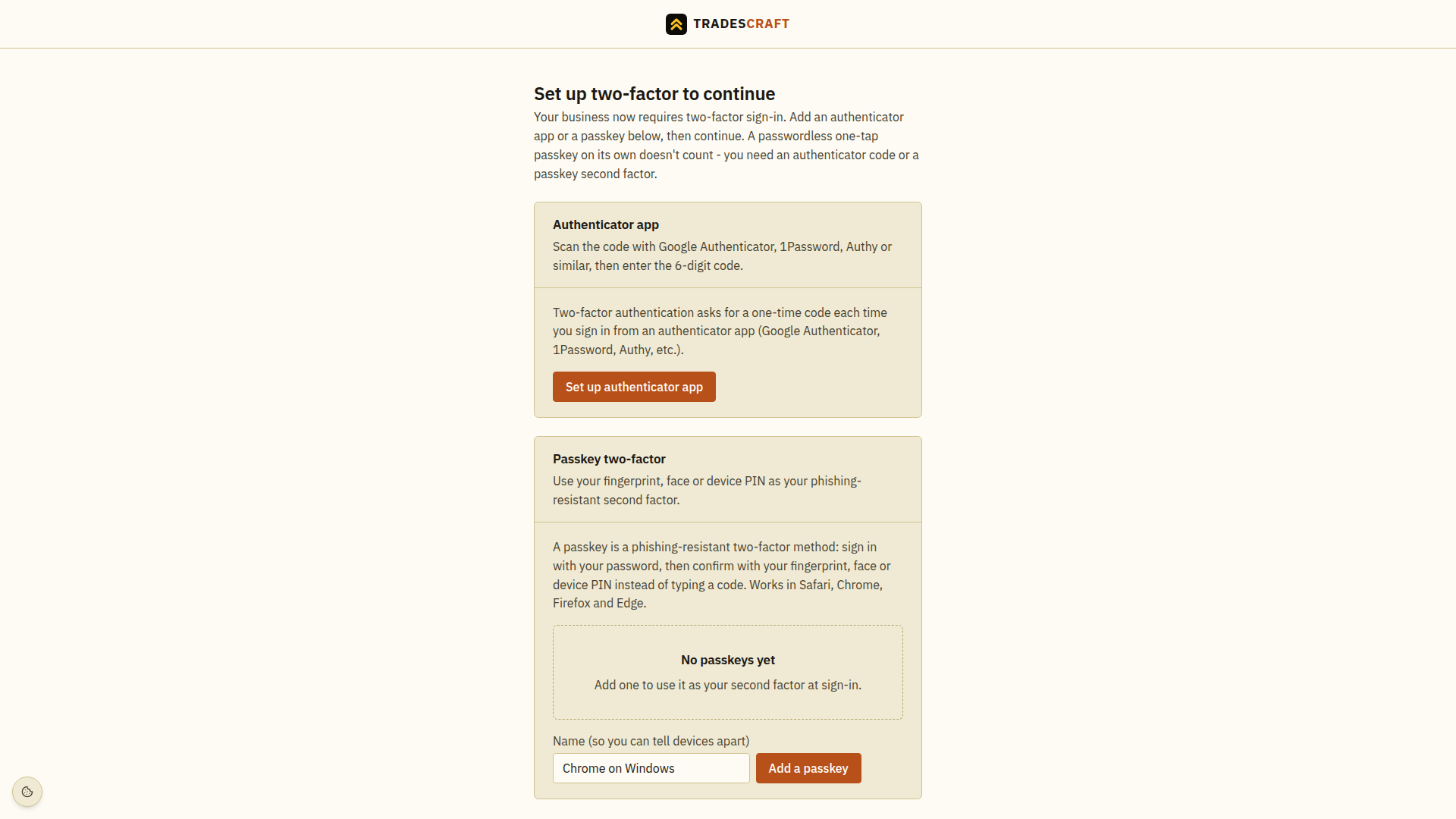
- Then a set-up screen. After the deadline, a member without two-factor is sent to a "Set up two-factor to continue" screen the next time they open the app. They finish setting up an authenticator app or Passkey two-factor where offered, then carry on. Their saved work stays in place, but they cannot open it until setup succeeds.
Good to know
- A passwordless one-tap passkey (the quick sign-in kind) doesn't count on its own - it's a convenience, not a second factor. Members need an authenticator app or a passkey second factor (the "Passkey two-factor" option).
- This covers your internal team (office and field). Your customers in the portal already have their own mandatory two-factor, and it doesn't apply to subcontractors.
- Turn it back off any time from the same switch - the reminders and set-up screen stop for anyone who has not finished setup yet.
Check that the requirement saved
Wait for the confirmation that the setting was saved, then reopen Security & access and check Require two-factor for everyone. Ask a teammate who has not finished setup to read the deadline shown in their banner and follow the setup guide.
If your own verification was interrupted, check the switch's saved state before trying again. Do not assume that opening the verification prompt enabled the policy. Turning the policy off does not remove sign-in methods people have already set up.