
When the goods you ordered arrive, receive them against the purchase order. Tradescraft already knows what was on order, so it just needs to know where the stock is going. Open the PO from Stock & buying → Purchase orders - while it's still open, it shows a Receive delivery panel.
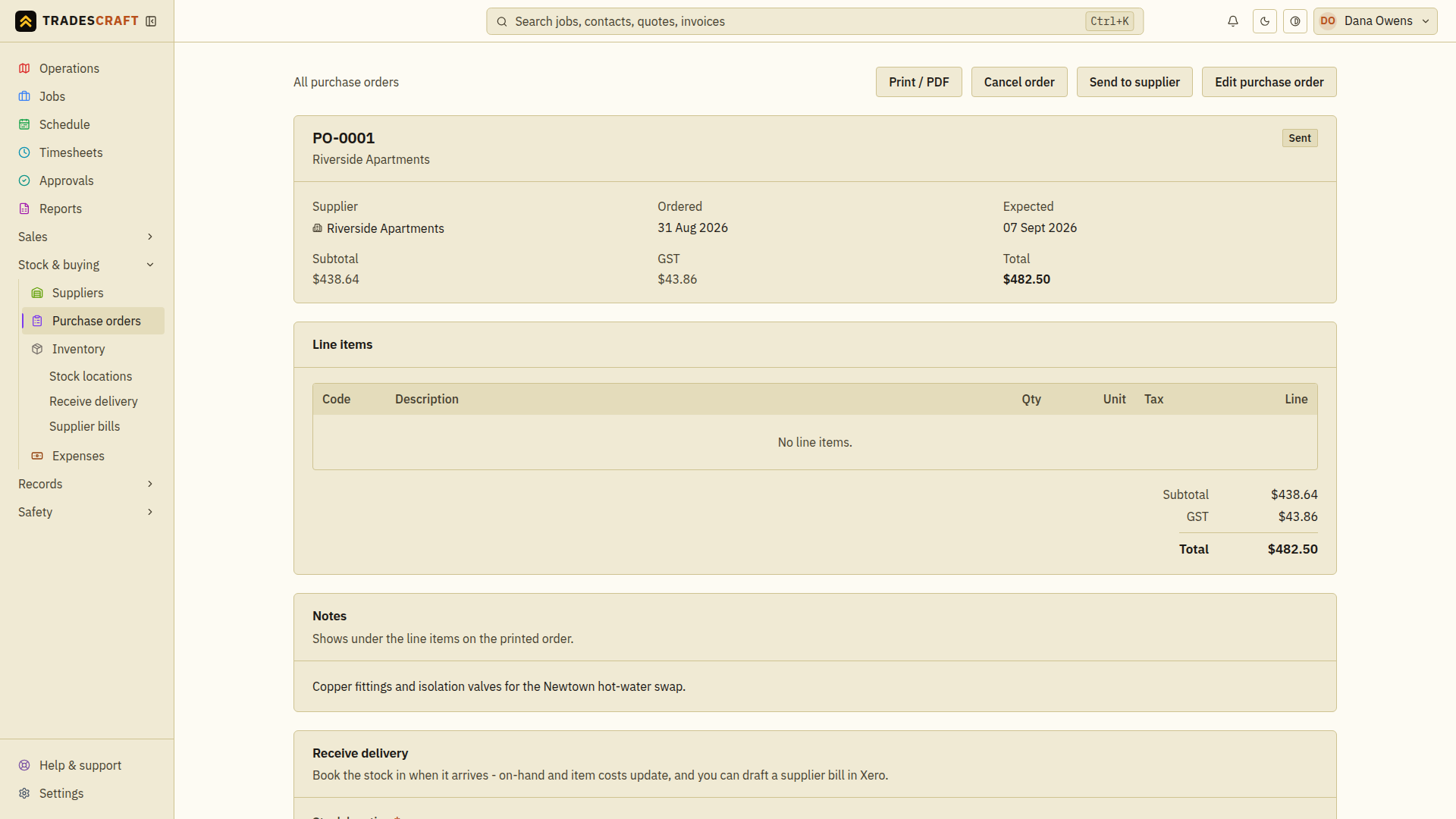
Receive it
- Open the PO and find Receive delivery.
- Pick the stock location the delivery is going into (a van or warehouse). You need at least one storage location; the panel will tell you if you have none.
- Set the received-on date.
- If the Xero bill option appears, decide whether to tick it and enter the supplier invoice number before receiving. The section below explains it.
- Check that the full ordered quantities have arrived, then choose Receive delivery. Stock on-hand goes up, each item's cost is updated from the PO, the PO flips to Received, and the delivery is recorded in a Deliveries list on the order.
- Check the delivery entry and the destination stock counts. If you requested a supplier bill, check its creation/sync result as well. A stock receipt and a successfully synced bill are separate results.
If the form reports an error, read it before trying again. If the result is uncertain after a connection failure, check the order's status and Deliveries list first so you do not book the same goods through the standalone form too.
Draft the supplier bill (with Xero)
For an AU/NZ account with Xero connected, tick Draft a supplier bill in Xero for this delivery to raise the accounts-payable bill at the same time. You can add the supplier invoice number - it becomes the bill's reference in Xero (leave it blank to use the PO number). This option and Xero status are absent for US accounts; receiving still updates stock, item costs and the Tradescraft receipt record.
This vs "Receive stock"
- Receive a delivery (here) is for stock that came from a purchase order - it's pre-filled from the order and closes it off.
- Receive stock is the standalone form for a delivery that wasn't on a PO - you key the lines in yourself.
Good to know
- This panel receives the whole order; it does not offer per-line partial quantities. Do not use it to mark a part delivery as fully received. Resolve the remaining delivery or revise/split the order with your administrator before receiving it. If stock was already booked through the standalone form, check that receiving the PO will not count it again.
- If a PO's lines are entered as one-off descriptions (not linked to inventory items), there's no stock to add - receiving just marks the order Received. Lines you picked from your inventory are what move stock on-hand.
- Once the delivery drafts a bill, record its payment from Supplier bills - see Pay a supplier bill.