
Tradescraft runs in your web browser - there's nothing to install. You can use it on a computer, tablet or phone.
Before you start
- You need an account. If your business already uses Tradescraft, the boss or office admin invites you by email. If you're setting the business up yourself, use Create an account on the sign-in screen.
Open the sign-in screen
Open Tradescraft sign-in, or choose Sign in from tradescraft.app. Bookmark the sign-in page for next time.
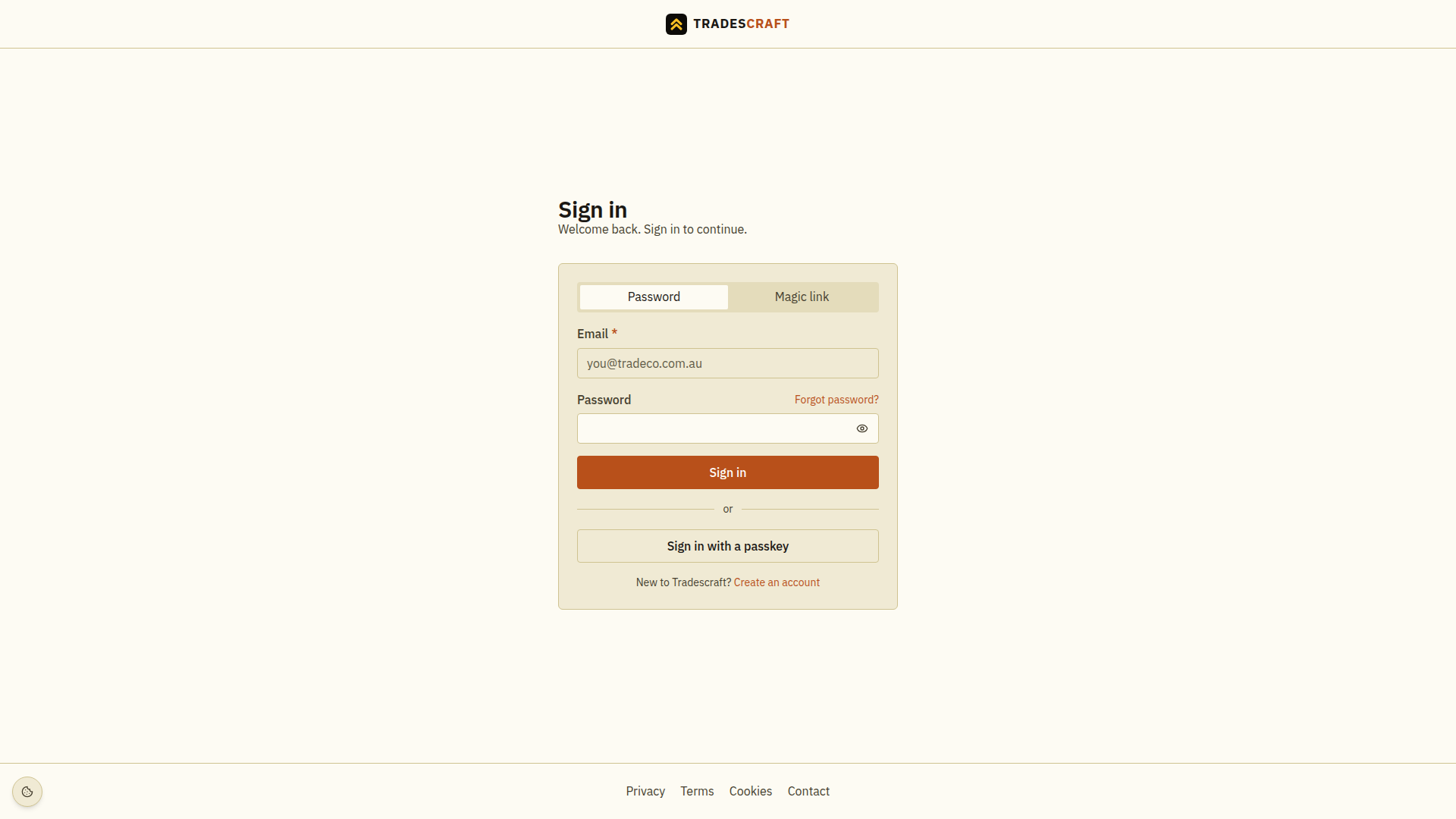
Enter your email and password
Type the email your account uses and your password, then tap Sign in.
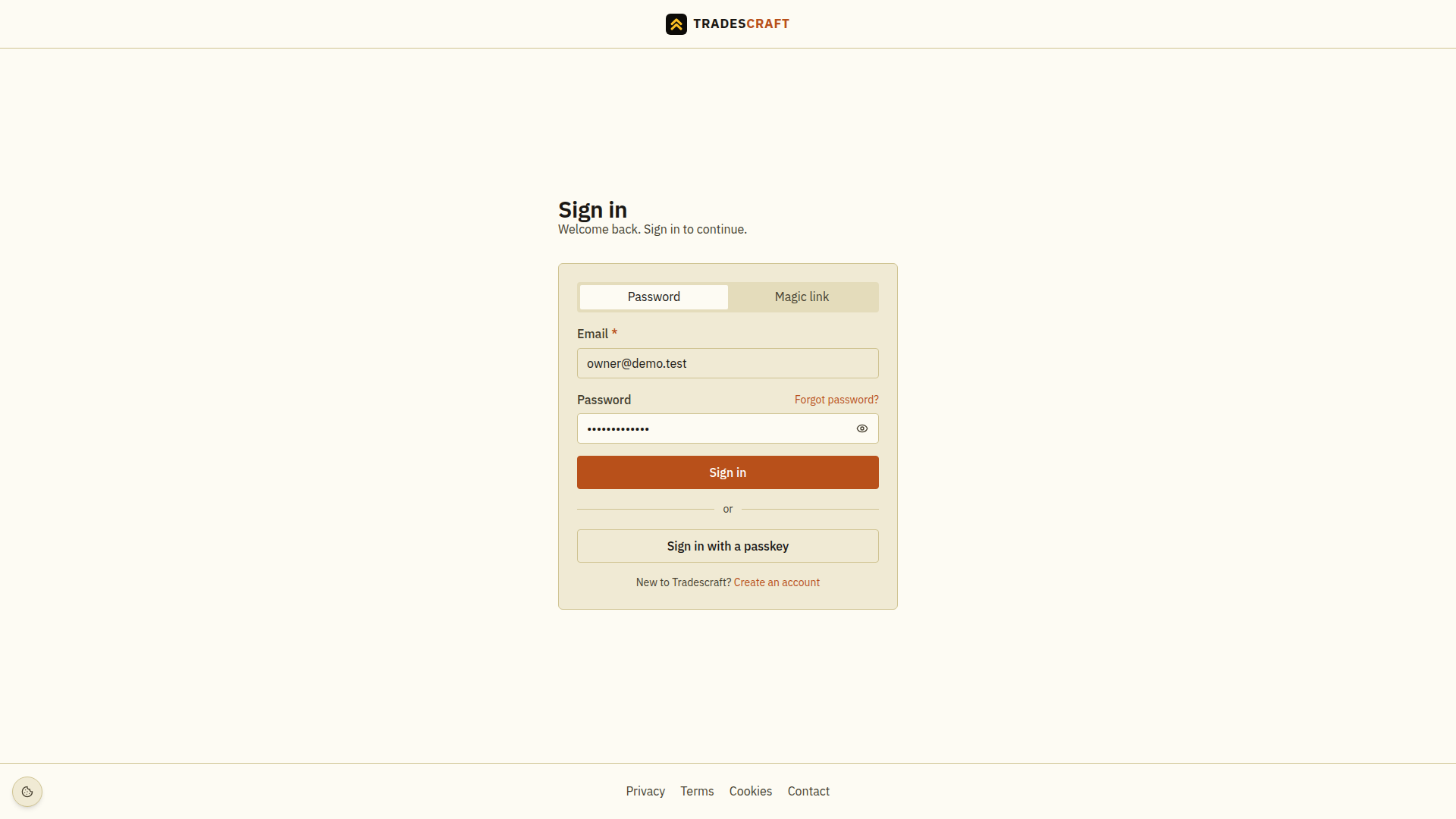
Don't want to use a password this time?
- Forgot password? starts password recovery.
- The Magic link tab emails you a one-tap sign-in link instead.
- Sign in with a passkey uses your device's face or fingerprint for the first sign-in step - once you've set a passkey up under Settings → Security. If your account also has a two-factor method, complete that second step before Tradescraft opens your work data.
You're in
Complete any two-factor check or first-time setup shown after sign-in. Business staff then open Operations, the home base for the day's work. A customer or subcontractor invitation opens the corresponding workspace; use the email address that received that invitation.
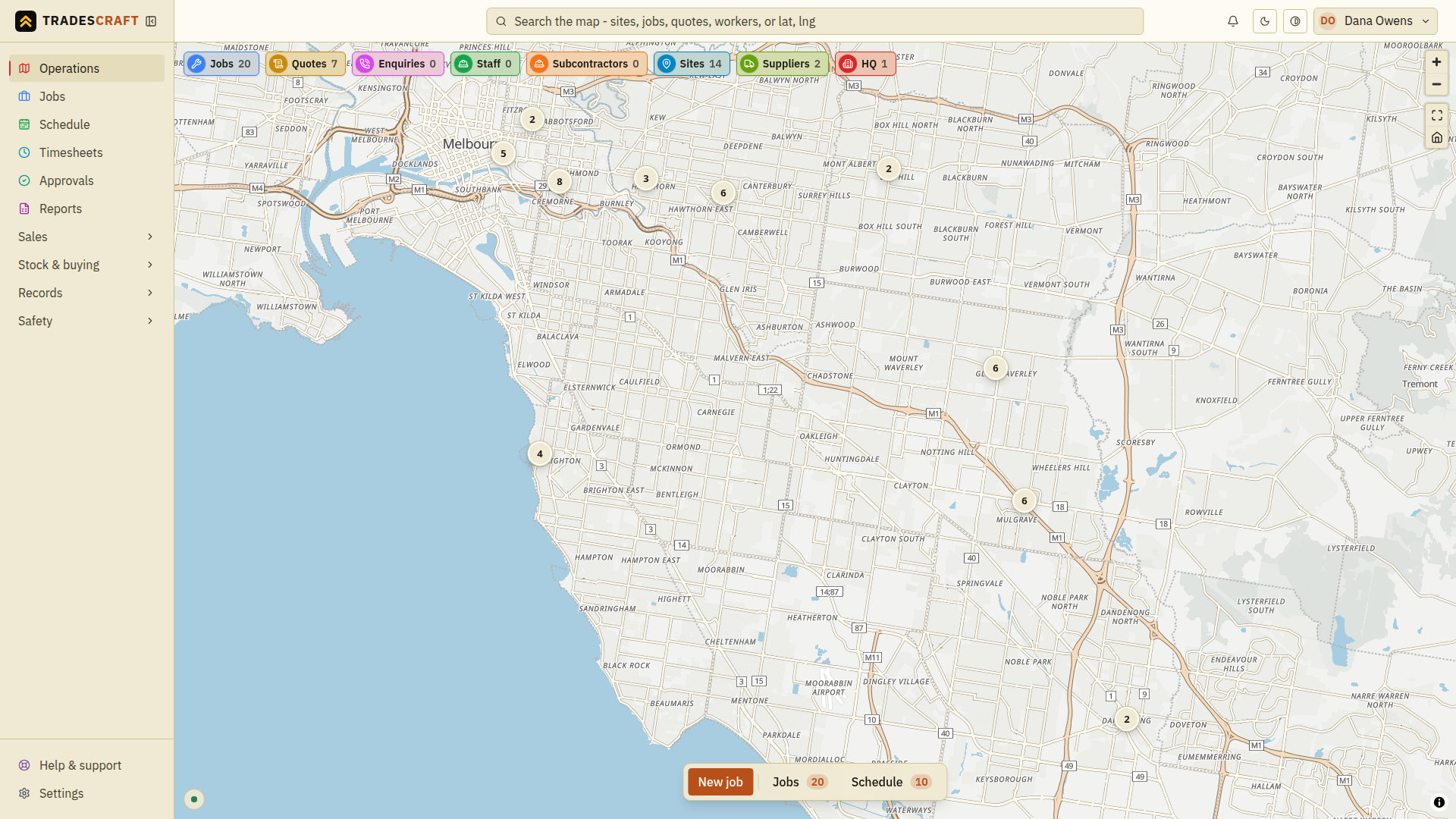
If the browser says you are signed in with the wrong account, choose Sign out, then sign in using the email address invited to your business.
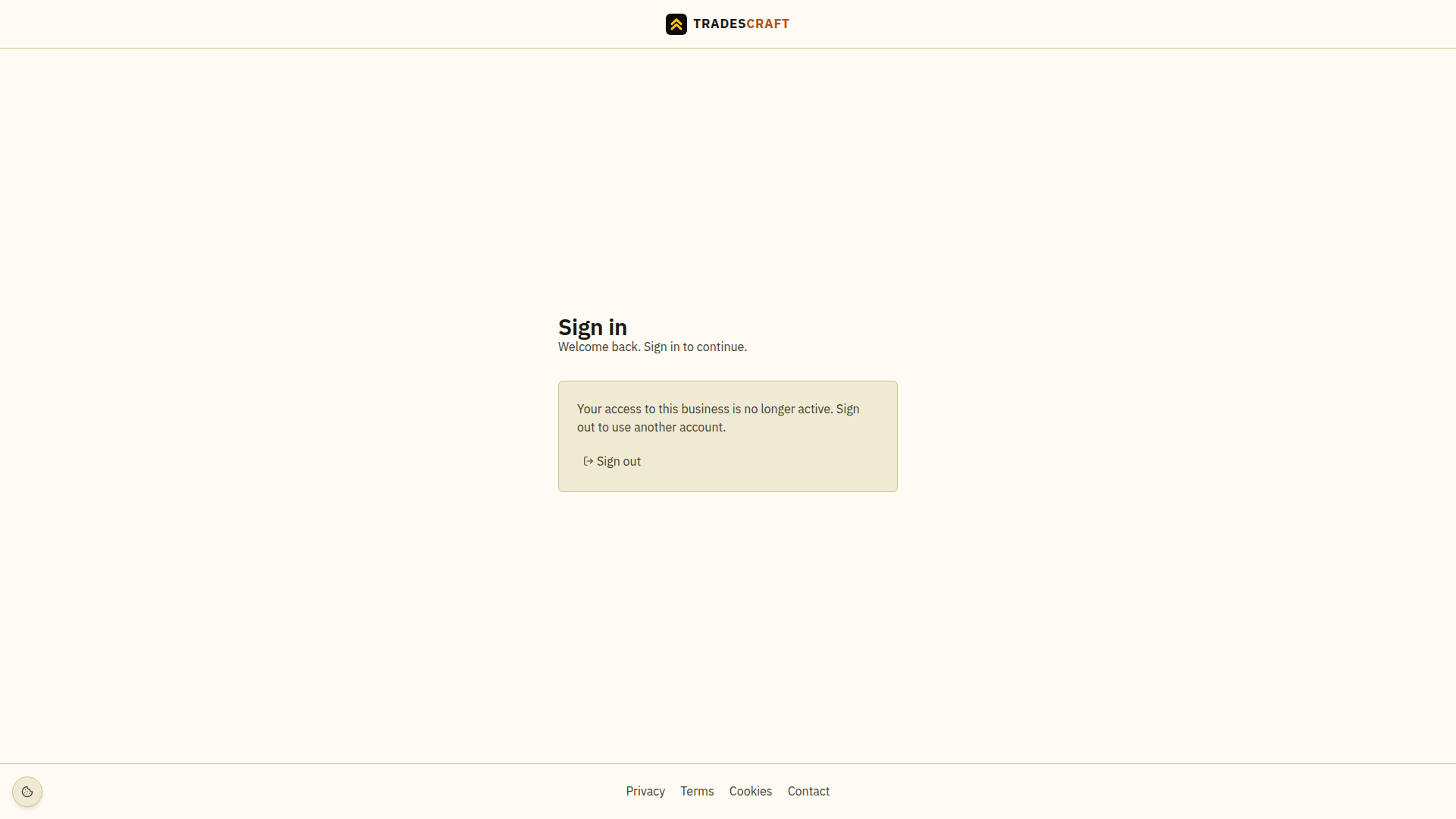
If your business access is no longer active
If this notice appears, choose Sign out, then sign in with the account you want to use. Ask your business admin to check your access if you expected to work in that business. Opening the notice does not sign you out automatically.
Cookie choices on the sign-in pages
Use Cookie settings to review what the browser stores. Choose Necessary only to keep optional categories off, or select the categories you want and choose Save my choices. Accept all enables the optional categories too. You can reopen Cookie settings to change your choice later.
Tips
- On a shared computer, always sign out (top-right menu) when you're done.
- If your account uses two-step sign-in (2FA), you'll be asked for a code or security passkey after the first sign-in step, whether you used a password, email link or sign-in passkey. That's normal - it keeps your job and customer data safe.
Related
- Create your business account
- Setting up your business - your first-time roadmap
- Finding your way around
- Your profile