
Open Settings → Billing & plan. This page is for bills you pay to Tradescraft. For bills you send to customers, open Sales → Invoices.
The account owner can manage everything here. A teammate with Billing management permission can manage the main subscription. Only the owner can manage paid add-ons, such as the website.
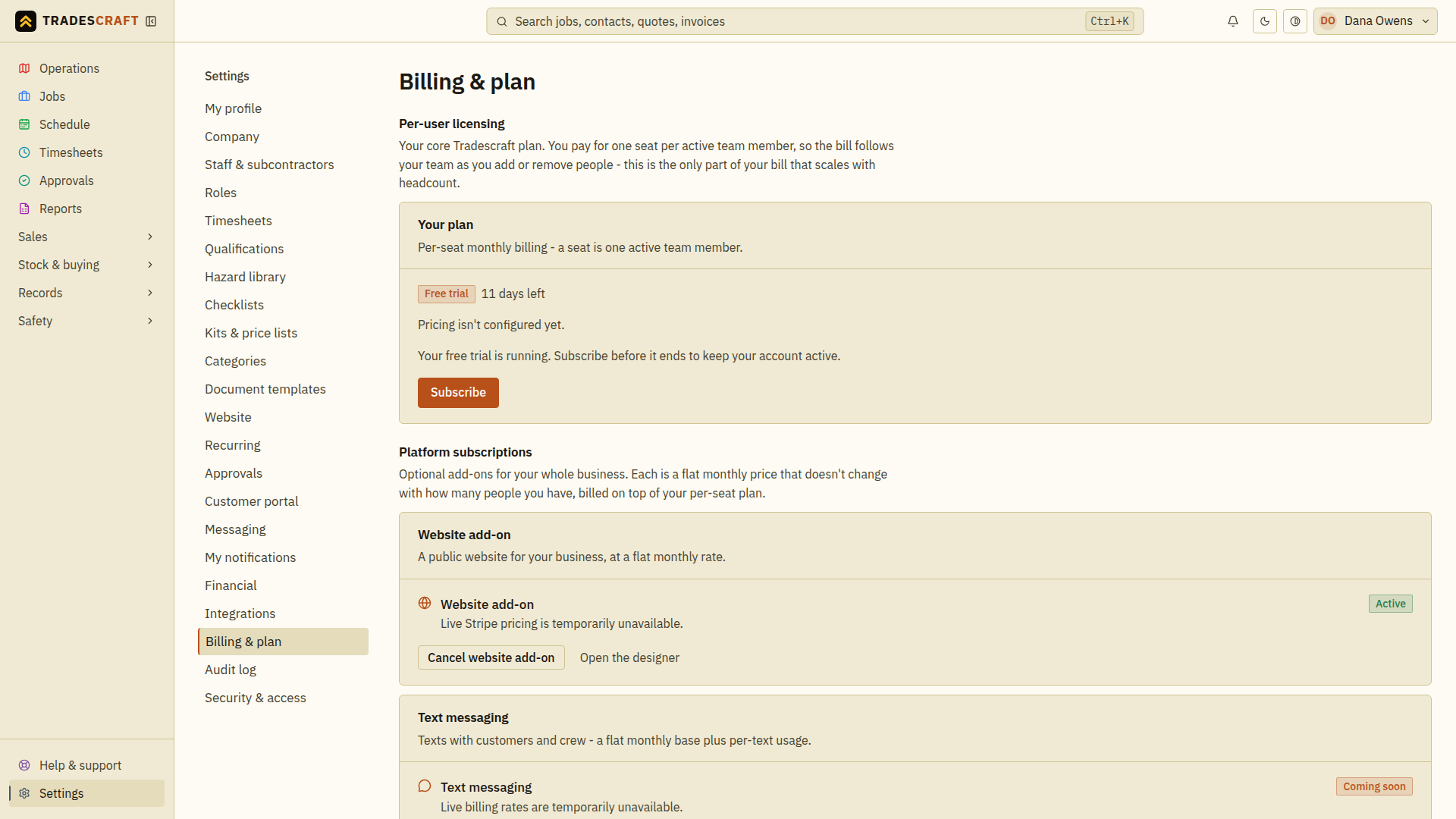
Your free trial
The Free trial badge shows how many days are left. Check the current pricing page for the trial and plan on offer. Choose Subscribe before the trial ends to keep making changes.
If the trial or paid period ends, the account becomes read-only. This means that you can view existing work and download data, but cannot add or change business records. The page shows a message explaining what to do next.
Automatic work also pauses, including new recurring jobs and invoices, Xero updates, overdue reminder emails and text messages. Work waiting to run is kept and resumes after the subscription becomes active again.
Subscribing
- Choose Subscribe. This opens Stripe's secure billing page.
- Check the plan and price, then enter your payment details and finish checkout.
- Return to Billing & plan. Check that the plan status, number of users and next billing date are correct.
During a trial, Add payment method lets you save a card ahead of time. If the page already shows Unpaid, use Manage billing to fix that existing subscription. Do not start a second subscription to retry a payment.
Seats - how pricing works
A seat is one active team member who can sign in. The page shows the number of seats and the monthly total. An invitation is not charged until the person accepts it and sets their password.
Adding or removing an accepted team member during a billing period can change the bill. A prorated adjustment is a charge or credit for the part of that period affected by the change.
Next invoice estimate shows the expected next bill. It can change if you add people, change usage or receive a credit before the bill is issued. Manage team members under Staff & subcontractors.
Managing your subscription
To change a card or billing details:
- Choose Manage billing to open Stripe's billing page.
- Make and save the change there. You can also download receipts or invoices.
- Reopen Manage billing if you need to check the saved details.
To stop renewal:
- Choose Cancel subscription and read the confirmation.
- Confirm if you want the subscription to end.
- Return to Billing & plan and check Cancels {date}. You keep access until that date, then the account becomes read-only.
Opening the cancellation message alone does not cancel the subscription. If a result is delayed, refresh the page and check the existing subscription before trying again. An active plan shows Renews {date} instead.
Add-ons
The owner can turn optional paid features on or off here. Each add-on has its own charge in addition to the team subscription. Check its price and renewal or end date before confirming a change.
For the public website, follow Your website. Text messaging may show Coming soon; follow Messaging only when its setup controls are available.
If the page shows a problem
- Plan needs attention or an add-on marked Needs attention — open Manage billing to review it. Contact support if the plan looks correct.
- Unavailable — the page could not check the price, usage or status. This does not mean the amount is zero or the subscription has ended. Refresh later.
- Billing status is temporarily unavailable — existing records can still be read, but changes pause until the check succeeds. Refresh before trying to change the plan.
If the screen says “Your account is on hold”
Business access is paused on this screen. Choose Contact support and include the business name and the email you use to sign in. Follow the support response to resolve the hold. The screen also offers Sign out if you need to use a different business account. Seeing this message does not mean your records were deleted, and changing your password does not remove the hold.
Good to know
You can still remove unwanted access while the account is read-only. Admins can remove staff or customer access, disconnect services, download business data or permanently delete the business. Adding or restoring access requires an active trial or subscription. Deleting the business also requests cancellation of its plan and add-ons; a temporary Stripe problem can delay that cancellation.
Stripe handles the payment card on its own secure pages. Tradescraft does not store your card number. Customer card payments are set up separately using the guide below.