
A JSA (job safety analysis) is a plan for carrying out the work safely. You can require workers to read the current plan and complete its checks before their timer starts. Tradescraft saves what each worker submitted with the version of the plan they saw. These saved checks cannot be edited.
A plan can become a required check in either of these ways:
- With the account's Compliance feature off, switch on Require completion on clock-in for that JSA.
- With Compliance on, every Active or Signed JSA linked to the job is included automatically, even if its own clock-in switch is off.
Draft and archived plans are not included in clock-on checks.
Turn on a required check
- Open the JSA (Safety → JSA, then the plan) and tap Edit.
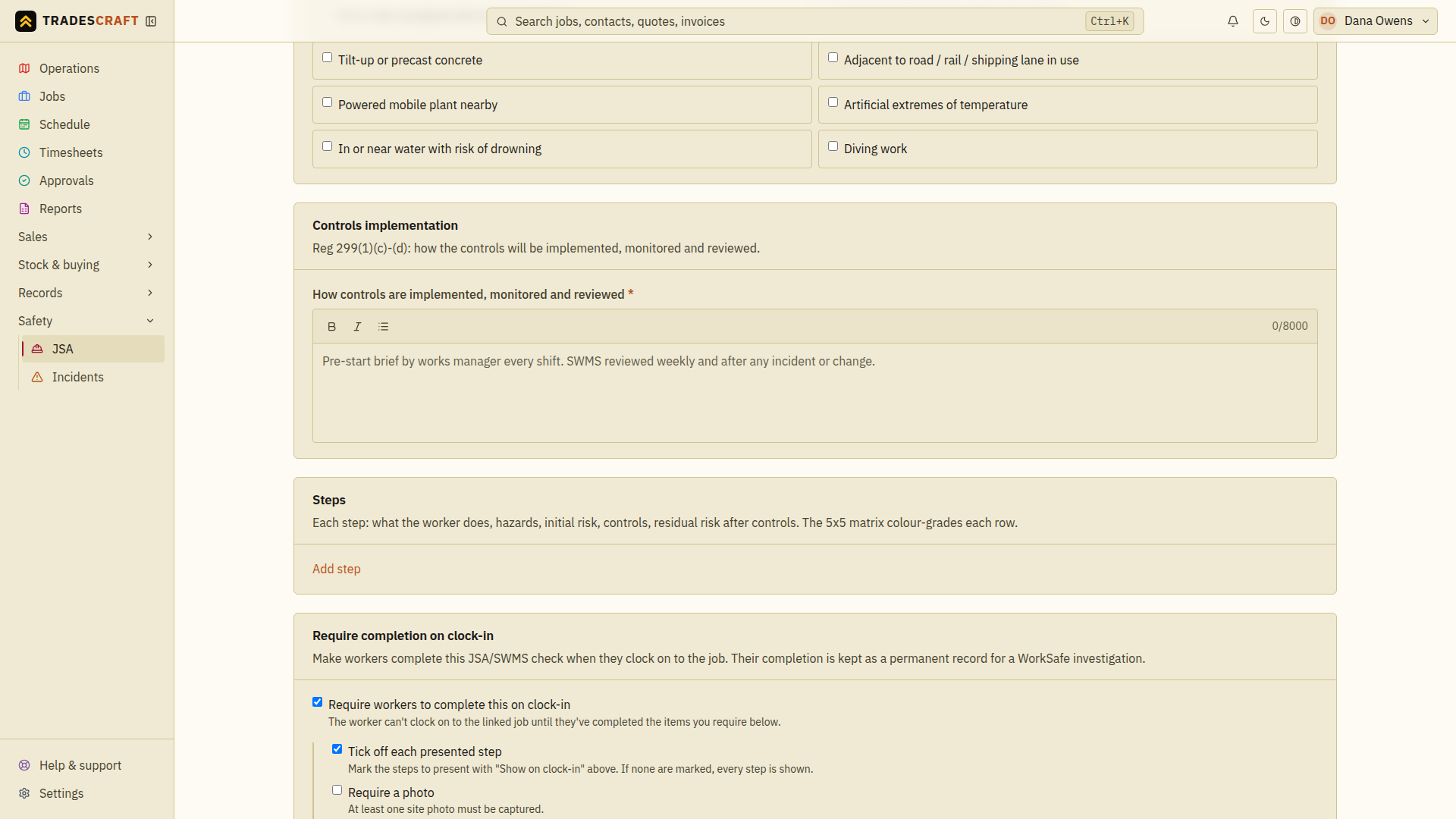
- Scroll to Require completion on clock-in and tick Require workers to complete this on clock-in.
- While still editing, choose the required evidence and presented steps below. Save once those choices are complete, then make sure the plan is Active. A draft never appears in a worker's pre-start check.
This per-plan switch is independent of the account-wide Compliance feature. If Compliance is on, every active or signed JSA on the job is already required.
Choose what a worker must do
Choose the checks the worker must complete. You can require more than one:
- Tick off each presented step - the worker confirms each step in turn.
- Require a photo - at least one site photo on arrival.
- Require a note - a short note (e.g. conditions on site).
- Require a signature - the worker signs to confirm they've read and understood the plan.
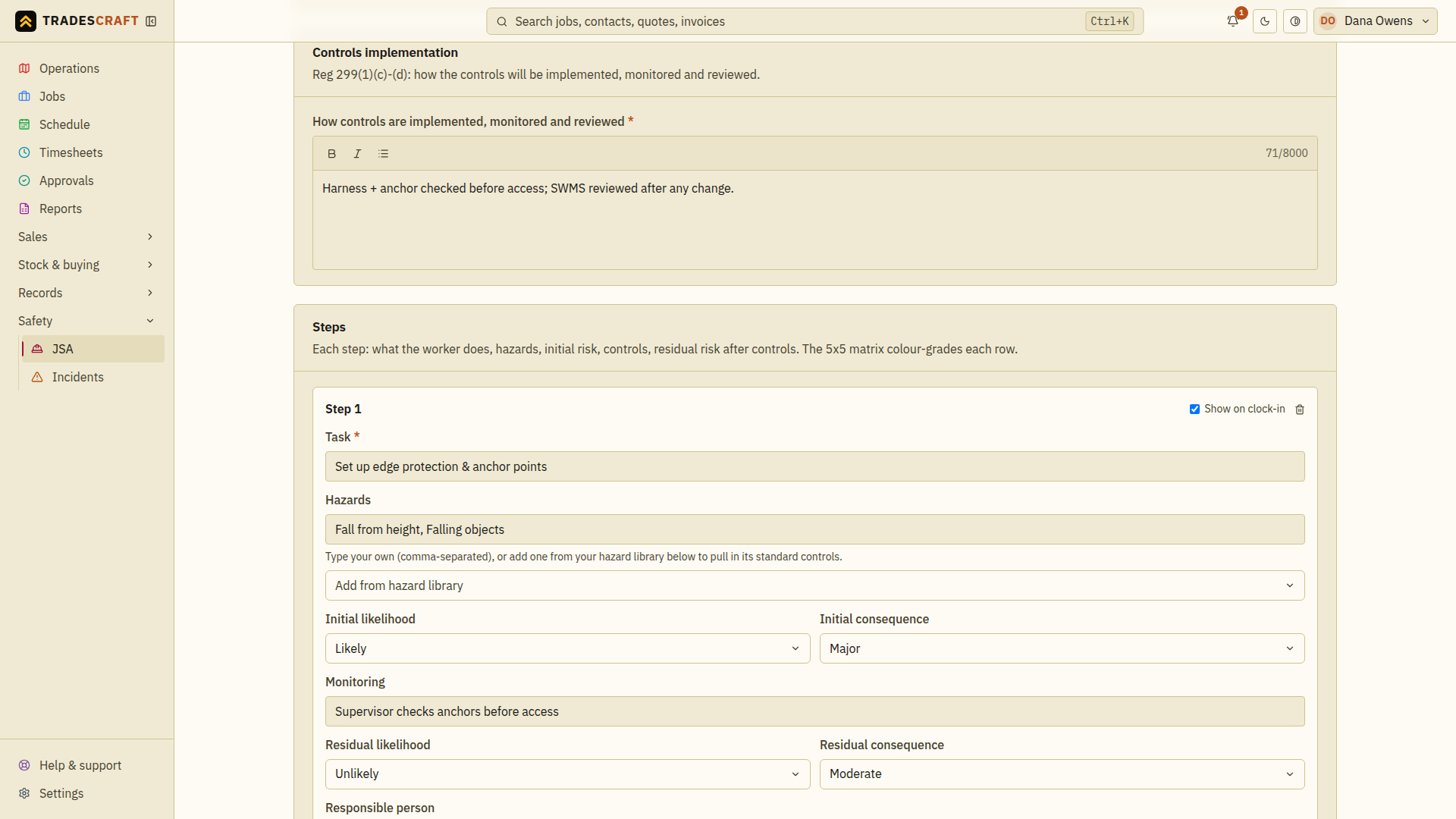
Which steps show? Back up in the Steps section, each step has a Show on clock-in tick. Mark the steps you want the worker to confirm; if you mark none, every step is shown. Save the JSA when you're done. Reopen Edit to check the saved choices, then return to the detail page and check Plan readiness. If it is still a draft, follow Activate a JSA.
What the worker sees
Out on the tools (in the browser field view, or the office app's job view), when a worker taps clock on, a "Safety check before you start" dialog shows the required plans and evidence. If several active plans apply, they must complete every one before time can start.
If Tradescraft cannot verify the current requirements, clock-on stops and says that work has not started. Retry once the connection is available and check that the timer has started before beginning work.
In the native mobile app, queued is not clocked on. Do not start work until the job shows Clocked on. After the connection returns, tap clock on again; Tradescraft retries the same request rather than opening a second time entry.
The native mobile app can complete step and note checks. A check requiring photo or signature evidence must currently be completed in the browser field view.
Review what they submitted
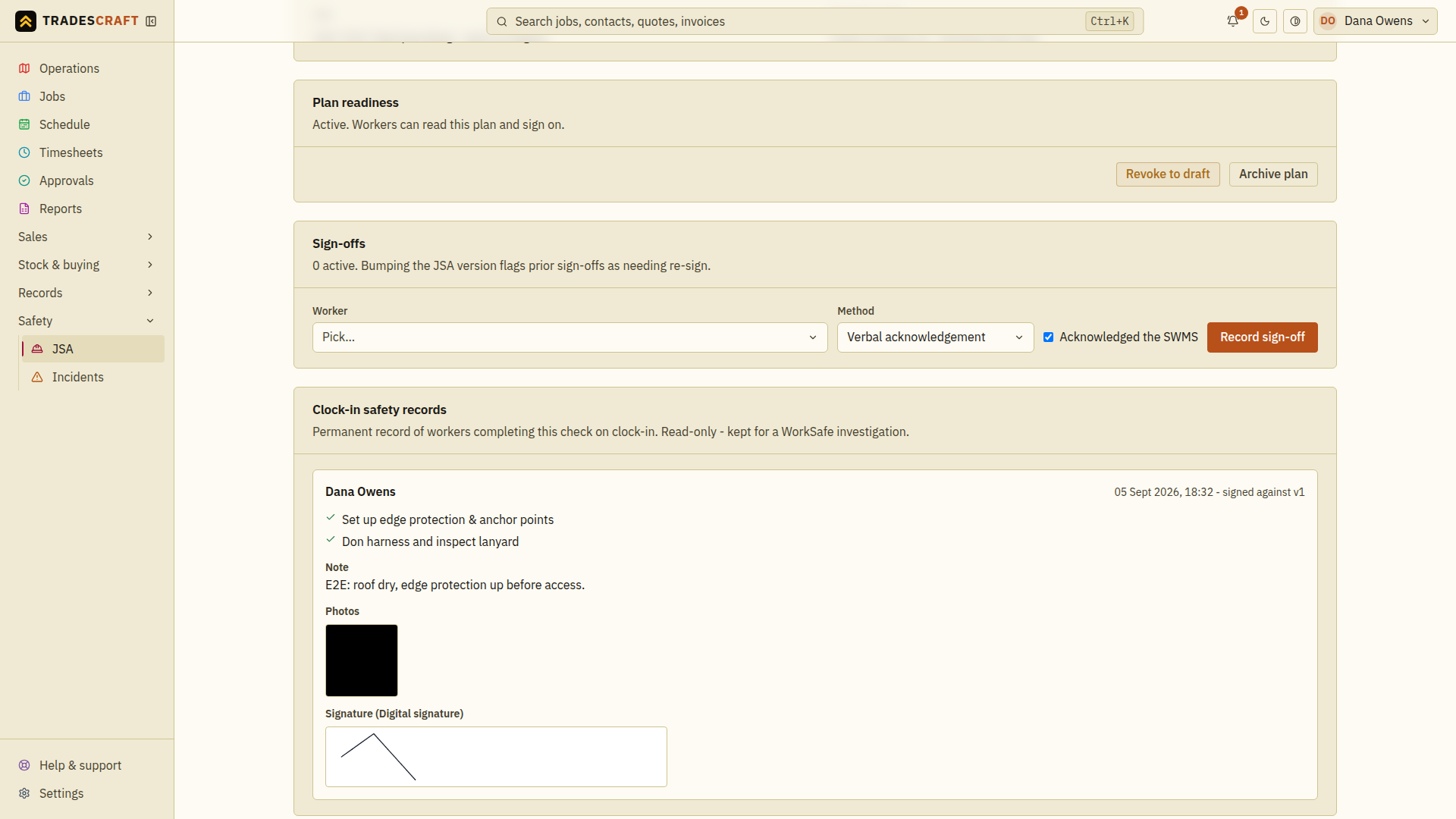
Every completed check is saved to the JSA as a Clock-in safety record:
- Open the JSA and scroll to Clock-in safety records. Each entry shows the worker, when they signed on and which version of the plan they signed, the steps they ticked, and any photo, note or signature they captured.
- These records are read-only. Once a JSA has a clock-in safety record, the plan cannot be deleted; archive it when the work is finished.
Good to know
- Each record stores the JSA version presented at that clock-on. If you revise the plan, later checks use the new version while earlier records retain the version number and evidence captured at the time - see Activate, revoke or archive a JSA.
- This is separate from an operator sign-off, which is you recording a worker's acknowledgement by hand (e.g. a paper sign-on).