
The Quotes tab shows the quotes your tradie has sent for your approval.
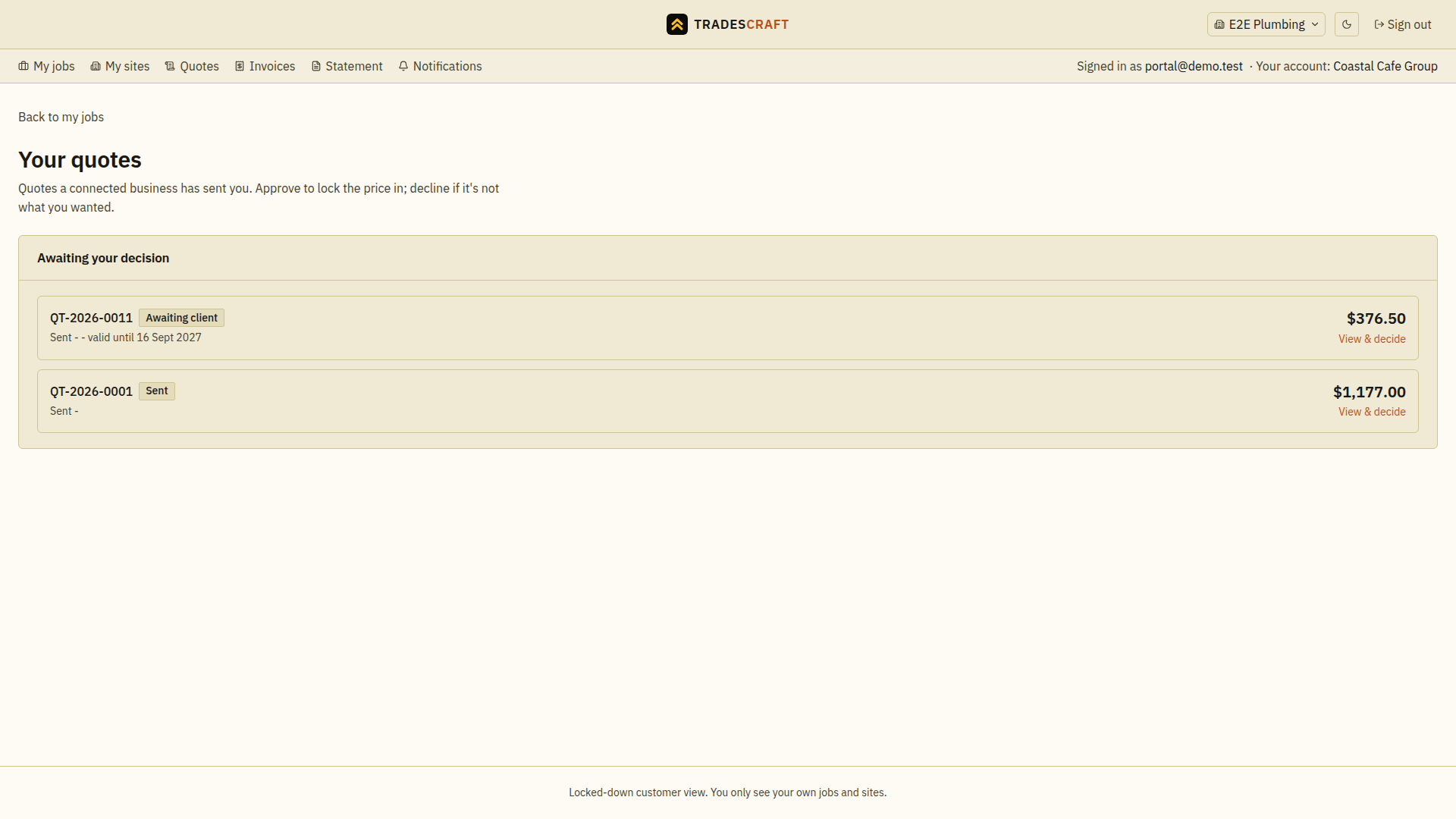
Tap a quote to see the full breakdown - the line items, country-appropriate tax and total. US quotes show USD, Sales tax and the quote's saved exact rate; AU/NZ quotes show GST.
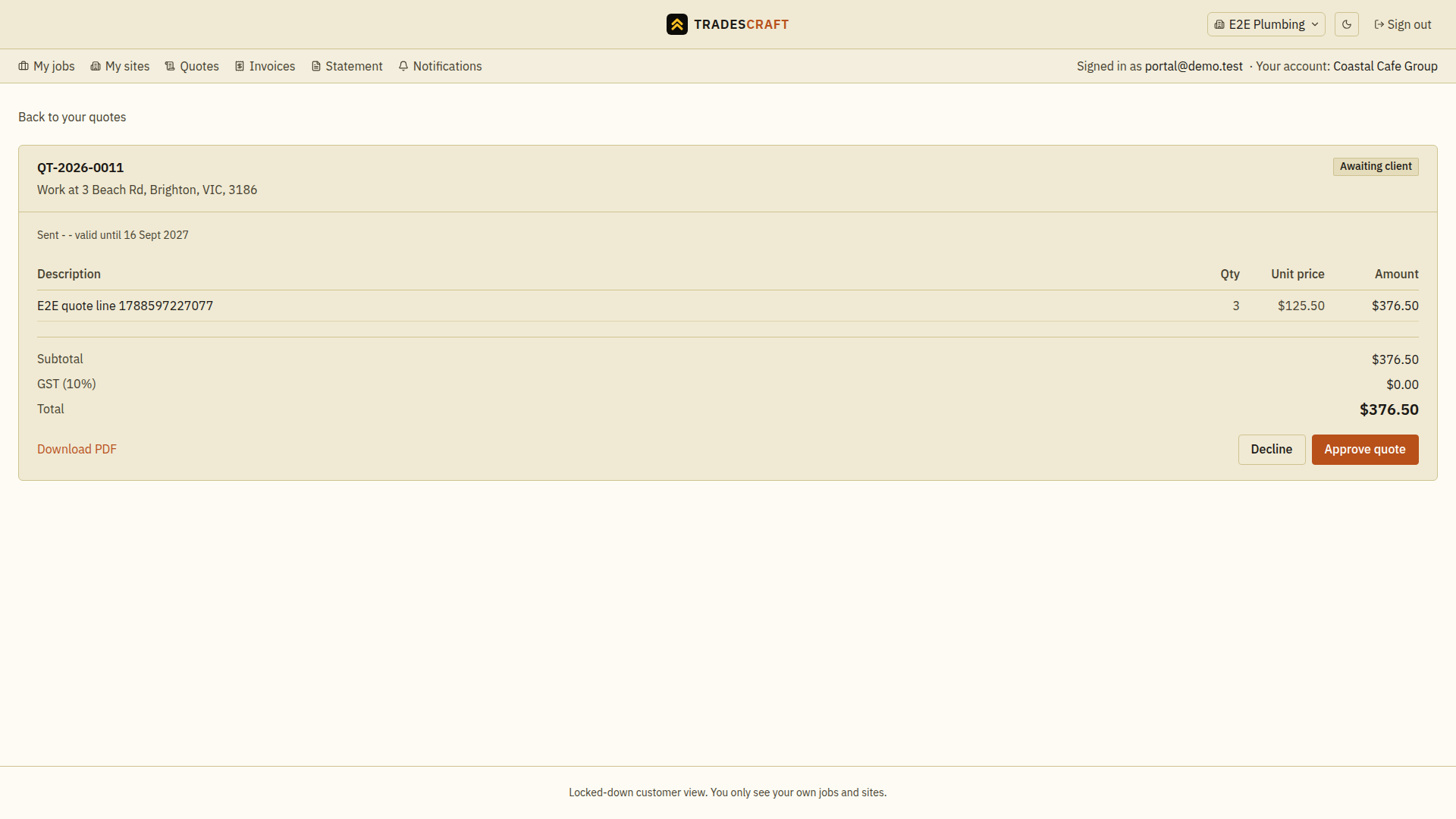
What you can do
- Read the itemised quote and the total.
- See its status (sent, accepted).
- Approve quote or Decline while the quote is awaiting your decision and has not expired.
Approve or decline a quote
- Select the correct tradie workspace, open Quotes, then open the quote.
- Check the scope, quantities, tax, total, notes and expiry. Use Download PDF if you need a copy before deciding.
- To proceed, choose Approve quote, review the confirmation and choose Approve quote again. This accepts the price and turns the quote into a job; you cannot undo approval in the portal.
- To decline, choose Decline, optionally explain why, then Decline quote. Use Cancel to return without sending the decline.
- Wait for Quote approved or Quote declined and check the updated status.
If the decision buttons are missing, the quote may be expired, already decided, or unavailable for changes. Ask your tradie for a revised quote if the scope or price needs changing.