
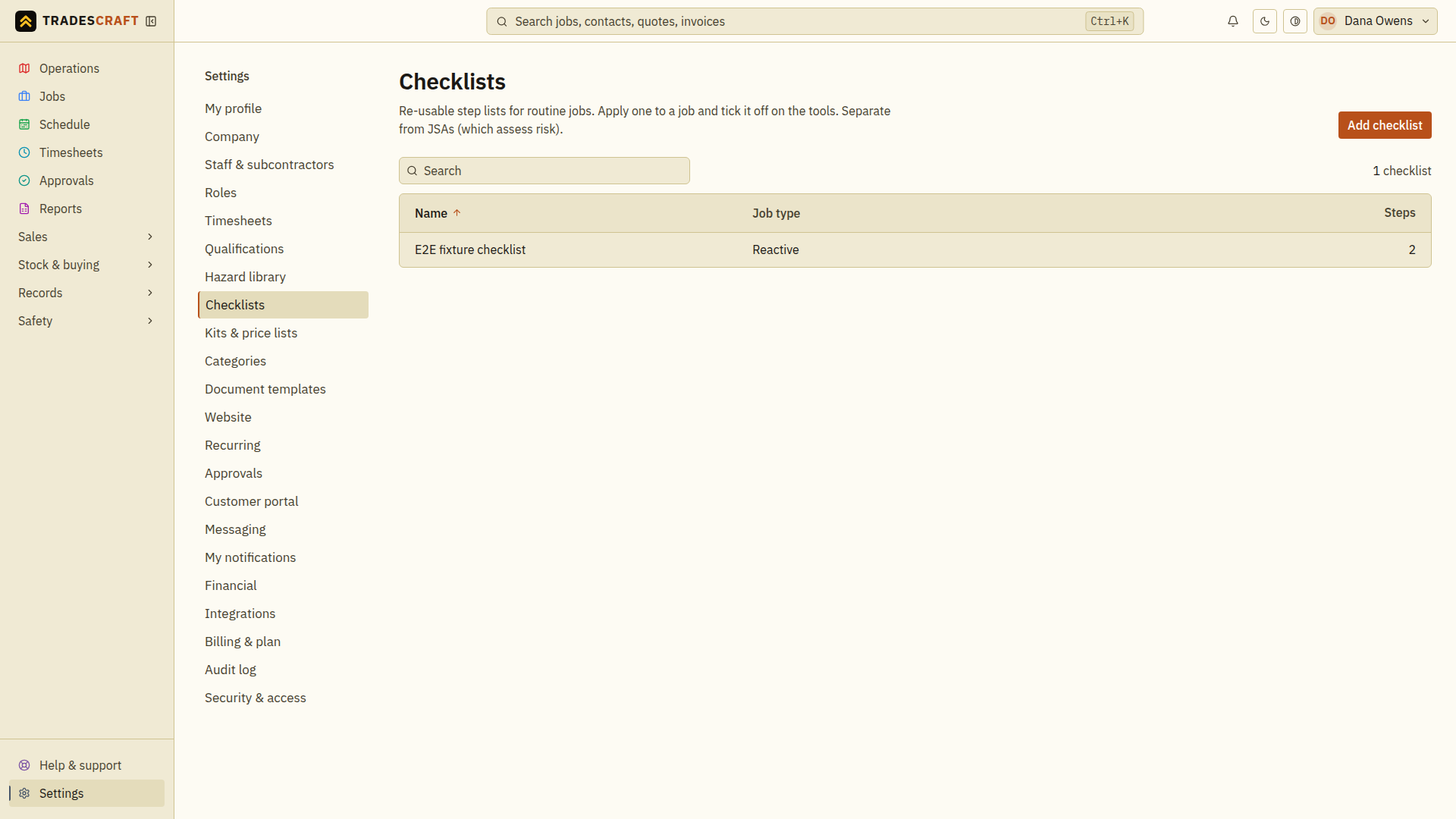
A checklist is a re-usable list of steps for a kind of job - a commissioning run, a hot-water service, a handover. Build it once, apply it to any job, and the crew ticks each step as it's done. Checklists are country-neutral. On AU/NZ accounts they are separate from JSAs / Task Analyses: checklists are the steps to do the work; a safety plan assesses the risk. The AU/NZ plan workflow and link are not shown to US accounts. Open checklists from Settings → Checklists.
Building a checklist
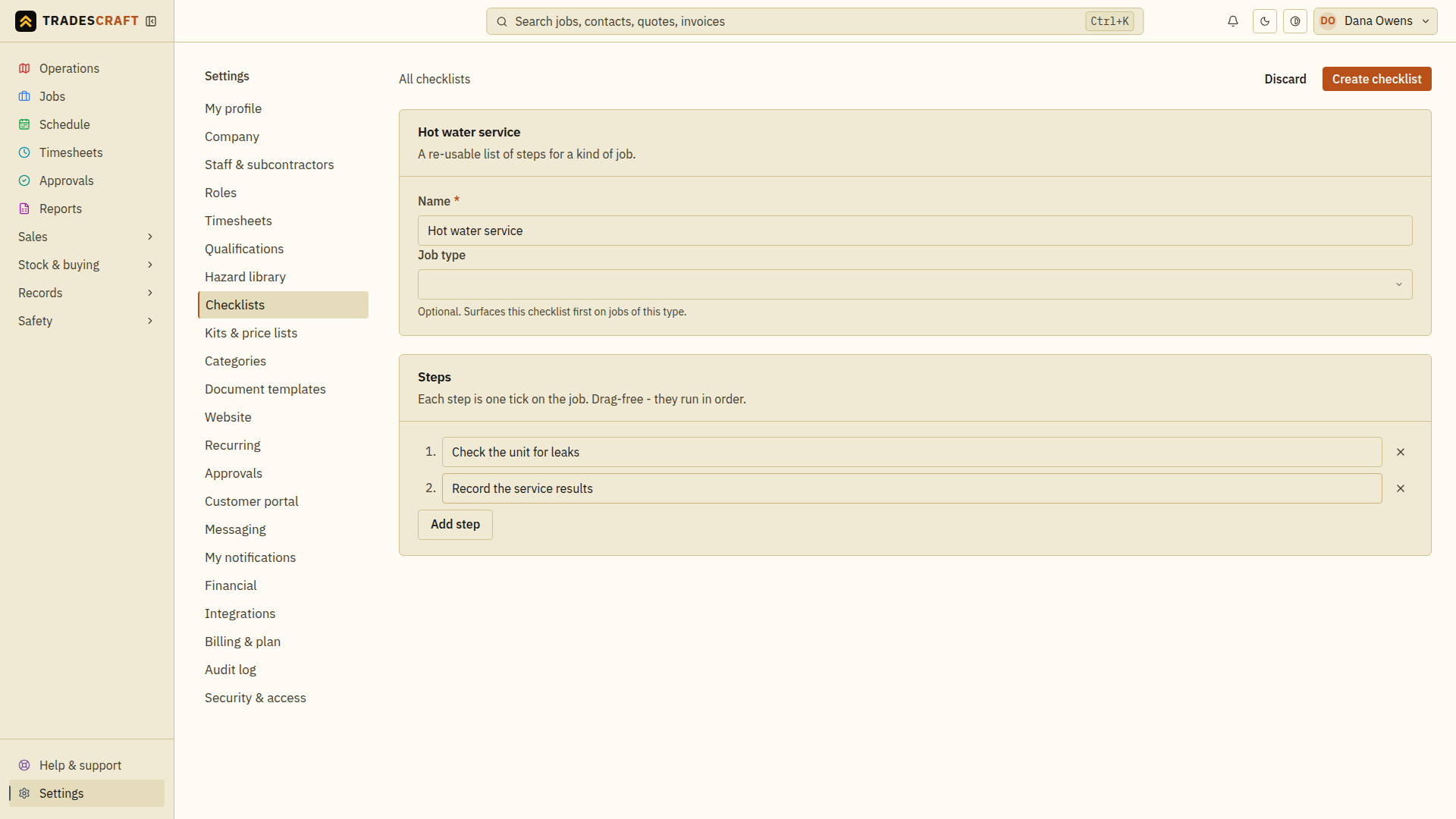
Tap Add checklist (or Build first checklist). Fill in:
- Name (required) - e.g. "Hot water service".
- Job type (optional) - Reactive, Recurring or Project. Setting it surfaces this checklist first on jobs of that type.
- Steps - add a line per step (e.g. "Isolate power", "Test pressure"). They run in order; use Add step for more and the × to drop one.
Tap Create checklist. The list shows each template's name, job type and step count; click one to view it, then Edit to change it.
Change or delete a saved checklist
- Open the checklist from the list and choose Edit.
- Change the name, job type or steps, then choose Save changes.
- Reopen the checklist and check the wording and step order.
To stop offering a template for new jobs, choose Delete in its editor and read the confirmation before deleting it. Existing jobs keep the steps already copied onto them. Editing a template also leaves those job copies unchanged; review an existing job's checklist separately when the work changes.
Using a checklist on a job
On a job, the Checklists section lets you pick a template and tap Add checklist - it copies the steps onto that job. From then on, anyone working the job ticks each step as it's done (ticked steps strike through), and you can see the done / total count at a glance so nothing's missed before handover. Remove takes a checklist off the job.
Who can do what
Adding or removing a checklist on a job needs the same permission as creating safety paperwork. Field workers out on the tools can tick the steps but can't add or remove checklists - that keeps the job's list under the office's control.
Check the saved checklist on a job
After Create checklist, open the saved template and check the step order. On a job, choose that template and Add checklist, then check that all its steps appear. Tick a completed step and confirm the done / total count changes.
If the template picker is empty, create and save the template first. If you can read or tick an attached checklist but cannot add one, ask the office to attach it. Changes to the template should be reviewed separately from steps already copied onto a job.