
Bills are what your suppliers charge you (the buying side, as opposed to the invoices you send customers). Open it from Stock & buying → Supplier bills.
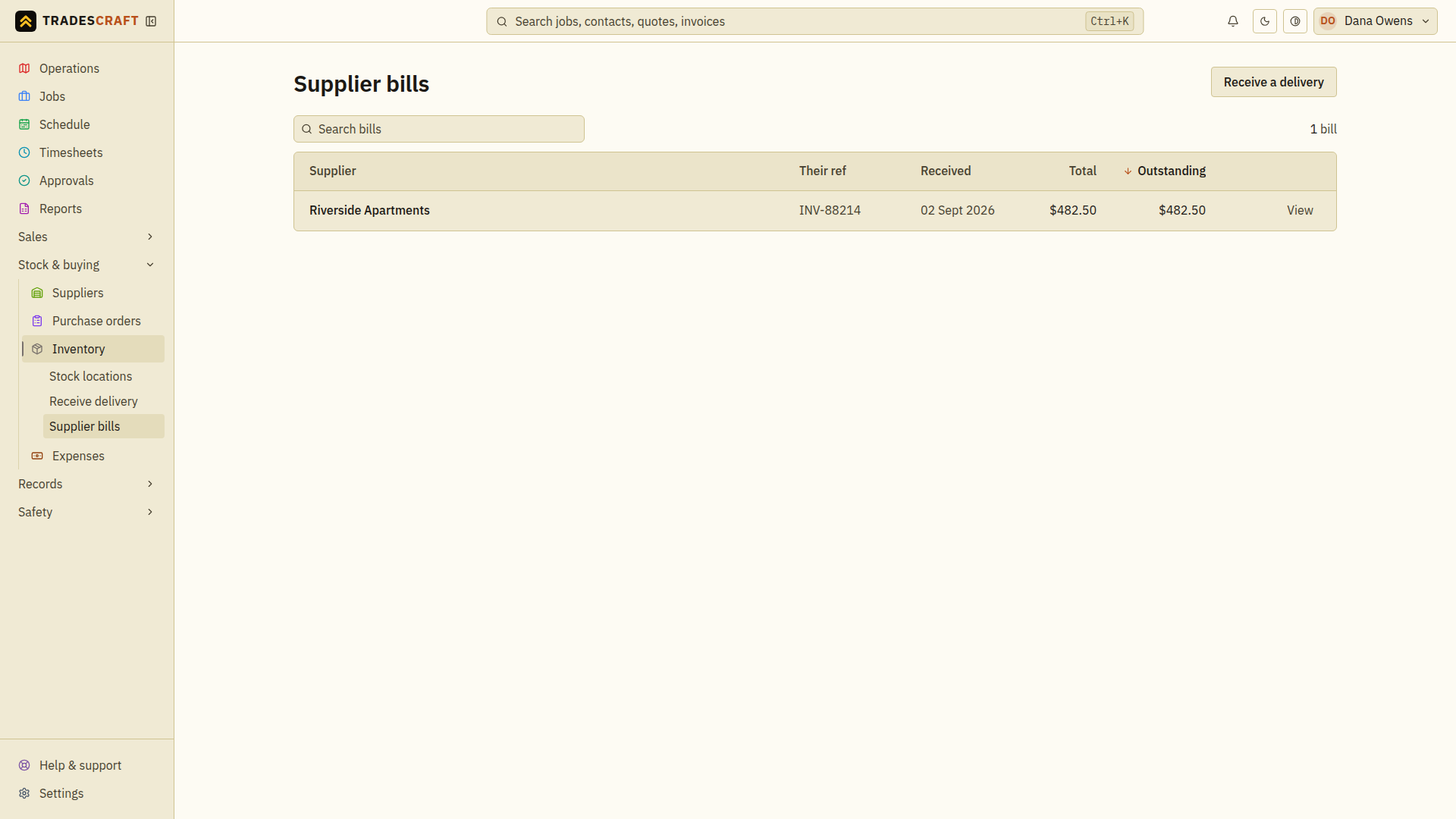
What's on it
- A list of bills created when receiving stock from suppliers or purchase orders, with each bill's supplier, amount and status.
- Bills tie back to the stock you received and the supplier they came from. When a bill came from a purchase order, open the purchase-order link to check what you ordered, what arrived and what you have paid.
- Australian and New Zealand accounts can send supplier bills to a connected Xero account. US accounts keep bills and payments in Tradescraft; Xero and Australian/New Zealand purchase-tax options are not available.
- Recorded a bill payment wrong, or the supplier refunded you? On any payment in the bill's Payment history, an admin can Reverse it - a void (keyed in error) or a refund - and the bill re-opens for that amount.
Review a bill before recording payment
- Open the bill from the list and match its supplier, reference and total to the supplier's invoice. Open its purchase-order link if you need to check the order.
- Check Outstanding (the amount still owed) and Payment history to see what has already been recorded. Do not record an amount twice because the original bill total is still visible.
- If you have paid outside Tradescraft, follow Pay a supplier bill to record that payment.
If a bill is missing, inspect the receipt and any bill-creation or sync result. Receiving goods and creating a supplier bill are separate outcomes; do not receive the stock again just to try to create a missing bill.