
Create a business account only if you are setting up a new business in Tradescraft. If you are joining a business that already uses it, ask its admin for an invitation and use the email address they invited.
Open account creation
On the sign-in page, choose Create an account. You will become the admin of this business and can invite your team afterwards.
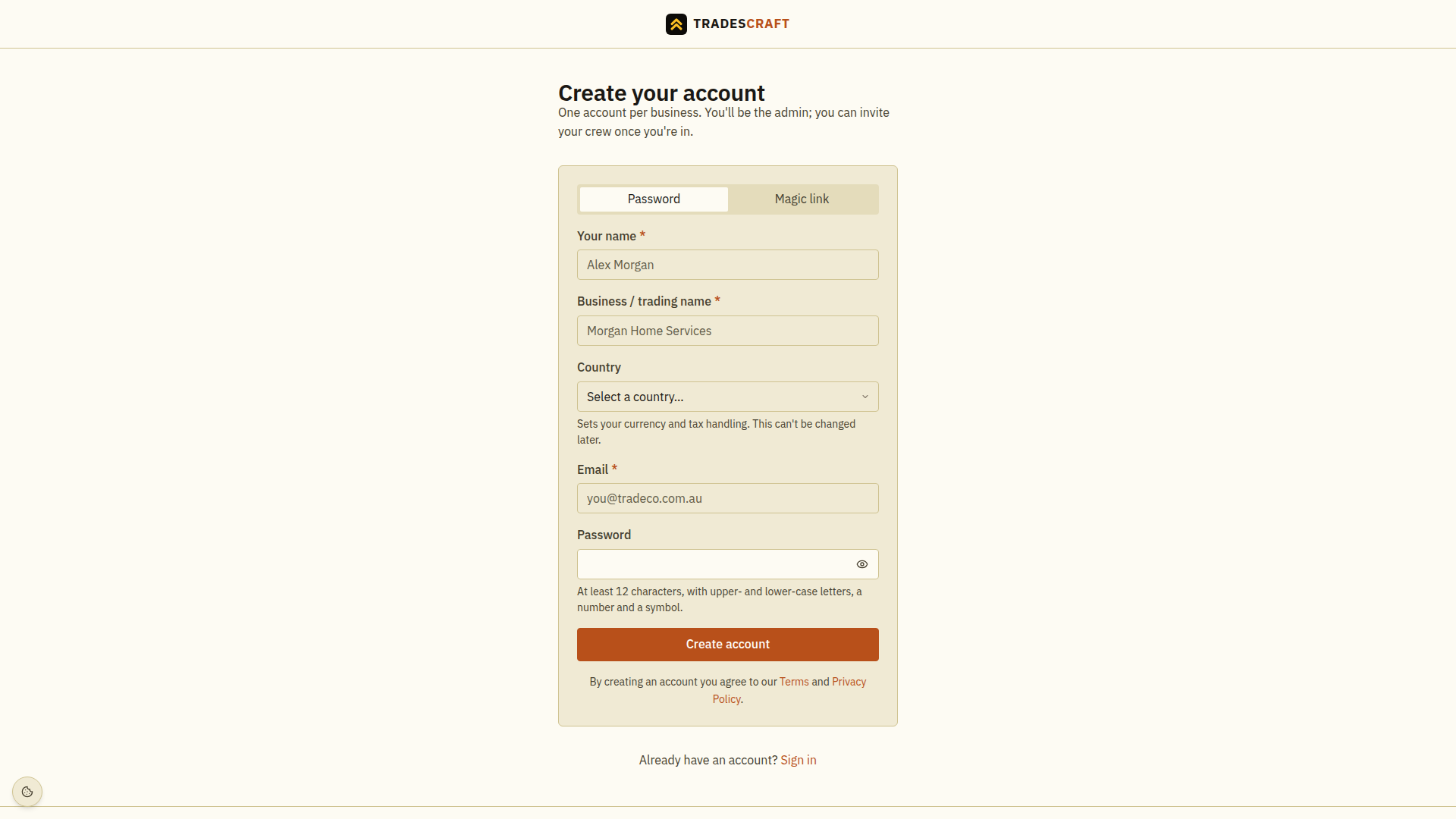
If the page says private beta, access is by invitation. Use the invited email address. If you have not been invited, choose request access and follow the section below.
Enter your details
- Enter Your name and Business / trading name.
- Choose the business's Country. For a US business, also choose State. Check the country carefully: it cannot be changed later and affects money, addresses and available features.
- Set Registered for GST? or Collect sales tax? to match your business. Ask your accountant if unsure. An Australian business can also enter its ABN (optional).
- Enter the Email you want to use to sign in.
Choose how to sign up
- Password: enter a password with at least 12 characters, upper- and lower-case letters, a number and a symbol. Choose Create account.
- Magic link: choose this tab, then Email me a magic link. You will use the email link to continue without entering a password here.
Read the linked Terms and Privacy Policy before creating the account. If a field is highlighted, correct it and try again.
Confirm your email
- When Check your email appears, open the email sent to the address you used.
- Follow its link. If asked to confirm the action, check that the account in the email is yours and choose the confirmation button.
- If Account action confirmed appears, choose Continue to Tradescraft.
- Finish any sign-in or security check, then follow Setting up your business.
If the email does not arrive, check the address and spam folder. Use Resend link when offered after its countdown. During private beta, check that you used your invited address. The confirmation screen alone does not mean you can already enter the business; complete the email and sign-in steps.
If a link is expired or invalid, request a fresh one. If the account is not yours, choose Cancel and return to sign in.
Request access during private beta
- Choose request access from the sign-up page.
- Enter your first and last name, company name, email and country. Choose the state for a US business; add a phone number if you want to be contacted there.
- Choose Request access and read the confirmation. Check your email for a reply. Submitting a request does not immediately create access or guarantee a place.
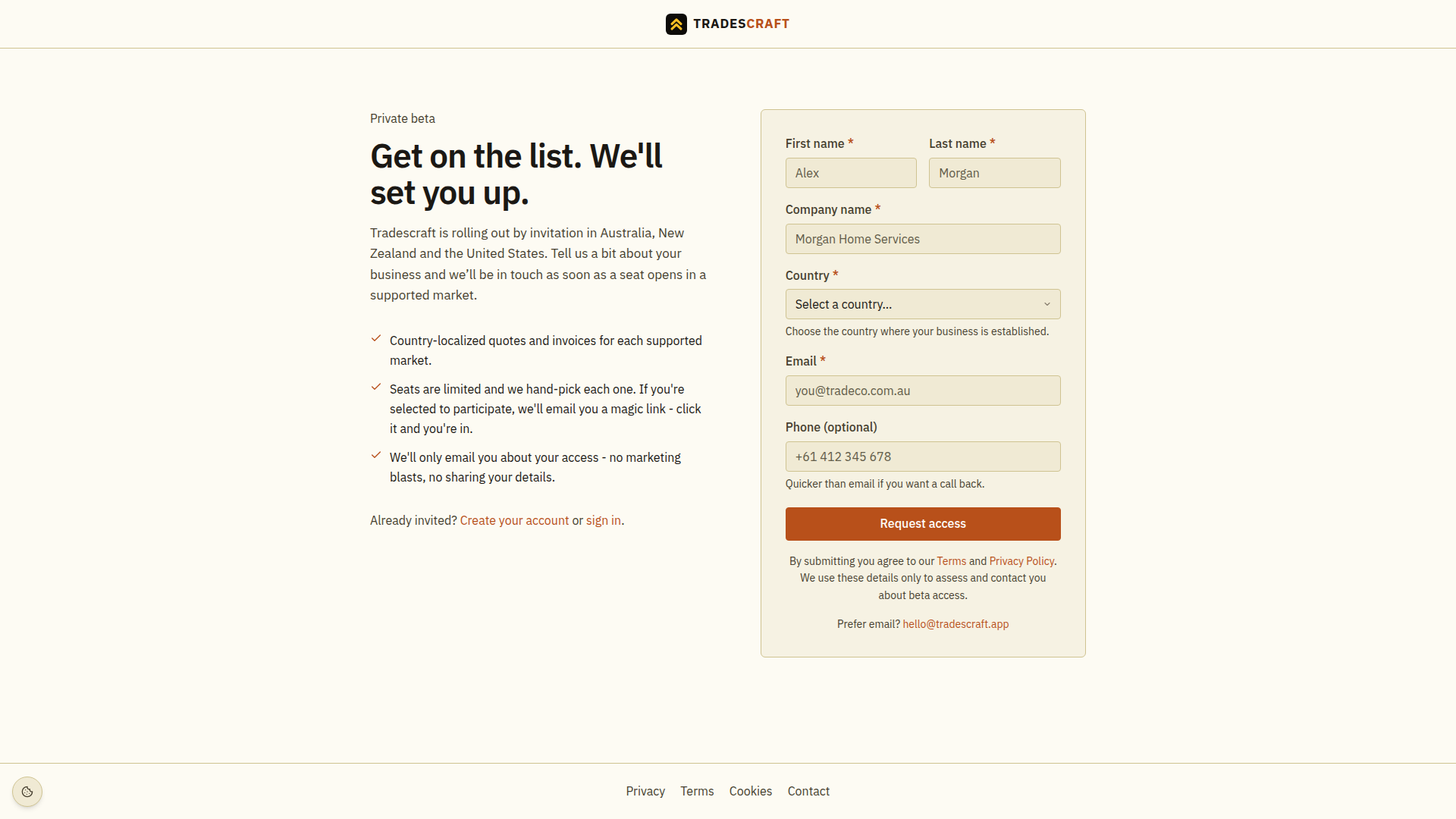
If public sign-up is available, the request page may take you straight to Create your account instead.