
Before you start
- Add the customer to your contacts first. You may also need a site, which is the address where the work will happen. Follow Add a client if the customer is missing.
Open the new-quote form
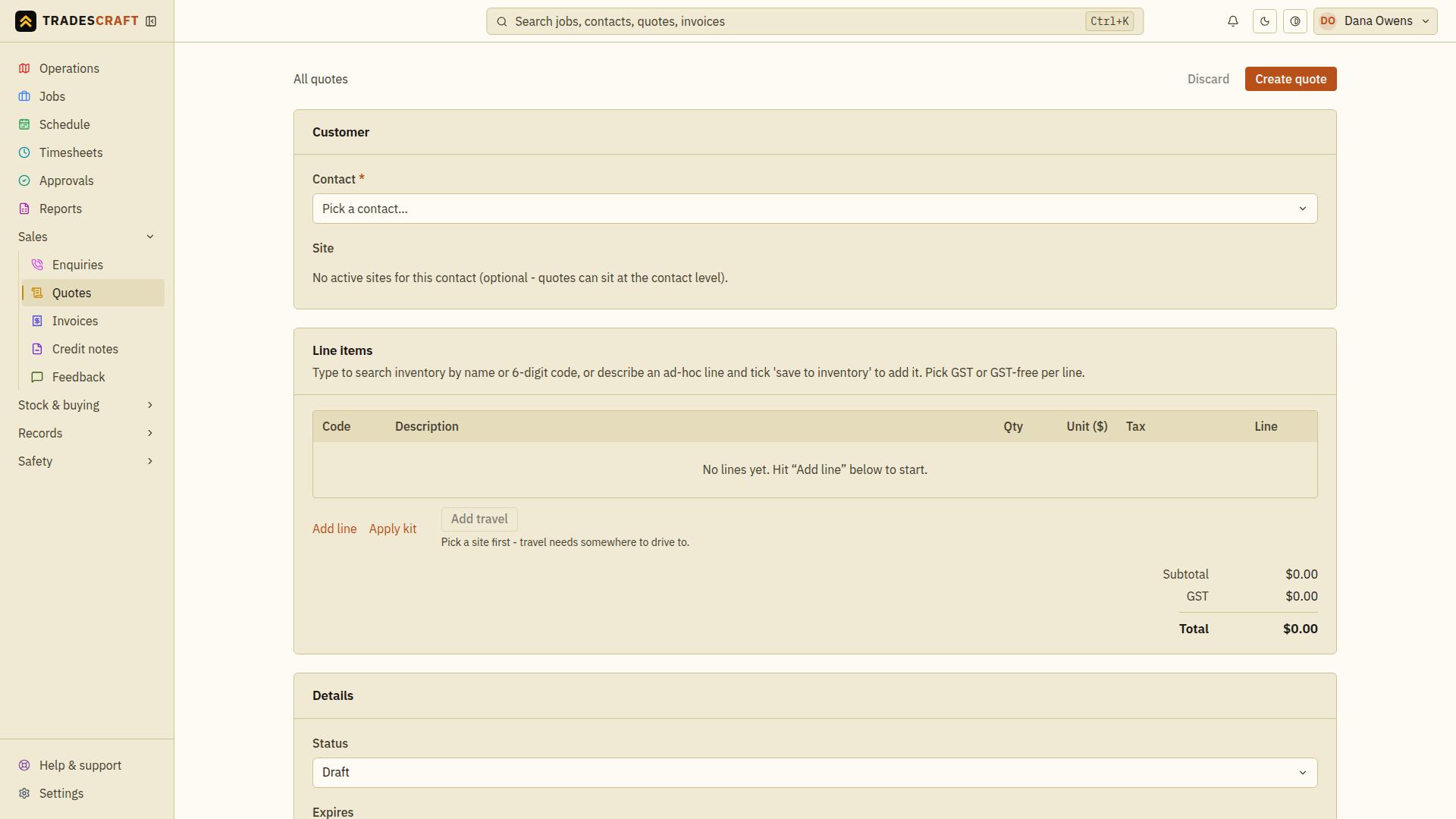
From Sales → Quotes, tap New quote. The form has three sections: Customer, Line items and Details.
Customer: who it's for
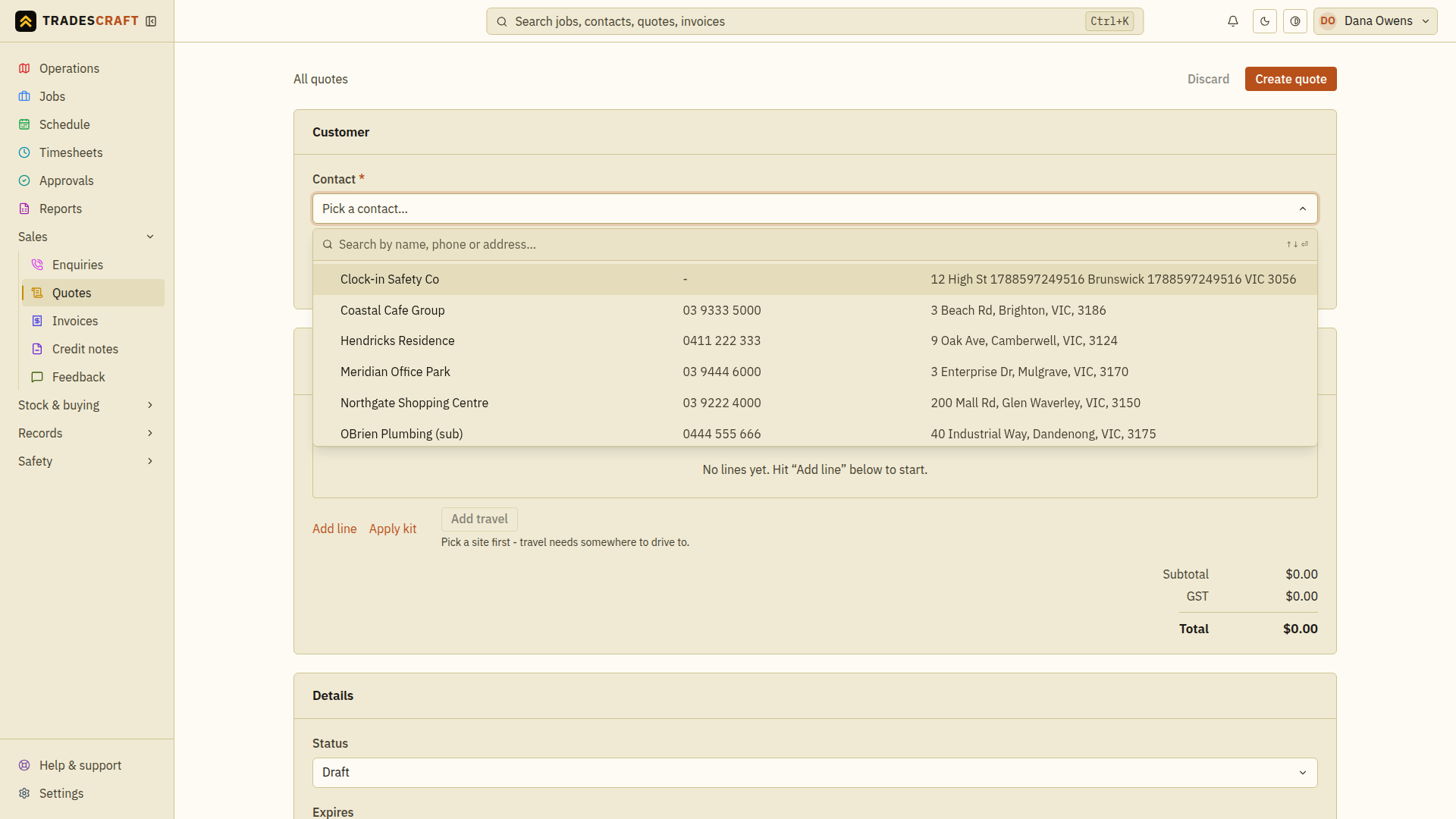
Tap Contact and pick the customer from the searchable list, then choose the Site the work is for.
Line items: build the price
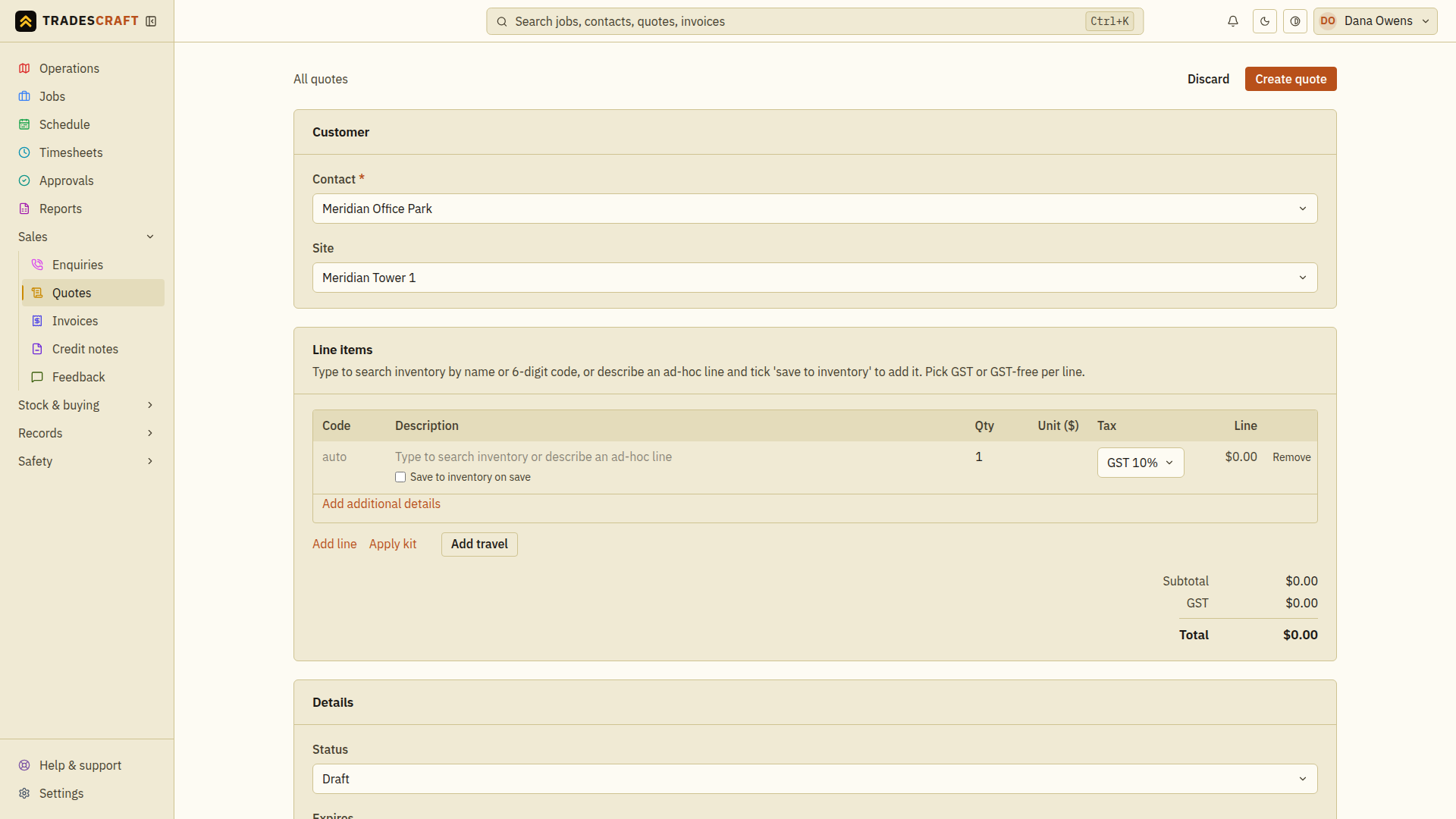
Each line is one charge, such as labour or a part. Tap Add line, then fill in:
- Description - start typing to search your inventory by name or 6-digit code and pick a stocked item (its price fills in). For a charge that is not in inventory, type your own description.
- Qty - how many units you are charging for, such as 2 hours or 3 fittings.
- Unit ($) - the price of one unit before tax. For example, 2 hours at $50 per hour gives a line total of $100 before tax.
- Tax - choose the tax that applies to this charge. Australian and New Zealand accounts use GST (goods and services tax). US accounts choose Taxable, Exempt or Not subject to sales tax.
- Line - Tradescraft works out the line total for you.
- Tick Save to inventory on save if you want to reuse this new item later. Use Add additional details to add notes about a line.
Two shortcuts sit under the lines:
- Apply kit - drop in a saved kit (a bundle of parts) in one tap.
- Add travel - add a travel/call-out line at your set rate.
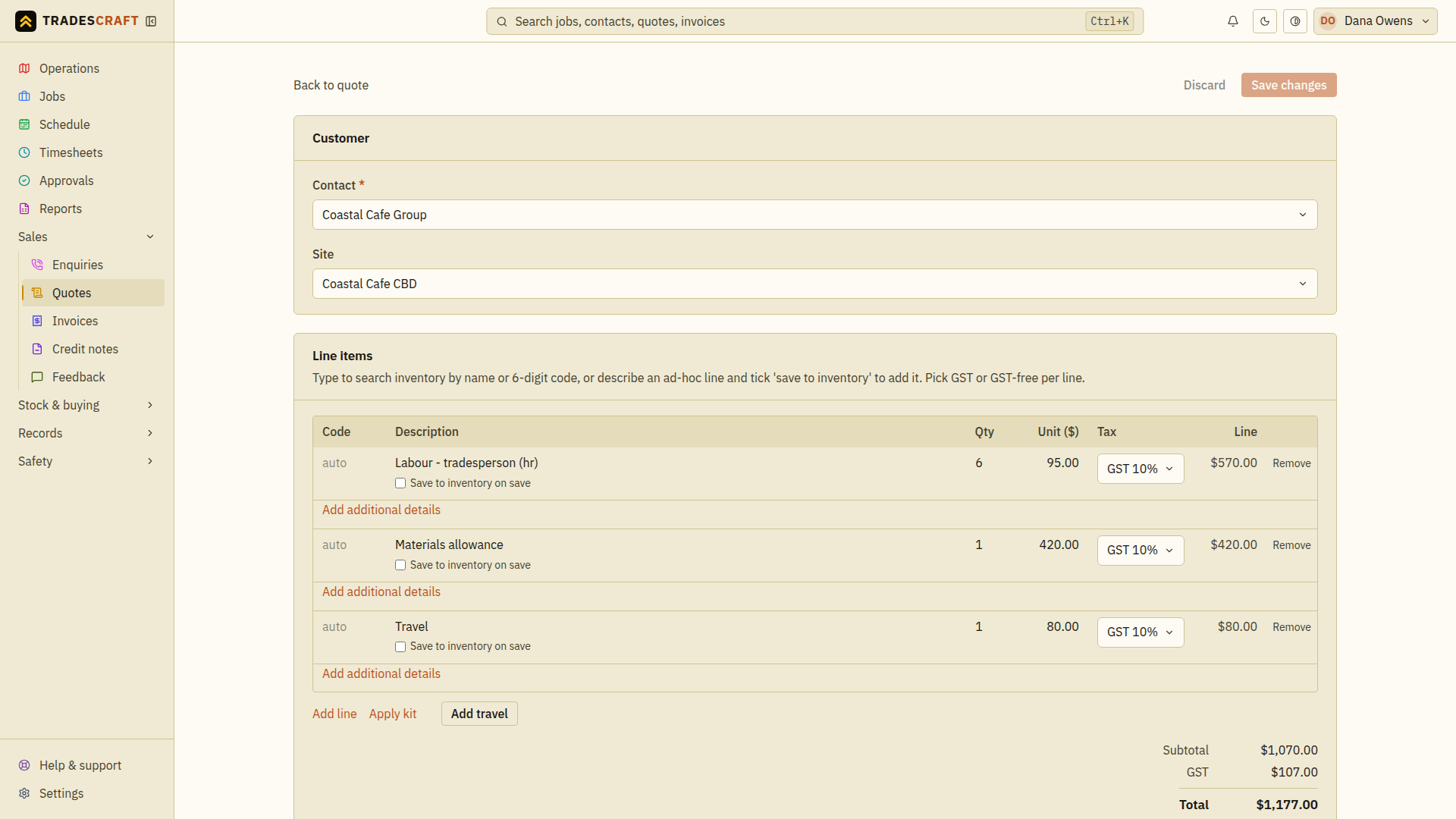
Check the Subtotal (before tax), tax and Total (including tax) on the right. For a taxable US quote, check the Combined sales tax rate for the customer's address and this work before saving. A state-wide rate may not include local tax. Saving keeps the rate you checked with this quote.
A completed set of lines looks like this (from the edit view), with the per-line maths and the running total:
Details: status, expiry and notes
- Status - leave it Draft while you prepare it. Use Awaiting client when it is ready for the customer's decision. Emailing and changing the status are separate actions; saving here does not email the customer.
- Expires - the date the quoted price no longer holds.
- Notes - terms, exclusions, anything that should print under the line items.
Save
Tap Create quote. On the saved quote, check the customer, site, quantities and total. Use Edit quote if anything needs correcting. If the form stays open with an error, fix the highlighted field; a customer and at least one line item are needed.
When it is ready, follow Quote details to email it and update its status. Creating a quote alone does not book a worker or create an invoice.