
For retainers and service plans, a recurring invoice raises a draft invoice on a set cycle. Choose whether to review each draft yourself or enable automatic sending after checking the customer, prices and payment terms.
Start a recurring invoice
Open Settings → Recurring and choose New recurring invoice. Have the customer, recurring charges, first invoice date and payment terms ready.
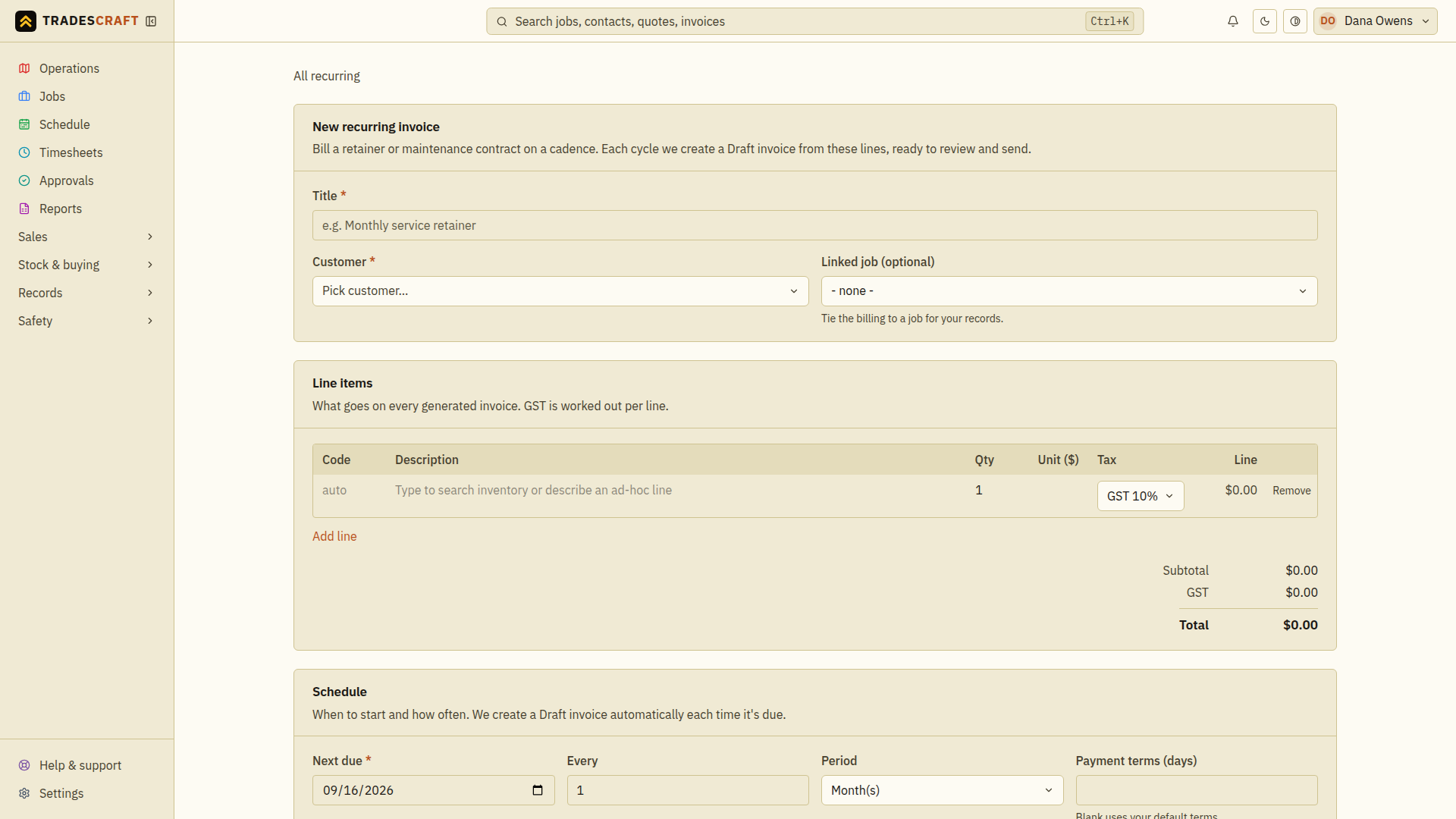
Set the customer, lines and cycle
- Title and customer (and an optional linked job).
- Line items - what goes on every generated invoice. AU/NZ use GST per line. US accounts choose Taxable, Exempt or Not subject to sales tax and use the exact combined rate saved on the recurring template, with subtotal and total shown.
- Schedule - the next due date, and how often it bills (every N weeks / months / years). Turn on Send automatically to email each invoice as it's generated, or leave it off to keep them as drafts you review and send.
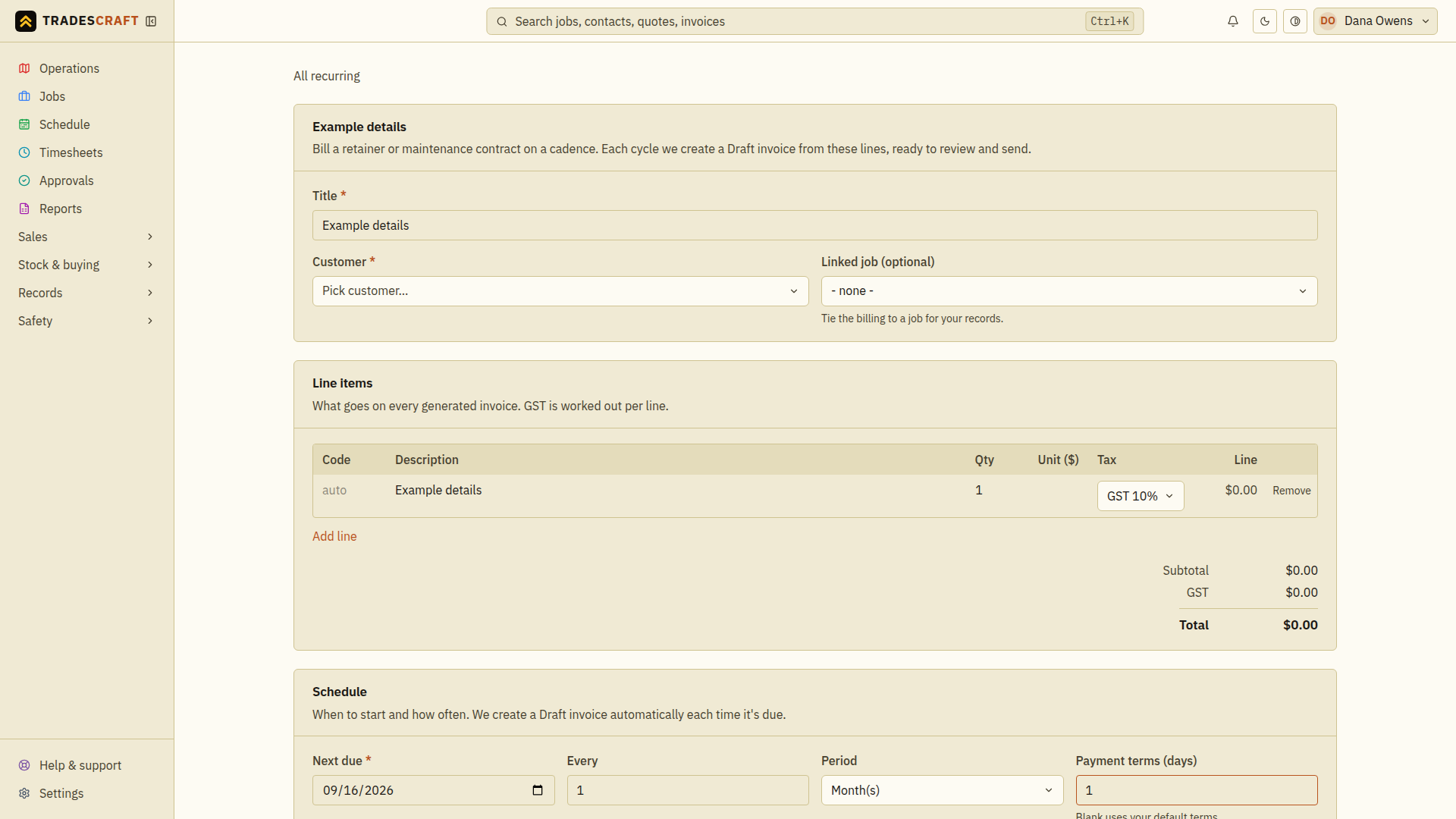
Before saving, check Payment terms (days); leaving it blank uses your default terms. Set Active - generate invoices if the schedule should run. Choose Create recurring invoice, then find the title in Recurring and check the customer, amount, how often it repeats, next due date and Active / Paused status. If the form stays open, read the error and correct the highlighted field.
For a taxable US schedule, verify and save the exact combined destination rate on the recurring template. A template marked Waiting for sales tax review can still create a draft, but Tradescraft will not email that invoice. Review and save the template for future cycles; if a draft was already generated, open that invoice, verify its own rate and save it before sending.
Check the first generated invoice
Each cycle, Tradescraft creates the invoice automatically - sent for you, or held as a draft to review. AU/NZ invoices can sync to Xero; US invoices remain in Tradescraft. An automatic invoice is only marked Sent after its email is accepted for delivery. If delivery is temporarily unavailable, it stays a draft while Tradescraft retries, so the invoice list never claims a customer was emailed when they were not.
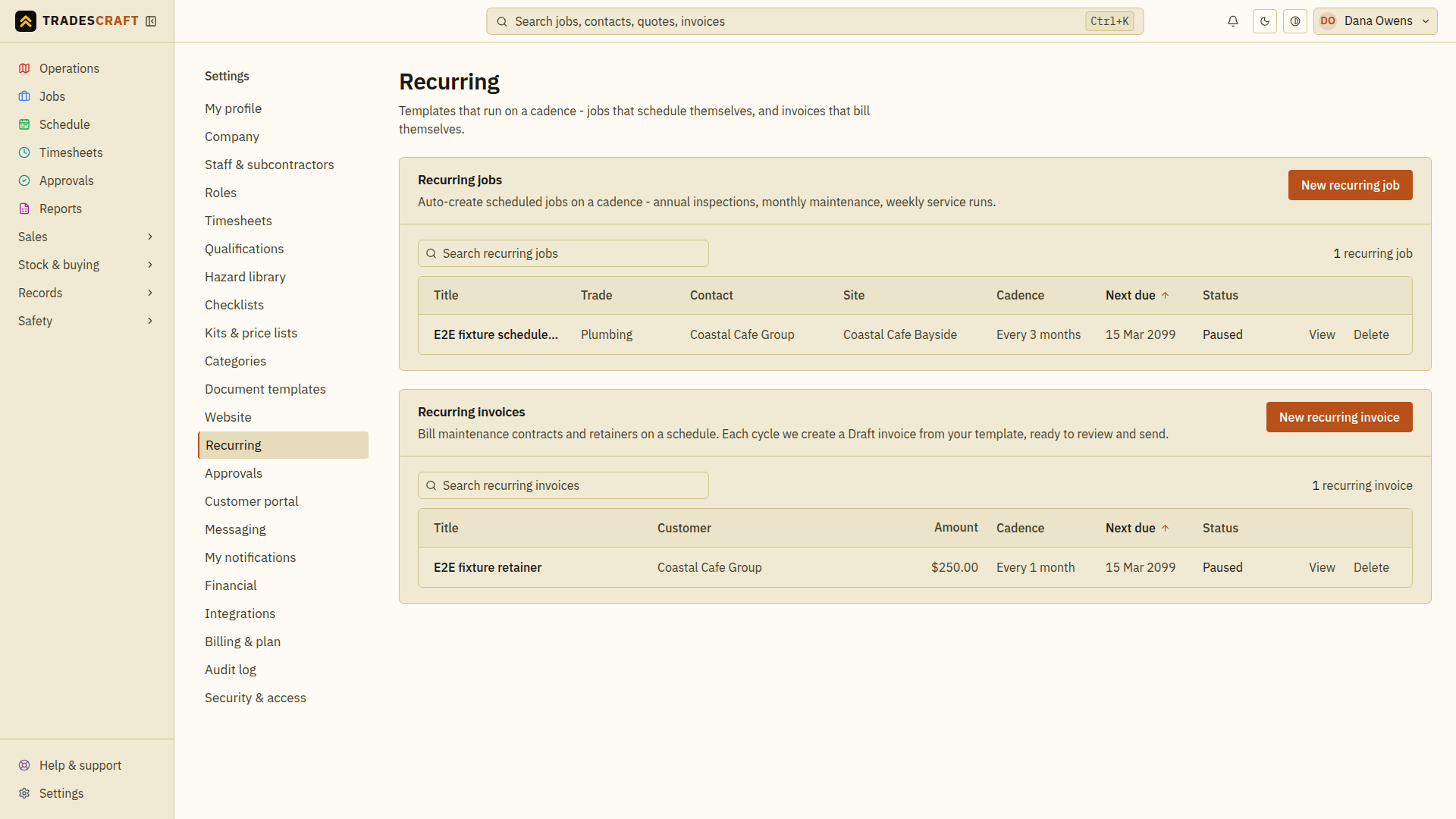
After the first due date, open Sales → Invoices and find the new invoice for that customer. Check the amount, due date and Draft/Sent status before assuming it has been issued. If it is missing, check the schedule is active and its next due date; if sending is blocked, resolve the notice on that invoice.
To change the lines, payment terms or cycle, open the saved recurring invoice and choose Edit. Clear Active - generate invoices and save to pause future invoices. Invoices already generated remain in your records.