
Open Settings → Financial. These are starting settings for new documents. Always check the actual quote or invoice before sending it.
Travel charges, payment terms and bank details share one Save changes button. Tax settings and automatic reminders have their own save controls. Saving one form does not save changes in the others.
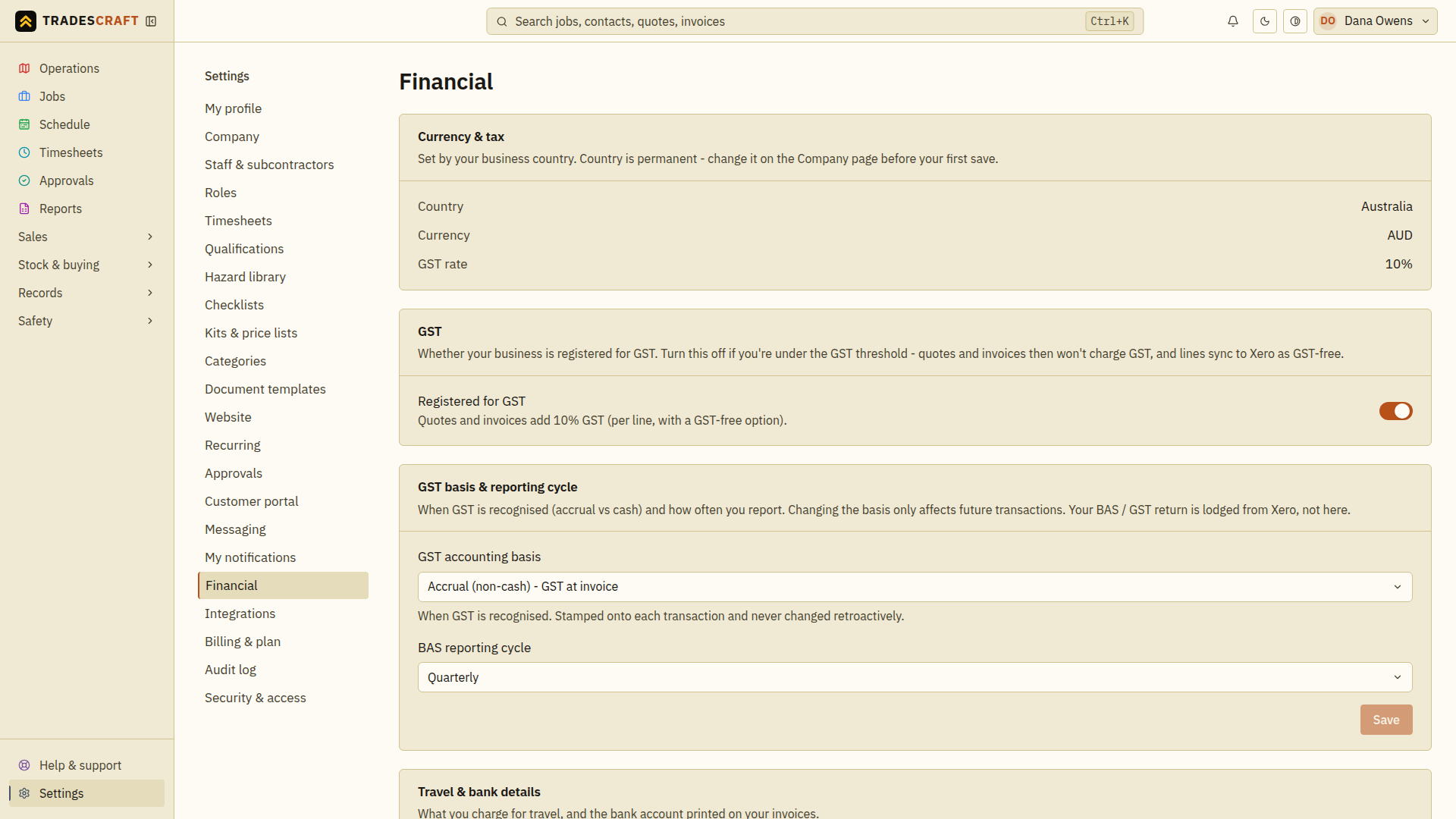
Payment terms
- Find Default payment terms.
- Enter the number of days a customer has to pay. For example, 14 means two weeks after the invoice date; 0 means payment is due that day.
- Choose Save changes and wait for the confirmation.
You can change the due date on an individual invoice when you agree different terms with a customer.
Travel charges
Enter your travel rate in dollars per kilometre for Australia/New Zealand, or dollars per mile for the United States. For example, 1.20 means $1.20 for each kilometre or mile. Choose Save changes.
Leave the rate at zero if you do not charge for travel. To add travel to a quote or invoice, follow Add a travel charge.
Bank details
- Enter the account name, account number and the BSB or routing number shown for your country. New Zealand uses its local bank-account format.
- Check every number carefully, then choose Save changes.
- Open Document templates and choose Show bank details for each quote or invoice type that should include them.
- Open a real quote or invoice using Print / PDF and check the bank details before sending it to a customer.
These details tell customers where to send a bank transfer. Card payments are set up separately under Stripe card payments.
Currency & tax
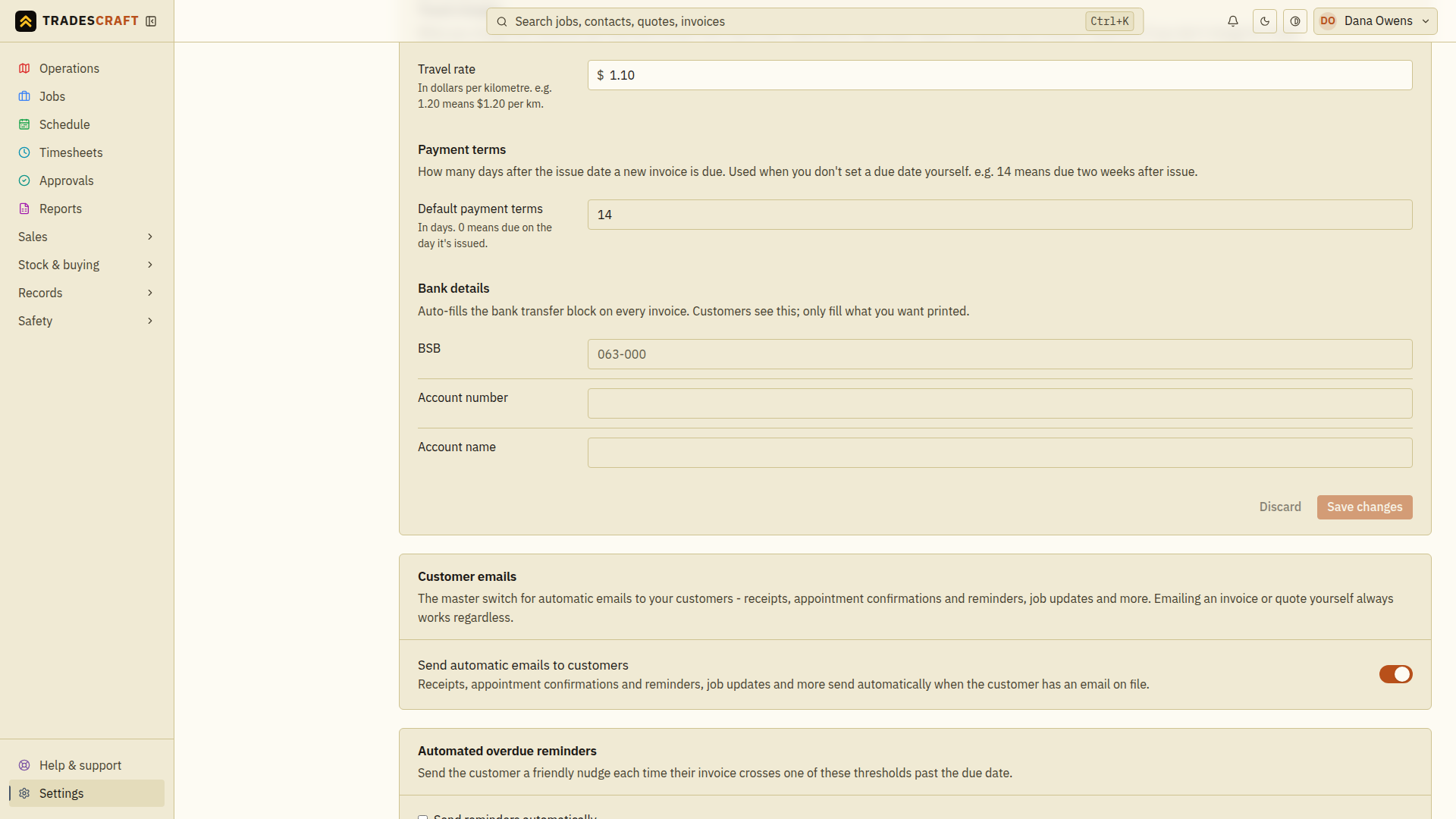
The business country sets the currency: Australian dollars, New Zealand dollars or US dollars. Australian and New Zealand businesses use GST (goods and services tax). US businesses have sales-tax settings instead.
If the page cannot load your saved settings, wait and refresh. Do not enter replacement values just because the page is temporarily unavailable.
GST registration (AU/NZ)
Set Registered for GST to match your business's actual registration status. Ask your accountant if you are unsure.
- On — taxable lines on new documents include your country's GST rate.
- Off — new documents do not add GST.
This switch saves separately when you change it. Reopen the page to check it. You do not type the standard GST percentage yourself.
GST basis & reporting cycle (AU/NZ)
Ask your accountant which GST accounting basis and reporting cycle your business uses. The basis controls when GST is counted; the cycle is how often you report it, such as monthly or quarterly.
Choose the correct values and select Save in that section. A change affects future transactions, not past ones. Use your accounting system and accountant to prepare and submit tax returns; Tradescraft does not submit them for you.
US sales tax
- Check with your tax adviser whether to turn on Collect sales tax.
- Enter the default combined rate. This is the total of the state and any local sales taxes that apply. Ask your adviser or tax service for the rate.
- Choose Save sales tax and check the saved setting.
Enter a percentage, such as 8.875 for 8.875%. Up to five decimal places are supported. The state figures and official links shown on the page are reference information. They do not confirm the correct rate for a customer's address.
Before saving a taxable US quote, invoice, separate credit note or recurring invoice, check the rate for that customer's location and the work being sold. For each line, choose Taxable, Exempt or Not subject to sales tax as advised. Tradescraft does not decide whether your business must collect tax, which work is taxable, or which local rate applies.
If a document says Verify destination sales tax before sending, open its editor, check the rate and save. Until that is done, the document cannot be printed, emailed or shown to the customer. Related payment and conversion buttons also stay unavailable.
Saved documents keep their own rate when you later change this default. An invoice made from a quote keeps the quote's rate. A credit note linked to an invoice uses that invoice's rate. Australian/New Zealand GST and Xero settings are not available on US accounts.
Customer emails & overdue reminders
Customer emails controls automatic messages, such as receipts and appointment updates. You can still send an invoice or quote yourself while these automatic emails are paused.
To turn on overdue invoice reminders:
- Allow automatic Customer emails.
- Turn on Automated overdue reminders and choose when reminders should run.
- Choose Save changes in the reminder section.
- Wait for Reminder settings saved, then reopen the page to check the days.
The reminder schedule starts off. Suggested days shown before you save are examples, not reminders already being sent. Turning on Customer emails alone does not turn on overdue reminders.
Save the settings you changed
Before leaving, check that each section you changed has saved. Then open your next quote or invoice and review its due date, tax and bank details. If a save fails, correct the message in that section and try again.