
A JSA starts as a Draft. It doesn't go live the moment you save it - the crew can't sign on until you activate it, and the Plan readiness card at the top of the JSA is where you do that (and everything after). Open a JSA from Safety → JSA.
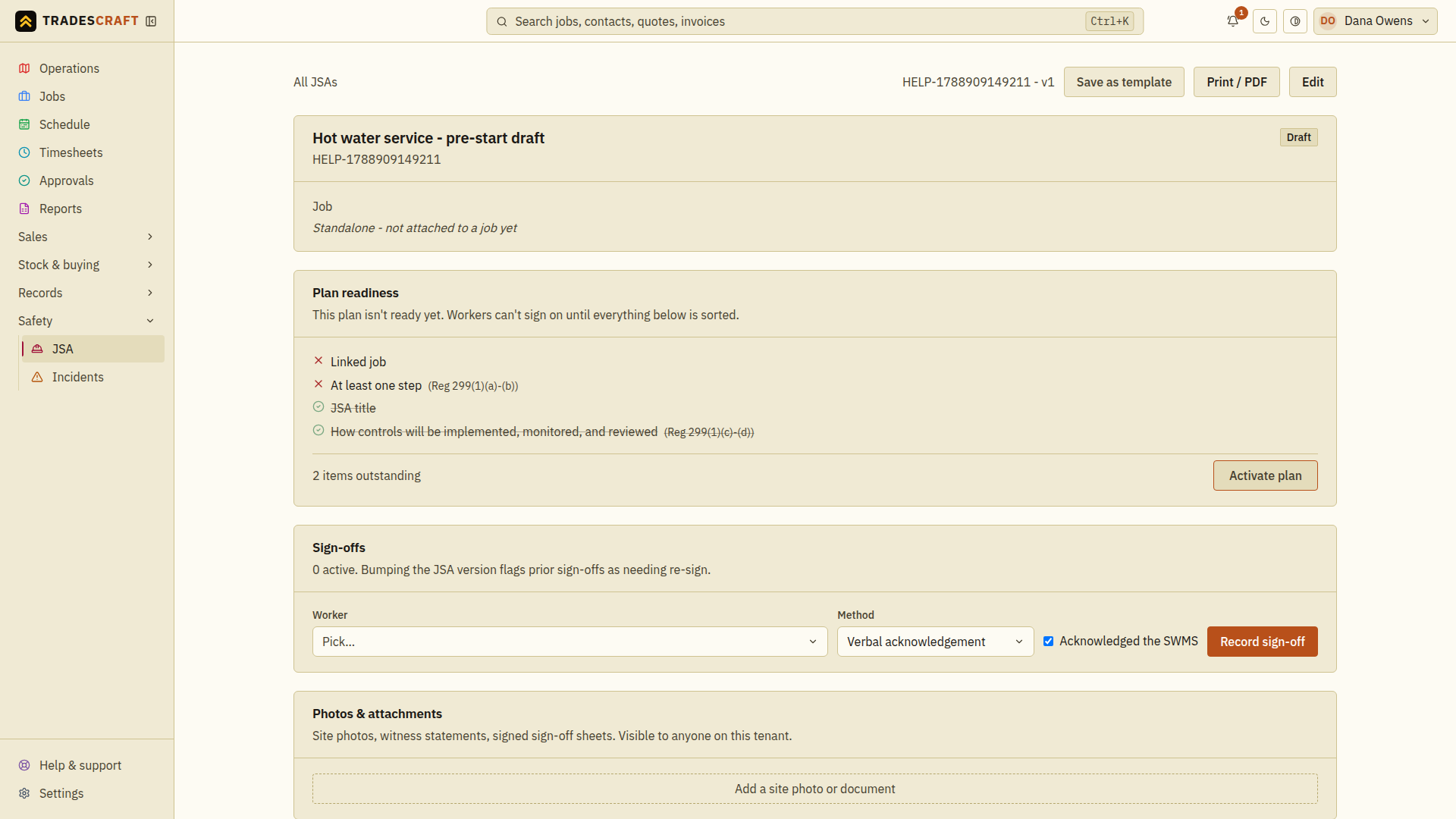
Check it's ready, then activate
While a JSA is a Draft, Plan readiness shows a checklist: what's still outstanding (each with the regulation it satisfies) and what's already sorted (ticked off). Finish these checks and activate the plan before asking workers to sign on; they cannot sign on to a draft.
- Work down the outstanding items until they're all ticked - the card reads Ready to activate.
- Tap Activate plan. The JSA goes Active, so it can be included in the crew's pre-start check. It appears at clock-on when its own required clock-on check is on, or whenever the account-wide Compliance feature is on.
Activation is a supervisor job. If your role can't activate plans you'll see "Activation needs a supervisor" in place of the button - the plan is ready, someone with the right permission just needs to switch it on. (For high-risk construction work the plan is a SWMS, and the checklist includes the principal-contractor details the law requires.)
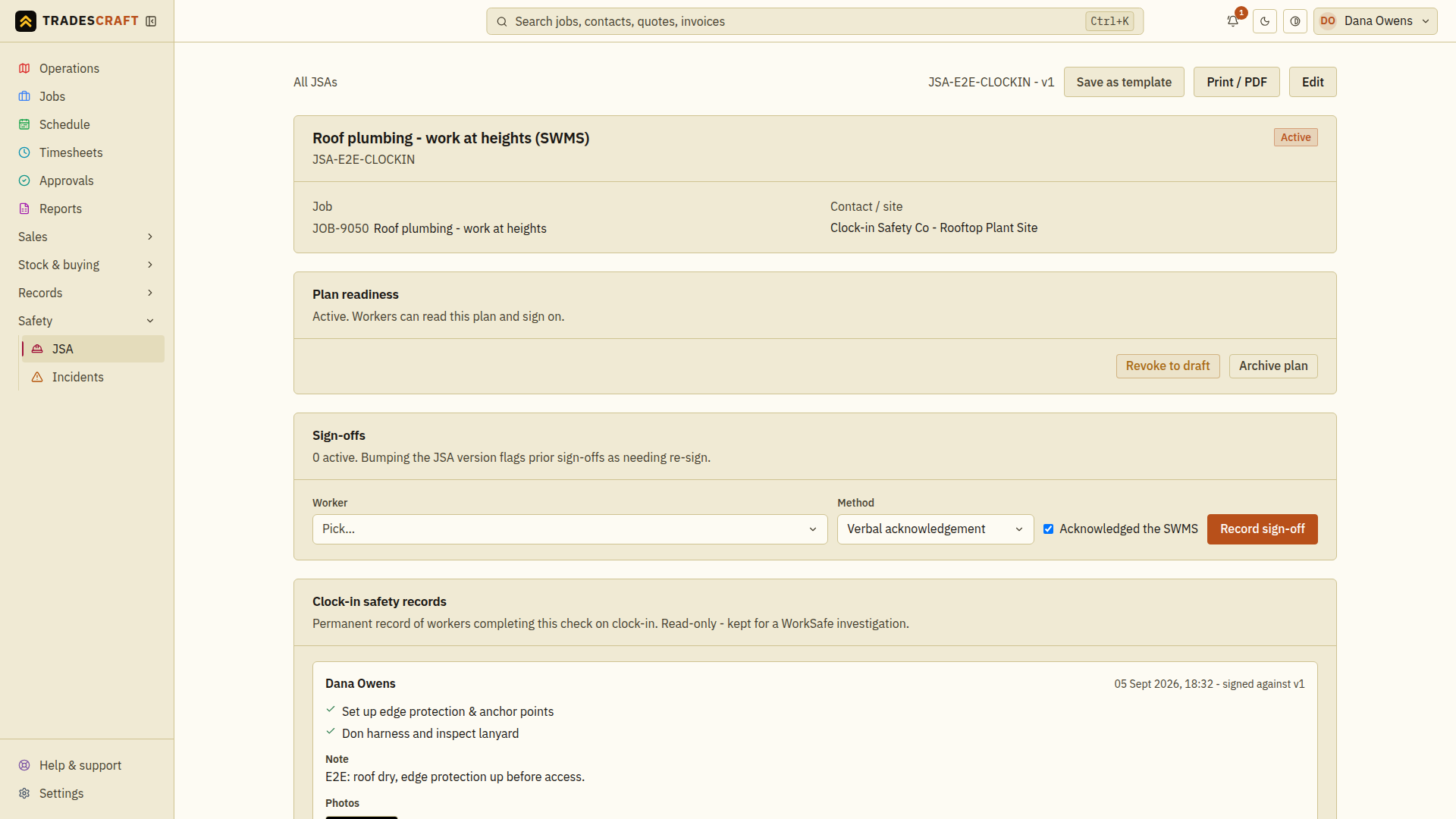
Send it back to draft when the job changes
Has the work changed, have conditions changed, or has a new hazard appeared? Don't leave the crew signed on to an out-of-date plan.
- On the active plan, tap Revoke to draft.
- Give a short reason (required) - e.g. "Adding electrical isolation steps".
The plan drops back to Draft so you can edit it, and any sign-offs already on file are flagged needs re-sign. Once you re-activate, the crew re-confirm against the new version before they start again.
Already past sign-on? Once a worker has signed, the plan shows as Signed and editing it bumps the version - which flags every existing sign-off as needs re-sign and shows a banner at the top, so nobody works to an outdated plan.
Archive it when the work's done
When the job's finished, tidy the plan away:
- Tap Archive plan (add an optional note, e.g. "Job closed out"). It becomes read-only and stops showing up as live work.
Archiving preserves the plan and its existing history in a read-only state. You cannot delete a plan once it has a clock-in safety record. Your business must still keep its records for the period required for the type of work and where it takes place.
Good to know
- You can Print / PDF the plan at any status - the printed copy carries the same references to regulations as the screen.
- Revoking or archiving does not delete the sign-offs, clock-in records or review history already on file.