
Assets is your equipment register. Log the machines you install or maintain - a customer's rooftop AC compressor, a hot-water unit, a pump - so their make, model, serial and service dates live in one place, and you get a nudge when a service or warranty is coming up. Open it from Records → Assets.
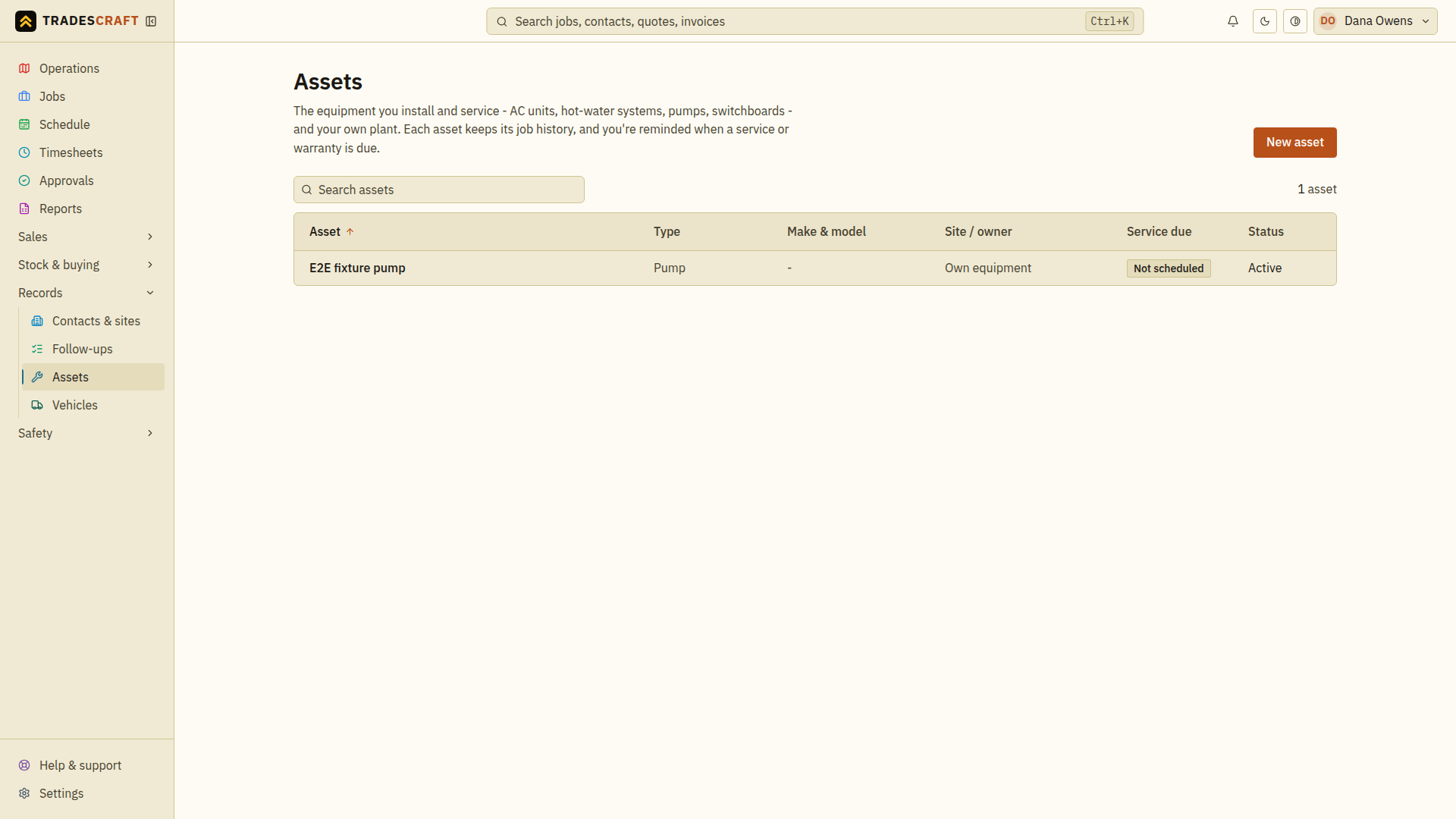
What's on the list
Each row is an asset, with its name, type, make & model, where it lives (the customer's site, or "your own"), a Service due badge, and its status:
- Service due flags each asset at a glance from its next-service date: a red Overdue, Due soon, Scheduled (a date's set and still a way off), or Not scheduled (no date yet).
- Status is Active (in service) or Retired.
- New asset (top-right) adds one; click a row to open it, see its full detail and its service history (the jobs where it's been worked on).
Find what you need
Type in the search box, or click a column heading to sort (e.g. by Service due to bring the overdue ones to the top).
Good to know
- Assets are for equipment you service or own - distinct from inventory (stock you sell/consume) and vehicles (your fleet).
- Link an asset to the jobs you do on it and each asset builds a service history - see Add an asset.
Review a service that is due
- Search the register for the asset, then match its customer/site and serial details before opening it.
- Read Next service due, warranty details and the linked service history. Check whether a job is already booked for the work.
- When creating or opening the service job, link this asset in the job's Assets section so the work appears in its history.
A Due soon or Overdue badge calls attention to a recorded date; it is not confirmation that an appointment has been booked. For Not scheduled, open Edit, set the applicable service date and Save changes.