
Open any credit note (from Sales → Credit notes) to see its lines and totals, the invoice it relates to, and its status - and to act on it.
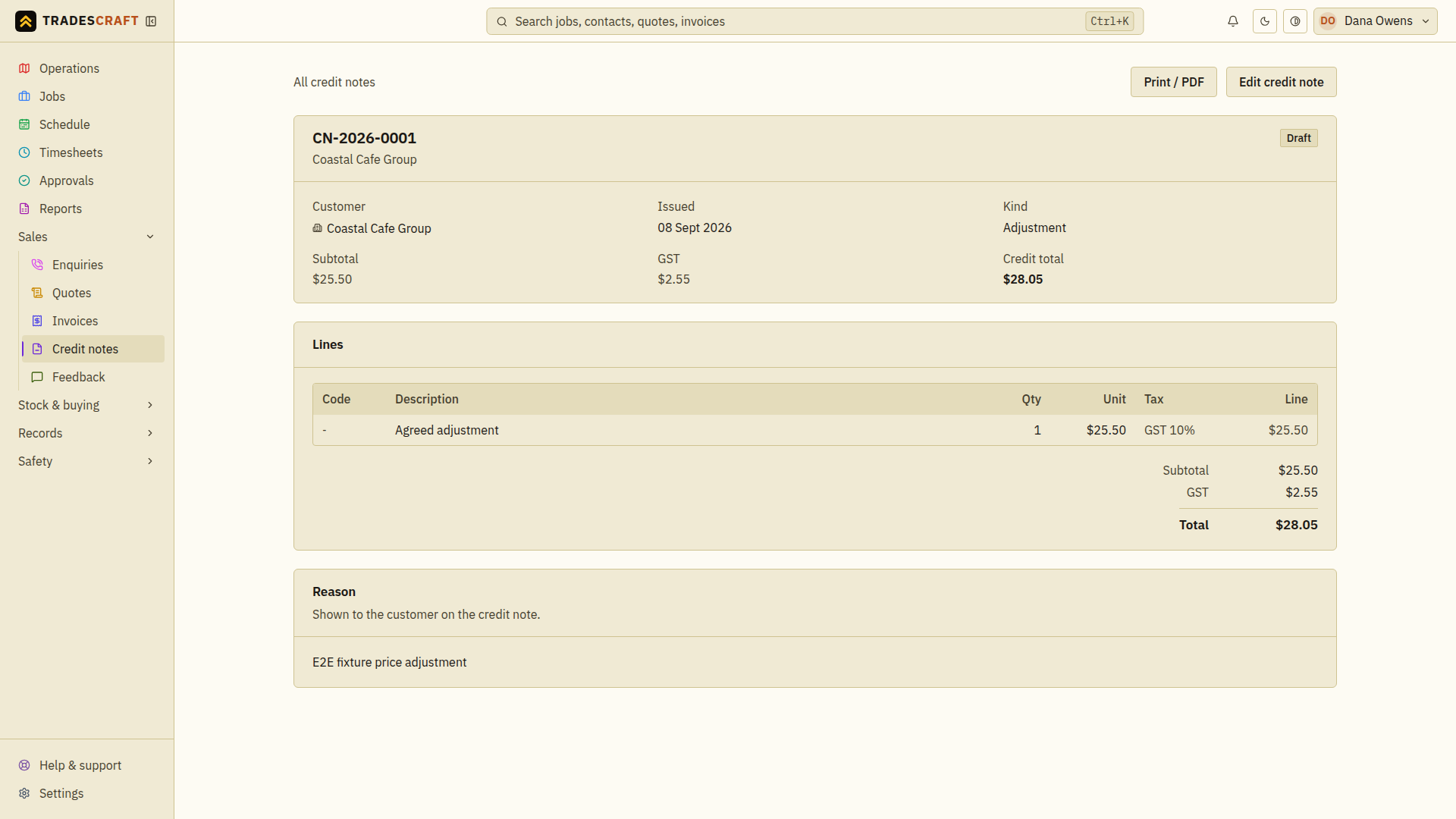
The status trail
Read the status before choosing an action. These are possible states; Cancelled is an optional correction, not the next step for every credit.
- Draft - still being written. You can edit or delete it.
- Issued - ready to send to the customer. If it's tied to an invoice it starts reducing that invoice's balance.
- Applied - it's been used against an invoice's balance.
- Cancelled - voided (it no longer reduces anything).
What you can do
- Print / PDF - open a clean copy to save or hand over.
- Send to customer - email the credit note (as a PDF) to the customer's billing email. Available once it's Issued, to a role with the Send invoices permission.
- Against invoice - the link back to the invoice it credits, so you can jump between the two.
- Edit / Delete - only while it's a Draft.
- Cancel credit note - on an Issued or Applied note, cancelling voids it and undoes its effect on the invoice's balance. Use this instead of editing when an issued credit note is wrong.
If a US draft needs a sales-tax check
If you see Verify destination sales tax before sending, you must check the rate before you can issue, email, print or download the note as a PDF.
For a note without a linked invoice, choose Edit, check the combined sales tax rate for the customer's address and work, then save. A linked credit uses the original invoice's saved rate. If the notice points to that invoice, open it, check its rate and save it first. Return to the draft credit note and check the updated tax and total before issuing it.
Send or cancel the saved note
- Check the customer, credited lines, reason and invoice link. For a draft, use Edit credit note to finish it, set Status to Issued when ready and choose Save changes. Check the saved status before sending.
- To send an issued note, choose Send to customer, review the confirmation and wait for the send result. Correct a missing billing email on the contact before retrying. Issuing the note alone does not email it.
- If an issued/applied note is wrong, use Cancel credit note and confirm the intended note. Check that it now says Cancelled, then follow Against invoice to check the restored balance before creating a replacement.
Recording a reimbursement or cancelling a credit note does not transfer money. Send the refund through the service that took the payment, such as Stripe, or through your bank. Then record the amount you actually refunded.