
Open Settings → Security & access and find Your data. These actions have different effects. Downloading keeps the business open; leaving removes your access; deleting removes the business's records and everyone's access.
Admins can download business data or delete the business. Any team member can leave, provided another admin remains to manage the business.
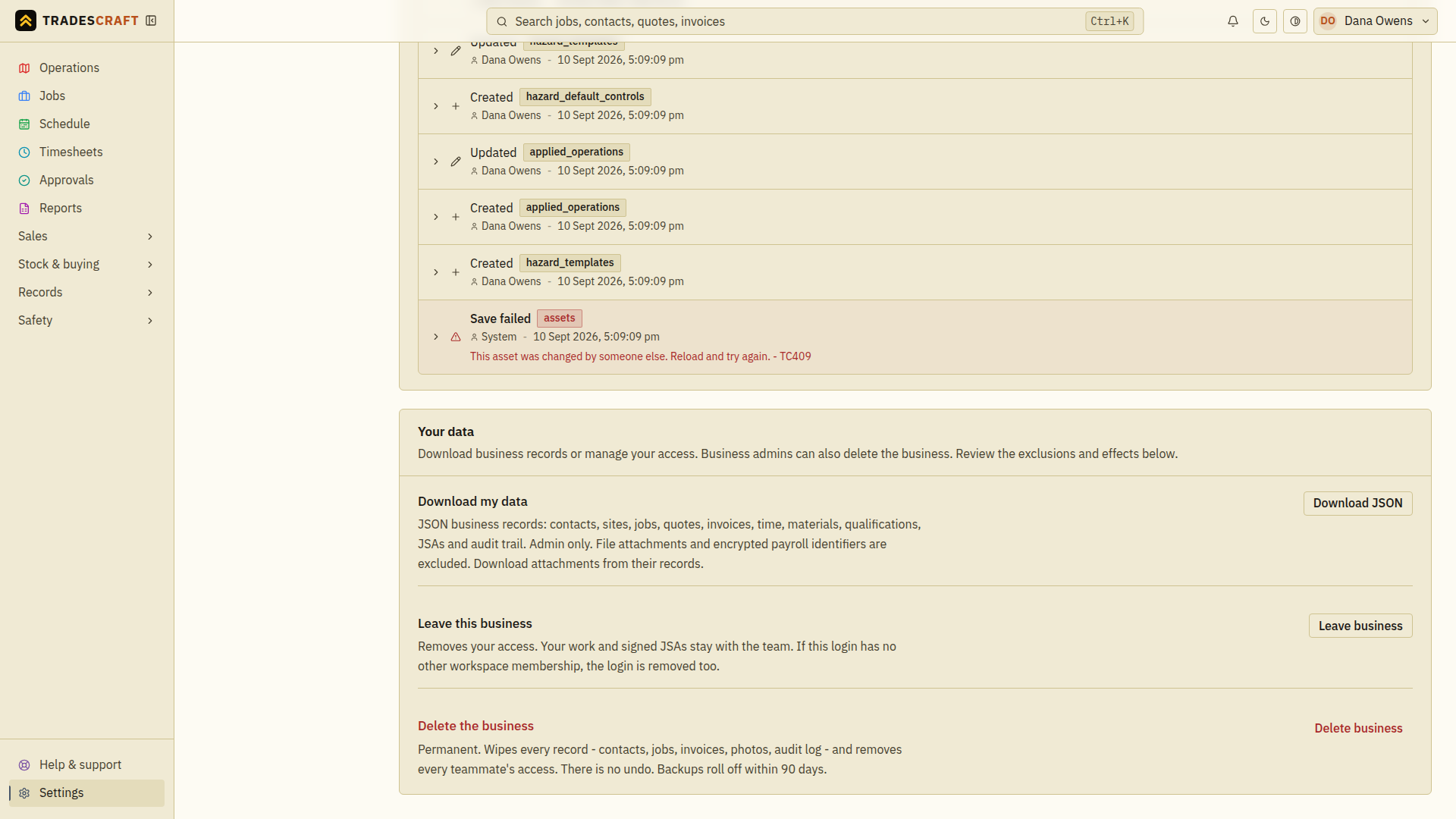
Download a copy of the records
- Under Download my data, choose Download JSON and complete any security check requested.
- Wait while the button says Building.... Find the completed file in your browser's downloads.
- Keep the file in a secure place. It contains business records, including customer and team information. Share it only with someone who needs it.
JSON is a file format for keeping or transferring data. It is not a printable report or a spreadsheet. For figures you can open in a spreadsheet, use Reports and its CSV button instead.
Downloading does not delete anything or automatically import the records into another app. If the download fails, read the error and retry; check that a file actually finished downloading before relying on it.
The JSON does not include uploaded file attachments, such as job photos, scanned documents, CAD files or your logo. Download files from the records where they are attached. Encrypted payroll identifiers, including tax file/IRD numbers, bank and super details, are excluded too; people with the required permissions can access them in the person's payroll details.
Leave a business
- Check that you are in the business you intend to leave.
- Under Leave this business, choose Leave business.
- Read the confirmation. Your logged work stays with the team, including signed safety records where applicable. You will lose access to this business.
- Choose Leave business in the confirmation only when you are ready and complete any security check requested. After success, you are signed out and leave the business page.
If this login has no other business connection, the login is removed too. If you are the only admin, another admin must be in place before you can leave. Use Your team to arrange that first.
Leaving does not close the business for everyone else. If a cleanup message appears after you leave, follow it; do not assume the original action failed just because some cleanup is still waiting.
Permanently delete a business
Only an admin can do this. There is no undo. Deletion removes contacts, jobs, invoices, photos and the audit log, and removes every teammate's access. Download any records you need before continuing.
- Under Delete the business, choose Delete business.
- Read the confirmation and check that you intend to close this business.
- Type delete my business into the confirmation box.
- Choose Delete forever and complete any security check requested.
- Wait for the result. After successful deletion, you leave the business page. If the action reports an error, read it before trying again.
Tradescraft requests cancellation of the main subscription and paid add-ons as part of deletion. If the payment service is temporarily unavailable, cancellation is retried. A cleanup warning can mean deletion completed while that follow-up work is still waiting.
These data and access-removal actions remain available when an expired subscription has stopped ordinary editing. If you only want to stop renewal and keep access to your records, follow Billing & plan.