
Expenses are the costs you incur - fuel, parking, materials bought on the fly, tools. Logging them keeps your job costing honest and gives your accountant the receipts. Open it from Stock & buying → Expenses.
What's on the list
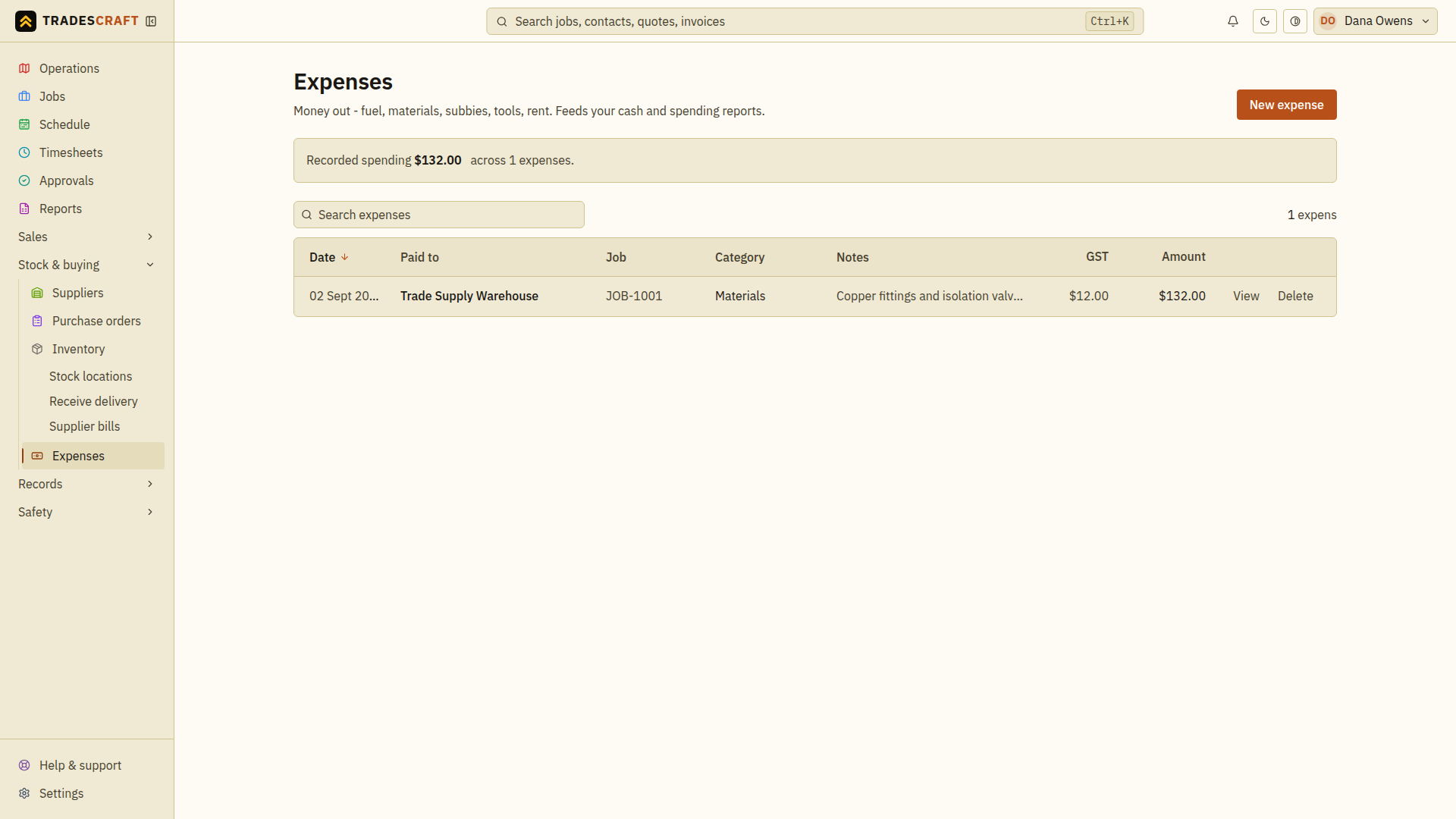
Each row is an expense, with what it was for, the amount, the job it's against (if any). Open the expense to check its attached receipt.
- New expense (top-right) logs one.
Find what you need
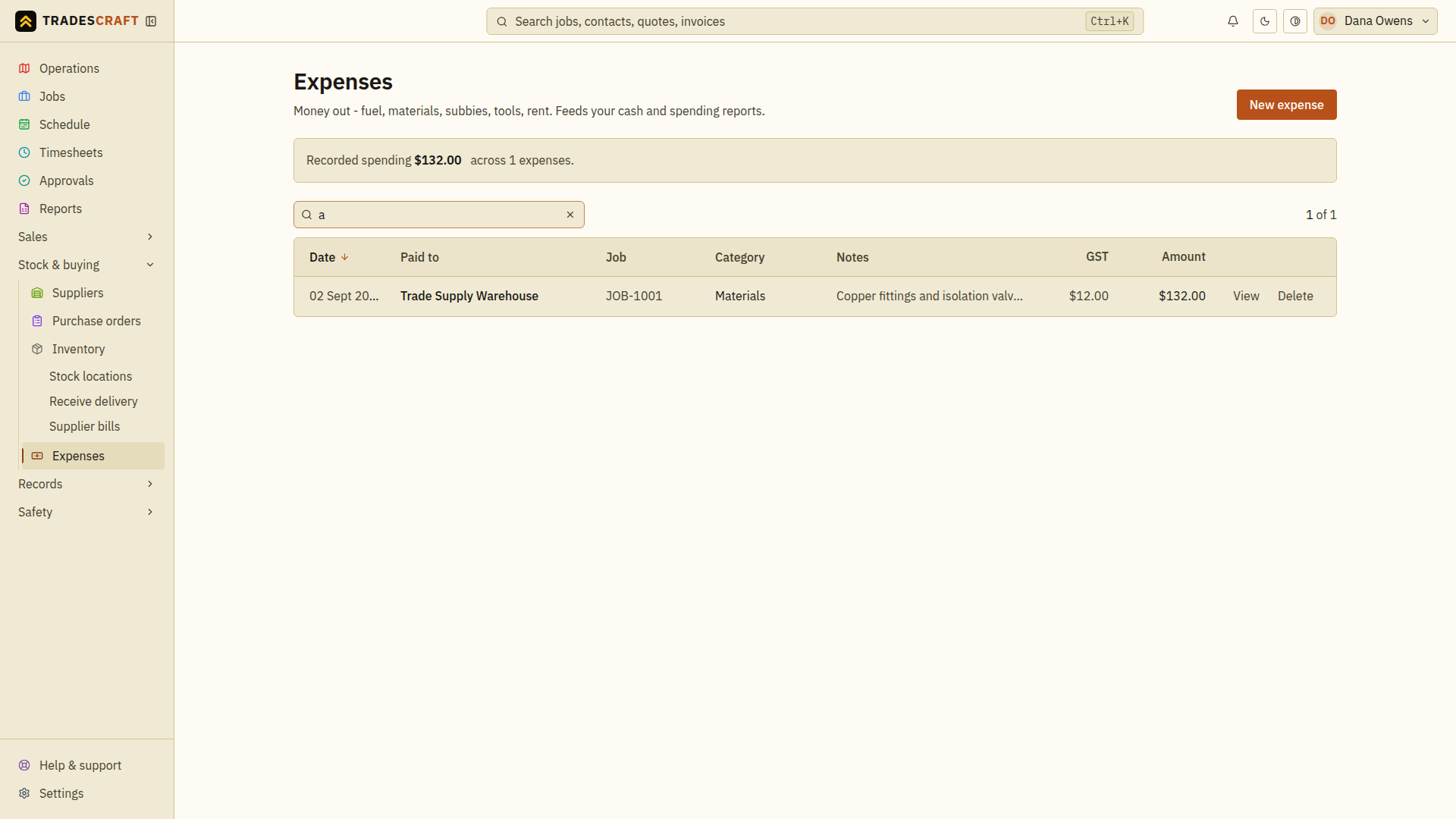
- Search for the payee, job reference or words from the expense notes.
- Match the Date, Category and Amount to the receipt before opening the row. A supplier may have several expenses for the same amount.
- On the saved expense, review the cost and job link. Use Upload receipt in the Receipt card if the evidence is missing; follow Log an expense.
Clear the search if nothing matches. Check for an existing entry before recording another cost: an expense records money already spent; it does not pay the supplier.
Correct or remove an expense
- Open the expense and choose Edit.
- Correct the date, payee, amount or job link, then choose Save changes.
- Reopen the saved expense and compare it with the receipt.
For a duplicate or mistaken entry, choose Delete in the editor and read the confirmation. Deleting removes the expense from spending and cash reports; it does not reverse a payment at your bank. Choose Delete only when that is the intended correction, then check for Expense deleted. If an issued RCTI prevents a change, keep that record and ask your accountant how to correct it.