
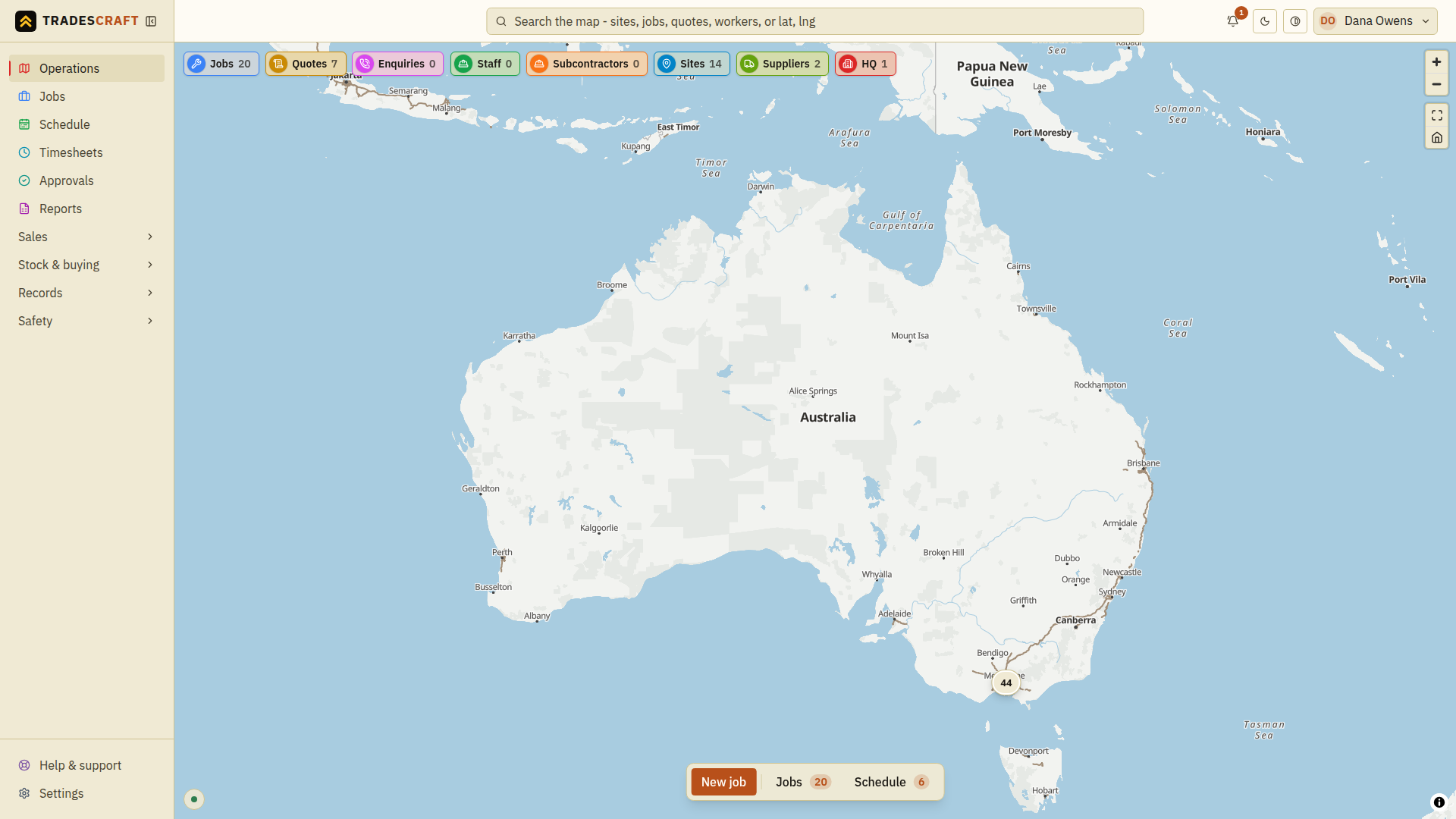
Operations is the first screen in the office app after signing in. The map shows the last known locations of jobs, sites, workers and vehicles. It is updated regularly, but it is not live vehicle tracking.
Find and open a job
- Open Operations. Use the map search to find the job or site by name.
- Choose its pin to open the details. If several pins appear as one numbered circle, choose the circle to zoom in, then choose the individual pin.
- Check the job number and site address before opening or booking the work. Use Dispatch a job to assign a worker.
The buttons across the top—Jobs, Quotes, Enquiries, Staff, Subbies, Sites, Suppliers and HQ—show a count for each type of pin. Choose a button to show or hide those pins. For example, hide other types when you only want to see jobs. HQ means your business's headquarters address.
At the bottom, New job opens a new-job form. Jobs and Schedule open panels over the map. These panels close when you visit another page and return to their saved size and position when you come back to Operations.
Check a worker before booking
Open a worker's pin to find their phone number. For Australian and New Zealand accounts, the pin also shows their qualification status:
- Green — the qualifications on record are current.
- Amber — a qualification is expiring soon, or none are on file.
- Red — a qualification has expired.
- Compliance unavailable — the check could not be completed. Check the worker's record before relying on their status.
Open the site's pin to check which qualifications it requires. Follow Dispatch a job for warnings or blocked bookings. A worker's location alone does not tell you whether they can do the job.
Check a route or driving distance
- Choose a job, site or asset pin. On a computer, the route starts at HQ. On a phone, it uses your current location where available. Check the starting point shown before using the distance.
- Read the drive time and any notes about toll roads, restricted access, ferries or car-carrying trains. For a ferry or train, check the timetable and whether your vehicle is allowed: the estimate assumes you can drive straight on.
- Choose Open in Maps / Directions to open the destination in your maps app. If the address or pin needs correcting, fix it before travelling.
To check another point, right-click the map (or press and hold on a phone), then choose Distance. Straight-line distance only means a road route could not be found. It is not a driving distance and has no drive-time estimate.
If no route line appears, check that you have selected one destination. A numbered group of pins only gets a route when all the records share one address. A line also stays hidden when a road route cannot be confirmed.
When a vehicle is booked
Routes use the largest vehicle assigned to the job. For example, a job with a ute and a truck uses a truck route. Set the vehicle's type under Records → Vehicles so the map can use it.
If you see Routed as a car: height, weight and truck-access limits are not applied, check the route yourself for low bridges, load limits and other restrictions before sending the truck. The same route information appears from the job pin, Jobs panel and Schedule panel.
Move around the map
- On a laptop trackpad, move two fingers to move the map, pinch to zoom, or twist two fingers to rotate it. Click once to select a pin; a two-finger click opens the right-click menu.
- On a phone or tablet, pinch to zoom. Zoom in to separate nearby pins that have been grouped into a numbered circle.
- Map search can also find quotes and workers. If you have an exact map position, you can enter its latitude and longitude as
lat, lng.
If something is missing or unavailable
- No pins: add your headquarters address under Settings → Company and check that your sites have an address or map pin.
- Crew positions unavailable: the visible pins are the last confirmed positions. Workers may have moved; contact them to check before dispatching. The small indicator at the bottom-left shows when positions are being confirmed.
- Schedule or map cannot load: wait and retry. A loading error does not mean there are no appointments or jobs.
- A dash for Logged vs quoted: the time figure is unavailable. Do not read the dash as zero hours worked.
- From HQ on a phone: your current location could not be obtained. The distance starts at the business address instead; check that before travelling.