
Every job sits in a category, and you can add your own subcategories under each to classify work more finely (and filter and report on it). Open it from Settings → Categories.
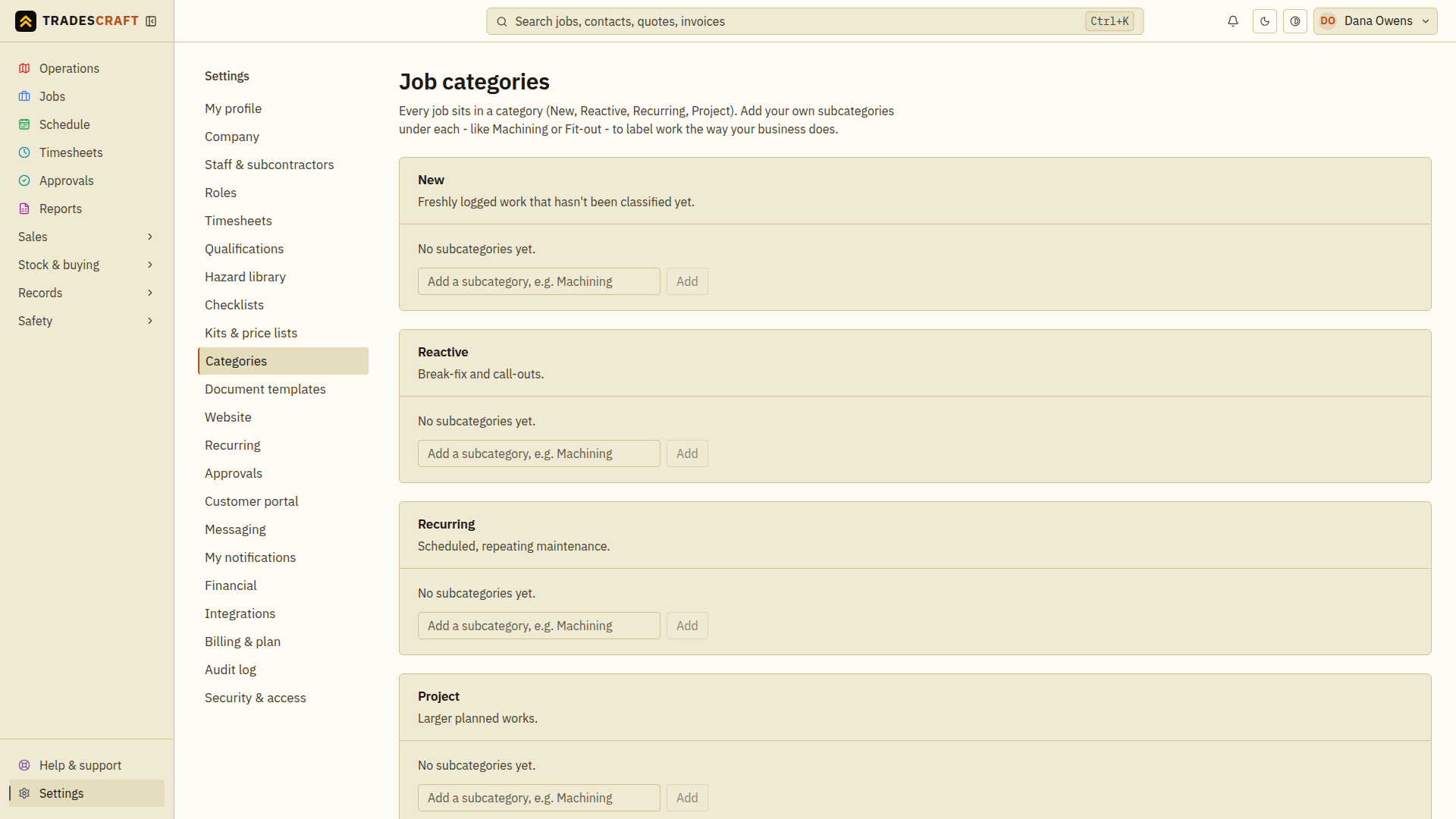
The four categories (built in)
The top-level categories are fixed and can't be changed:
- New - freshly logged work that hasn't been classified yet.
- Reactive - break-fix and call-outs.
- Recurring - scheduled, repeating maintenance.
- Project - larger planned works.
Adding your own subcategories
Each category is a card. Under it you'll see its current subcategories as chips. To add one, type a name (e.g. "Machining" or "Fit-out") and tap Add. To remove one, tap the × on its chip and confirm - jobs already using it keep their other details, they just lose that label.
Where they show up
When you create a job, the Classification section has a Category picker (the four above) and a Subcategory picker that fills with the subcategories you added for that category. If a category has no subcategories yet, the picker is empty and points you back here.
Check a subcategory after adding it
Wait for the new subcategory chip to appear under the intended category. Open a job's Edit job form, select that category and then the new subcategory, and choose Save changes. Reopen the job to check its classification.
If the subcategory is missing, check which parent category you selected. Adding it here makes it available to choose; it does not relabel existing jobs.