
When a business subcontracts work to you, they give you a secure login. You see only the jobs assigned to you - nothing else about their business or other customers.
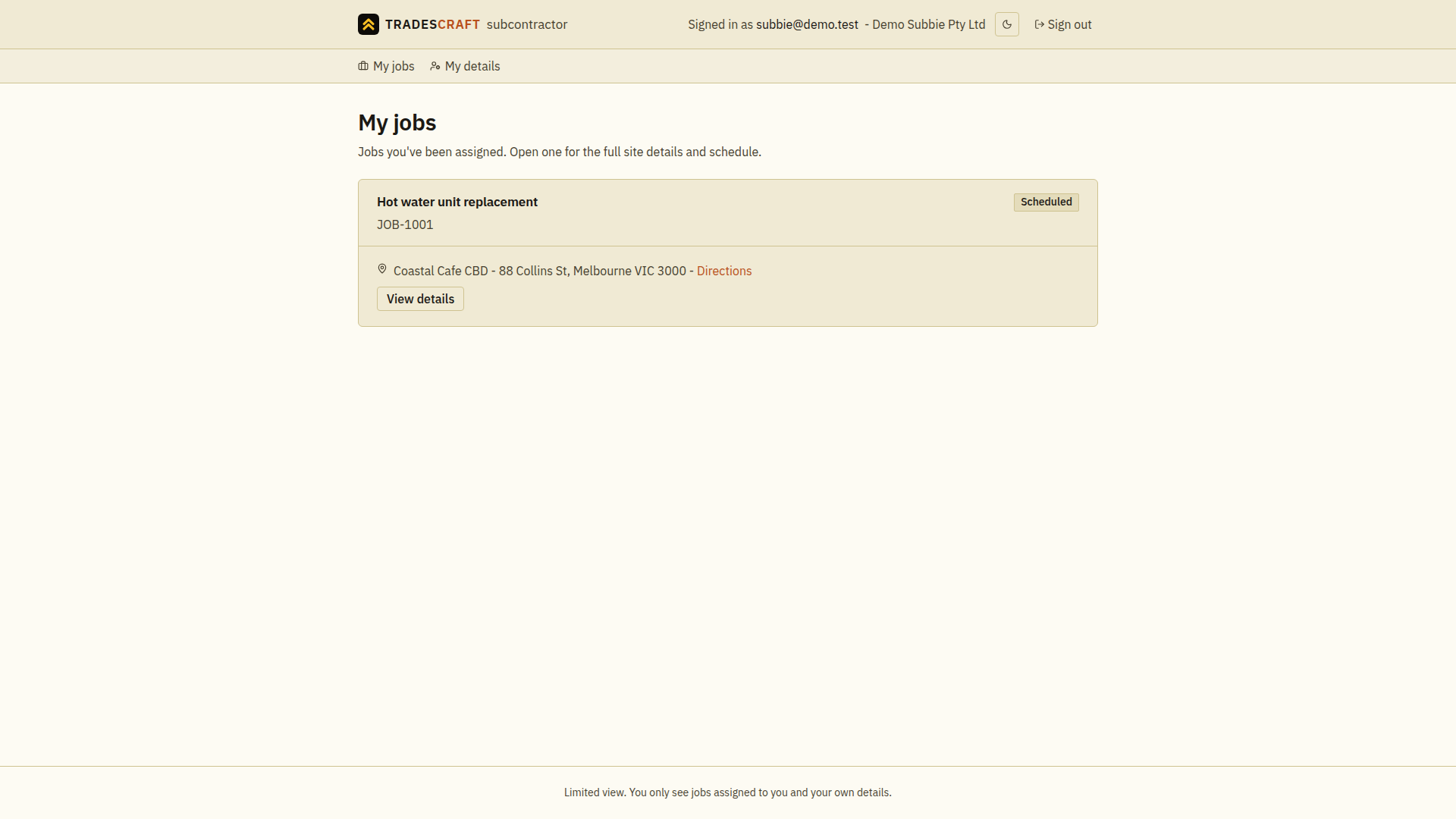
What's on it
- A simple menu: My jobs and My details.
- It shows who you're signed in as and your company name.
- My jobs lists each job you've been assigned, with its status, the site address and a Directions link. Tap View details to open one.
Good to know
- It's a limited view: you only ever see jobs assigned to you and your own details - by design.
- Your active subcontractor membership is verified before this view opens. If that check is temporarily unavailable, the view stays closed rather than assuming the account is active; retry in a moment.
Find your next assignment
- Sign in using the email the business invited. Check your company/account name before opening any job.
- In My jobs, review the job titles and sites, then choose View details on the work you are attending. Check its scheduled window there.
- Read the brief and access details using Working a job.
If the list is empty, ask the business to confirm that the job is assigned to your subcontractor record and that your access is active. Signing in alone does not create an assignment. If the invite link has expired, ask the inviter for a replacement; use your established sign-in for an account you already activated.