
Open Settings → Roles. Review both the pages a person needs and the actions that person should be allowed to perform. You need access to manage roles to change these settings.
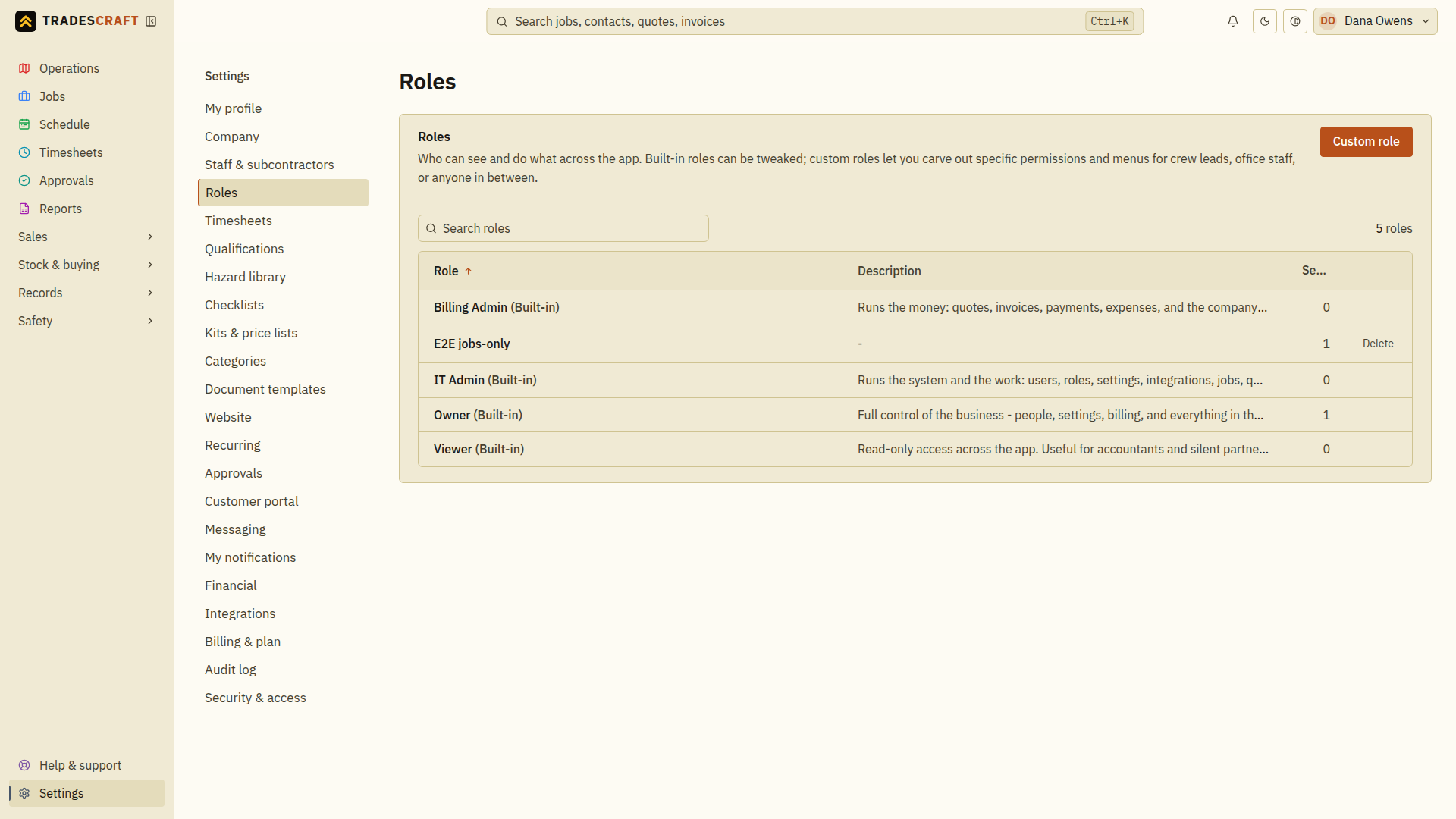
Create or open the role
Choose Custom role from the list to create one. Enter a Name that explains its purpose, such as “Office coordinator”, and an optional Description. To change an existing role, open that role and choose Edit.
Choose permissions and menu items
Tick the Permissions needed for the role's work, such as sending invoices, dispatching jobs or approving time. Read each permission before selecting it.
Under Menu items, untick pages the role does not need. Operations and Settings always show; leaving every item ticked gives access to the full menu. Menu choices control navigation and access to the corresponding protected pages. Permissions separately control the actions available on those pages.
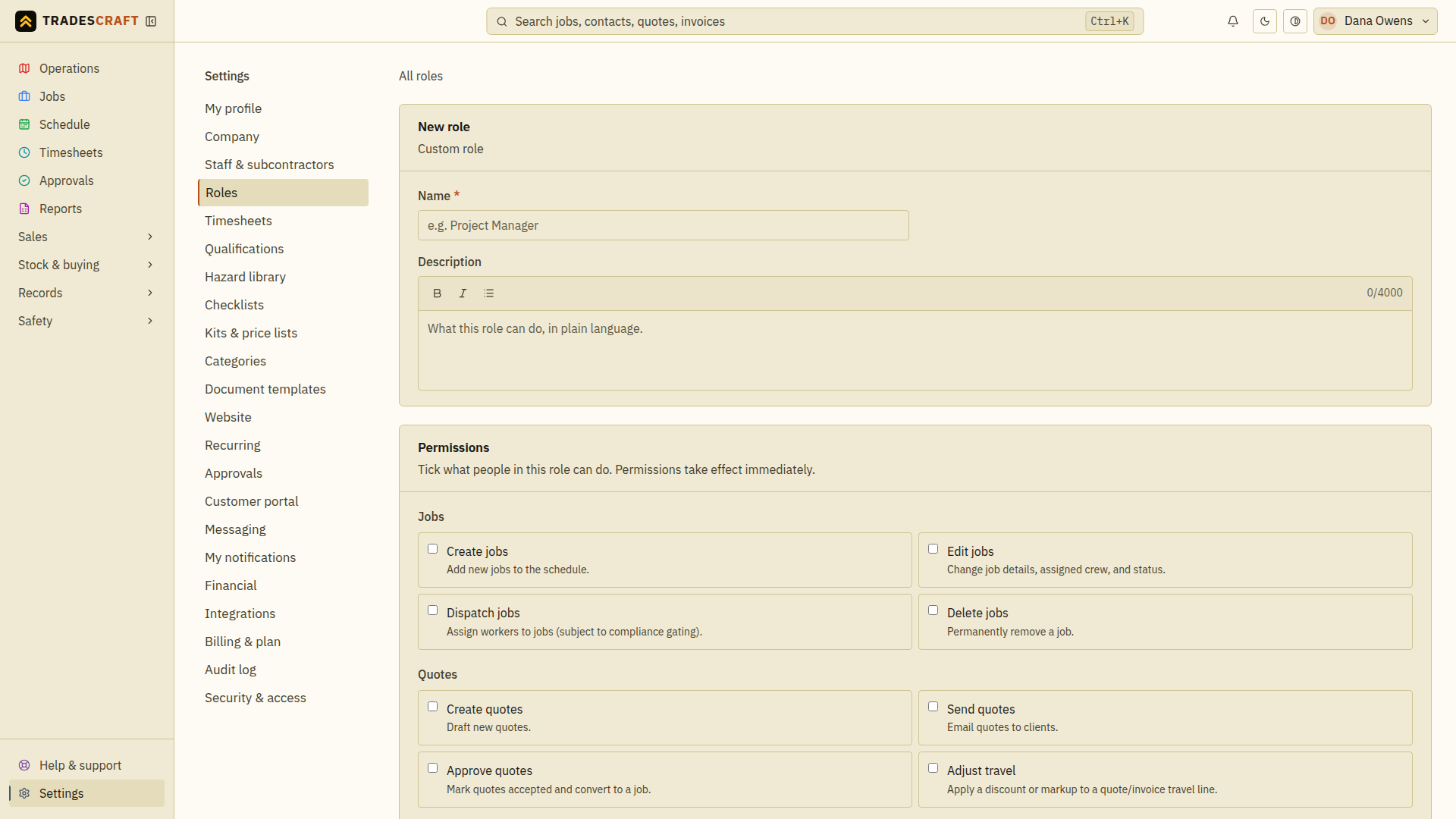
Choose Create role for a new role or Save changes for an existing one. Wait for the save result before assigning it. If saving fails, correct the reported fields and try again; unsaved selections do not change anyone's access.
Assign it to people
- Open the saved role and choose Edit. The detail page only shows who already has the role.
- Scroll to Who has this role. Pick a person under Assign someone… and choose Add.
- Wait for Added to role and check the person appears in the list. Repeat for each intended member. Each Add saves that assignment straight away; it does not wait for Save changes.
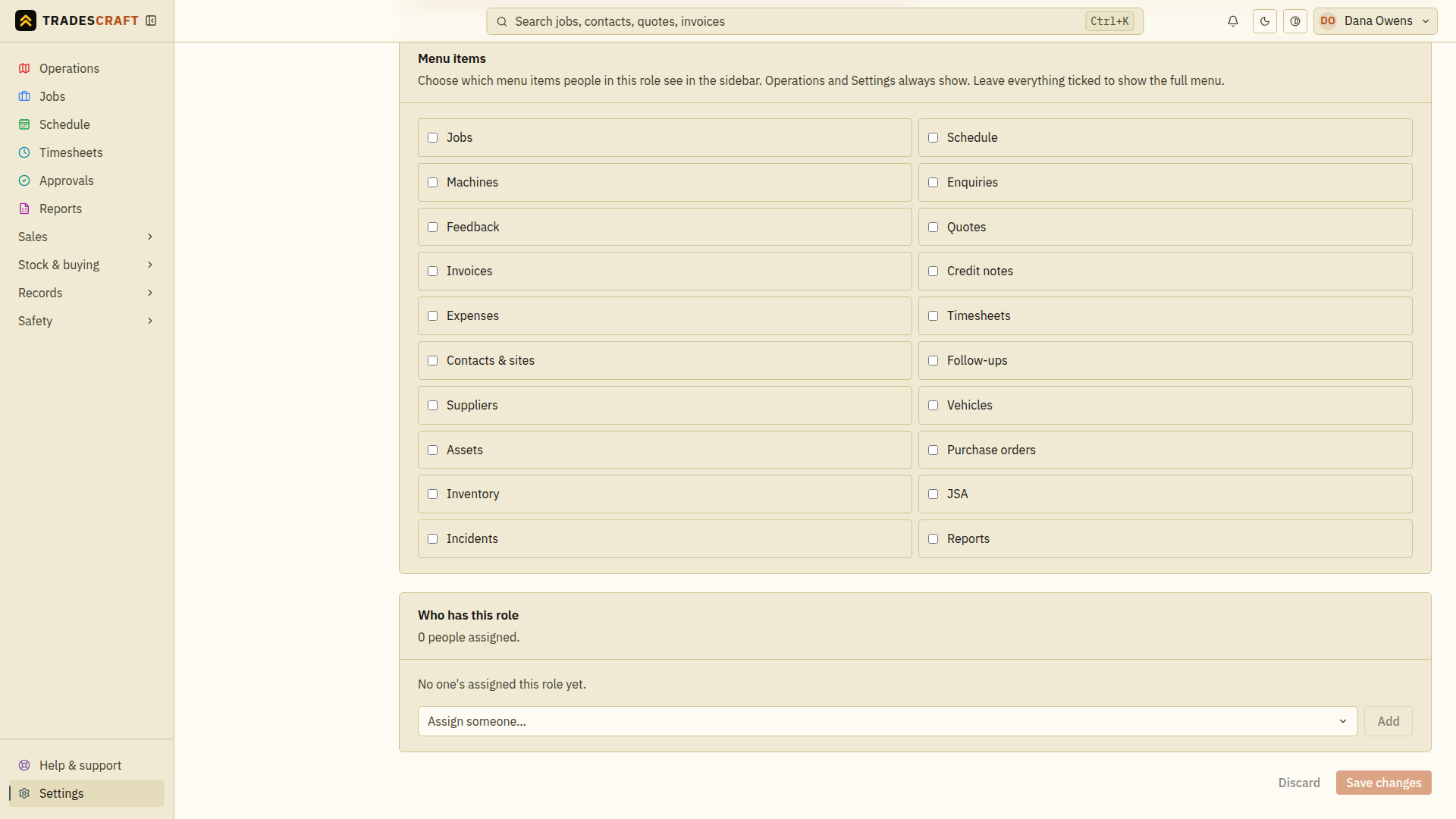
Saving a role definition alone does not assign it to anyone. The person's built-in admin/staff access level is managed separately on their staff record.
Check the result
Ask the person to check their menu and the actions they need. If access is still wrong, review both the role's menu items and permissions, together with any other roles the person holds.
To remove an assignment, choose Remove beside the person and wait for Removed from role. Removing one custom role does not necessarily remove access granted by their other roles or built-in access level.
Good to know
You cannot edit a role you hold yourself. Ask another authorised administrator to make that change. Built-in role names cannot be changed, and built-in roles cannot be deleted.
To delete a custom role you no longer need, open it, choose Edit, then Delete role. Read the confirmation before choosing Delete. Members keep their accounts but lose this role's access. Wait for Role deleted and check that their remaining roles still allow the work they need to do.
Permissions apply to actions as well as their visible controls. Hiding a menu item and allowing an action are different settings, so review both.
In billing read-only mode, you can still demote an admin or remove a custom role assignment. Creating or editing roles, assigning permissions and promoting someone stay locked until the subscription is active.