
Credit notes is the list of every credit you've given a customer - the money you've knocked off or refunded, with a proper document behind each one. Open it from Sales → Credit notes.
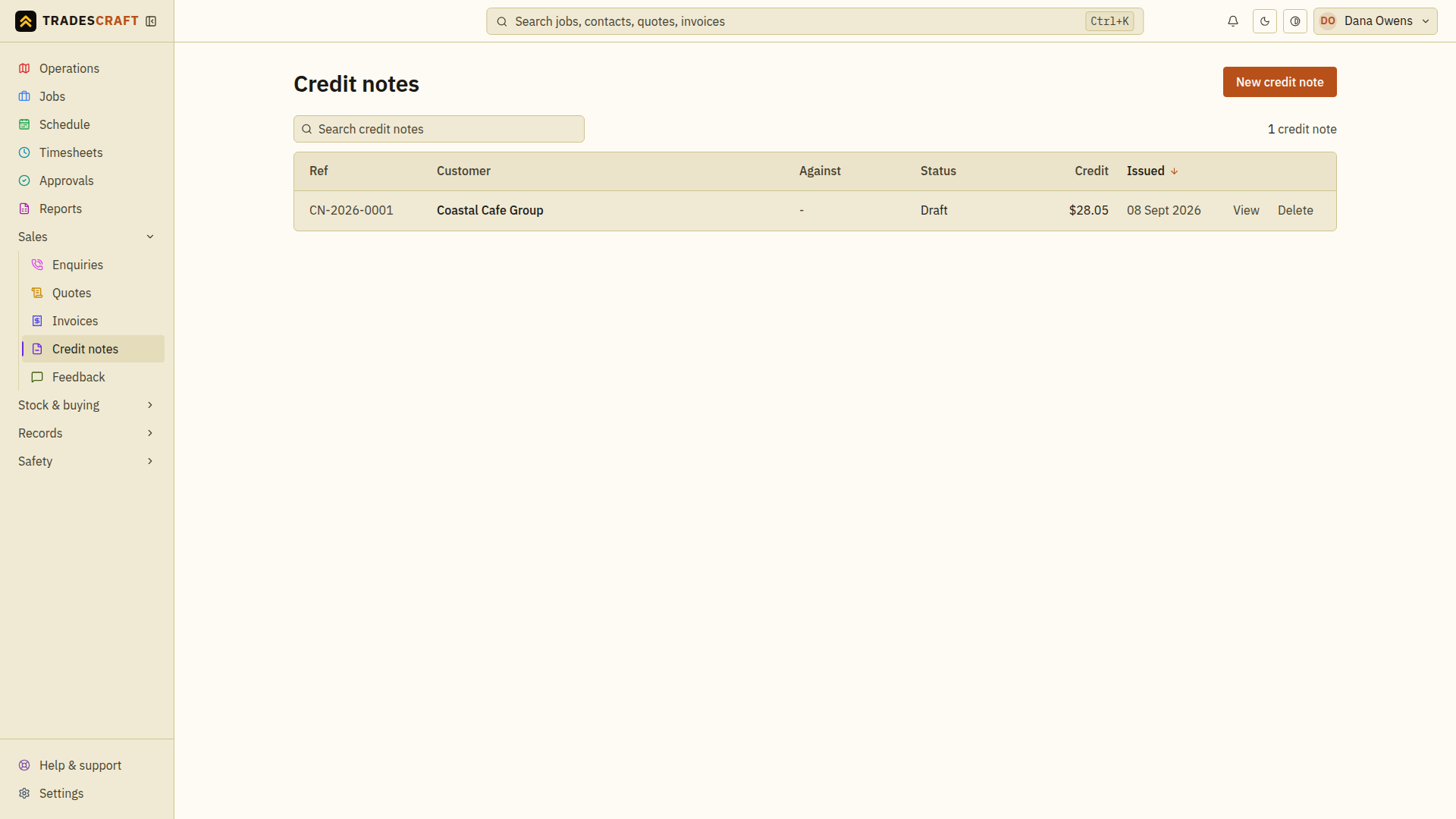
What's on the list
Each row is a credit note - its number, the customer, the amount, the invoice it relates to (if any) and its status (Draft, Issued, Applied or Cancelled). Click any row to open it.
- New credit note (top of the page) starts a fresh one - see Issue a credit note.
- Every credit note keeps its own paper trail, so what you're owed reflects the credits you've given. AU/NZ accounts can sync that record to Xero; US credit notes remain in Tradescraft.
Find and check a credit
- Search the list for the credit-note reference or customer.
- Check Against and Status on the matching row, then open it to review the lines and reason. A standalone credit has no invoice link.
- If the credit is meant to reduce an invoice, follow Against invoice and check the invoice's outstanding balance after the note is issued.
A draft is still being prepared and a cancelled note no longer reduces a balance. Clear the search before deciding that a note is missing or creating another one.